
Table of Contents
Introduction
If Samsung fast charging is not working on your phone, you’ve probably noticed it. It went from fast, convenient charging to frustratingly slow speeds almost overnight. One day it charges as expected, the next it’s painfully slow.
Most of the time this isn’t a serious problem. In many cases, the problem can be a charging setting, cable, adapter, dirty port, high temperature, or temporary software issue. Hardware damage is also possible, especially if the connection feels loose or charging repeatedly disconnects.
In this guide, we’ll cover what causes Samsung fast charging not working and the best Samsung fast charging fix for the most common charging problems. If your battery is draining much faster than usual, our guide on Samsung battery draining fast explains how charging issues and battery drain can sometimes be connected.
Editorial Note: The troubleshooting steps in this guide are based on Samsung’s official documentation, USB Power Delivery standards, and testing across multiple common charging scenarios. Charging behavior can vary depending on the Galaxy model, charger, One UI version, and battery condition.
Why Is Samsung Fast Charging Not Working?
Fast charging isn’t just about plugging in a cable. Your charger, cable, charging port, software, and battery all need to work together properly for fast charging to work. If one of them is off, your phone quietly drops to a slower charging speed to keep the battery safe. Samsung also explains that charging speed can vary depending on the charger, cable, device condition, and surrounding temperature.
Sometimes it’s something small, like a loose cable. Other times your phone has decided it’s too hot to fast charge, or the charger simply isn’t powerful enough. The trick is finding out which part of the chain is actually causing the issue. Once you know what’s causing it, Samsung fast charging not working is usually easy to fix without professional help.
How Samsung Fast Charging Works
Not every Galaxy phone charges the same way. Depending on the model, Samsung Galaxy phones may support Adaptive Fast Charging, Fast Charging, or Super Fast Charging. Samsung’s Super Fast Charging technology generally relies on a compatible USB Power Delivery charger with Programmable Power Supply support, commonly called USB PD PPS.
Samsung recommends checking the charging specification of your particular Galaxy model because supported charging speeds and charger requirements vary between devices.
When you plug in a compatible charger, the phone and charger communicate to agree on a safe speed. When it works, you’ll see Fast Charging, Super Fast Charging, or Super Fast Charging 2.0 on your lock screen. If that message stops showing up, something is blocking the fast charging connection.
How to Fix Samsung Fast Charging Not Working
If your Samsung phone is charging slowly instead of showing Fast Charging or Super Fast Charging, the steps below will help you identify the cause and get charging speeds back to normal.
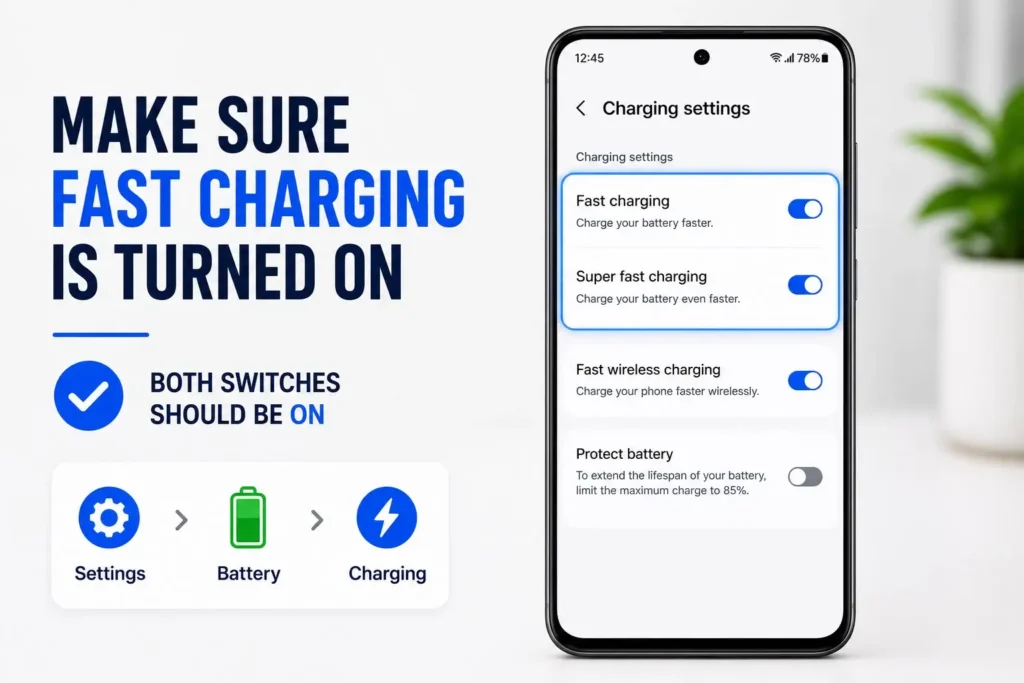
1. Make Sure Fast Charging Is Turned On
One of the most common reasons fast charging stops working is that the feature has been turned off. It can happen by accident while changing your battery settings or after following a battery-saving tip.
Go to Settings > Battery > Charging Settings, and check that Fast Charging and Super Fast Charging (if your phone supports it) are both turned on.
If they’re off, your phone will still charge, just at a normal speed. This alone explains a lot of cases where people assume Samsung fast charging is not working when it’s simply switched off. Turn the settings on, plug it back in, and see if the fast charging message returns.
2. Use the Right Charger and Cable
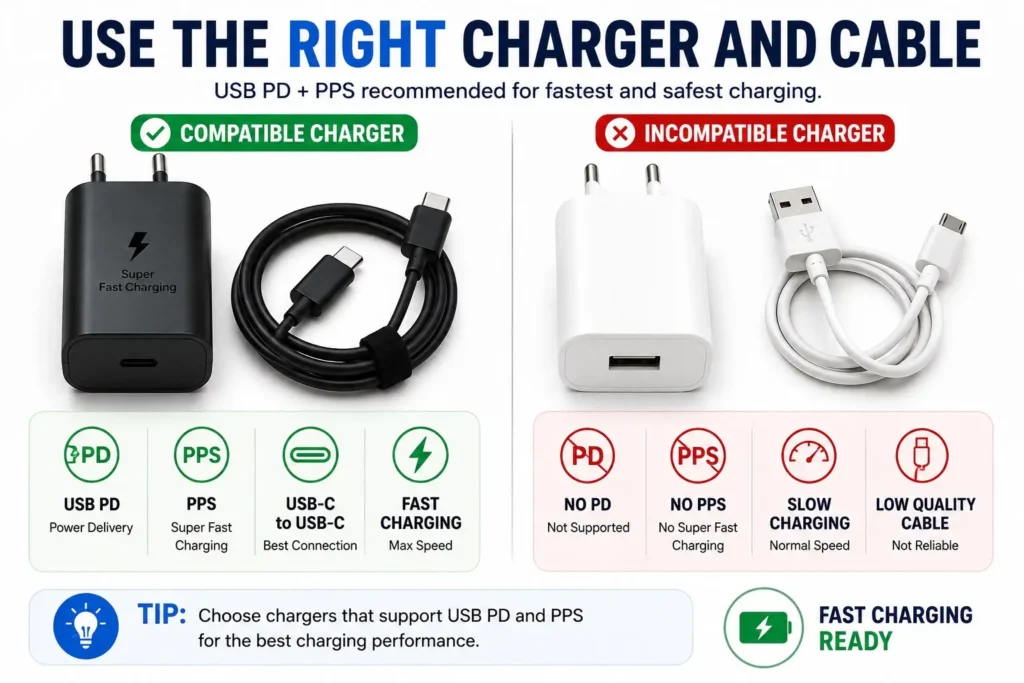
A big reason Samsung fast charging stopped working for many people is simply the wrong charger. Almost any USB charger will charge your phone, but not all of them support Samsung’s fast charging standards. Cheaper chargers often don’t support USB PD and PPS entirely, which modern Galaxy phones need for super fast charging.
The charging cable is just as important as the charger. A damaged or low-quality cable, or one designed only for data transfer, may not support fast charging. This means your Galaxy phone may charge slowly even if you’re using the right charger.
Where possible, go back to the original Samsung charger and cable. If your charger or cable is damaged, replace it with one clearly labeled as supporting Samsung Fast Charging or Super Fast Charging. This helps your Galaxy phone charge as fast as it can.
Try a different charger that you know works. It’s one of the quickest ways to find out if your charger is the problem. In fact, many cases of Samsung fast charging not working are simply caused by a bad charger or cable.
3. Clean the Charging Port
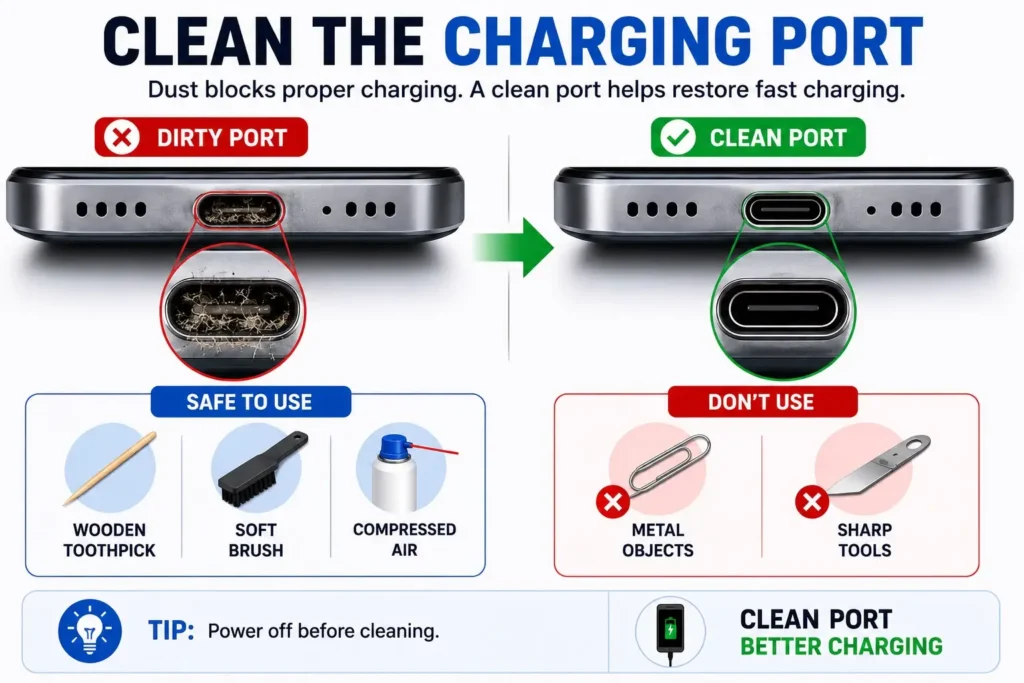
Dust and dirt can collect inside your charging port over time. And when that happens, your charging cable can’t connect properly, which makes your Samsung phone charge slower than it should.
Turn off your phone and look inside the charging port under good lighting. If there’s any dust or dirt in there, clean it gently with a wooden toothpick, a soft plastic tool, or a quick blast of compressed air. Never use metal objects to clean the port because they can cause damage. Once that is clear, plug your charger back in and see if your phone is charging normally again.
4. Restart Your Phone
It sounds too simple, but a restart resolves a lot of the minor issues that affect charging. Your phone is always managing battery temperature, charging speed, background apps, and hardware checks. Sometimes one of those processes stops working properly, and fast charging doesn’t work.
Restart the phone, then connect the charger before opening any apps. Check the lock screen to see whether the Fast Charging or Super Fast Charging message appears.
5. Check for Moisture Warnings
Many Samsung Galaxy phones can detect moisture or foreign material around the USB charging port. When a warning appears, wired charging may be restricted to reduce the risk of electrical damage. If it thinks there’s moisture in there, it may block fast charging or stop charging completely until it becomes dry. Even if your phone has not been exposed to water, this can still happen. Humidity or a little moisture can be enough.
If you see a moisture warning, unplug the charger and leave your phone in a cool place with good airflow until it is completely dry. Don’t use a hair dryer or any direct heat; that can create more problems than it solves. When the warning stops showing, try charging again.
6. Check Battery Protection Settings
Recent versions of One UI include battery protection features built to extend your battery’s life, but they can also change how your phone charges. Battery Protection can intentionally limit or adjust charging depending on the Galaxy model and One UI version. If charging repeatedly stops at the same percentage, check whether a protection mode is active before assuming the charger is faulty.
Samsung describes Battery Protection as a feature designed to reduce the time the battery remains fully charged, which may help limit long-term battery wear.
Go to Settings > Battery > Battery Protection and check your current settings. If you want to test the feature, switch it off temporarily and see if your phone starts fast charging again. Once you know everything is working fine, you can turn it back on to keep protecting your battery.
7. Install the Latest Software Updates
Updates aren’t limited to new features, they can also fix problems with charging and battery management. Samsung recommends keeping Galaxy devices updated because software updates can include stability improvements, security patches, and bug fixes.
If Samsung fast charging stopped working right after an update, check for another available update, since later updates may contain bug fixes or stability improvements. If your software is outdated, your phone may struggle to recognize certain chargers the way it should.
Open Settings > Software Update > Download and Install. If an update is available, install it and restart your phone once it’s done. It’s also a good idea to update your apps through the Galaxy Store and Play Store at the same time. Occasionally a poorly built app can affect charging behavior too.
8. See If an App Is Causing the Problem
The issue isn’t always with Samsung’s software. Sometimes a third-party app is the one causing problems with your battery or charging. Turn on Safe Mode. Safe Mode temporarily disables most downloaded third-party apps, making it easier to check whether an app is affecting charging behavior. If fast charging works in Safe Mode, a downloaded app is probably causing the problem. Safe Mode temporarily disables downloaded apps but does not delete your personal data.
After that, restart your phone as usual and try to remember what you installed just before the issue began. Uninstalling apps one by one can help you find the one causing the problem. This doesn’t happen all the time, but it’s better to check this first before assuming it’s a hardware issue.
9. Let Your Phone Cool Down
Samsung phones are built to protect themselves from overheating, and that’s usually why fast charging suddenly slows down. If you’ve been gaming, recording video, or using GPS for a while before plugging in, your Samsung may already be warm. To help protect the battery, it may automatically slow the charging speed until the temperature comes back down.
If you notice charging starts fast and then drops, don’t worry, it’s not broken. Just unplug it for a bit, take off any thick case, avoid running heavy apps while it charges, and put it on a flat, hard surface instead of a bed or couch so air can flow easily around the phone.
Heat can also reduce overall performance. If you’re using an iPhone, our guide on iPhone overheating and running slow explains why overheating affects both speed and battery life.
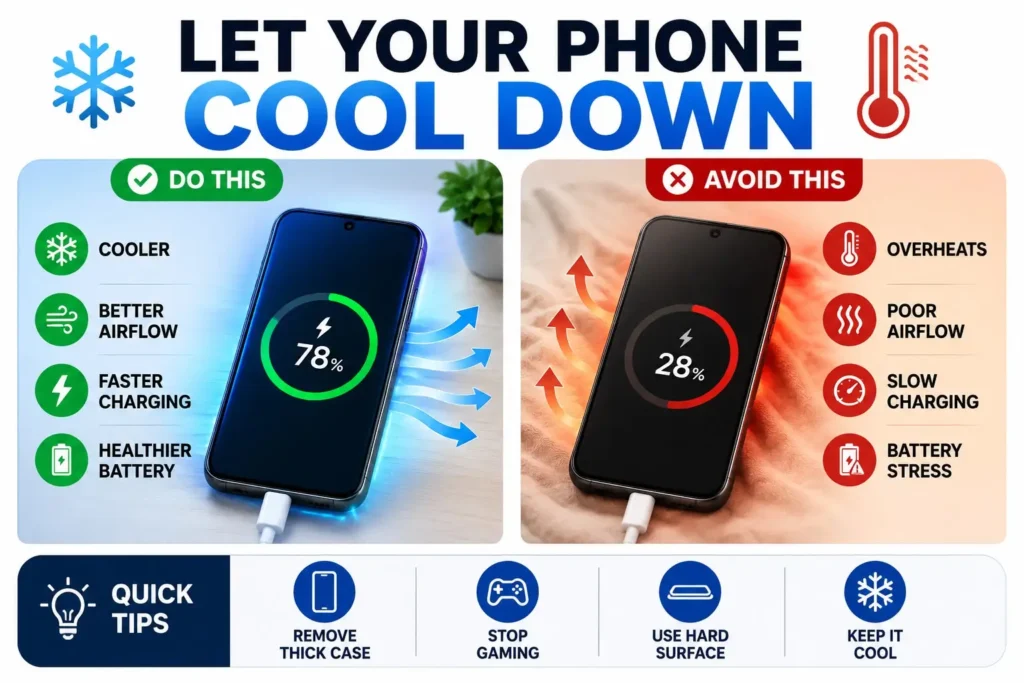
A cooler environment can really help keep your charging speed steady, and it’s one of the simplest ways to solve Samsung fast charging not working during everyday use.
10. Check Whether the Battery Is Worn Out
Software and accessories are usually the main cause, but an old battery can also be a factor. As a lithium-ion battery ages, reduced battery health or increased temperature may affect charging performance. To compensate, your phone may automatically slow down charging, especially after a few years of daily use.
If your battery no longer lasts as long as it used to, your phone is shutting down randomly, overheating while charging, or charging slower than before, these are all signs that your battery may need attention.
If your Galaxy phone is a few years old and you’ve already checked the charger, cable, software, and port, the battery itself might be the problem. An aging battery can also cause rapid power loss. If you’re experiencing both problems, read our guide on Samsung battery draining fast.
What If Wireless Fast Charging Isn’t Working?
Wireless charging works differently and can bring its own challenges. If the phone is not placed correctly on the charging pad, it may not charge properly. Even moving slightly out of place can slow down the charging or stop it completely.
Thick cases, metal accessories, magnetic rings, and cards stuck between the phone and pad can all interfere with the connection. Make sure the phone is placed correctly, and confirm your wireless charger actually supports Samsung Fast Wireless Charging if your phone supports it.
Take your case off and see if charging improves. If wired charging works normal but wireless doesn’t, the pad is probably the issue, not the phone.
Try Another Charger Before Replacing Anything
Before you decide to repair your phone, try a different charger that is compatible with your phone’s charging standard. A lot of charging problems are caused by a damaged cable or a cheap adapter, not the phone itself.
If a different charger brings back Fast Charging or Super Fast Charging immediately, you’ve found your answer, and no repair is needed. And if your original charger fails to fast charge a different Samsung phone too, it’s time to replace the charger. This one test can save you a visit to the service center.
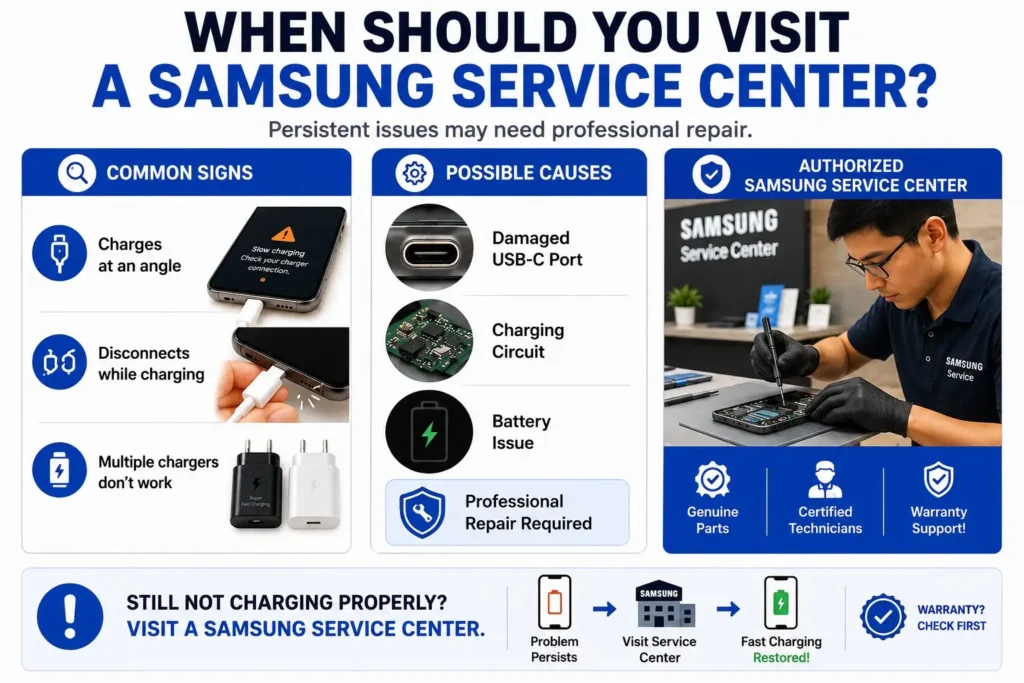
When Should You Visit a Samsung Service Center?
If you’ve tried all the above and fast charging still isn’t working, then the problem could be hardware-related. While most issues are caused by software and accessories, internal damage can also cause your phone to not charge at full speed.
One of the more common hardware issues involves loose USB-C ports. The charging port can get damaged over time if used for many years. Therefore, the charger might not connect properly. It can be damaged by moisture, drops, or forceful cable insertion.
A problem with the charging circuit or battery is less common, but it can happen. A professional can check your phone and find the cause. If your phone only charges at a specific angle, disconnects when the cable moves, or won’t recognize multiple chargers that work fine on other phones, it’s time to get it checked.
An authorized Samsung service center is your safest option. They use genuine parts built for your exact model, which matters for both charging performance and safety. If the problem is hardware related, this is the only way that will really solve the problem.
Quick Tips to Prevent Fast Charging Problems
Stick with a charger that matches your Galaxy model’s charging standard. If you need a replacement, look for one that supports Adaptive Fast Charging or USB PD with PPS for Super Fast Charging models.
Make it a habit to check your USB-C port for dust and dirt from time to time. Even small amounts can collect over time and cause charging problems.
Gaming, editing video, or recording 4K while charging creates heat, and heat makes your phone slow down charging automatically. Try to avoid doing these during charging.
Keep your software updated. Samsung regularly improves battery management and charging stability through software updates.
Handle your cable with care. Pulling the cable by the wire or bending it at sharp angles puts stress on the wires inside, which leads to slower and less reliable charging over time.
Final Thoughts
If your Samsung fast charging is not working, the problem is usually not as bad as it looks. Most of the time it’s something simple, a setting, an incompatible charger, an old cable, a dirty port, or a small software issue, not a serious problem.
Start simple: confirm Fast Charging is turned on, check your charger and cable, clean the port, and restart the phone. Sometimes slow charging after an update fixes itself, just install the latest update and give your phone a little time to settle down.
If you’ve tried every fix on this list, tested other chargers, cleaned the port, and updated everything, but nothing has worked, it could be a hardware problem. At that point, an authorized Samsung service center is your best option.
With the right accessories, a bit of regular maintenance, and good charging habits, most Galaxy phones keep charging fast and reliably for years. In most cases, the problem can be fixed at home in just a few minutes, without replacing the phone or battery.
Frequently Asked Questions
Why is Samsung fast charging not working even though I’m using the original charger?
Even if you’re using the original charger, Samsung fast charging can stop working for a few common reasons. Fast Charging might be turned off in your settings, the USB-C port could be dirty, your phone may be overheating, or the cable itself might be damaged. Try restarting your phone, cleaning out the charging port, and double-checking your charging settings, that usually solves the problem.
Why is Samsung Super Fast Charging not working on my Galaxy phone?
If your Samsung’s Super Fast Charging isn’t working, the usual cause is the charger. Newer Galaxy phones need one that supports USB Power Delivery (USB PD) with PPS, and not all chargers do. It can also happen if your phone’s running warm, there’s dust in the charging port, or your software is out of date.
Why did Samsung fast charging stop working after a software update?
If Samsung fast charging stopped working after an update, the issue is usually temporary. Your phone may still be optimizing apps and rebuilding background processes. Check for any newer software updates, restart the device, and confirm that Fast Charging is still enabled in Settings > Battery > Charging.
Why is my Samsung phone charging slowly instead of fast charging?
A Samsung phone charging slowly is commonly caused by an incompatible charger, a worn charging cable, a dirty charging port, battery protection settings, or high device temperature. Testing another compatible charger and cable is one of the quickest ways to identify the cause.
What is the best Samsung fast charging fix that actually works?
If your Samsung isn’t fast-charging the way it should. Check that Fast Charging is enabled in your settings, make sure you’re using a genuine Samsung charger that’s compatible with your phone’s charging standard, take a look at the USB-C port and clean out any dust or lint, and give the phone a restart. It’s also important to know your software is fully updated. If you’ve done all of that and it’s still not charging fast, there’s a chance it’s a hardware problem at that point.
When should I visit a Samsung service center for fast charging problems?
If you’ve already tried everything, including different chargers and cables, cleaning the port, and updating the software. And fast charging still isn’t working, it’s probably time to get your phone looked at by an authorized Samsung service center. At this point there may be a hardware problem, whether that’s a damaged USB-C port, an issue with the charging circuit, or a battery that’s just getting old, and those really need a professional to fix.