
Table of Contents
Introduction
If you’ve noticed your iPhone is charging slowly, the cause is usually something simple rather than a hardware failure. A charge that used to finish quickly now takes much more time, and it’s natural to start thinking your battery is dying or something is seriously wrong.
The good thing is that most iPhone slow charging problems are caused by simple issues such as a weak charger, a damaged cable, or a little dust or tiny fibers in the charging port, or your iPhone temporarily slowing charging to protect the battery from heat. Software settings and background apps can also cause slow charging, even when everything is working fine.
Before spending money on new accessories or a repair, take a few minutes to find out what’s actually causing the problem. In this guide, we’ll cover the most effective fixes, starting with the simplest ones. Follow them in order, and you’ll likely find the cause before reaching the final steps.
Why Is Your iPhone Charging Slowly?
The problem is rarely just one thing. To protect the battery, your iPhone is constantly monitoring conditions while it charges. If it detects excessive heat, unstable power, or another condition that could affect battery health, it may automatically reduce charging speed to protect the battery. If you’re interested in extending your battery health, read our Ultimate Guide to Phone Battery Health.
Apple notes that lithium-ion batteries work best within a normal temperature range, and charging may slow when the device becomes too warm to protect battery health. Charge your iPhone in environments between 32° and 95° F (0° and 35° C).
How fast your phone charges also depends on your charger’s output. Newer iPhones can fast-charge with the right USB-C adapter, but older adapters and most computer USB ports just don’t provide enough power, so it takes more time.
Regular use can also wear things out over time. Lightning cables often fail near the connector because repeated bending weakens the internal wiring. At the same time, ports collect tiny particles from your pocket or bag, and batteries gradually lose efficiency after repeated charge cycles.
These things might not seem like much on their own, but together they can silently slow your charging down without you realizing it. If you’ve been searching for “Why is my iPhone charging slow?,” the fixes below should help you find the cause and get things back to normal.
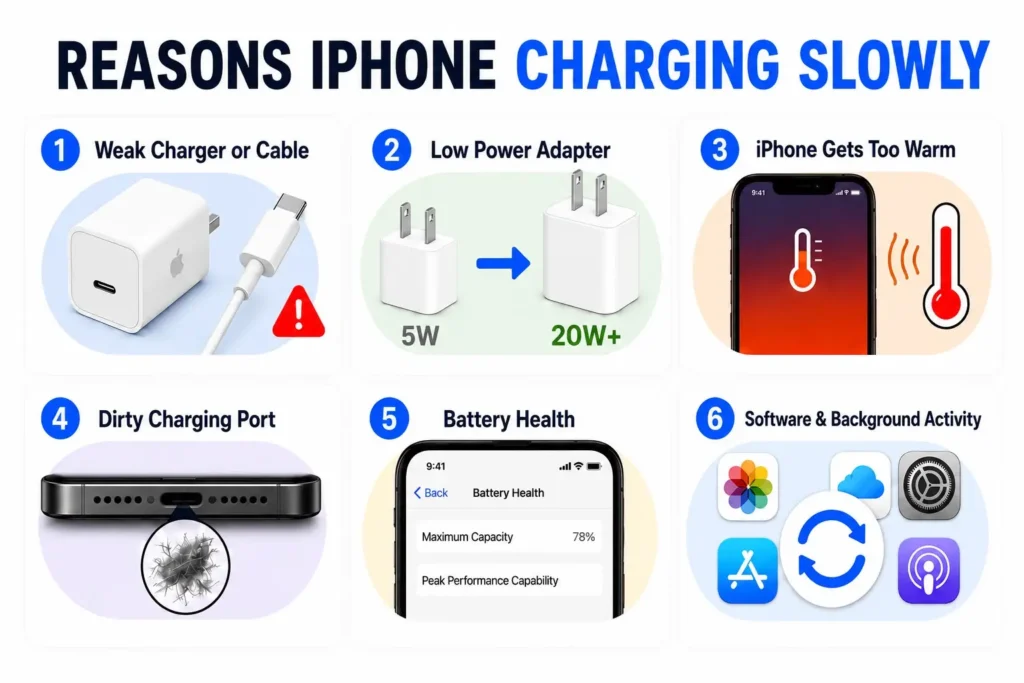
How to Fix an iPhone Charging Slowly
If your iPhone is charging slowly, it’s natural to want to go straight to the advanced fixes, but it’s better to follow these steps in order.
1. Check Your Charger and Charging Cable
One of the most common causes of iPhone slow charging is a faulty cable or charger. Most slow charging issues are due to the accessories, not the phone itself.
Carefully inspect your cable for damage, bent ends, or anything that does not look right. Sometimes you can’t see the damage, but it can still stop your phone from charging properly. If the cable only works when you hold it at an angle or keeps losing the connection, it’s time to replace it. If the cable has exposed wires or signs of overheating, stop using it and replace it.
Check the adapter too. If it has been dropped several times or looks damaged, it may not provide a steady power supply anymore, even if it still works. If you can, test your iPhone with a different Apple or USB-IF certified cable and adapter. If charging speeds up immediately, you’ve got your answer and can stop there.
Try to use certified accessories whenever you can. Low-quality or uncertified chargers may not deliver consistent power or meet Apple’s charging requirements, which can result in slower or unreliable charging.
2. Use a Faster Power Adapter
Not all power adapters deliver the same amount of power. If you’re experiencing iPhone slow charging, switching from an older 5W adapter to a 20W USB-C charger can make a noticeable difference. If your iPhone is charging slowly and you’re still using the charger that came with an older iPhone, upgrading to a newer charger is one of the best things you can do.
Most newer iPhones charge much faster with the right charger and cable. You’ll notice the improvement almost immediately, as your iPhone reaches higher battery levels much faster.
Charging from a laptop or computer is another reason your phone might charge slowly. Most computer ports do not produce as much power as a wall charger. If that is what you have been doing, try using a wall outlet instead.
Not sure if your charger is a fast charger? Check how much power it produces and compare it to what Apple recommends for your iPhone model.
Fast Charging Support by iPhone Model
If you’re using an older charger, you need to know that not every charger can support fast charging. Apple introduced fast charging with the iPhone 8, and all newer iPhone models support it when paired with the right USB-C charger and cable.
For the fastest results, Apple recommends using at least a 20W USB-C power adapter with a compatible charging cable.
Typical Charging Times
If you’re not sure that your charger is the problem, you can compare charging times. Actual charging times vary depending on battery level, temperature, charger quality, and iPhone model. The figures below are approximate estimates based on Apple’s fast-charging guidance and real-world testing.
| Charger | Approximate Time to Reach 50% |
|---|---|
| 5W Apple Charger | Around 90 minutes |
| 12W Charger | Around 45–60 minutes |
| 20W USB-C Fast Charger | Around 30 minutes |
| 30W or Higher USB-C Charger | Similar to 20W for most iPhones |
Using a more powerful charger than your iPhone supports won’t damage the battery. Your iPhone automatically draws only the amount of power it needs. For example, using a 30W, 45W, or even 65W USB-C charger won’t force extra power into your iPhone. The device automatically determines how much power it can safely draw.
3. Clean the Charging Port
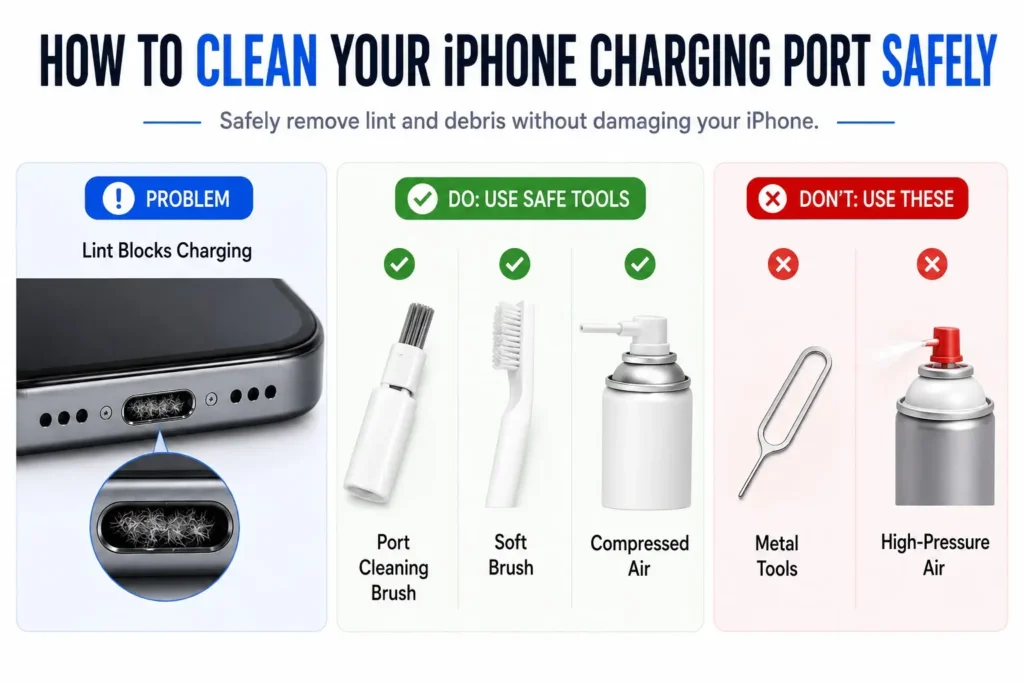
Lint, dust, and tiny pocket fibers often collect inside the charging port over time. Even a small buildup can stop the charging cable from making a secure connection, causing slower or inconsistent charging.
Turn your iPhone off first. Use a flashlight to look inside the port for any visible buildup. If you see tiny fibers or dirt, take a wooden toothpick or some other non-metallic object and carefully pick it away. Be gentle, as the internal contacts are very delicate.
Avoid the use of a paper clip or pin, as well as compressed air, as these can cause the dirt to be pushed further in rather than out. Once it’s clean, plug your charger back in and see if your phone begins charging faster.
4. Let Your iPhone Cool Down
If your iPhone is charging slowly, overheating could be the reason. If your phone becomes too hot, iOS will automatically slow down the charging. This is an intentional safety feature designed to protect battery health, but it can make charging feel slower than usual.
This usually happens after long gaming sessions, recording video, using navigation for a while, or leaving your phone in the sun. Heavy use while charging your phone also causes it to heat up faster.
A warm iPhone is usually a sign that thermal protection has reduced charging speed. Unplug it and let it cool down in a cool, shaded place. Removing a thick case can help it cool down faster. Once it feels normal again, plug it.
Avoid placing your iPhone in a refrigerator, freezer, or directly in front of an air conditioner, as sudden temperature changes can cause condensation.
If your iPhone frequently becomes hot even when you’re not charging it, see our complete guide on iPhone Overheating and Running Slow for additional troubleshooting steps.
5. Check Your Battery Health
Every rechargeable battery gradually loses capacity as it ages. After hundreds of charge cycles, your iPhone may take longer to charge and won’t hold as much power as it did when it was new. If battery health has dropped significantly, replacing the battery may restore normal performance.
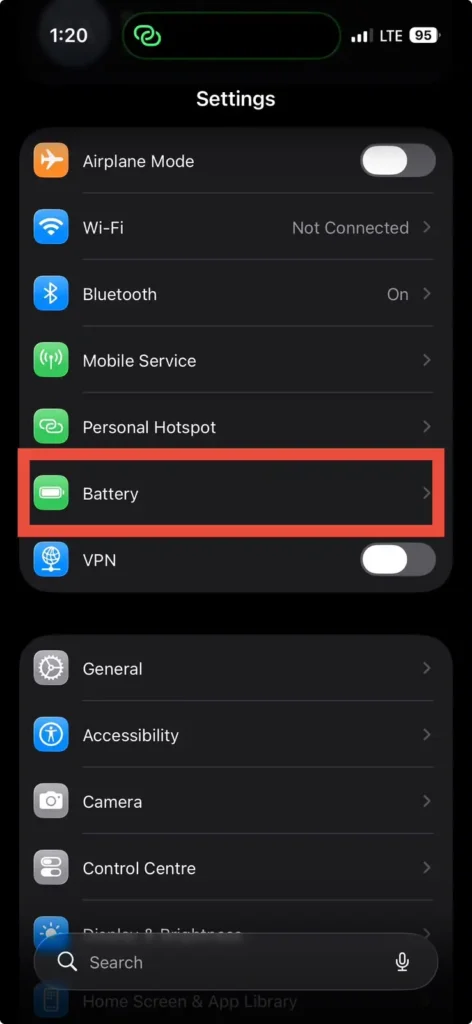
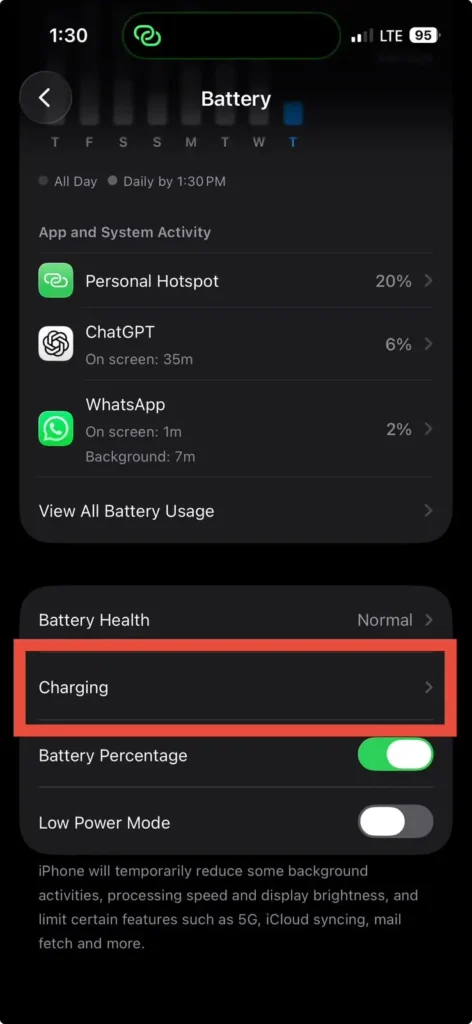
To check your battery, go to Settings > Battery > Battery Health and check the Maximum Capacity number. This tells you how much charge your battery can hold compared to when it was new.
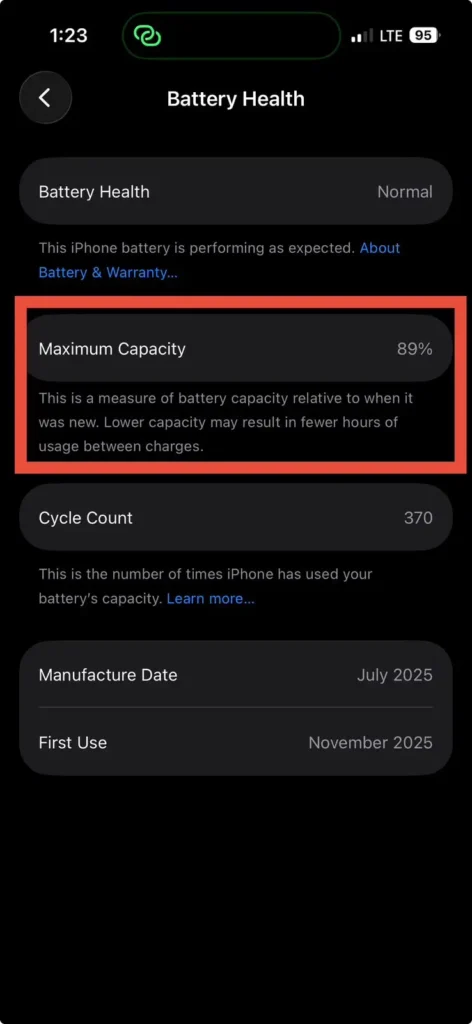
A lower number doesn’t mean you have to replace the battery immediately. But if your battery drains much faster than normal and your iPhone is also charging slowly, it may be time to replace the battery.
When iOS displays a service message, Apple recommends getting your battery replaced at an Apple Store or an authorized service provider. If Battery Health appears normal, continue with the remaining fixes.
6. Review Optimized Battery Charging Settings
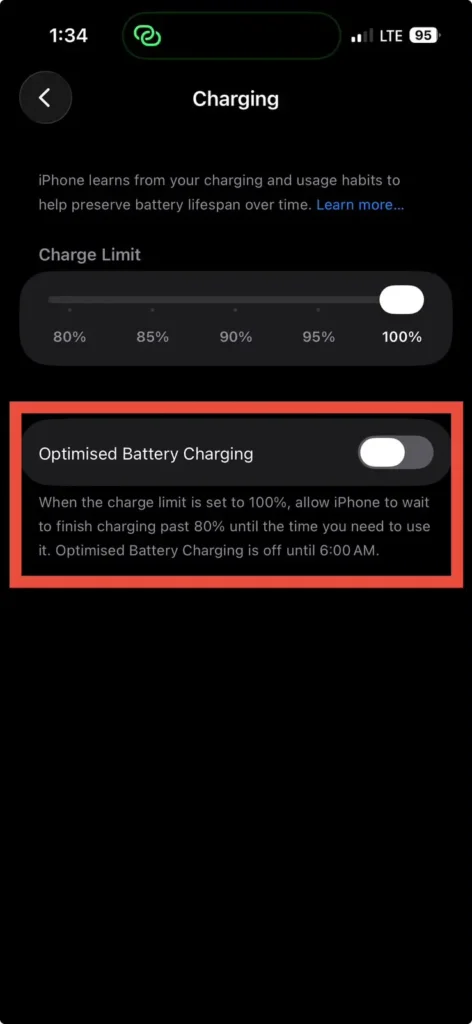
If your phone stops charging around 80%, that isn’t a problem; it’s a built-in feature to protect and extend your battery lifespan. According to Apple Support, Optimized Battery Charging learns your daily routine and waits to finish the last 20% until it thinks you actually need your phone.
It’s designed to stop your battery from being at 100% for too long, and that will improve its longevity over time. A lot of people think this is a charging problem, but it is actually just Apple looking after your battery.
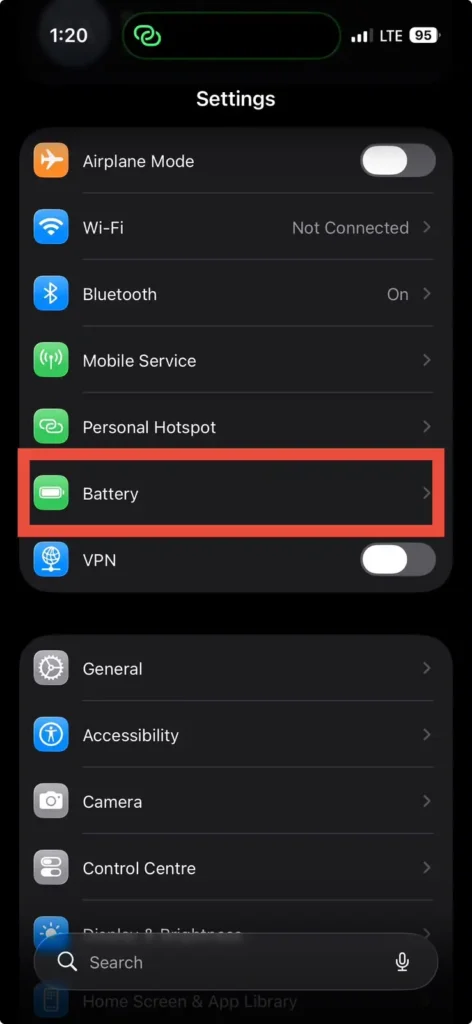
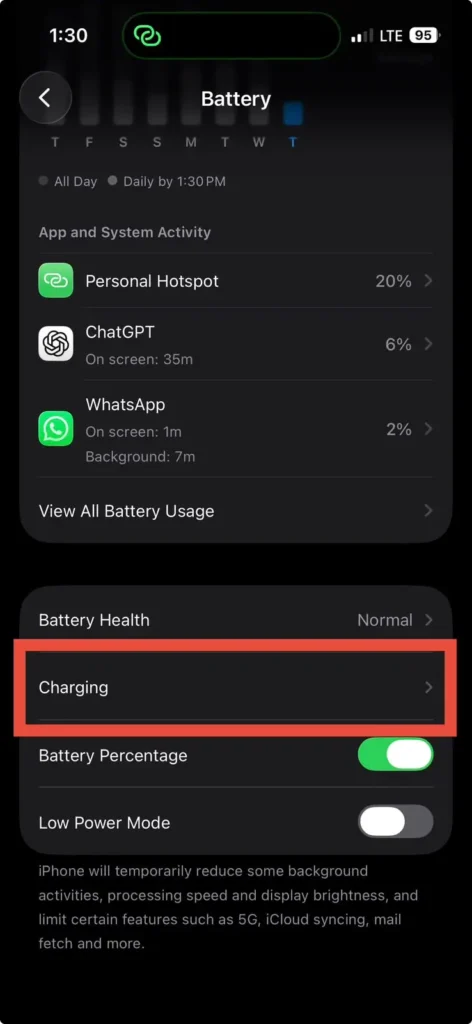
Check whether it’s on under Settings > Battery > Battery Health & Charging. If you need a full charge sooner, say you are heading to the airport, you can turn it off for a while or tap “Charge Now” on the lock screen notification when it appears.
7. Reduce Power Usage While Charging
Your phone’s charging speed depends on both your charger and how much power your phone uses while plugged in. If you’re gaming, editing videos, using navigation, streaming in high quality, or running a personal hotspot, your iPhone may use almost as much power as it’s receiving. As a result, the battery percentage may barely increase while it’s plugged in.
Background tasks add up too. Background tasks such as iCloud syncing, photo analysis, or app updates may temporarily use additional power, especially after setting up your iPhone or installing a major iOS update; all use extra power without you realizing it.
For the quickest charge, just lock your phone and leave it alone. Close any heavy apps, and if you can, lower the screen brightness.
Enabling Low Power Mode can also reduce background activity while your iPhone is charging. It won’t significantly speed up charging, but it might allow a bit more of the incoming power to go toward charging the battery instead of running background tasks.
8 Update Your iPhone to the Latest Version of iOS
Hardware isn’t the only thing that can cause charging problems; software is a factor too. Apple regularly releases iOS updates that include bug fixes, security improvements, and occasional changes to battery management or accessory compatibility.
Go to Settings > General > Software Update to check. Install any pending update over Wi-Fi, and make sure your phone has enough battery or stays plugged in the whole time. After the update is finished, restart your phone and check the charging speed during the next couple of charging sessions.
If your iPhone is charging slowly after an update, don’t jump to conclusions about permanent damage. Apple explains that after a major iOS update, iPhone may temporarily perform background tasks such as photo analysis, indexing, and iCloud synchronization, which can increase power usage until the process finishes. Once those tasks are finished, charging speed usually goes back to normal on its own.
If your iPhone continues running background processes or feels slow after an update, our guide on How to Clear System Data on iPhone explains how storage-related system files work and when they can be safely managed.
9. Restart Your iPhone
Sometimes, a simple restart is all you need. Restarting clears temporary software glitches, reloads system processes, and can resolve minor issues that develop after your iPhone has been running for a long time.
Turn your iPhone off and wait about 30 seconds. Then turn it back on. Once it has started up, plug it in and leave it alone for 15 to 20 minutes. If the battery is completely drained, it may take a few minutes before the charging indicator appears.
If your phone charges faster after this, the problem was most likely a small software issue rather than a hardware problem.
10. Try a Different Power Source
If your iPhone is charging slowly even after trying the earlier fixes, don’t assume your iPhone is the problem just yet. Sometimes the problem is not your phone at all. It could simply be where you are plugging it in.
Try a different electric socket. If you’re plugged into an extension cable or multi-socket extension, plug it directly into the wall. A damaged power outlet or an extension with too many devices plugged into it may reduce the power your charger receives.
If your phone supports it, try a Qi-certified or MagSafe wireless charger too. Wireless charging is naturally slower than wired, but it’s a decent way to check whether the issue is with the port itself or your accessories.
If your phone charges normally with different accessories, and if that solves the problem, you’ve found the cause and likely saved yourself the cost of an unnecessary repair. If charging remains slow regardless of the outlet or charging method, continue to the final fix. The issue may require professional diagnosis.
11. Contact Apple Support if the Problem Continues
Have you tried every fix in this guide, and your iPhone is still charging slowly? At this point, the problem is likely caused by an issue inside the phone, such as the charging port, battery, or another hardware component.
There are several reasons why your phone may be charging slowly, including a bad charging port, an old battery, water damage, or another internal hardware component having a fault. These issues usually can’t be fixed at home. A professional can inspect your iPhone and determine what’s causing the problem.
If your phone is covered under the Apple limited warranty or AppleCare+, make an appointment at an Apple Store or Apple Authorized Service Provider. They can check your phone and tell you exactly what the problem is. Back up your data to iCloud or your computer before handing over your phone.
How to Make iPhone Charge Faster
If your iPhone is charging slowly and you are wondering how to make your iPhone charge faster, these simple habits can make a real difference.
Use a compatible 20W or higher USB-C power adapter if your iPhone supports fast charging. It’s the single biggest upgrade over an old low-power adapter, and the difference in time is easy to notice.
Charge somewhere cool. If your iPhone becomes too warm, iOS may temporarily reduce charging speed to help protect the battery. So keep your phone out of direct sun and remove a thick case if it starts feeling warm.
If you regularly charge in hot environments, remove thick protective cases if they trap heat. Lower temperatures allow the iPhone to maintain faster charging speeds for longer.
Try not to use heavy apps while charging. Gaming, streaming, navigation, and recording video all pull power and generate heat, leaving less for the battery itself.
If you just need to charge your phone a bit before going out, switching on Airplane Mode for a bit reduces background network activity and lets more power go toward the battery. You don’t need this every day, but it’s a helpful trick when you’re short on time.
Finally, take care of your accessories; a clean port and a good quality cable keep the connection steady and help your phone charge the way it should.
Final Thoughts
If your iPhone charging slowly has you worried, it does not always mean something is wrong. In many cases, iPhone slow charging is caused by common issues such as a weak charger, a damaged cable, a dirty charging port, or excessive heat.
Work through the fixes in order rather than jumping straight to a battery replacement or repair. Check your accessories, clean out the port, use a proper fast charger, and take a look at your battery and charging settings. In many cases, you can solve the problem without replacing your iPhone, buying new accessories, or paying for a repair.
If you’ve gone through everything here and are still asking, “Why is my iPhone charging slow?” after trying every fix, it’s time to contact Apple Support or visit an Apple Authorized Service Provider. They can tell you exactly what the problem is, whether it is the battery, the port, or something else.
Once you’ve fixed the underlying issue, your iPhone slow charging problem should be resolved, and your phone should be back to charging normally. Most slow charging problems have a simple explanation, and a step-by-step approach is often the fastest way to find it.
Frequently Asked Questions
Why is my iPhone charging slow?
Your iPhone might be charging slowly for a few different reasons. Maybe you’re using a low-power charger, the cable is damaged, the charging port has some dirt in it, the phone is overheating, or the battery health is degraded. Sometimes the slowdown is completely normal. iOS may temporarily reduce charging speed to protect the battery or complete background tasks after an update.
Why is my iPhone charging slowly after an iOS update?
If your iPhone is charging slowly after an iOS update, it’s usually temporary. Your iPhone may be indexing files, syncing photos with iCloud, or optimizing apps in the background. Once these tasks are complete, charging speed should return to normal.
How can I make my iPhone charge faster?
If you’re wondering how to make your iPhone charge faster, use a 20W or higher USB-C power adapter with a compatible cable, plug it into a wall outlet instead of a computer, keep your iPhone cool, and avoid using power-hungry apps while it’s charging.
Is iPhone slow charging a sign that my battery needs replacing?
Not necessarily. Most iPhone slow charging issues are caused by the charger, cable, charging port, or temperature rather than the battery itself. But if your battery health has significantly dropped or iOS recommends service, replacing the battery may improve charging performance.
Does a dirty charging port cause an iPhone to charge slowly?
Yes. Dust, lint, and pocket debris inside the charging port can prevent the cable from making a proper connection, causing your iPhone to charge slowly or keep connecting and disconnecting. Carefully cleaning the port with a non-metallic tool can often resolve the issue.
Why is my iPhone charging slowly with a wireless charger?
Wireless charging is naturally slower than wired charging, especially if you’re using a standard Qi charger instead of a MagSafe charger. Your iPhone may also charge slowly if it’s overheating, the charger has a low power output, or the phone isn’t properly placed on the charging pad.
Can a 30W or 65W charger damage my iPhone?
No. Your iPhone only draws the amount of power it can safely use, so a 30W or 65W USB-C charger won’t force extra power into the device. As long as you’re using a quality, compatible charger, it’s perfectly safe to use.
Why does my iPhone charge slowly in the car?
Many built-in car USB ports don’t provide as much power as a wall charger. If you’re also using navigation, music streaming, or wireless CarPlay, your iPhone may consume almost as much power as it’s receiving, making charging feel much slower.
Does MagSafe charge slower than a cable?
In most cases, yes. A wired connection with a compatible USB-C power adapter usually charges faster than MagSafe. Wireless charging is more convenient, but it may slow down if the iPhone becomes warm.
Is it bad to leave my iPhone charging overnight?
Not usually. iPhones include Optimized Battery Charging, which helps reduce battery aging by delaying the final part of charging until you need your phone. Leaving it plugged in overnight is generally safe with this feature enabled.