
Contents
Introduction
iPhone overheating and running slow is a common problem, especially after heavy use, an iOS update, or running demanding apps for long periods. The two issues can also be connected. When your iPhone gets too hot, iOS can temporarily limit performance and certain features to help protect the device.
The good news is you probably don’t need a new phone. Changes to charging habits, apps, storage, and a few settings can often improve things. This guide explains why your iPhone may be overheating and running slow, how the problems are connected, and the most effective ways to fix them.
Why Do iPhone Overheating and Running Slow Happen Together?
People often consider overheating and slow performance separate problems, but they can be closely connected. Demanding tasks such as gaming, video editing, GPS navigation, video calls, and 4K recording require more processing power and can generate additional heat.
Apple explains that iPhone has built-in protections to manage its temperature. If the device gets too warm, iOS can temporarily reduce performance and limit certain features until it cools down. This behavior is commonly known as thermal throttling and helps protect the device from excessive heat.
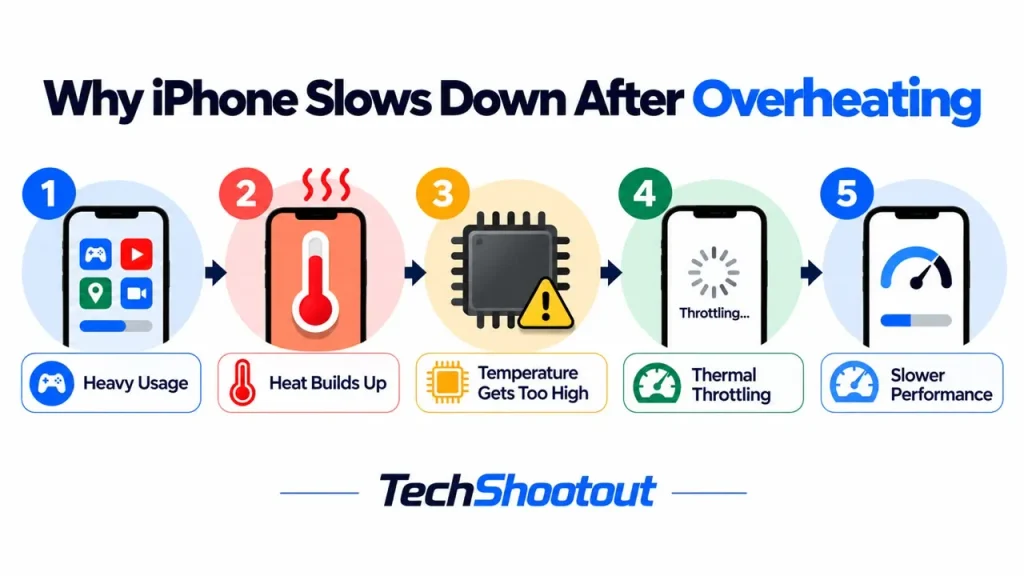
That protection is useful, but it also explains why an iPhone slows down when hot. Once the temperature rises too far, iOS can temporarily limit performance while the device cools down. Repeated exposure to excessive heat can also contribute to faster battery aging over time.
Common Reasons Your iPhone Is Overheating
If you’re dealing with iPhone overheating and running slow, you probably don’t need a new phone yet. Try these fixes one at a time and see which one makes a difference
Heavy Gaming
Graphics-intensive games put a heavy load on both the processor and GPU, often for extended periods. The longer you play, especially while your iPhone is charging, the more heat can build up.
Streaming High-Quality Videos
4K and HDR streaming keeps the screen, processor, wireless radios, and speakers all running at once. A short session is fine, but hours of continuous playback will warm the phone up.
Using GPS Navigation
Navigation apps constantly check your location using GPS, cellular data, Bluetooth, and the screen. Full-screen brightness and charging your iPhone at the same time, especially while using navigation in the car, can build up heat quickly.
Video Recording
Recording in 4K or at high frame rates means constant image processing and saving data to storage. Long recording sessions, especially outdoors on a warm day, heat up your phone quickly.
Video Calls
FaceTime, Zoom, and WhatsApp calls use the camera, mic, screen, speakers, processor, and your internet connection all at the same time. A long meeting generates noticeably more heat than a regular phone call.
Background App Activity
Sometimes an app keeps syncing photos, uploading files, or refreshing content after you’ve closed it. You won’t notice this happening, but it keeps the processor busy and can overheat your phone.
Environmental Temperature
Where you use your iPhone matters too. Direct sunlight can heat it up quickly, and leaving it in a parked car is even worse. Apple recommends using the iPhone in ambient temperatures between 0° and 35°C (32° to 95°F). Outside that range, performance can be temporarily affected.
Hot surroundings also make it harder for your iPhone to get rid of the heat it produces during normal use. If you see a temperature warning on the screen, stop using the phone and move it to a cooler place until it cools down.

Why Is Your iPhone Running Slow?
A slow iPhone doesn’t necessarily mean it needs replacing. If your iPhone is running slow and hot, the cause could be software, hardware, or a combination of both.
Low Available Storage
If your iPhone is running slow, checking your storage is one of the first things worth doing. Performance can suffer when the storage is nearly full, and you may notice apps taking longer to open or the phone feeling less responsive.
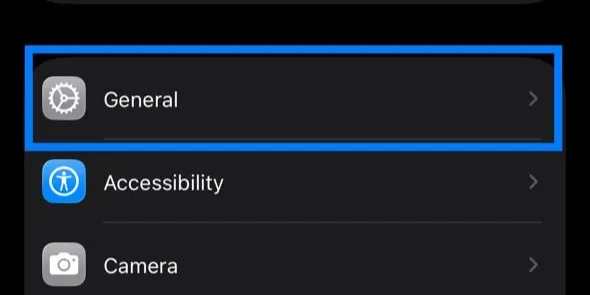
Go to Settings > General > iPhone Storage to see what’s taking up space. If you’re running low, remove apps you no longer use, delete large files, or offload some photos and videos.

Too Many Background Processes
Background activity can also make your iPhone feel slower. Widgets, photo processing, app updates, and other tasks may continue running in the background. You might not notice much from one task, but several happening at the same time can temporarily affect performance.
Outdated Apps
Older versions of apps can sometimes have bugs or performance issues. App updates often include bug fixes and improvements, so keeping your apps up to date may help if a particular app is making your iPhone slow or causing it to heat up.
Software Bugs
Sometimes an iOS update can cause temporary performance or battery issues. Your iPhone may also run warmer for a while after updating as it finishes background tasks. If the problem comes from a software bug, Apple may address it in a later update, so keeping iOS up to date is generally a good idea.
Aging Battery
An aging battery can also make an iPhone feel slower. Apple explains that lithium-ion batteries lose capacity as they age and gradually become less capable of delivering peak power. If the battery can no longer provide the power the iPhone needs, iOS may manage performance to help prevent unexpected shutdowns.
Heat can speed up this aging process, which is another reason repeated overheating isn’t good for your battery. This doesn’t mean every older iPhone will slow down because of its battery, but poor battery health can be a factor.
Does Charging Cause Overheating?
It’s normal for an iPhone to feel a little warm while it’s charging, especially with fast or wireless charging. Both can produce some heat, and you may notice more of it if you’re using the phone at the same time.
What isn’t normal is an iPhone becoming uncomfortably hot every time you plug it in. Gaming, recording video, or running other demanding apps while charging can make things worse. A damaged charger or cable can also cause problems.
If your iPhone is getting hot and slow while charging, leave it alone for a while, remove the case if necessary, and check the charger and cable you’re using.
Can Software Updates Make Your iPhone Hot?
If your iPhone feels warmer than usual after an iOS update, don’t worry straight away. The phone may still be doing some work in the background, such as indexing files, processing photos, syncing iCloud data, and updating apps.
Some of these features use on-device machine learning to organize photos, improve search, and handle other tasks. We explain more about these features in our guide to How AI in Smartphones Is Changing Modern Phones.
All of these features can keep your iPhone busier than usual for a while, which may generate extra heat. Once the background work settles down, the phone should normally return to its usual temperature.
15 Proven iPhone Overheating Fixes That Also Improve Performance
If your iPhone keeps running hot and feels slow, you probably don’t need a new one yet. Try these one at a time and see which one makes a difference.
1. Restart Your iPhone
A restart is one of the quickest things to try. It stops apps and processes that may be stuck running in the background and gives iOS a fresh start. If an app or temporary software issue is making your iPhone run hot or feel slow, restarting it may be enough to resolve the problem.
2. Install the Latest iOS Update
Apple regularly releases iOS updates with bug fixes, security patches, and other improvements. If you’re running an older version, updating may fix overheating, battery drain, or slow performance caused by a software issue.
Don’t be surprised if your iPhone feels a little warmer after a major update. It may spend some time finishing background tasks, and things should settle down once that work is done.
3. Update Your Apps
Older versions of apps can sometimes have bugs or performance issues that make them use more resources than necessary. Keeping your apps up to date can help prevent one troublesome app from making your iPhone feel slow or run warmer than usual.
4. Close Apps That Are Working Hard
You don’t need to constantly close apps on an iPhone. But if the phone starts getting hot while you’re gaming, using navigation, editing video, or making a long video call, close the app you’re using and leave the phone alone for a few minutes. Sometimes that’s all it needs to cool down and return to normal.
5. Reduce Screen Brightness
Your screen is one of the biggest power users on an iPhone, especially at high brightness. Keeping it at full brightness for long periods can drain the battery faster and add to the heat. Turn on Auto-Brightness, or simply lower the brightness when you don’t need the screen at full power.
6. Remove Thick Cases
A thick case can make it harder for your iPhone to get rid of heat. If the phone feels unusually hot while gaming, recording video, or charging, try taking the case off for a while and give it some time to cool down.
7. Avoid Using Your iPhone While Charging
Charging already produces some heat, and demanding tasks can add even more. If you’re gaming, editing video, or doing anything else that pushes the phone hard, it’s better to wait until it’s finished charging, especially if the iPhone already feels warm.
8. Free Up Storage Space
If your iPhone is almost out of storage, it can start to feel sluggish. Check Settings > General > iPhone Storage and see what’s taking up the most space. Delete apps you no longer use, clear out large downloads, and move old photos or videos elsewhere if you need more room.
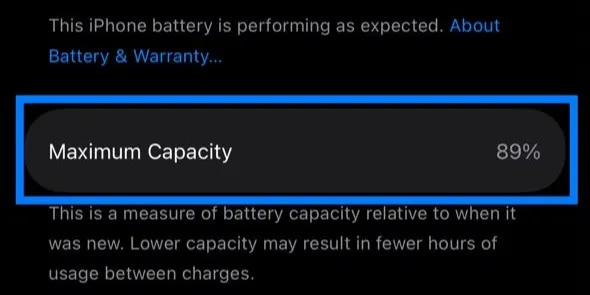
9. Check Battery Health
Battery health is worth checking if an older iPhone has started to feel slow. As the battery ages, it becomes less capable of delivering peak power. In some cases, iOS manages performance to reduce the risk of unexpected shutdowns.
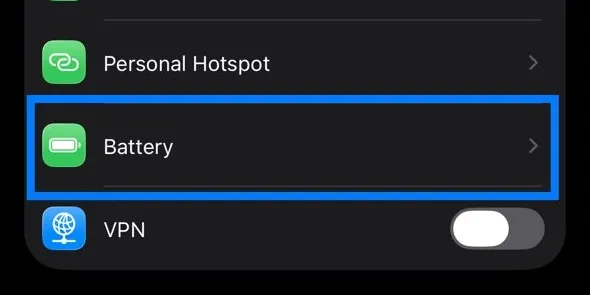
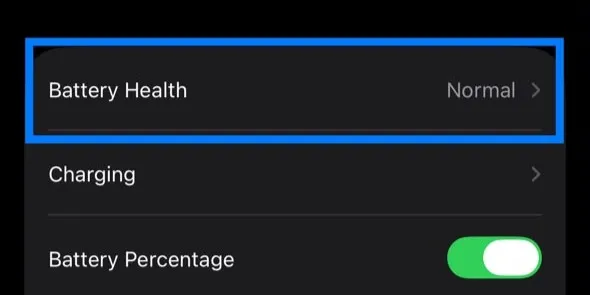
You can check this in Settings > Battery > Battery Health & Charging. If the battery is badly degraded and performance management is kicking in, replacing it may improve performance. We explain the percentage, what it tells you, and when a replacement makes sense in our iPhone Battery Health guide.
10. Limit Background App Refresh
Some apps keep checking for new content even when you’re not using them. Most of the time, that’s useful, but you probably don’t need it for every app.
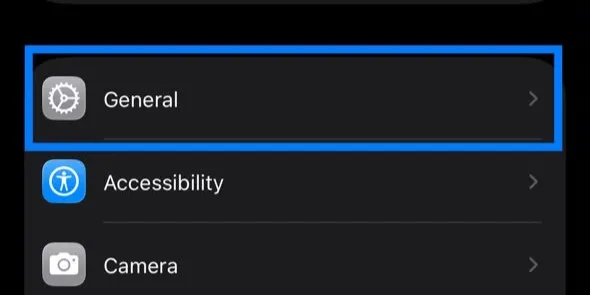
Go to Settings > General > Background App Refresh and switch it off for anything that doesn’t need constant updates. It cuts down on unnecessary background activity and can save a little battery as well.

11. Disable Unnecessary Location Services
Apps that constantly check your location can use extra battery and may add to the heat, especially with navigation or location tracking running for a long time.
Check which apps have access to your location and change them to While Using the App where it makes sense. There’s little reason to give an app constant access if it doesn’t actually need it.
12. Avoid Direct Sunlight
13. Even a perfectly healthy iPhone can get too hot in the right conditions. Direct sunlight, a hot car, or leaving it on a sunny dashboard can quickly push the temperature up. Keep the phone in the shade when you can, and never leave it inside a parked car on a hot day.
13. Use Certified Chargers
The charger and cable you use matter too. Damaged, poorly made, or incompatible accessories can cause charging problems and may produce more heat than expected. Stick with Apple accessories or a reputable third-party charger and use certified cables where applicable.
14. Reset Settings if Necessary
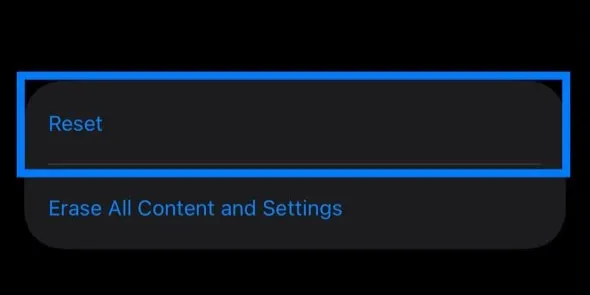
If you’ve tried the usual fixes and your iPhone is still running hot or slow, you can try resetting its settings. Your apps, photos, messages, and other personal files won’t be deleted, although you’ll have to set up some preferences again afterward.
You can find this option under Settings > General > Transfer or Reset iPhone > Reset > Reset All Settings.


15. Let Your iPhone Cool Down Naturally
If your iPhone gets unusually hot, put it down for a while and let it cool naturally. Don’t put it in a refrigerator or freezer to speed things up. A sudden change in temperature can cause moisture to form where you don’t want it.
Move the phone out of direct sunlight, leave it somewhere cool with good airflow, and give it time to return to a normal temperature before using it again.
For temporary overheating, that may be all your iPhone needs. If it keeps happening during normal use, though, it’s worth looking for another cause.
When Overheating Could Be a Hardware Problem
If your iPhone gets extremely hot during something simple like browsing or texting, or the problem keeps coming back after you’ve tried the usual fixes, it may be time to have it checked.
Pay attention to anything else that seems unusual, such as rapid battery drain, random shutdowns, or charging problems. And if the phone looks swollen or starts to bulge, stop using it and get it serviced. At that point, it’s better not to keep troubleshooting it yourself.
Final Thoughts
An iPhone that feels hot and slow doesn’t automatically mean something is wrong with the hardware. Start with the simple things: update iOS and your apps, free up some storage, check your battery health, and avoid pushing the phone hard while it’s charging.
It’s also worth paying attention to when the problem happens. If the phone only gets hot during gaming, navigation, charging, or other demanding tasks, there may be nothing unusual going on. If it regularly overheats during light use or stays slow even after you’ve tried the fixes above, that’s when I’d consider having it checked.
FAQs
Why is my iPhone overheating and running slow?
Gaming, GPS, video recording, and other demanding tasks can make your iPhone hot. When it gets too warm, iOS may temporarily limit performance until it cools down. Low storage or an aging battery can also make the phone feel slower.
Is it normal for an iPhone to get hot while charging?
It’s normal for your iPhone to feel a little warm while charging, especially with fast or wireless charging. If it gets unusually hot, heavy use while charging, poor heat dissipation from the case, or a problem with the charger or cable could be contributing.
Can an iOS update make my iPhone overheat?
Yes, it can be. After a major iOS update, your iPhone may spend some time indexing files, processing data, and finishing other work in the background. That can make it feel warmer than usual, but it should settle down once those tasks finish.
Does low storage make an iPhone run slower?
Yes. If your iPhone is almost out of storage, it can start to feel slower or less responsive. Freeing up some space by removing apps, downloads, photos, or videos you no longer need is worth trying.
How can I stop my iPhone from overheating?
A few simple habits can help. Keep iOS and your apps updated, avoid heavy use while charging, and don’t leave your iPhone in direct sunlight or other hot places. If it starts getting warm, lower the brightness and give it a break until it cools down.
When should I be concerned about an overheating iPhone?
If your iPhone gets extremely hot during simple tasks like texting or browsing, keeps showing temperature warnings, shuts down unexpectedly, or has charging problems, it’s worth getting it checked. And if the phone or battery appears swollen, stop using it and have it serviced.