
Table of Contents
Introduction
If your Samsung phone is draining battery fast, start by checking what’s actually using the power. Don’t just start flipping settings. Common causes include background apps, screen brightness, weak signal, location services, heavy 5G use, a recent software update, or an aging battery.
The problem can show up in a few ways: a quick drain during normal use, battery loss overnight while idle, or a sudden drop after updating your software. Often it’s not the battery itself. It’s one app or setting causing the issue. Check your battery usage first to spot the biggest power drains, then apply the fix that matches the cause.
Below are 12 practical fixes for Samsung battery drain, including what to check if your phone drains while idle, after an update, or even when it starts the day fully charged. Menu names may vary slightly depending on your Galaxy model and One UI version.
If you’re wondering how Samsung compares with Apple’s phones for everyday endurance, see our iPhone vs Samsung battery life comparison.
Why Is My Samsung Phone Battery Draining Fast?
There isn’t always one reason your Samsung phone battery is draining fast. Usually it’s a mix of things, like background apps, a bright display, or a weak cellular connection working together.
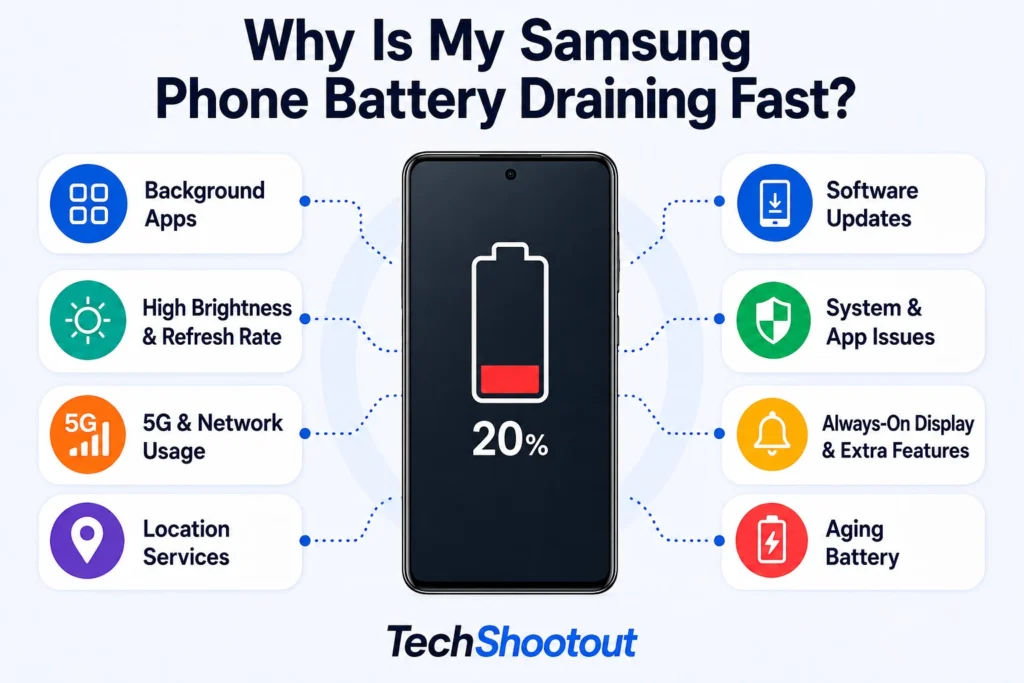
The display is often a big factor, especially with high brightness or long screen-on time. A high refresh rate and Always-On Display can also add to the drain, depending on your Galaxy model and how you use it.
Background activity is another common culprit. Apps sync data, check for notifications, track your location, or run other tasks even when you’re not actively using them. Samsung’s Sleeping and Deep Sleeping Apps features can help cut down on this unnecessary activity.
Your network connection can also affect battery life. Weak cellular coverage makes your phone work harder, and 5G can affect battery life depending on your device, network, and signal strength.
A recent software update can also throw things off temporarily, as apps and system processes adjust to the changes. Sometimes an app develops issues after an update or just isn’t fully compatible yet.
And sometimes, the battery itself is the problem. Batteries lose their ability to hold a charge over time. If you’ve gone through your apps, settings, and network and the drain is still unusual, it might be worth checking the battery’s actual condition.
Samsung battery draining fast can come from several causes at once, so the goal is to figure out what’s affecting your phone rather than changing every setting blindly. Start with the quick checks, then move on to the less obvious causes if the drain continues.
12 Ways to Fix Samsung Battery Draining Fast
1. Restrict Apps That Are Using Too Much Battery
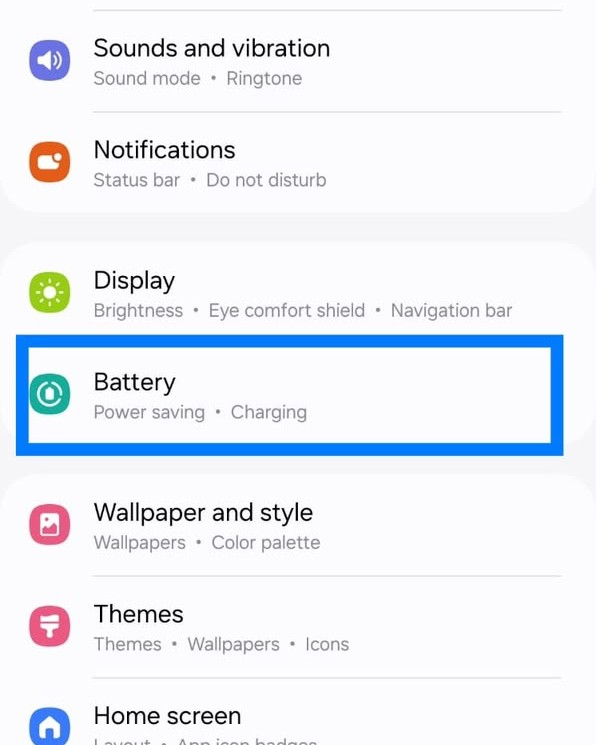
Before changing a bunch of settings, check where your Galaxy’s battery is actually going. Go to Settings > Battery and look at Battery usage or View details, depending on your model and One UI version. You can also find this option in Device Care. Samsung also provides guidance on battery usage and background activity.
If there’s an app you don’t really need running in the background, you can move it to Sleeping apps or Deep sleeping apps under Settings > Battery > Background usage limits.
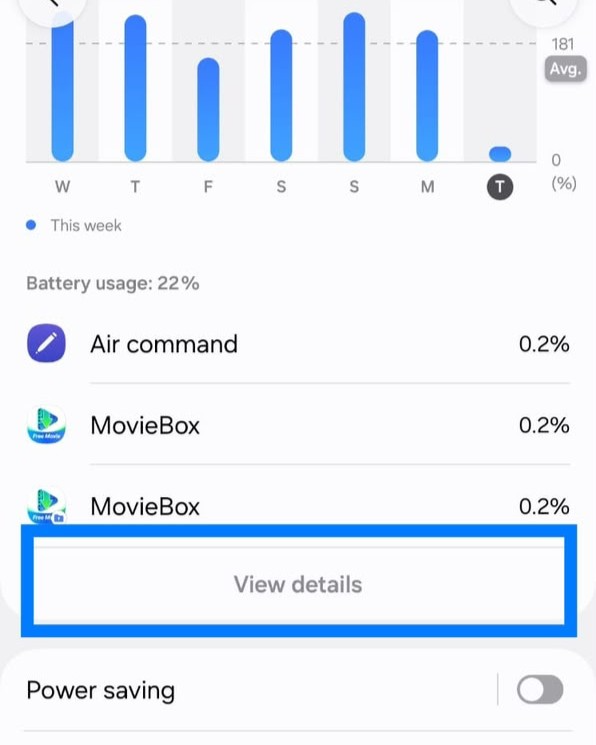

Deep sleeping apps are prevented from running in the background and generally only become active when you open them. The tradeoff is that notifications, syncing, and other background activity may be delayed until you open the app.
If your Samsung phone battery draining fast problem continues, don’t start disabling random features. Move on to the other fixes below, especially network conditions, display settings, location access, and software behavior.
2. Lower Brightness and Reduce Screen Time
The display can be one of the biggest sources of battery consumption on a Galaxy phone, especially at high brightness. While maximum brightness is useful outdoors, keeping it high indoors can waste power.
Enable Adaptive Brightness to adjust the screen automatically, or lower the brightness manually when maximum brightness isn’t needed. Also, set a shorter screen timeout so the display doesn’t stay on after you’ve stopped using the phone.
Dark Mode can also reduce power use on Galaxy phones with AMOLED or similar OLED displays because black pixels can turn off. However, the savings vary depending on the display, brightness, apps, and how much of the interface is dark.
3. Try a Lower Refresh Rate
A higher refresh rate can use more battery because the display is refreshing more frequently. If your Galaxy supports a high or Adaptive Refresh Rate, it’s worth testing a lower setting when you need to stretch battery life.
Go to Settings > Display > Motion Smoothness. Depending on your model and One UI version, you’ll likely see Adaptive and Standard as options. Adaptive shifts the refresh rate based on what you’re doing, while Standard just sticks to a lower rate.
If your battery’s draining faster than usual, switch to Standard for a day and see how it compares. You may notice less smooth scrolling, but the phone’s basic functions work the same way.
You don’t have to give up the high refresh rate for good. If the battery difference turns out to be small, you might just prefer the smoother experience. The better setting depends on whether you value longer battery life or smoother motion more.
4. Adjust Always-On Display Settings
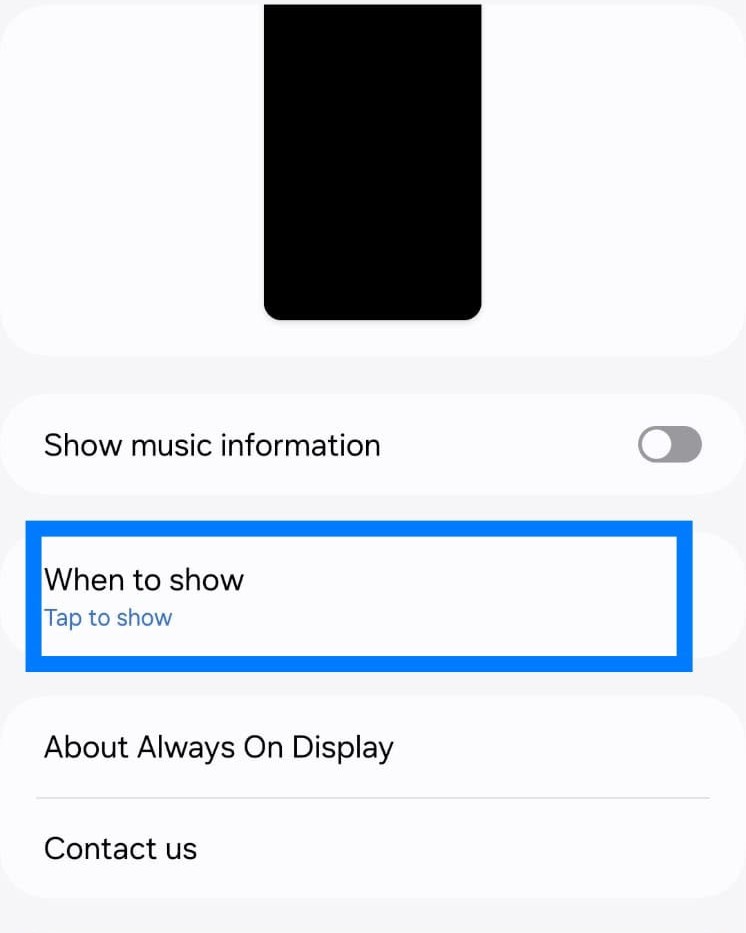
Always-On Display (AOD) keeps things like the time, notifications, and battery level visible without waking up your whole phone. On AMOLED screens that support it, the feature is pretty efficient since only the necessary pixels light up, but it’s still drawing some power around the clock.
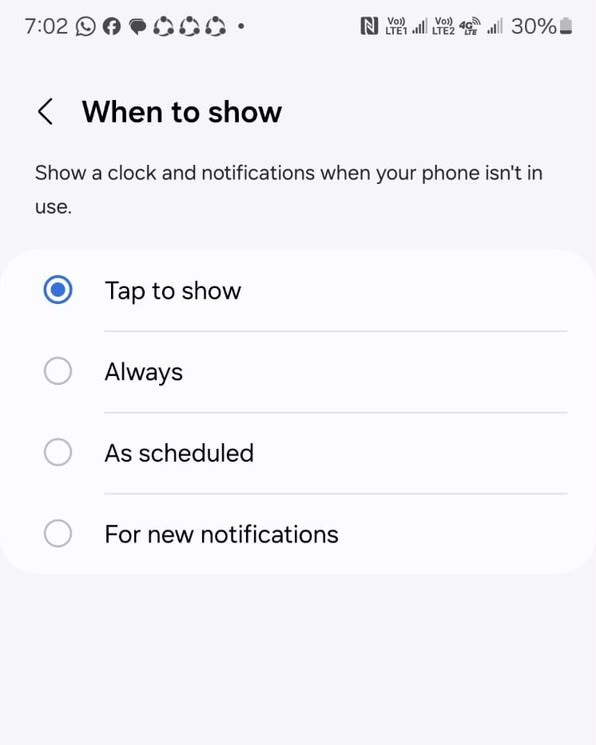
If your Samsung Galaxy is draining faster than normal, try dialing back AOD instead of switching it off entirely. Go to Settings > Lock screen and AOD > Always On Display. From there, you can set AOD to only run during certain hours or turn on Tap to Show so it stays off until you tap the screen.

5. Check Your Cellular Signal and 5G Settings
Your Galaxy can burn through more battery when it’s struggling to hold onto a stable cellular connection, especially in spots with weak or spotty reception. Samsung also lists weak network signal as a factor that can increase battery consumption.
5G can add to battery drain too, particularly when coverage is weak or the phone frequently switches between network types. How much it actually affects you depends on your device, carrier, network, and local coverage.
If you notice faster drain specifically in areas with weak or unstable 5G, try testing the phone somewhere with stronger coverage or switch to LTE/4G if your model supports it. If your 5G signal is strong and battery usage looks normal, there’s usually no need to turn it off just to save battery.
And if you’re somewhere with little to no cellular coverage at all, Airplane Mode can help, since it stops your phone from constantly searching for a signal when you don’t need calls or texts anyway.
6. Review Location Access for Your Apps
Location services can quietly drain your battery when apps keep requesting your location in the background. Navigation and weather apps can be particularly active with location, depending on their settings.
You don’t have to turn Location off across the board. Instead, go to Settings > Location > App permissions and review which apps have access to your location and when they’re allowed to use it.
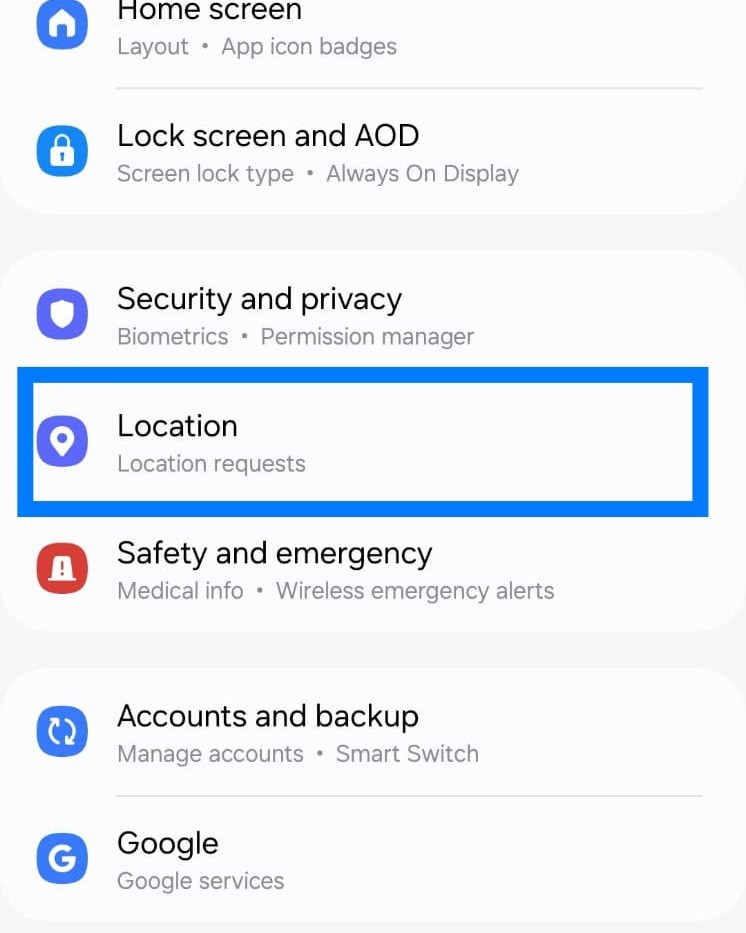
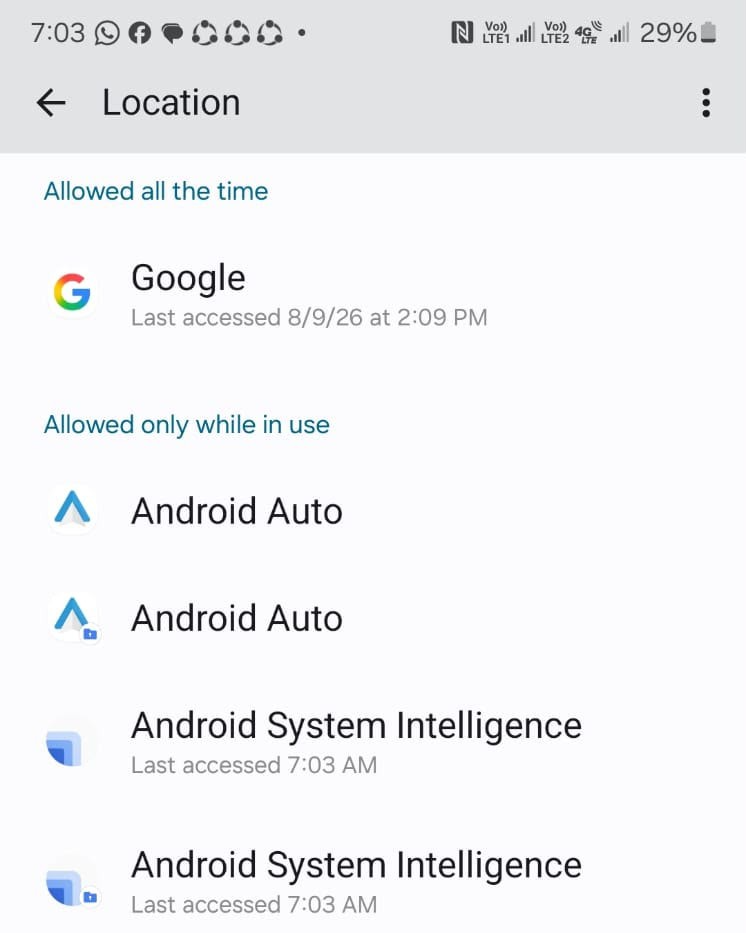
For apps that don’t need to track you all the time, switch them to “Allow only while using the app” where that’s an option. You can also review Google’s guidance on Android’s location permission controls to understand how these permissions work.
Keep an eye out, especially for apps you rarely open but that still have permission to access your location regularly. The better approach here isn’t cutting off location entirely, it’s to set access limits for apps that don’t really need it while leaving it on for the ones that do.
7. Use Power Saving Mode When You Need It
Samsung’s Power Saving Mode can stretch your battery life by cutting back on background activity, dialing down certain features, and easing off on performance. It’s especially handy when you’re away from a charger and need to make the battery last.
On supported Galaxy phones, go to Settings > Battery > Power saving, or just pull it up from the Quick Settings panel.
Power Saving Mode can limit background activity, tone down visual effects, and restrict some performance-heavy functions. If you are facing the problem of your Samsung battery draining fast, try switching it on and see if things improve.
Keep in mind that some apps may sync less often, performance may be reduced, and certain features may be limited while it’s enabled.
8. Check for a Software Update
If your Galaxy is running unusually warm or losing battery faster than normal, check whether Samsung has released a software update for your device.
Updates can include bug fixes and improvements that address unexpected battery or performance behavior. Go to Settings > Software update > Download and install and check for an available update and install it
9. Give Your Galaxy Time After a Software Update
If you’re dealing with Samsung battery draining after update, don’t jump to the conclusion that the update permanently damaged your battery. Major updates can temporarily increase background activity as apps are updated, optimized, and reconfigured for the new software.
Battery life can temporarily change after a major software update while apps and system processes adjust to the new software. Give the phone some time after the update before judging its battery life, and check for any pending updates in the Galaxy Store and Google Play Store too, since apps that haven’t been updated yet can act strangely after a system update.
A restart can also help if the problem showed up right after you updated. And if you’ve already gone through your apps and settings and the issue is still there, don’t just blame the update. Move on to the rest of the troubleshooting steps.
10. Update or Reinstall a Problematic App
Sometimes the drain really does come down to a single app. It can happen when an app picks up a bug, gets stuck running in the background, or just starts acting up after an update.
Start with Settings > Battery and look for an app that’s consuming a disproportionate amount of battery compared with how often you use it. From there, check the Galaxy Store or Google Play Store for an available update, since an update may include fixes for bugs affecting battery usage or background activity.
Still draining a lot of power even after updating? Try clearing the app’s cache, or reinstall it altogether. Just make sure to back up or sync anything important first, since reinstalling can wipe out data stored locally on your phone.
11. Check for Suspicious or Unwanted Apps
Malicious or poorly behaved apps can sometimes cause unusual battery drain, but that shouldn’t be your first guess. Work through Battery Usage and the other troubleshooting steps first before you start suspecting malware.
That said, if you’re noticing unfamiliar apps, intrusive ads, random pop-ups, or odd background activity, it’s worth going through your installed apps and removing anything you don’t recognize or trust, especially apps installed from outside the Google Play Store or Galaxy Store.
If you suspect malware may be behind your phone’s unusual behavior, our guide on how to remove malware from Android walks you through what to check and how to remove it safely.
Keep Google Play Protect turned on, and stick to trusted sources like the Google Play Store and Galaxy Store when downloading apps. If an unfamiliar app also seems to be causing overheating or strange background behavior, dig into it or just remove it. If the battery drain improves afterwards, that app was likely contributing to the problem.
12. Check Your Samsung Battery Health
If your Samsung phone battery is still draining fast after checking your apps, display settings, network conditions, and software, the battery itself may have lost some capacity over time. Watch for signs like shorter battery life overall, sudden drops in percentage, or the phone shutting down unexpectedly.
Before you go replacing it, check the battery’s actual condition through Settings > Diagnostics > Phone Diagnostics > Battery status, if your device supports it. The exact menu path can vary by Galaxy model and software version. Samsung’s battery diagnostics can help identify whether the battery is showing signs of deterioration.
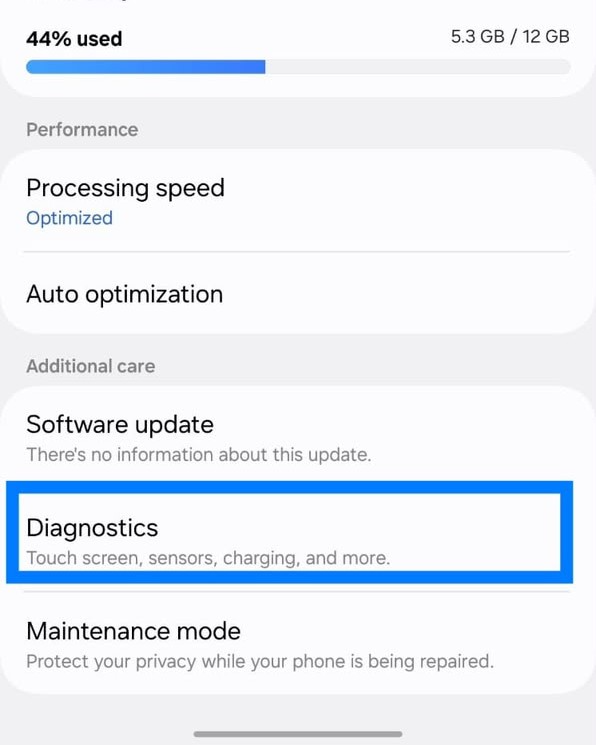
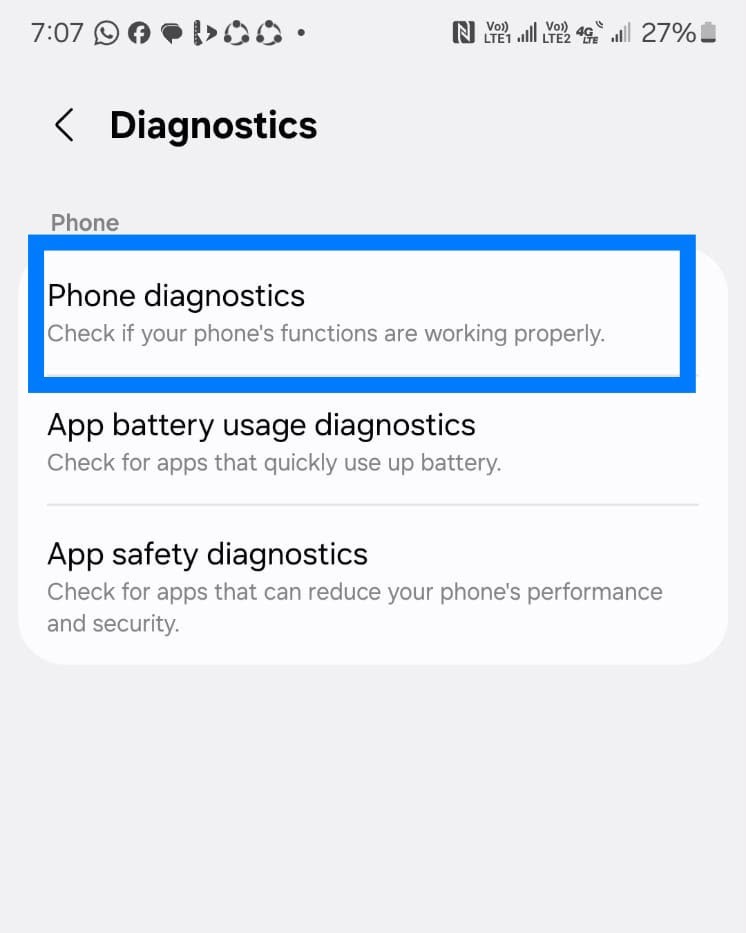
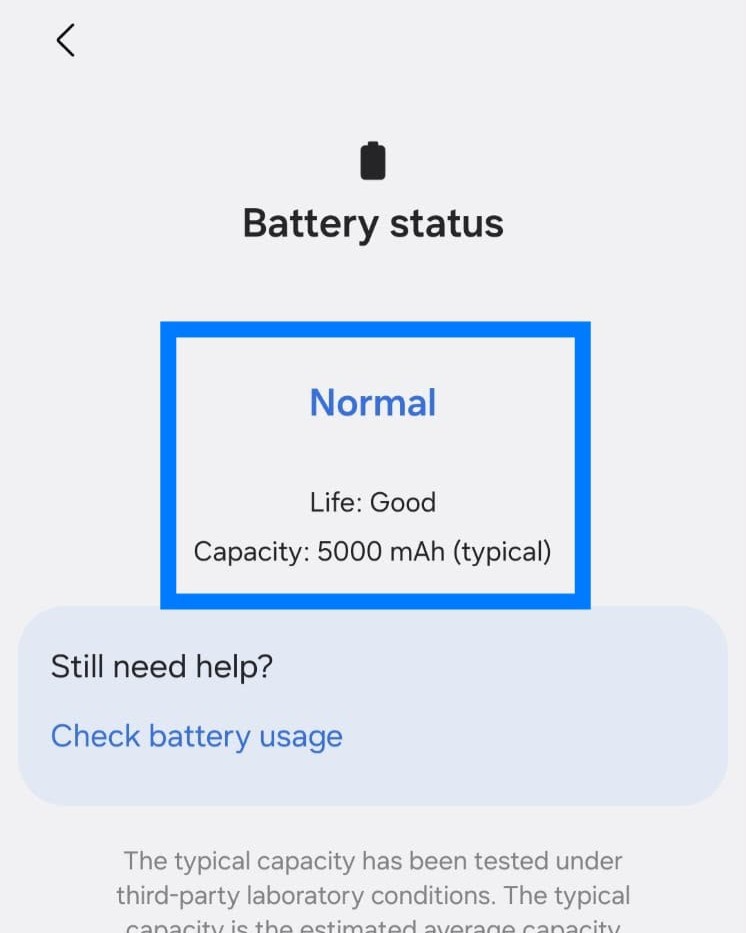
If it comes back Normal, keep working through apps, network conditions, and settings if the drain is still bothering you. But if it shows up as Weak or Bad, and you’re also noticing significantly shorter battery life, the battery itself becomes a much stronger suspect, and it might be worth looking into a professional replacement.
If your phone is also having trouble charging quickly, see our guide to Samsung fast charging not working for charging-specific fixes.
Why Is My Samsung Battery Draining Without Use?
If you’re noticing your Samsung battery draining without use, your Galaxy phone may still be performing background activity while the screen is off. Apps can sync data, check notifications, use location, or perform other tasks even when you’re not using them.
A weak cellular signal can increase power consumption overnight because the phone has to work harder to maintain connectivity. Samsung points to unstable network connections as a possible cause of faster battery loss.
Background activity can drain your battery even when you’re not using your phone. Check Battery Usage for apps consuming significant power while the phone is idle. If one stands out, restrict its background activity.
If the Samsung battery draining fast mainly happens overnight, try leaving the phone somewhere with a stronger cellular signal and compare the results. You can also review unnecessary syncing, location access, Bluetooth, and other background connections.
Quick Battery-Saving Changes Worth Trying
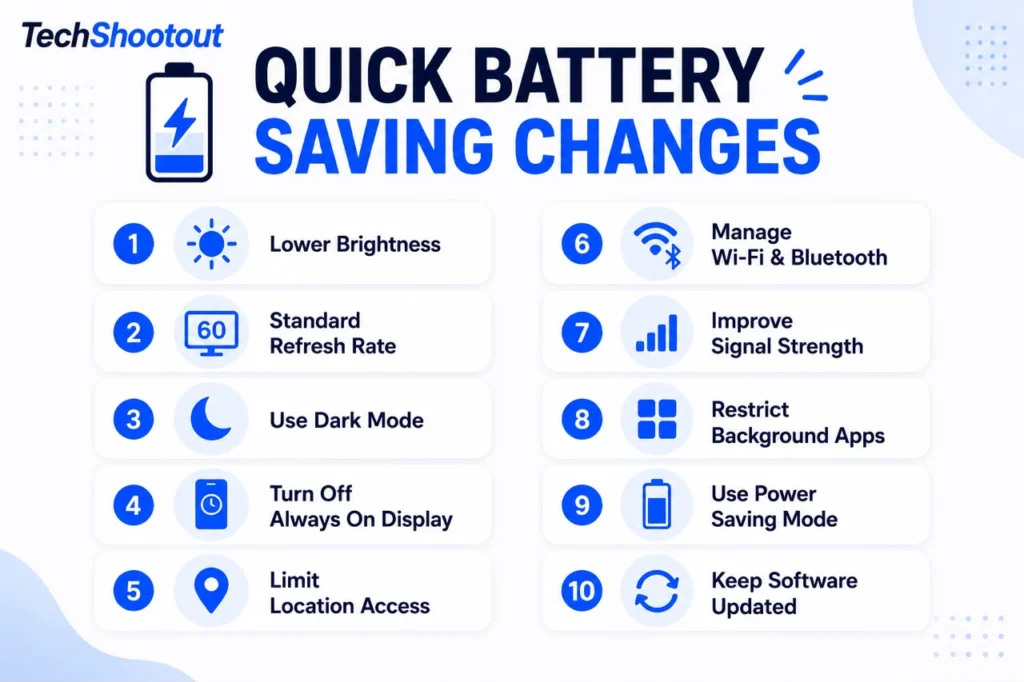
Once the main cause of drain is sorted, a few smaller tweaks can squeeze out extra battery life on your Galaxy. They won’t solve serious drain by themselves, but they help reduce unnecessary background activity.
Turn off features you don’t use or need, such as NFC or Nearby Device Scanning. Disable Bluetooth if you don’t use connected accessories.
Keep your Galaxy and its apps updated so you have the latest bug fixes and compatibility improvements.
A restart can clear a temporary software glitch or a process that has become stuck, but it won’t permanently fix a problem that keeps returning.
Final Thoughts
If you are dealing with Samsung phone battery draining fast, don’t assume the battery itself is the problem. Background apps, display settings, network conditions, 5G, software changes, and battery age can all contribute to battery drain.
Start with Battery Usage to see which apps or services are consuming the most power. Then reduce unnecessary background activity, adjust display settings, review location and network usage, and investigate any recent app or software changes.
If you are noticing Samsung battery draining without use or overnight, check background activity and network conditions. If the problem started after an update, give the phone some time to settle while keeping your apps updated, then investigate further if the drain continues.
If you’ve tried the common fixes but your Galaxy still loses charge unusually quickly, check the battery status through Phone Diagnostics. If the battery shows significant deterioration, professional replacement may be the best long-term solution.
Battery life varies by Galaxy model, One UI version, network, apps, battery age, and usage. The goal isn’t to disable every feature, but to identify what’s consuming the power and address that specific cause.
FAQs
Why is my Samsung Phone battery draining fast even after a full charge?
A full charge doesn’t prevent battery drain if something is continuing to use power. Background apps, a bright display, weak cellular or 5G signals, location activity, a recent software update, or an aging battery can all contribute to faster-than-usual battery consumption.
Why is my Samsung Phone battery draining without use?
Your Samsung Galaxy Phone can continue using battery even when the screen is off. Apps may synchronize data, check for notifications, access location, or perform other background tasks. A weak cellular signal can also increase battery consumption while the phone is idle.
Is Samsung battery draining after an update normal?
Samsung battery draining after update can be temporary while apps and system processes adjust to a major software update. This does not automatically mean the update has damaged your battery. Give the phone some time to settle while keeping your apps updated.
What causes Samsung battery to drain faster than usual?
Fast battery drain can have several causes, and sometimes more than one is involved. Common contributors include background apps, high screen brightness, a high refresh rate, Always-On Display, weak cellular signals, 5G use, location activity, software or app issues, and battery aging.
Why is my Samsung Galaxy battery draining overnight?
If your Samsung Galaxy battery is draining overnight, background activity is one of the first things to check. Apps can sync data, check for notifications, access your location, or maintain network connections while the screen is off. A weak cellular signal can also increase overnight battery drain.
When should I replace my Samsung battery?
Battery replacement becomes more likely when your Galaxy has noticeably shorter battery life, unusually rapid percentage drops, unexpected shutdowns, or other signs of battery deterioration. Before replacing the battery, run a diagnostic test if your device supports it. If the result shows Bad, the battery may have significant degradation and should be professionally inspected for possible replacement.
Does 5G drain Samsung battery faster?
5G can use more battery in some situations, particularly when coverage is weak or the phone frequently switches between different network types. How much it affects battery life depends on your Galaxy model, carrier, and network conditions.
How do I check which app is draining my Samsung battery?
Open Settings > Battery and review your Galaxy’s battery usage. Look for an app that’s consuming an unusually large amount of power compared with how often you actually use it.
How do I check Samsung battery health?
On supported Galaxy devices, you can run Phone diagnostics and check the Battery status. The diagnostic may report the battery as Normal, Weak, or Bad, although the exact results, menus, and available features can vary by model and software version.