
Table of Contents
Introduction
If your iPhone is running low on storage, you might open iPhone Storage and find that System Data is taking up far more space than you expected. Unlike photos, apps, or videos, it’s not clear what’s using all that space, making this category frustrating to deal with.
When storage gets critically low, your iPhone may also have less room for apps, photos, downloads, and software updates. If the phone has started feeling sluggish as well, our guide on iPhone overheating and running slow explains how limited storage and other factors can affect performance.
If you’re trying to figure out how to clear System Data on iPhone, the important thing to know is that you usually don’t need to erase the entire device. There are several practical ways to reduce System Data when it becomes unusually large.
This guide explains what’s stored in System Data, why it can grow over time, and how to clear system storage on iPhone safely without unnecessarily deleting your personal files.
What Is System Data?
Ever wondered why System Data can take up so much space on your iPhone? Think of it as a broad storage category for files iOS uses behind the scenes. According to Apple, iPhone storage is divided into categories for apps, media, cached content, iOS, and other system-related files, but you can’t browse every individual file included in System Data.
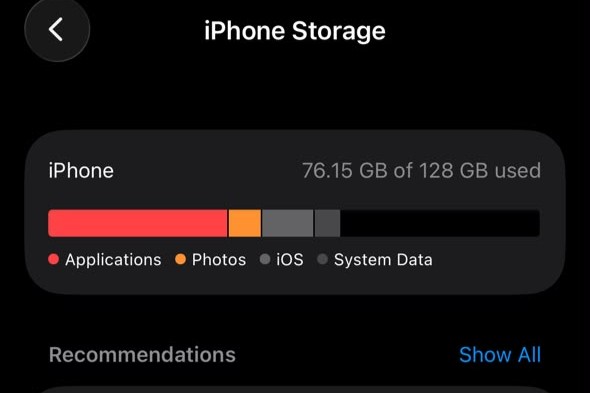
The exact contents can vary, but System Data may include caches, logs, temporary files, fonts, dictionaries, Spotlight indexing data, Siri voices, and other resources used by iOS.
What makes System Data confusing is that its size isn’t fixed. Cached and temporary files can be created or removed as you use your iPhone, so the storage shown in this category can increase or decrease.
Why Does System Data Grow?
System Data can grow as you use your iPhone. That’s usually normal and doesn’t necessarily mean something’s wrong.
Safari Stores Website Data
When you visit websites, Safari saves images and other temporary files so pages can load faster the next time. It also stores cookies and other website data for things like preferences and sign-ins. Over time, some of this data can build up and take up a noticeable amount of storage.
Apps Build Cache Files
Many apps save temporary content on your iPhone so they don’t have to download the same files every time you open them. This can make apps load faster, but the cached files still take up space. Depending on the app and the type of data, that storage may show up under the app itself or elsewhere in iPhone storage.
Software Updates Leave Temporary Files
Installing a new version of iOS requires downloaded update files and temporary storage while the update is being installed. iOS normally manages this data on its own, although some temporary files may stick around for a while before they’re cleared. Once you know what can make System Data grow, it’s easier to figure out what you can safely clear and what is best left alone.
Check Your System Data
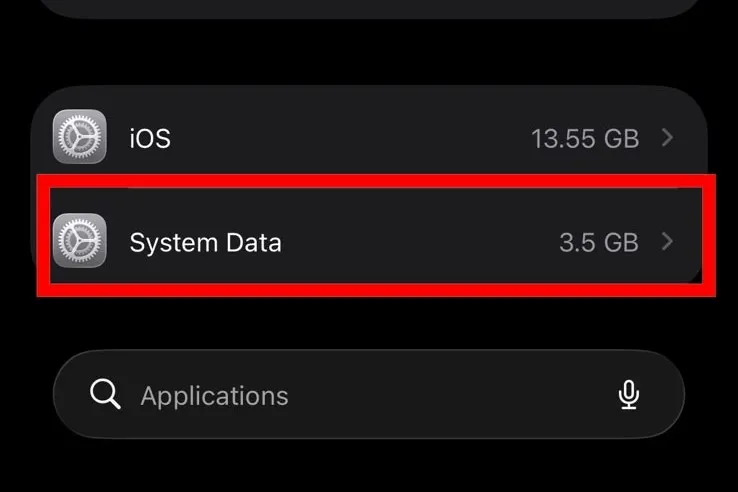
Before clearing anything, check how much space System Data is actually using. Apple recommends using the iPhone Storage screen to see how your storage is divided between apps and different categories.
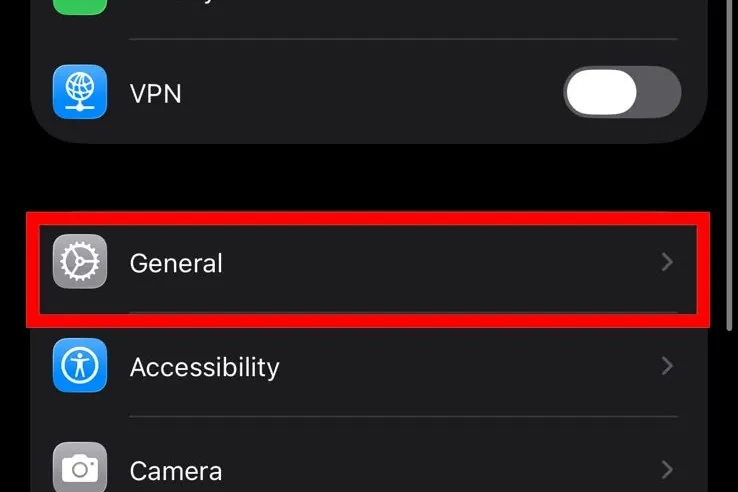
Open Settings, tap General, then iPhone Storage. Give it a moment to calculate your storage usage, then look through the breakdown for System Data.
There’s no fixed amount of System Data that’s considered normal. The size can vary depending on your iOS version, recent updates, app activity, and how you use your iPhone.

How to Reduce System Data
Apple doesn’t give you a single button to clear System Data. Instead, much of this storage is managed by iOS in the background.
If you’re looking for how to clear System Data on iPhone, the methods below can help reduce caches, temporary files, and other unnecessary data without deleting your personal files.
Clear Safari Data
Clearing Safari data is one of the easiest places to start. Apple explains that Safari stores browsing history, cookies, cache, and other website data as you browse.
Go to Settings > Apps > Safari > Clear History and Website Data. On older versions of iOS, you’ll find Safari directly in the main Settings list. Choose the timeframe you want to clear, then confirm.
This removes browsing history and other Safari website data from the selected timeframe. It can free up some browser-related storage and may also reduce cached data that contributes to your iPhone’s overall storage use.


Restart Your iPhone
It may seem too simple to make a difference, but restarting your iPhone stops stuck processes and refreshes temporary system activity. While you shouldn’t expect a huge change in System Data, this quick step is worth trying before moving on to more involved fixes.
Turn your iPhone off, wait about 30 seconds, then turn it back on. Apple provides restart instructions for different iPhone models if you’re not sure which buttons to use.
Update iOS
Updates aren’t just about new features. They also bring security fixes, bug fixes, and other system improvements, so an update may help if unusually high System Data is related to a software issue. Apple recommends keeping iOS up to date to get the latest fixes available for your iPhone.
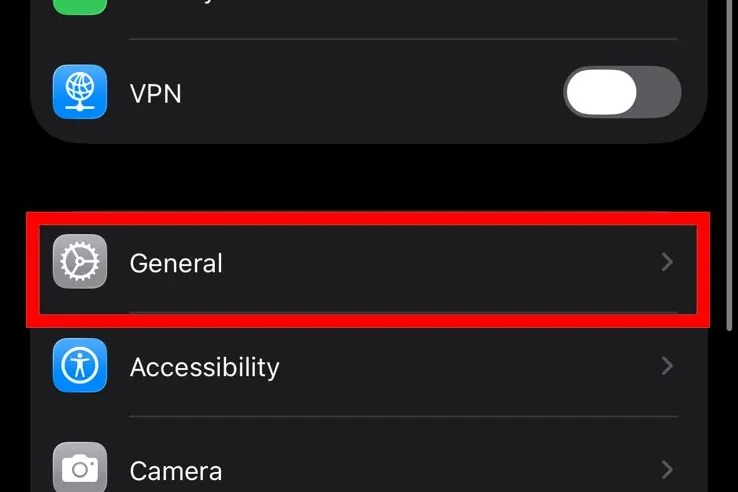
Go to Settings > General > Software Update. If an update is available, install it when your iPhone has enough charge or is connected to power.
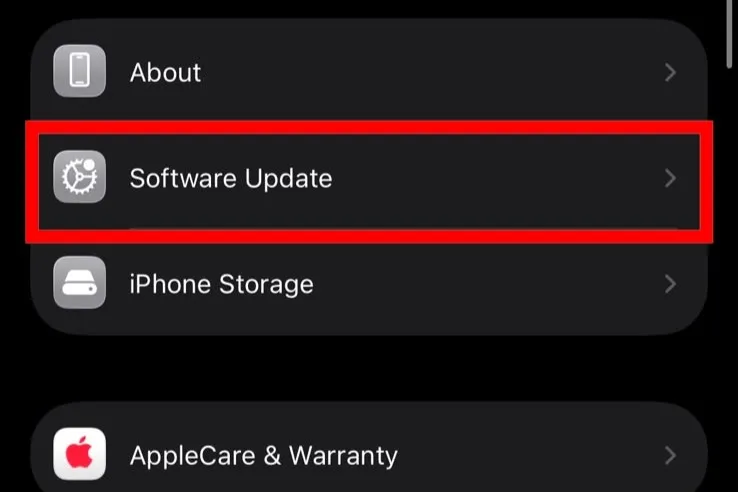
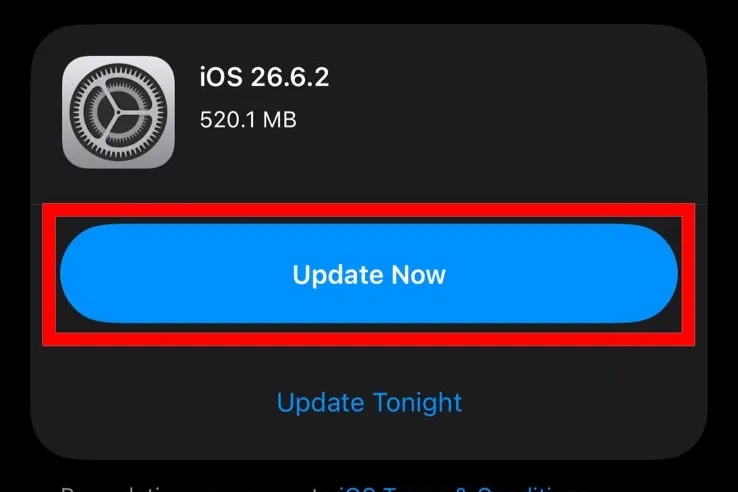
Don’t worry if the storage numbers change after the update. iOS may continue running background tasks for a while, so it’s better to check System Data again later rather than judging the result immediately.
Clear App Cache
On Android, you can usually clear the cache for individual apps from the phone’s settings. iOS doesn’t work the same way. Some iPhone apps have their own option for clearing cached files, but many don’t.
If you can’t find that option, deleting and reinstalling the app is another way to clear locally stored data. Just check that anything important is backed up or synced to your account first. Otherwise, you could lose information that was stored only on the phone.
This is worth trying with apps that build up a lot of cached content over time. Social media, streaming, and browser apps are particularly useful places to check. And don’t be surprised if System Data barely changes afterward. The space you free may have been counted under the app itself instead.
Delete Old iOS Update Files
Occasionally an iOS update gets downloaded but doesn’t install properly. If that happens, the update file may still be sitting on your iPhone. Apple recommends deleting the downloaded update and downloading it again if you can’t install the update normally.
Go to Settings > General > iPhone Storage. If you see an iOS update listed there, tap it and delete it. You can then download it again from Software Update. If no update file is stored on your iPhone, you won’t see this option.
What to Do If System Data Won’t Decrease
Sometimes System Data stays unusually large even after you’ve tried the usual fixes. If you’re trying to figure out how to get rid of System Data on iPhone and nothing seems to be working, don’t rush into resetting the phone.
If you recently updated iOS or removed a lot of data, check your storage again later. System Data can change as iOS continues handling temporary files and other background activity.
If it stays unusually large or keeps growing, there may be a software or caching issue that the basic cleanup steps haven’t fixed.
Restore Your iPhone as a Last Resort
If System Data remains unusually large, continues growing, and none of the safer methods have helped, a backup and restore may be the final option to consider. Before doing anything, back up your iPhone through iCloud or your computer and make sure the backup finishes successfully.
Once that’s done, erase your iPhone and restore it from the backup during setup. Your backed-up content can then be restored, while some temporary or system-managed data may be rebuilt rather than carried over in exactly the same state. Apple provides official instructions for erasing an iPhone and restoring your content from an iCloud or computer backup.
If you’re still trying to figure out how to delete System Data on iPhone after everything else has failed, restoring is one of the last options worth considering. Just remember that anything that wasn’t backed up or synced could be lost when you erase the phone.
Common Myths About System Data
Because Apple doesn’t explain much about this category, a few myths have stuck around.
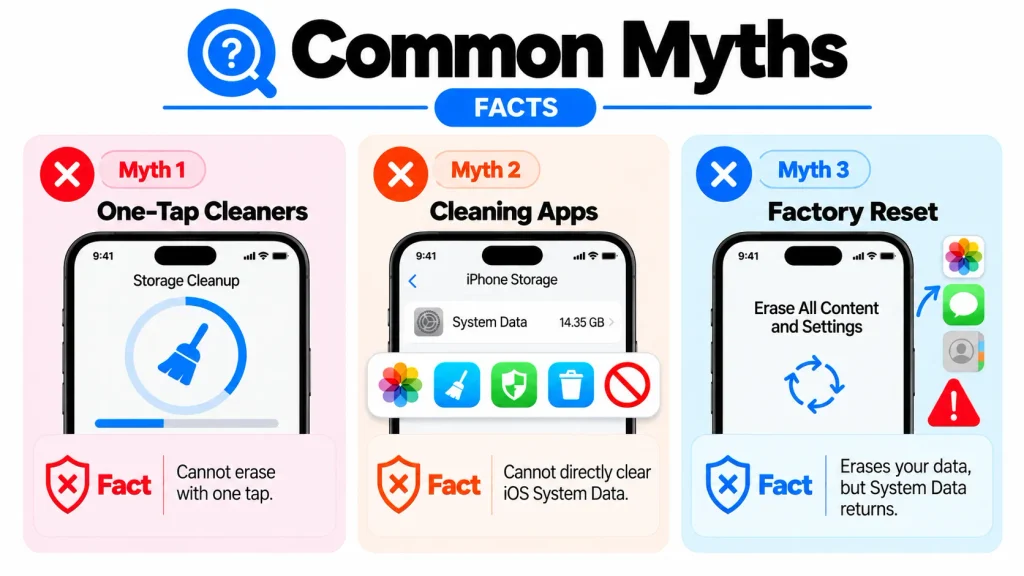
One-Tap Cleanup
There’s no hidden setting for this type of data. Apple doesn’t provide a “Delete System Data” button because iOS automatically manages much of this storage. The practical approach is to work through the steps above and remove the caches, website data, downloaded files, and other temporary data you can safely clear.
Cleaning Apps Fix It
Many apps on the App Store claim to clean your iPhone or instantly free up space. In reality, third-party apps can’t access and delete protected system files. They may help you find large photos, videos, or other files you can remove yourself, but they can’t directly clear System Data.
You Need a Factory Reset
A factory reset is sometimes presented as the only solution, but it shouldn’t be your first step. System Data may come down after clearing Safari website data, managing app caches, restarting the iPhone, removing downloaded update files, or simply giving iOS time to finish background activity.
Erasing and restoring your iPhone should be one of the last options you try.
Final Thoughts
Knowing how to clear System Data on iPhone can help you recover storage without immediately resorting to a reset. System Data is a normal part of iOS, but sometimes it becomes unusually large. Clearing Safari data, checking app caches, removing a downloaded update, and giving iOS time to settle can all be worth trying.
A factory reset shouldn’t be your first move. If System Data stays unusually high after you’ve worked through the simpler fixes, backing up and restoring your iPhone may be worth considering as a last resort.
You don’t need to constantly clean your iPhone to keep storage under control. Check iPhone Storage occasionally, keep iOS updated, and deal with unusually large caches or downloads when they appear. That’s usually a better approach than repeatedly trying to clear system storage on iPhone.
Storage is only one part of keeping your iPhone working well over time. Battery condition matters too, especially as the phone gets older. Our iPhone Battery Health guide explains what affects battery aging and what you can do to look after it.
FAQs
How do I clear System Data on iPhone?
If you’re wondering how to clear System Data on iPhone, start with the simple fixes: clear Safari history and website data, check app caches, remove any downloaded iOS update you no longer need, and restart your iPhone. You can’t remove System Data completely, but these steps may reduce it without erasing the device.
How to clear System Data on iPhone without resetting?
If you want to know how to clear System Data on iPhone without resetting, start by clearing Safari website data, checking apps that store a lot of cached content, removing an old downloaded iOS update, and restarting your iPhone. These steps don’t require a factory reset, although clearing Safari or app data can remove information such as website sign-ins or locally stored app content.
How do I clear system storage on iPhone?
There isn’t a single button to clear system storage on iPhone because much of it is managed automatically by iOS. You can still reduce some of the storage by clearing supported caches, removing downloaded update files you no longer need, and restarting the iPhone. Don’t expect System Data to reach zero, though.
How to get rid of System Data on iPhone if it keeps growing?
If you’re trying to figure out how to get rid of System Data on iPhone when it keeps growing, work through the basic cleanup steps first. Clear Safari website data, check app caches and downloaded updates, restart the phone, and make sure iOS is up to date. Check the storage again later, and if System Data remains unusually large after everything else has failed, a backup and restore may be worth considering.
Why is System Data taking up so much storage on my iPhone?
System Data can include caches, logs, temporary files, fonts, dictionaries, Siri voices, and other resources used by iOS. Its size changes as you use your iPhone, so some fluctuation is normal. If it becomes unusually large, cached content, recent system activity, or downloaded files may be contributing to the increase.
Is clearing System Data on iPhone safe?
It depends on the method you use. Clearing Safari data is generally low risk, but it can remove browsing history, cookies, and website sign-ins. Deleting or reinstalling an app can remove locally stored data, while erasing and restoring the iPhone carries a much greater risk if your backup is incomplete. Start with the least disruptive methods first.