
Table of Contents
Introduction
If your Samsung is draining battery fast, don’t start changing every battery setting you can find. First, check what’s actually using the battery.
The cause could be an app running in the background, high screen brightness, poor signal, location use, heavy 5G activity, a recent update, or simply an aging battery. The pattern matters too. Some phones drain quickly during use, while others lose charge overnight or suddenly get worse after an update.
Here are 12 practical ways to find the cause and fix Samsung battery drain. Menu names may differ slightly depending on your Galaxy model and One UI version.
Why Is My Samsung Battery Draining Fast?
If you’re wondering why my Samsung battery is draining so fast, there isn’t always one simple answer. Background apps, high screen brightness, poor cellular signal, and other features can all use power throughout the day.
The display is often a major factor. High brightness, long screen-on time, a high refresh rate, and Always-On Display can all increase battery use, depending on your Galaxy model and settings.
If you’re dealing with Samsung battery draining fast, background apps are one of the first things worth checking. They can sync data, check for notifications, use location services, and perform other tasks while you’re not actively using them. Samsung’s Sleeping and Deep Sleeping Apps features can help limit unnecessary background activity.
Network conditions can also make a difference. Poor cellular coverage can increase power use, while the impact of 5G varies with the phone, network, and signal strength.
If the drain started after a software update, give the phone some time and check for unusually active apps. If you’ve ruled out apps, settings, and network conditions but the problem continues, battery aging could be the reason.
12 Ways to Fix Samsung Battery Draining Fast
1. Restrict Apps That Are Using Too Much Battery
Before changing a bunch of settings, check where your Galaxy’s battery is actually going. Go to Settings > Battery and look for Battery usage or View details, depending on your model and One UI version. You may also find battery information through Device Care. Samsung provides more guidance on battery usage and background activity.
If there’s an app you don’t need running in the background, you can move it to Sleeping apps or Deep sleeping apps under Settings > Battery > Background usage limits.
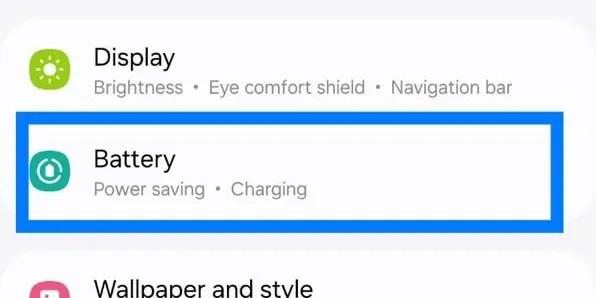


Deep sleeping apps are prevented from running in the background and generally only become active when you open them. The tradeoff is that notifications, syncing, and other background activity may not happen until you open the app.
If your Samsung phone’s battery is draining fast, don’t start disabling random features. Move on to the other fixes below, especially network conditions, display settings, location access, and software behavior.
2. Lower Brightness and Reduce Screen Time
Your screen can use a surprising amount of battery, especially if you keep the brightness high. Full brightness makes sense outside in strong sunlight, but you usually don’t need it indoors.
Try turning on Adaptive Brightness and let the phone adjust the screen as you move between brighter and darker places. You can also shorten the screen timeout so the display doesn’t use power after you put the phone down.
If your Galaxy has an AMOLED or other OLED display, Dark Mode may help too. Black pixels can switch off completely on these screens, which can reduce power use. Don’t expect a huge difference in every situation, though. It depends on your brightness level and how much dark content you’re actually looking at.
3. Try a Lower Refresh Rate
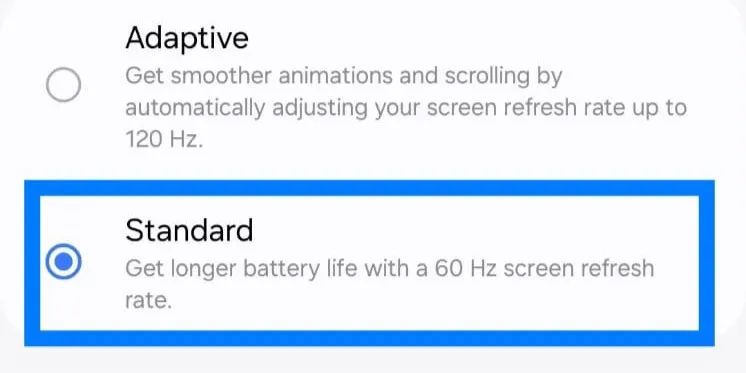
A higher refresh rate can use more battery because the screen updates more frequently. If your Galaxy supports a high or adaptive refresh rate, try a lower setting and see if it makes a difference.
Go to Settings > Display > Motion Smoothness. Options vary by model, but many Galaxy phones offer Adaptive and Standard modes. If you’re troubleshooting a Samsung Galaxy battery draining quickly, try Standard for a day and compare the difference.


4. Adjust Always-On Display Settings
Always-On Display is handy for checking the time or notifications without waking your phone, but it isn’t completely free when it comes to battery life. AMOLED makes AOD fairly efficient, since only part of the screen needs to light up, but it still uses some power.
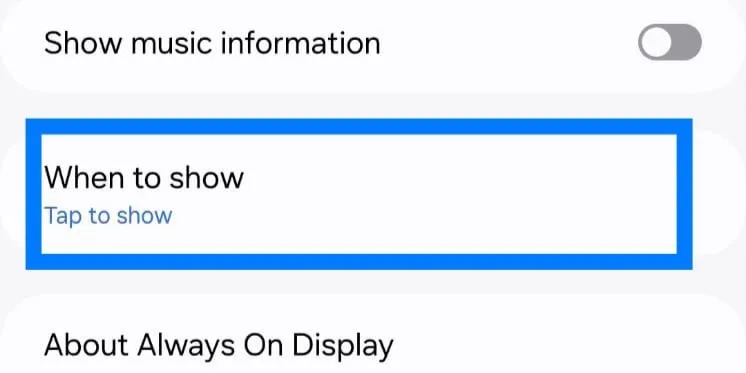
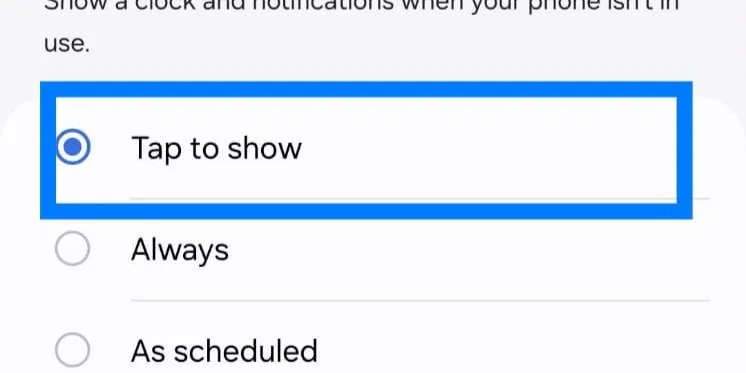
Rather than turning it off straight away, try limiting when it runs. Go to Settings > Lock screen and AOD > Always On Display. You can schedule it for certain hours or use Tap to Show, so AOD only appears when you actually want to check it.

5. Check Your Cellular Signal and 5G Settings
Poor cellular reception is another possible cause of Samsung battery draining fast, especially when your Galaxy is struggling to maintain a stable connection. Samsung also lists a weak network signal as something that can increase battery consumption.
5G can add to the drain when coverage is poor or your phone keeps switching between network types. If you notice the battery dropping faster in places with weak 5G, try LTE/4G for a while, if your model and carrier allow it, and see if things improve. There’s little reason to turn off 5G if your signal is strong and battery life is already fine.
If you’re somewhere with little or no coverage, Airplane Mode can also help when you don’t need calls or texts. It stops the phone from repeatedly searching for a cellular connection.
6. Review Location Access for Your Apps
Apps that frequently request your location in the background can add to battery drain. Navigation, weather, and similar apps may use location more often, depending on their settings.
Rather than turning Location off completely, go to Settings > Location > App permissions and check which apps can access it. For apps that don’t need your location in the background, select Allow only while using the app where available.
It’s also worth checking apps you rarely use but that still have regular location access. Google’s guide to Android location permissions explains the different permission options in more detail.
7. Use Power Saving Mode When You Need It
Samsung’s Power Saving Mode can help stretch your battery when you’re away from a charger. It cuts back on background activity and may limit certain features or performance to reduce power use.
Go to Settings > Battery > Power saving, or turn it on from the Quick Settings panel. The exact changes vary by Galaxy model and One UI version, but you may notice less background syncing or slightly reduced performance while it’s enabled.
It’s useful when you need your phone to last longer, but you don’t necessarily have to leave it on all the time.
8. Check for a Software Update
If your Galaxy has suddenly started running warmer than usual or the battery isn’t lasting as long as it normally does, check whether there’s a software update waiting.
Samsung sometimes includes bug fixes and performance improvements in its updates, so it’s worth ruling this out before digging into more complicated fixes. Go to Settings > Software update > Download and install and see what’s available.
9. Give Your Galaxy Time After a Software Update
If you’re dealing with Samsung battery draining after an update, don’t jump to the conclusion that the update permanently damaged your battery. Major updates can temporarily increase background activity as apps are updated, optimized, and reconfigured for the new software.
Battery life can temporarily change after a major software update while apps and system processes adjust to the new software. Give the phone some time after the update before judging its battery life, and check for any pending updates in the Galaxy Store and Google Play Store too, since apps that haven’t been updated yet can act strangely after a system update.
A restart can also help if the problem showed up right after you updated. If you’ve checked your apps and settings and the issue persists, don’t just blame the update. Next, move on to the rest of the troubleshooting steps.
10. Update or Reinstall a Problematic App
If your Samsung battery is draining quickly, a single app could be responsible. An app may pick up a bug, get stuck running in the background, or simply start acting up after an update.
Start with Settings > Battery and look for an app that’s consuming a lot of battery compared with how often you actually use it. If you notice anything unusual, check the Galaxy Store or Google Play Store for any available updates.
Still draining a lot of power after that? Try clearing the app’s cache. If that doesn’t change anything, reinstalling the app is another option. Just back up or sync anything important first, since reinstalling may remove data the app has stored locally on your phone.
11. Check for Suspicious or Unwanted Apps
Malicious or poorly behaved apps can sometimes cause unusual battery drain, but that shouldn’t be your first guess. Work through Battery Usage and the other troubleshooting steps first before you start suspecting malware.
If you’re also seeing unfamiliar apps, intrusive ads, random pop-ups, or strange background activity, take a closer look at what’s installed on your phone. Remove anything you don’t recognize or trust, particularly apps installed from outside the Google Play Store or Galaxy Store.
If malware seems like a possibility, our guide on how to remove malware from Android explains what to look for and how to deal with it safely.
It’s also a good idea to keep Google Play Protect turned on and stick with trusted app sources. If an app looks suspicious and uses an unusual amount of battery, I’d investigate it first.
12. Check Your Samsung Battery Health
If your Samsung battery is still draining quickly after checking your apps, display settings, network conditions, and software, the battery itself may have lost some capacity over time. Shorter battery life, sudden percentage drops, or unexpected shutdowns can all be signs that it’s worth checking.
Before you think about replacing the battery, check its status through Settings > Diagnostics > Phone Diagnostics > Battery status, if that option is available on your device. The exact path can vary by Galaxy model and software version. Samsung’s battery diagnostics can also help you check for signs of battery deterioration.

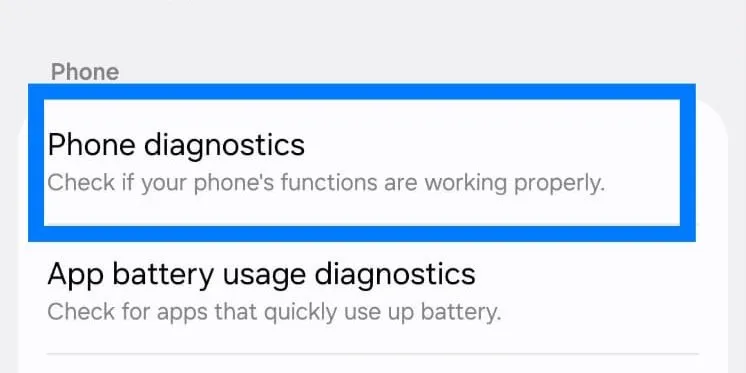
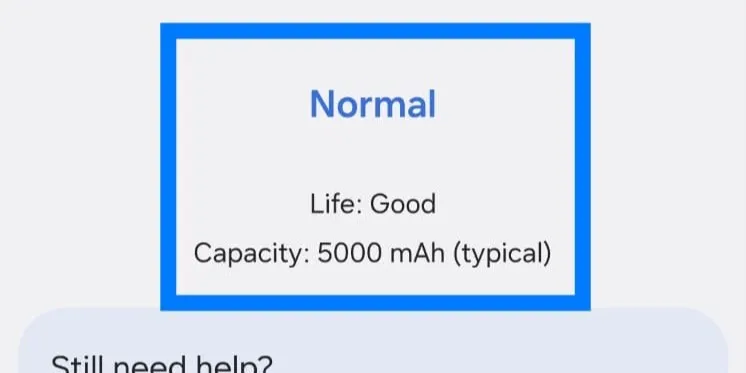
If the result is Normal, I’d keep looking at apps, signal, and settings. If it shows Weak or Bad and you’re also getting noticeably shorter battery life, then the battery itself becomes a much stronger suspect, and a professional replacement may be worth considering.
If you’re having charging problems as well, see our guide to Samsung fast charging not working for charging-specific fixes.
Why Is My Samsung Battery Draining Fast Without Use?
If you notice your Samsung battery draining quickly even when you’re not using it, don’t assume the phone is doing nothing just because the screen is off. Apps may still be syncing, checking for notifications, using location, or doing other work in the background.
I’d check Battery Usage first. If an app has used more power than you’d expect while the phone was sitting idle, take a closer look at its background activity.
Signal is another one that’s easy to miss. Poor cellular coverage can cause the phone to use more power trying to stay connected. If most of the drain happens overnight, try leaving it somewhere with a stronger signal for a night and compare the battery loss.
If that doesn’t change much, look at apps that are syncing frequently or have background location access. The idea is to narrow it down rather than switching off everything at once.
Quick Battery-Saving Changes Worth Trying
If you’re still dealing with Samsung phone battery draining fast, there are a few smaller things worth checking. They probably won’t transform your battery life, but they can cut down on activity you don’t need.
Start with features you rarely use. If you have no need for things like NFC or Nearby Device Scanning, you can switch them off. The same goes for Bluetooth if you never use wireless accessories.
Keep your Galaxy and your apps updated as well. Updates can bring bug fixes and compatibility improvements, particularly if an app hasn’t been behaving normally.
And don’t overlook a simple restart. It can clear a temporary glitch or a process that’s become stuck, although a problem that keeps coming back will need more than a reboot.
Final Thoughts
If you’re dealing with Samsung battery draining fast, don’t assume the battery itself is the problem. Apps, display settings, poor signal, software changes, and battery age can all contribute.
Start with Battery Usage and work from there. If the usual fixes don’t help and your Galaxy is still losing charge unusually quickly, check the battery status through Phone Diagnostics.
Battery life varies from one Galaxy phone to another, so there isn’t a single fix that works for everyone. The goal isn’t to disable every feature but to find what’s using the power and deal with that specific cause.
FAQs
Is Samsung battery draining after an update normal?
If your Samsung battery is draining after an update, it may only be temporary. A major software update can trigger extra background activity for a while, which may use more power than usual. Give the phone some time and keep your apps updated before assuming there’s a problem with the battery.
What causes the Samsung battery to drain faster than usual?
Fast battery drain can have several causes, and sometimes more than one is involved. Common contributors include background apps, high screen brightness, a high refresh rate, Always-On Display, weak cellular signals, 5G use, location activity, software or app issues, and battery aging.
Does 5G drain the Samsung battery faster?
5G can use more battery in some situations, particularly when coverage is weak or the phone frequently switches between different network types. How much it affects battery life depends on your Galaxy model, carrier, and network conditions.
How do I check which app is draining my Samsung battery?
Open Settings > Battery and review your Galaxy’s battery usage. Look for an app that’s consuming an unusually large amount of power compared with how often you actually use it.
How do I check Samsung battery health?
On supported Galaxy devices, you can run Phone diagnostics and check the Battery status. The diagnostic may report the battery as Normal, Weak, or Bad, although the exact results, menus, and available features can vary by model and software version.
Why is my Samsung battery draining so fast?
Your Galaxy can still use power with the screen off. Apps may sync data, check notifications, use location, or run other tasks in the background. Poor cellular coverage can also increase battery use while the phone is sitting idle.