
Pop-up ads, sudden slowdowns, or a battery that drains faster than usual can make you wonder whether your Android phone has malware. Those signs alone don’t confirm an infection. A buggy app, unwanted website notifications, or an aging battery could explain some of the same problems.
Start with a Google Play Protect scan, check for security updates, and review suspicious apps. Before uninstalling a suspicious app, turn off any device administrator or accessibility access it has been granted. If unwanted notifications come from a website, block that site’s notification permission in your browser. Consider a factory reset if signs of malware persist after the other checks.
This guide explains how to remove malware from Android, investigate suspicious behavior, and protect your accounts. Menu names vary by phone brand and Android version, so some steps may look different on your device.
Contents
What Is Malware on Android?
Malware is short for malicious software. It can steal information, monitor your activity, damage files, or give someone unauthorized access to your phone. On Android, it may be disguised as a useful app or hidden inside a tampered APK, the file used to install an Android app.
A virus warning on a webpage does not prove that anything has been installed. Websites can display fake alerts to frighten you into downloading an app or paying for help. Heat, battery drain, and crashes are not proof of infection either. A poorly optimized app can cause similar problems.
Here are some examples of Android malware and unwanted software, along with signs worth checking:
| Threat | What it can do | Possible warning sign |
|---|---|---|
| Intrusive adware | Displays disruptive ads or redirects you to unwanted websites | Ads repeatedly appear over other apps or on the home screen |
| Spyware | Collects private information or monitors activity without proper notice or consent | An app has sensitive permissions or accessibility access unrelated to its purpose |
| Banking trojan | Steals banking login details or verification codes | An unexpected login screen or request for codes appears over a banking app |
| Ransomware | Blocks access to the device or files and demands payment | A demand for money appears alongside a lockout or inaccessible files |
These signs are reasons to investigate, not a reliable way to identify malware on their own. Some harmful apps may show no obvious symptoms.
Android uses sandboxing to limit what each app can access, along with permission controls. On phones with Google Play services, Google Play Protect also checks apps for harmful behavior. These protections reduce the risk, but they cannot catch every threat or prevent every misuse of permissions.
How to Check for Malware on Android
No single symptom can confirm an infection. Look for a combination of unusual behavior, then check the apps and permissions connected to it.
Run a Google Play Protect Scan
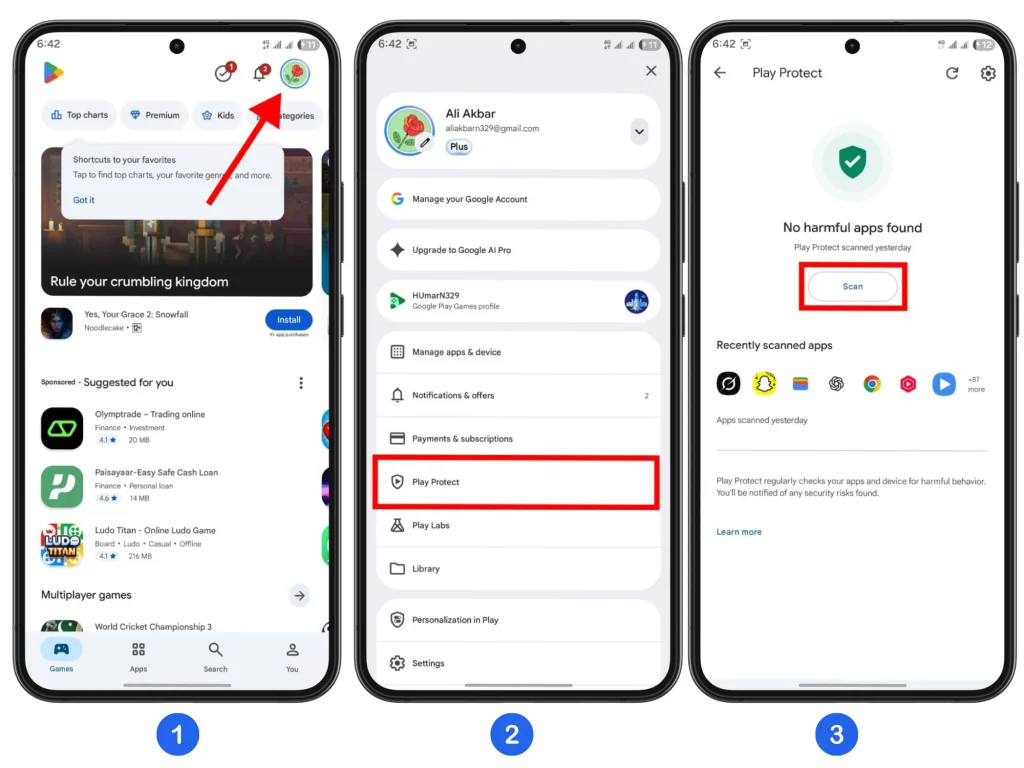
Open the Google Play Store, tap your profile picture in the top-right corner, select Play Protect, and tap Scan. Play Protect checks installed apps, including those downloaded from outside the Play Store. If it detects a potentially harmful app, it may warn you, disable it, or remove it automatically.
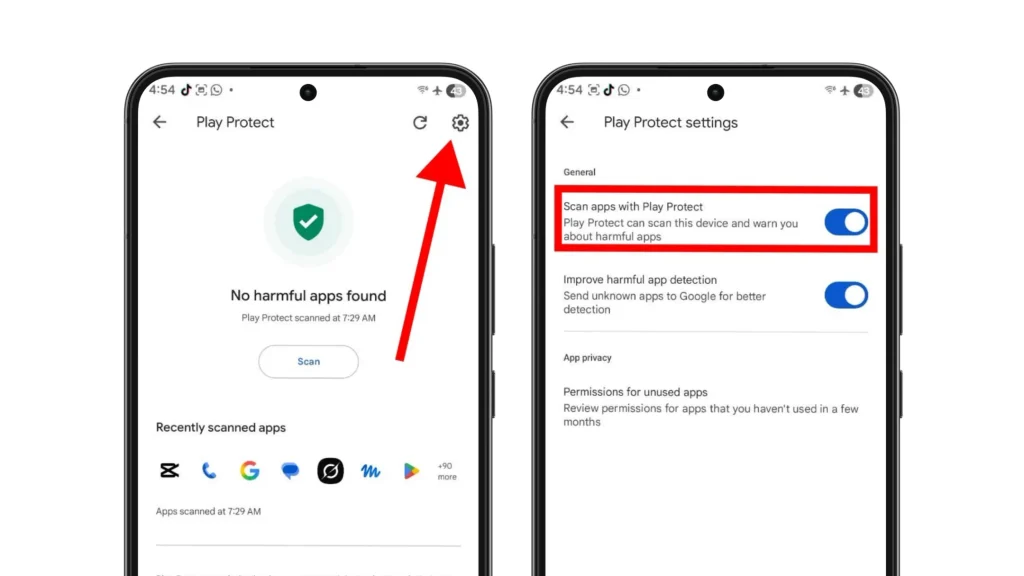
In Play Protect’s settings, make sure Scan apps with Play Protect is turned on. If you install apps from outside the Play Store, also enable the Improve harmful app detection option. This allows unknown apps to be sent automatically to Google for analysis, as explained in Google’s official Play Protect documentation.
Play Protect also scans periodically in the background. A clean result is reassuring, but it does not guarantee that every app is safe. If unwanted ads or other unexplained problems continue, work through the remaining checks. For a closer look at its automatic scans, warnings, and limitations, read our guide explaining how Google Play Protect works.
Review Recently Installed Apps
Go to Settings > Apps and review anything you installed shortly before the problem began. Look more closely at apps you do not remember installing, especially those with blank icons or vague names. These details are worth checking, but they do not prove an app is harmful.
Next, check whether each app’s permissions make sense for what it does. A basic wallpaper app asking to read your text messages or a simple calculator asking to install other apps deserves a closer look.
Some permissions support legitimate features, such as microphone access for voice input. What matters is whether the app has a clear reason for requesting that access.
Check Battery and Mobile Data Usage
Open your phone’s battery usage screen and review which apps have been active in the background. Then check mobile data usage by app, noting the dates shown. An unfamiliar app using more power or data than its function would suggest deserves closer inspection.
High battery or data usage alone does not prove malware. Syncing, navigation, games, and social media can account for heavy usage. Poor cellular coverage can also increase battery drain, while an aging battery holds less charge than it once did.
Review Sensitive Access
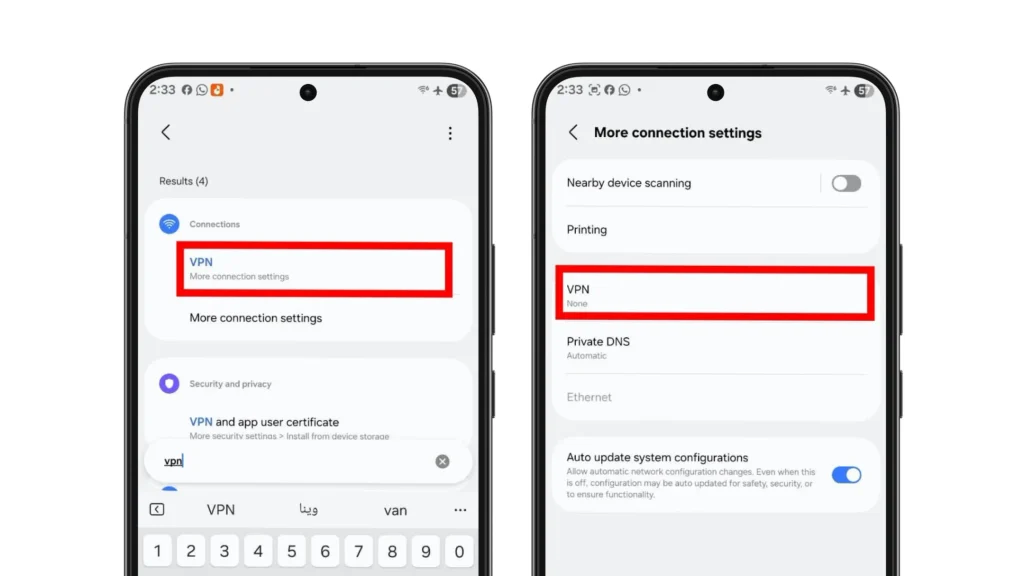
Open Settings and tap the search bar or magnifying-glass icon. Search separately for Device Admin Apps, Accessibility, Notification Access, Install Unknown Apps, and VPN. Menu names may vary between phones.
Open each result and check which apps actually have access enabled. Investigate unfamiliar apps or permissions that do not fit an app’s purpose. Under VPN, review saved connections you do not recognize and check whether any are currently connected.
Do not disable a service just because its name looks technical. Check what it does through your phone manufacturer’s or the app developer’s official website, especially if it came preinstalled. Legitimate apps and system services may need this access for features you use.
Separate Browser Scams From Device Malware
A virus warning on a webpage does not prove your Android phone is infected. It may be trying to scare you into paying for help or downloading an app. Do not tap the warning, call the displayed number, or install anything it recommends. Close the tab instead.
Website notifications can also appear when the browser is not open. If a warning arrives as a notification, swipe down to open the notification panel, then press and hold it to check which app sent it. If it comes from your browser, review the browser’s website notification permissions and block the offending site.
If the alerts come from another app or intrusive ads continue after blocking website notifications, investigate recently installed apps as well.
How to Remove Malware From Android Step by Step
Work through these steps in order. Stop when the suspicious behavior disappears and you are confident the phone is clean.
1. Scan the Phone With Google Play Protect
Start with Google Play Protect, the built-in app scanner on phones with the Google Play Store.
If you have not already scanned the phone, open Google Play Store > Profile picture > Play Protect and tap Scan. If it flags a harmful app, follow the prompt to uninstall it. Play Protect may have already disabled or removed the app.
Next, open Play Protect’s settings and confirm that Scan apps with Play Protect is turned on so that automatic checks stay active.
Google also recommends Play Protect as the starting point in its official Android malware-removal guidance.
2. Restart the Phone in Safe Mode
Safe Mode temporarily disables downloaded apps while keeping Android’s core services running. It can make troubleshooting easier when pop-ups or repeated crashes interfere with normal use. It does not remove malware by itself.
On many Android phones, open the power menu, then touch and hold Power off until a Safe Mode prompt appears. Tap Safe mode or confirm the prompt to restart.
On many Samsung Galaxy phones, open Quick Settings and tap the Power icon, then touch and hold Power off and tap Safe mode. Once the phone restarts, look for the Safe mode label near the bottom of the screen.
If this option does not appear, follow your phone manufacturer’s Safe Mode instructions. The method varies between devices.
Use the phone long enough to check whether the usual problem returns. If Safe Mode switches on Airplane Mode, reconnect to Wi-Fi when testing internet-related problems. Otherwise, going offline could explain why the ads stopped.
If the problem disappears under similar conditions, a downloaded app is likely involved. This does not identify the app or prove it is malicious.
You can remove suspicious apps while still in Safe Mode if normal mode is difficult to use. Restart normally when you have finished. If the phone stays in Safe Mode, follow our guide on how to turn off Safe Mode on Android.
3. Uninstall Suspicious Apps and Delete Their APK Files
Open Settings > Apps and review apps installed around the time the problem started. Check unfamiliar names before removing anything. Focus on apps flagged as harmful, downloaded from sources you do not trust, or showing suspicious behavior.
To remove the app, go to Settings > Apps > [App name] > Uninstall and confirm. Some phones require you to tap See all apps before selecting the app.
If Uninstall is unavailable or removal is blocked, continue to Step 4 to check the app’s administrator and accessibility access, then try uninstalling it again.
If you installed an app from a downloaded APK, open your file manager’s Downloads folder and delete the installer if it is still there. Do this after uninstalling the app to avoid accidentally installing it again.
Do not remove an unfamiliar system app without checking what it does. Manufacturer and carrier services can have unusual names while still serving legitimate purposes.
4. Remove Administrator and Accessibility Access
Some malicious apps abuse powerful permissions to interfere with removal or control parts of your phone. If a suspicious app would not uninstall in the previous step, check its access before trying again.
Search Settings for Device admin apps or Device administrators. Find the suspicious app and deactivate its administrator access if it is enabled.
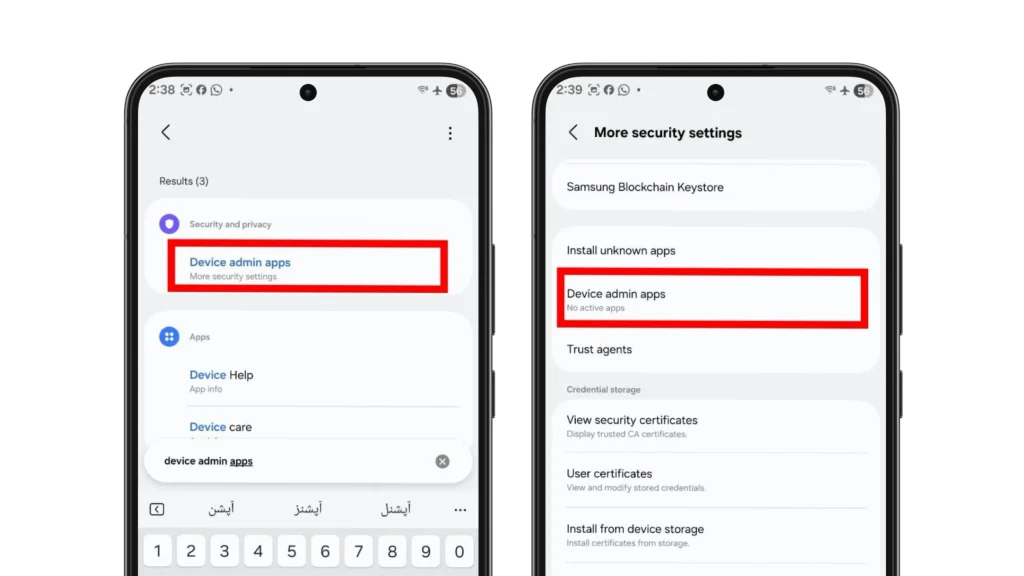
Next, review Accessibility and Notification Access for the same app. Accessibility services can read screen content or perform actions on your behalf. Notification access can expose message previews and other information in notifications. Turn off any of these permissions granted to the suspicious app, then return to Settings > Apps and try uninstalling it again.
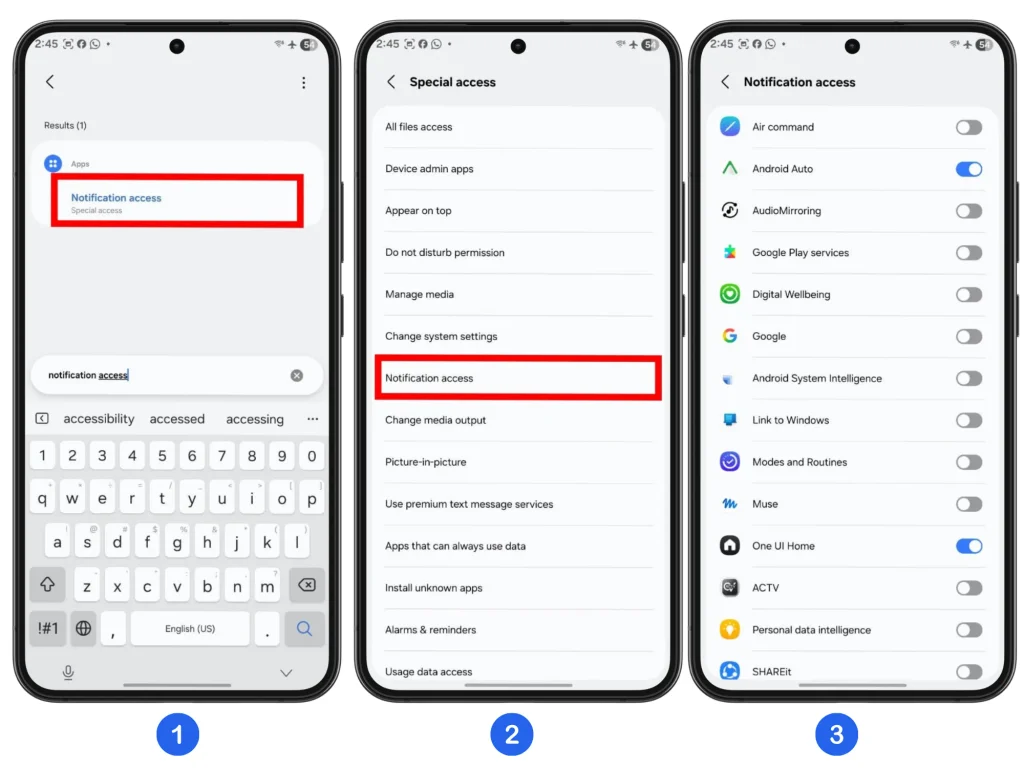
Check which app you are changing before removing access. Password managers, screen readers, wearable apps, and phone-linking services may legitimately use some of these features. An unfamiliar name alone does not make an app malicious.
5. Stop Suspicious Website Notifications
Repeated virus alerts can come from a website you previously allowed to send notifications. The site does not need to install malware to display these messages.
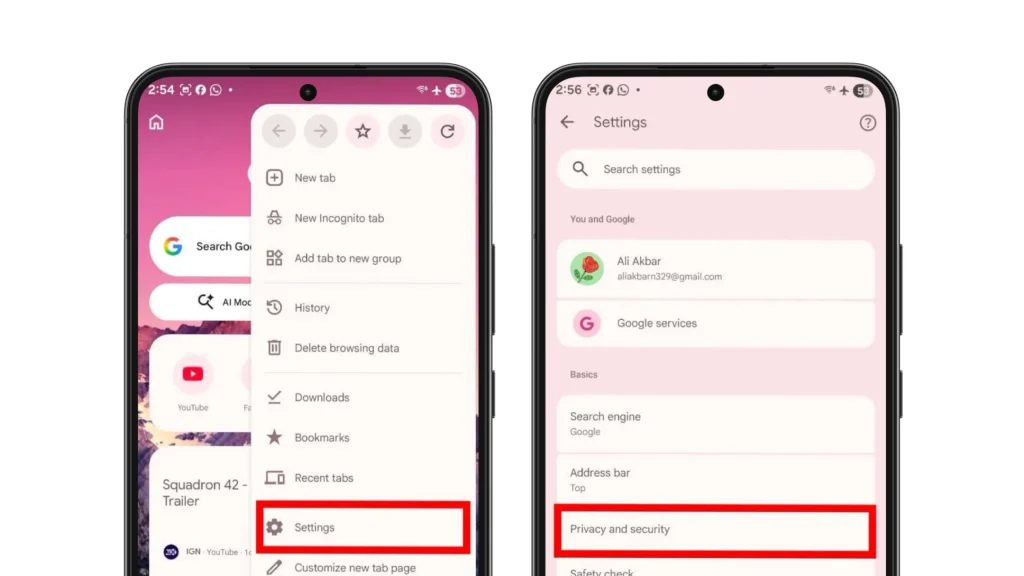
In Chrome, open the three-dot menu, then go to Settings > Site settings > Notifications and review the allowed websites. Block the site sending the alerts and any others you no longer want notifications from. In other browsers, look for website permissions or notification settings.
If blocking a site stops the warnings, that points to its notifications as the source. The alerts themselves were not proof that your phone was infected.
6. Clear Browser Data and Downloads
If browser pop-ups or redirects continue, close any suspicious tabs, then try clearing the affected browser’s cookies and cache. In Chrome, open Settings > Privacy and security > Delete browsing data. Select Cookies and site data and Cached images and files. Choose All Time to clear these categories completely, leaving passwords and other information you want to keep unchecked, then tap Delete data.
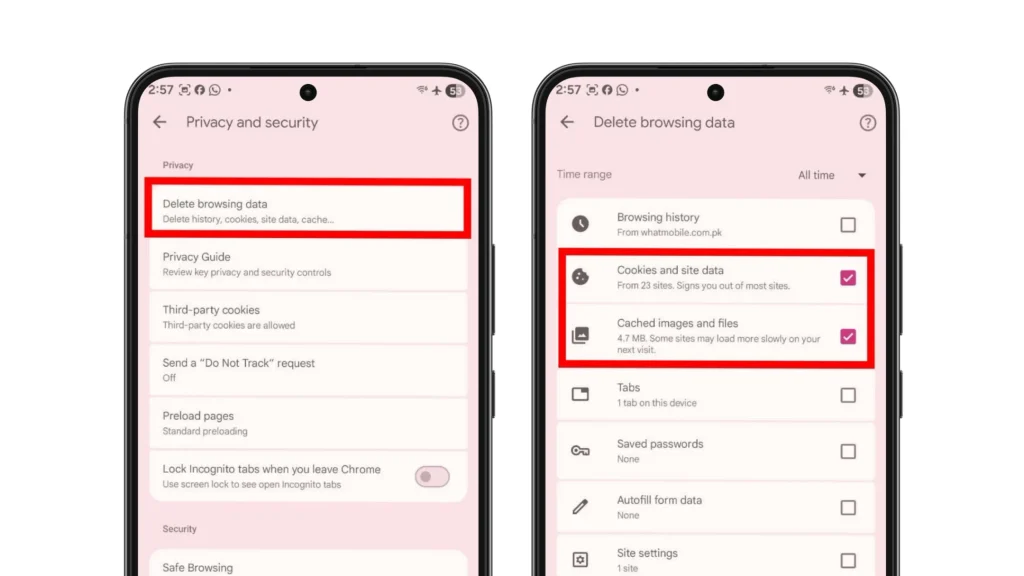
Clearing cookies may sign you out of websites and reset their saved preferences. This removes stored browsing data, but it does not uninstall malicious apps or guarantee that redirects will stop.
Also review your file manager’s Downloads folder for other unwanted files saved from suspicious pages. Delete them without opening them. Do not upload private documents to unfamiliar scanning websites.
7. Review App Permissions and Background Activity
Search Settings for Permission Manager, or open Settings > Apps > [App Name] > Permissions. Review SMS, microphone, camera, contacts, location, and photo or video access. Turn off permissions unrelated to the features you use.
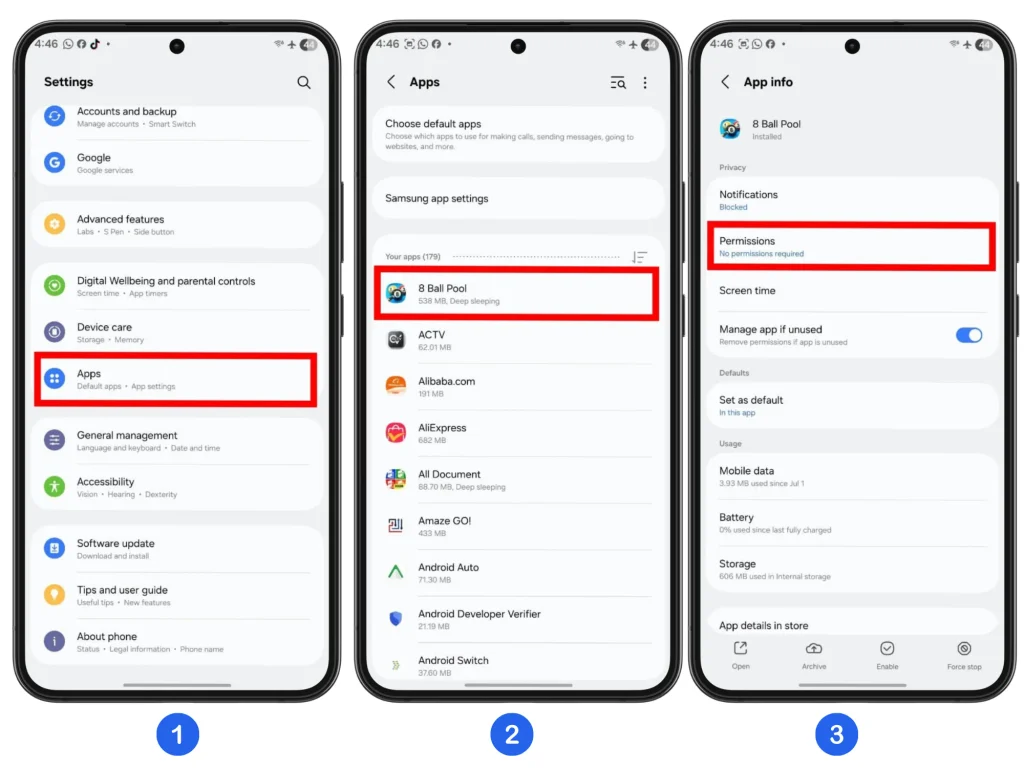
Where available, check the Privacy dashboard for recent permission use. Compare unexpected access with the app’s battery and mobile data usage.
These signs alone do not prove malware. Look for behavior that does not fit the app’s purpose, such as a basic calculator with unexplained SMS access and heavy background data use. If you no longer trust the app, uninstall it. Restart the phone and check whether the unusual behavior returns.
For a broader review of the Privacy Dashboard, Permission Manager, notification privacy, and Special App Access, see our guide to the most important Android privacy settings.
8. Install Android and Google Play System Updates
Security updates fix known vulnerabilities and strengthen your phone’s protections. Open Settings > Software Update or Settings > System > Software Updates, then install any available updates.
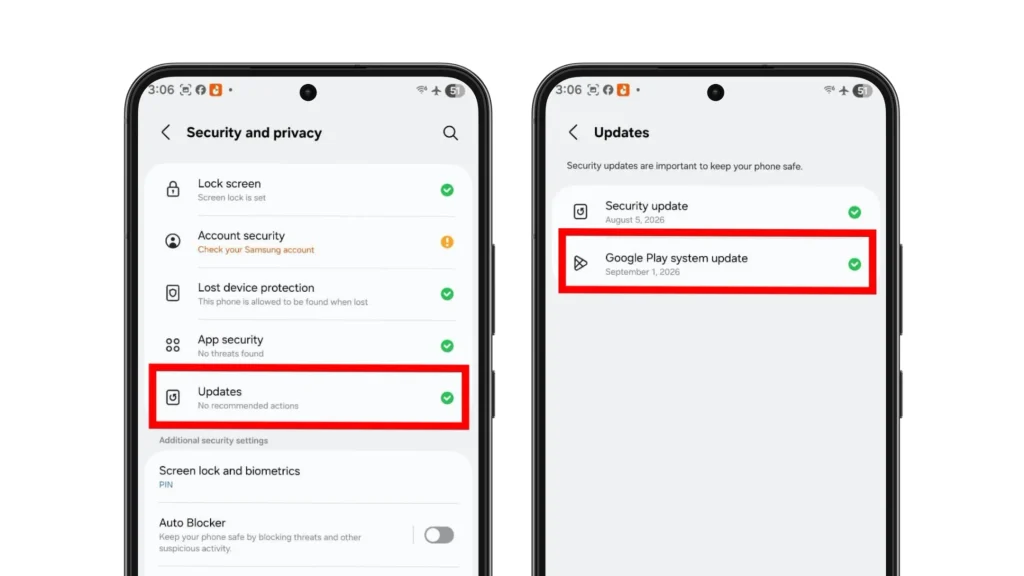
Also check for a Google Play update, which you can usually find under Security and Privacy > Updates > Google Play System Update. If you cannot find it, search Settings for “Google Play system update.” Menu names vary between phones. Restart when prompted to complete installation.
Google publishes Android Security Bulletins each month, but update availability depends on your phone’s manufacturer, model, carrier, and support period. Some phones receive patches less frequently. Once support ends, a phone may stop receiving Android security updates altogether.
Install updates alongside the removal steps above. Updating alone does not reliably remove an existing malicious app.
9. Use a Trusted Security Scanner if Problems Continue
If Play Protect finds nothing but the symptoms continue, a reputable security scanner can provide a second opinion. Download it from Google Play and check the developer name. Following the Google Play link from the developer’s official website can help you avoid similarly named apps.
Be wary of unfamiliar cleaner or antivirus apps that use scare tactics, promise guaranteed protection, or demand permissions unrelated to their features. A fake security app can create the same problem you are trying to solve.
Our hands-on comparison of the best antivirus apps for Android covers scan times, advertising, Android-reported battery use, and the results each app displayed during testing. It can help you compare the experience of using these apps, but it is not a lab test of their malware detection.
No scanner can detect every threat. Review anything it flags, and consider the result alongside your checks of installed apps, permissions, and account activity.
10. Perform a Factory Reset as the Last Resort
A factory reset should be the last option for Android malware removal. It erases downloaded apps, settings, and personal data from your phone. Although it removes most ordinary app-based malware, consider it only when the earlier steps have failed.
Back up important files and confirm the backup is complete. Exclude suspicious APKs. Make sure you know your Google Account password, screen lock, and Samsung account password, if applicable. If you recently reset your Google password, Google recommends waiting 24 hours before resetting the phone.
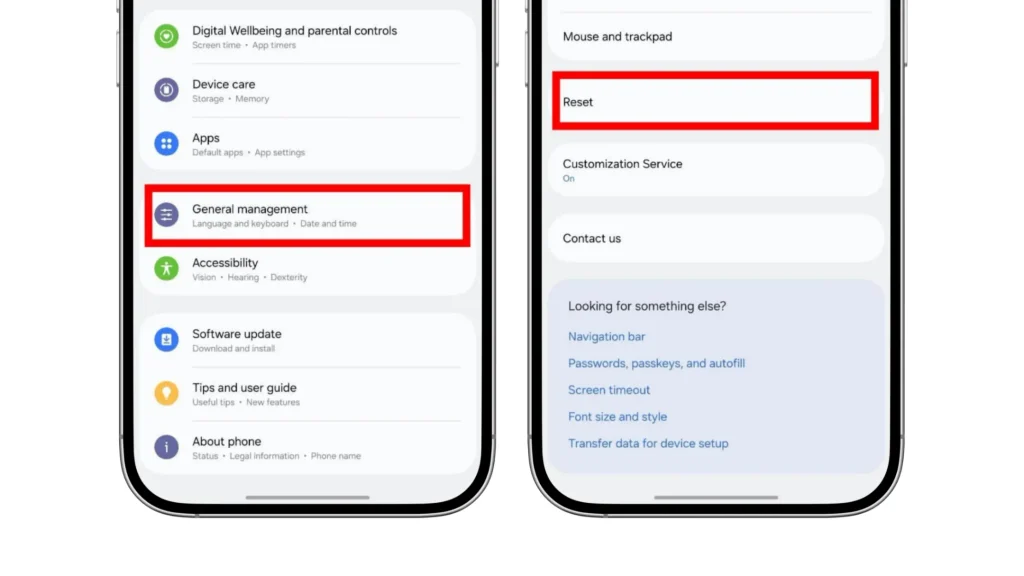
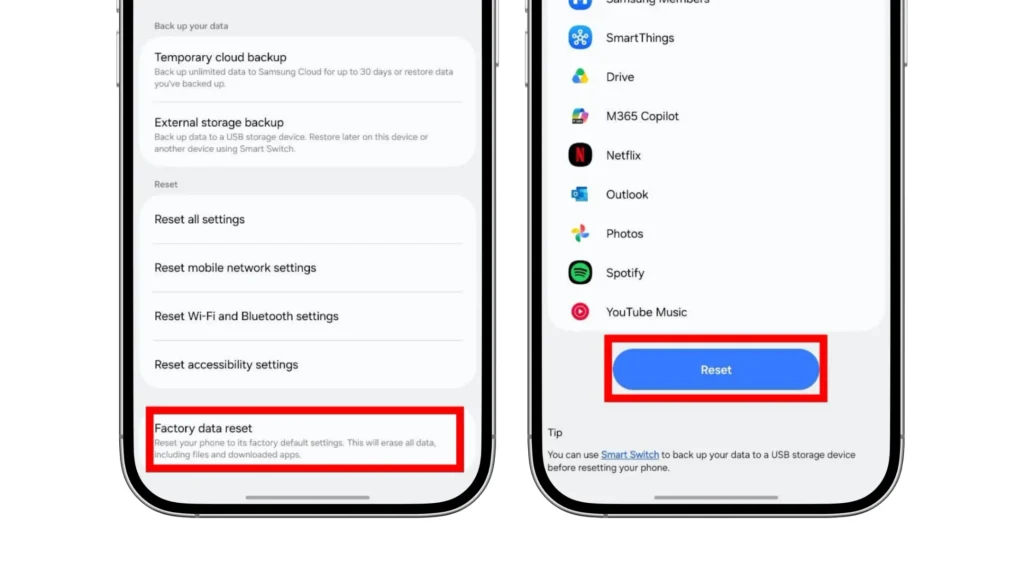
Common reset paths are Settings > System > Reset options > Erase all data (factory reset) or, on Samsung, Settings > General management > Reset > Factory data reset.
After resetting, check the phone before reinstalling trusted apps from Google Play. Avoid automatically restoring every old app.
If problems continue before you reinstall apps, contact the manufacturer or an authorized repair center. Mention any rooting or modified Android software. Persistent symptoms do not automatically mean malware survived the reset.
Secure Your Accounts if Exposed Your Information
If a malicious app could read your messages, notifications, screen content, or credentials, treat your account information as potentially exposed.
Change passwords from a trusted device. If you are still cleaning the phone, use another device rather than waiting. Prioritize your Google Account, primary email, and password manager, followed by banking, shopping, and social accounts. Use unique passwords and enable two-step verification wherever available.
Run Google’s Security Checkup. Review recent activity, recovery details, and signed-in devices. Sign out unfamiliar sessions and revoke access for third-party apps you do not recognize.
If you notice unauthorized payments, unexpected banking verification codes, or suspicious bank login alerts, contact your bank immediately using the number on your card or statement.
How to Prevent Malware on Android
Download apps from Google Play whenever possible. Play Protect checks apps during installation and periodically scans your phone, but it cannot guarantee that every app is safe.
Avoid cracked apps, modified APKs from unverified sources, and download links in unexpected messages. Scammers can use fake delivery notices, account warnings, prizes, or urgent payment requests to trick you into installing harmful software.
Before installing an app, check its developer and recent reviews. High ratings and large download counts do not guarantee safety, and scammers can manipulate reviews. When an app requests permissions, allow only the access needed for features you use.
Install available Android, Google Play system, and app updates, and keep Play Protect enabled. Review installed apps and sensitive permissions occasionally, especially if an app starts behaving differently or requests new access after an update.
Conclusion
If you’re wondering how to get rid of malware on Android, start by identifying what’s causing the problem. Unwanted website notifications, buggy apps, and malicious apps can create similar symptoms but need different fixes.
Run a Play Protect scan, review recently installed apps, and install available updates. Use Safe Mode, check suspicious apps’ special access, or try a reputable scanner if needed. Consider a factory reset if signs of malware persist after the earlier steps. If you reset the phone, reinstall only the apps you need from reputable sources.
If passwords or other account details may have been exposed, secure the affected accounts promptly from another trusted device. You do not need to wait until the phone has been reset.
FAQs
How do I remove malware from Android?
Start with a Google Play Protect scan and uninstall suspicious apps. Disable any device administrator or accessibility access granted to those apps, and use Safe Mode if they interfere with removal. Install available security updates. If the problem continues, consider a factory reset or contact the phone manufacturer for help.
How can I check for malware on Android?
Run a Play Protect scan, then review recently installed apps and unusual battery or mobile data use. Check which apps have accessibility, notification, or device administrator access, and investigate VPNs you do not recognize. Heat or battery drain alone does not prove an infection, and a clean scan cannot rule out every threat.
Can I remove malware without deleting my personal files?
In many cases, you can remove a harmful app without erasing your other photos, documents, or files. However, uninstalling an app can delete data stored in that app. If the problem is unwanted website notifications, blocking that website’s notification permission may be enough. Back up important personal files before considering a factory reset.
Does a factory reset remove Android malware?
A factory reset can remove ordinary app-based malware by deleting installed apps and local user data. It is not a guarantee against every type of compromise, and reinstalling the same harmful app can bring the problem back. If symptoms persist after resetting and before reinstalling apps, contact the manufacturer, especially if the phone is rooted or runs modified software.
How do I remove a virus from an Android phone?
People often use “virus” to describe different kinds of Android malware. Start with Play Protect, remove suspicious apps and their special access, and install available updates. If the warning appears only on a website, close the page and check browser notification permissions. A website warning alone does not mean your phone is infected.
Is Android more vulnerable than iPhone?
There is no simple answer for every device. Android generally gives users more options for installing apps, and downloading untrusted APK files can increase malware risk. Security also depends on the phone’s software support, installed updates, and app permissions. Neither Android nor iPhone is immune to security threats.