
If your Android phone is stuck in Safe Mode and you wonder how to turn it off, a normal restart is usually enough. On some Samsung Galaxy phones, you can also open the notification panel, tap Safe mode is on, and then select Turn off.
If the phone starts in Safe Mode again, remove the case and check whether the Volume Down button is stuck or has been pressed by the case. Holding this button during startup can activate Safe Mode on many Android phones.
This guide explains how to remove Safe Mode on Android with six checks and fixes. It also covers what to check if your phone keeps returning to Safe Mode and when to contact the manufacturer.
Table of Contents
What Is Safe Mode on Android?
Safe Mode is a troubleshooting mode that temporarily disables downloaded apps while keeping Android’s core system apps running.
This helps you check whether a downloaded app is causing freezing, crashing, unexpected restarts, or slow performance. If the problem disappears in Safe Mode, one of your downloaded apps may be responsible.
According to Google’s Android Help documentation, restarting your phone normally will usually exit Safe Mode.
Entering Safe Mode does not erase your photos, contacts, or documents, and it does not uninstall your apps. However, Google warns that some home-screen widgets may be removed and need to be added back afterward.
How to Remove Safe Mode on Android: 6 Checks and Fixes
Start with a normal restart. If Safe Mode returns, check the phone case and Volume Down button. Use a forced restart if the phone is unresponsive. Investigate downloaded apps if freezing or crashing disappears in Safe Mode. The buttons for opening the power menu vary by phone model and settings.
1. Restart Your Phone Normally
A normal restart is usually enough to turn off Safe Mode on Android.
On many Android phones, press and hold the Power Button for a few seconds to open the power menu. On Google Pixel 6 and later, press both Power and Volume Up at the same time. On many Samsung Galaxy phones, press the Side Button and Volume Down together. Release the buttons as soon as the power menu appears.

Tap Restart and confirm if prompted. Once the phone finishes starting, check the bottom of the screen. If the Safe Mode label has disappeared, the phone has returned to normal mode. Keep the Volume Down button released while the phone starts. Holding it during startup can put some Android phones back into Safe Mode.
2. Turn the Phone Off Completely
If you’re trying to figure out how to disable Safe Mode on Android after a normal restart fails, try switching the phone off completely and then turning it back on.
Open the power menu and tap Power off. Confirm if prompted, then wait until the phone has fully shut down. Press and hold the Power button or Side button until the startup logo appears, then release it.
Keep your fingers away from the volume buttons while the phone starts so you do not accidentally activate Safe Mode again. Once startup finishes, check whether the Safe Mode label has disappeared.
3. Use the Safe Mode Notification on Samsung
Some Samsung Galaxy phones and tablets let you exit Safe Mode through a notification. Swipe down from the top of the screen to open the notification panel. Tap Safe mode is on, select Turn off, and wait for the phone to restart.
Samsung’s official Safe Mode guide lists the procedure as an alternative to a normal restart. After the phone turns back on, check whether the Safe Mode label has disappeared. If you cannot find this notification and have already tried restarting normally, continue to the next method.
4. Force-Restart an Unresponsive Phone
If your phone is frozen and you cannot use the power menu, try a forced restart. The correct buttons and holding time depend on your phone model.
On Google Pixel phones, press and hold the Power button for up to 60 seconds. Release it when the Google “G” logo appears, as described in Google’s force-restart instructions.
On many Samsung Galaxy phones, press and hold the Side button or Power button and Volume Down together until the phone restarts. Release both buttons when the Samsung logo appears.
For other Android phones, check the manufacturer’s forced-restart instructions for your exact model. Avoid trying random button combinations, since some can open Recovery Mode or other startup menus. Once the phone finishes restarting, check whether the Safe Mode label has disappeared.
5. Check the Volume Down Button and Phone Case
If your phone returns to Safe Mode after every restart, check the Volume Down button and the case around it.
Many Android phones enter Safe Mode if you hold this button during startup. A tight case, trapped dirt, or a damaged button can cause it to stay pressed.
Remove the case and gently press and release the Volume Down button a few times. It should return to its normal position after each press. If it feels jammed, do not force it.
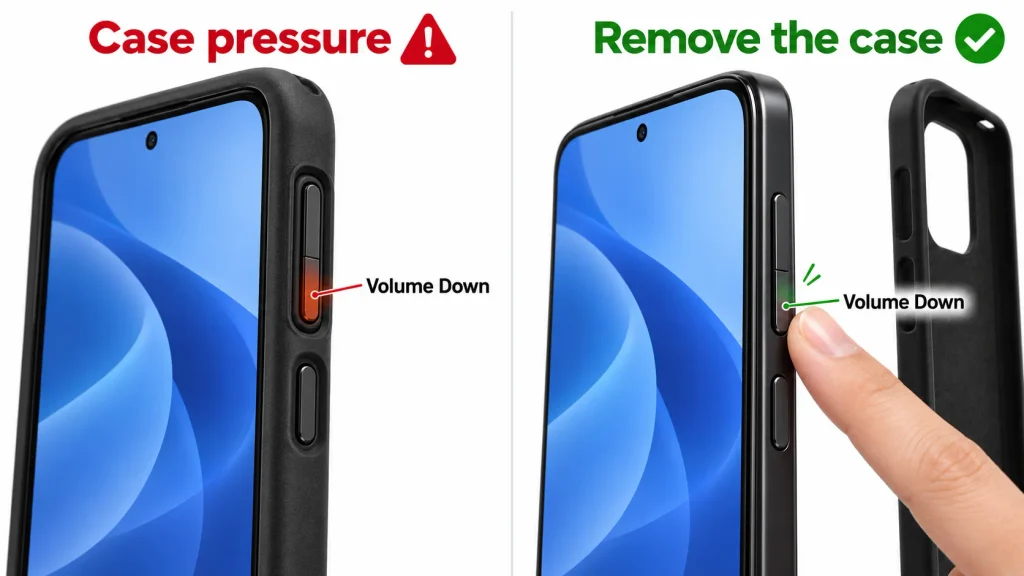
If you notice dirt around the button, switch the phone off and disconnect any cables. Gently wipe the outside with a soft, dry microfiber cloth. Do not apply liquid directly to the button or push anything into the gap.
Turn the phone back on with the case removed, keeping your fingers away from the volume buttons. If Safe Mode no longer appears, case pressure or a sticking button may have been the cause.
If the button remains stuck, feels loose, or appears damaged, contact the manufacturer or an authorized repair center. A factory reset will not fix a physical button fault that keeps triggering Safe Mode.
6. Remove a Suspected App if Problems Stop in Safe Mode
If your phone stops freezing, crashing, or restarting unexpectedly while it is in Safe Mode, a downloaded app may be responsible. Removing a suspected app can help you investigate those problems, but you do not normally need to uninstall apps just to exit Safe Mode.
Start with apps you installed or updated shortly before the problem began. Before uninstalling one, back up any important data stored only inside it, since removing the app can delete that data.
Open Settings > Apps, then tap See all apps if it is shown. Select the downloaded app you suspect, tap Uninstall, and confirm. The menu names may vary slightly by phone.
Remove suspected apps one at a time and restart normally after each removal. Once the phone is out of Safe Mode, check whether the original problem returns. This helps you identify the cause without removing several apps unnecessarily.
If you also notice unexpected pop-up ads or apps you do not remember installing, follow our guide on how to remove malware from Android for further checks. These signs alone do not confirm a malware infection.
What to Do If Safe Mode Won’t Turn Off
Look for the Safe Mode label near the bottom of the screen. A disabled app or changed home-screen layout alone does not confirm that Safe Mode is still active.
If the phone keeps returning to Safe Mode after you have tried the relevant methods above, contact the manufacturer or an authorized repair center.
Explain that it starts in Safe Mode even with the case removed and without you pressing the volume buttons. Mention whether the Volume Down button feels stuck, loose, or damaged, and whether the problem began after a drop, liquid exposure, or repair.
How to Turn Off Safe Mode on Samsung
To turn off Safe Mode on Samsung, restart your phone normally. On many Galaxy models, press and hold the Side Button and Volume Down until the power menu appears. Release both buttons, tap Restart, and confirm if prompted.
Alternatively, open the Notification Panel, tap Safe mode is on, and select Turn off if it is available. This also restarts the phone. After startup, check that the Safe Mode label has disappeared.

If Safe Mode returns, follow the case and button checks in Method 5. Samsung notes that some wallpapers, themes, or other customization settings may need to be restored afterward.
Should You Update Android?
An Android update is not a direct method for leaving Safe Mode. Try restarting the phone normally first. Once you have exited Safe Mode, installing an available update may help with crashes, unexpected restarts, or other software problems.
On many Android phones, go to Settings > System > Software updates. On Samsung Galaxy phones, look under Settings > Software update. The exact menu names vary by model and software version.
Follow the on-screen instructions. Before starting, Google’s Android update guide recommends connecting to Wi-Fi and charging the phone to at least 75%.
Will Removing Safe Mode Delete My Data?
Turning off Safe Mode does not delete your photos, contacts, messages, documents, or installed apps. A normal restart allows your downloaded apps to run again.
However, some home-screen widgets may need to be added back afterward, and certain phones may reset wallpapers, themes, or other visual settings. If you plan to enter Safe Mode for troubleshooting, take a screenshot of your home screen first so you can restore its layout if anything changes.
Uninstalling an app removes the app and can erase any data stored in it. Make sure any important files or app data are backed up or synced before uninstalling.
Should You Factory Reset the Phone?
Only consider a factory reset if your phone manufacturer recommends it after the earlier troubleshooting steps have failed. It erases personal data stored on the phone, removes downloaded apps, and restores default settings. It does not roll back the installed Android version.
A reset will not fix a damaged Volume Down button that keeps triggering Safe Mode. Check the phone without its case and inspect the buttons before considering this step.
If the problem continues, contact the manufacturer. If support recommends a reset after troubleshooting, back up your important files and app data first.
Make sure you know the email address and password for a Google Account already on the phone, along with its screen-lock PIN, pattern, or password. You may need these during the reset or setup afterward. Follow Google’s factory reset guidance and your manufacturer’s instructions for your specific model.
Why Does My Phone Keep Going into Safe Mode?
Your phone may detect the Volume Down button as pressed during startup, even if you are not touching it. Follow the case and button checks in Method 5. If Safe Mode keeps returning, contact the manufacturer or an authorized repair center.
If crashes or freezing disappear in Safe Mode, a downloaded app may be responsible for those problems. That does not necessarily mean the app caused Safe Mode to activate.
How to Prevent Safe Mode From Returning
Keep the side buttons clean and make sure your phone case leaves them free to move. Replace a case that keeps a button pressed or makes it difficult to release.
Avoid holding the Volume Down button while switching on or restarting the phone. If the button sticks or does not release properly, have it checked by the manufacturer or an authorized repair center.
If you used Safe Mode to investigate freezing, crashing, or unexpected restarts, address that problem after returning to normal mode. Install available Android and app updates, and update or uninstall any app identified as the cause. These steps may improve stability, but they cannot fix a physically damaged button.
Conclusion
If you want to know how to remove Safe Mode on Android, start with a normal restart. If the phone returns to Safe Mode, remove its case and check the Volume Down button before trying more complicated solutions.
On supported Samsung Galaxy phones, you can also tap the “Safe mode is on” notification and select “Turn off.” If freezing or crashing disappears in Safe Mode, investigate any recently installed or updated apps and remove any suspected apps one at a time.
Contact the manufacturer if Safe Mode keeps returning. A factory reset erases local data and cannot repair a damaged button. If support recommends a reset after troubleshooting, back up your important data first.
FAQs
How do I remove Safe Mode on Android?
To remove Safe Mode on an Android phone, restart it normally and check whether the Safe Mode label disappears. If it returns, remove the case and inspect the Volume Down button. On supported Samsung Galaxy phones, you can also tap Safe mode is on and then select Turn off.
How do I disable Safe Mode if my phone is frozen?
Use the forced-restart method recommended by your phone’s manufacturer. The required buttons and holding time vary by model, so avoid guessing combinations. Once the phone restarts, check whether the Safe Mode label has disappeared.
How do I exit Safe Mode without losing data?
If you’re wondering how to exit Safe Mode on Android without losing data, restart your phone normally. This does not erase your personal files or uninstall your apps. Some home-screen widgets may need to be added back afterward, and certain phones may reset wallpapers, themes, or other visual settings.
Why is my Android stuck in Safe Mode?
A case pressing against the Volume Down button, a sticking button, or button damage can make the phone enter Safe Mode during startup. Remove the case and check the button. If the problem continues, contact the manufacturer.
Can I remove Safe Mode without restarting?
On most Android phones, leaving Safe Mode requires a restart. Some Samsung Galaxy phones provide a Safe mode is on notification with a Turn off option, but selecting it still restarts the phone.
Does Safe Mode delete apps or personal files?
No. Safe Mode temporarily disables downloaded apps without uninstalling them or deleting personal files. Those apps become available again after you return to normal mode. Manually uninstalling an app is a separate action that can erase data stored inside it.