
Contents
AirDrop lets you send photos, videos, documents, and contacts between nearby Apple devices without cables or extra apps. But sometimes your iPhone cannot find the other device, a transfer gets stuck on “Waiting”, or a file fails halfway through.
If AirDrop is not working on iPhone, start with the basics: make sure both devices have Wi-Fi and Bluetooth turned on, keep them nearby, and check the receiving device’s AirDrop settings. Apple’s official AirDrop guide also recommends disconnecting Personal Hotspot before sharing.
The fixes below walk you through these checks and explain what to try if the problem continues. For a broader look at how Apple devices connect and share information, see our Apple ecosystem guide.
Why Is AirDrop Not Working on iPhone?
AirDrop uses Bluetooth to discover nearby devices and a direct Wi-Fi connection to transfer files securely. Both need to be enabled to start a nearby transfer, but the devices do not need to be connected to the same Wi-Fi network.
Receiving settings can also prevent the other device from appearing. Receiving Off blocks incoming transfers, while Contacts Only can prevent discovery if the sender’s Apple Account email address or phone number is not saved in the recipient’s Contacts app. Screen Time restrictions and software glitches are other possible causes.
Start by checking the receiving device’s AirDrop settings and restarting both devices. If needed, turn Wi-Fi and Bluetooth off and back on through the Settings app. These checks may resolve a temporary problem. If AirDrop still does not work, the steps below will help you check other possible causes.
AirDrop Not Working on iPhone? 12 Fixes to Try
Fix 1: Check AirDrop’s Receiving Settings
Start with the iPhone receiving the file. Open Control Center by swiping down from the top-right corner or up from the bottom edge on an iPhone with a Home button. Touch and hold the panel containing Wi-Fi and Bluetooth, tap AirDrop, then select Contacts Only or Everyone for 10 Minutes.
If the sender is not saved in the recipient’s contacts, select Everyone for 10 Minutes on the receiving device and try sending again. This setting changes back after 10 minutes, so you may need to select it again if you waited before retrying.

For Contacts Only to work, the recipient must have the sender saved in Contacts. That contact card needs to include the email address or phone number linked to the sender’s Apple Account.
When both iPhones use iOS 26.2 or later, sharing with someone outside your contacts requires an AirDrop code. Tap Get AirDrop Code on the receiving iPhone and give the code to the sender. After verification, that person remains in the Other Known list for 30 days, so another code is not normally required during that period.
Fix 2: Turn On Wi-Fi and Bluetooth
Apple recommends keeping Wi-Fi and Bluetooth turned on on both devices. Nearby AirDrop transfers use a direct connection, so your iPhone does not need to be connected to a Wi-Fi network or have internet access.
Go to Settings > Wi-Fi and make sure Wi-Fi is on. Then open Settings > Bluetooth and check that Bluetooth is enabled. Confirm that both are turned on on the other device too.
Use Settings to check these switches. A dimmed Wi-Fi or Bluetooth button in Control Center does not necessarily mean the feature is completely off, because it can remain available for AirDrop. Once both are enabled, try sending the file again.
Fix 3: AirDrop Not Finding Devices? Move Them Closer
AirDrop uses Bluetooth to discover nearby devices. Apple recommends keeping them within about 30 feet (10 meters) of each other, though moving them closer is a useful troubleshooting step.
If AirDrop is not finding devices, place them next to each other and try again. Keep them close while the connection is established and the transfer begins.
Fix 4: Unlock the Receiving iPhone
Unlock the receiving iPhone using Face ID, Touch ID, or its passcode. Keep the screen awake while you retry the transfer so you can respond to any AirDrop prompts.
On the sending device, select the recipient from the AirDrop list. Then tap Accept on the receiving iPhone if prompted. If you’re sharing between your own devices signed in to the same Apple Account, the transfer is accepted automatically.
Fix 5: Restart Both Devices
Temporary software problems can interfere with AirDrop. Restart both the sending and receiving devices to see whether this restores the connection.
Turn both iPhones off and allow about 30 seconds for them to shut down fully. Then turn them back on, unlock them, and confirm that Wi-Fi and Bluetooth are enabled before trying AirDrop again.
Fix 6: Turn Off Personal Hotspot
An active Personal Hotspot can interfere with AirDrop. On either iPhone providing a hotspot, go to Settings > Personal Hotspot and turn off Allow Others to Join.
If either device remains connected to the other’s hotspot, disconnect that connection or switch to a regular Wi-Fi network. Your own Apple devices and devices in your Family Sharing group can use Instant Hotspot even when Allow Others to Join is off.
Keep Wi-Fi and Bluetooth enabled, then try AirDrop again.
Fix 7: Update iOS
Apple occasionally fixes AirDrop and other connectivity issues through iOS updates. If you’re running an older version of iOS, a software update may contain a fix for the issue you’re experiencing.
Go to Settings > General > Software Update and install any available update. Then restart your iPhone. Apple recommends keeping iOS up to date to get the latest bug fixes, security updates, and improvements.
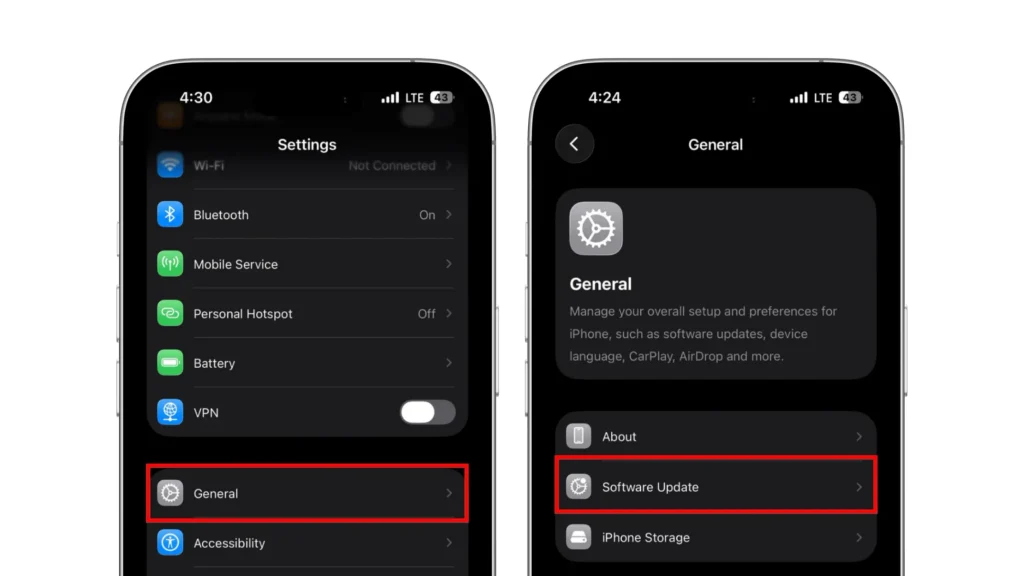
Keeping iOS up to date also brings security fixes and can improve compatibility with newer software and devices. If both phones have updates available, installing them can help rule out software-related compatibility or connectivity problems.
Fix 8: Solve “AirDrop Transfer Failed”
If you see an “AirDrop Transfer Failed” message, it means the file didn’t finish sending, but the error doesn’t tell you exactly what caused it. A connection interruption is one possibility. Keep both devices nearby, unlock the receiving device, and try again.
If the transfer is stuck, cancel it and start a new attempt with one photo or small file. If that works, try sending the remaining items individually or in smaller groups. For a large video, allow more time and check that the receiving device has enough storage. On an iPhone, go to Settings > General > iPhone Storage.
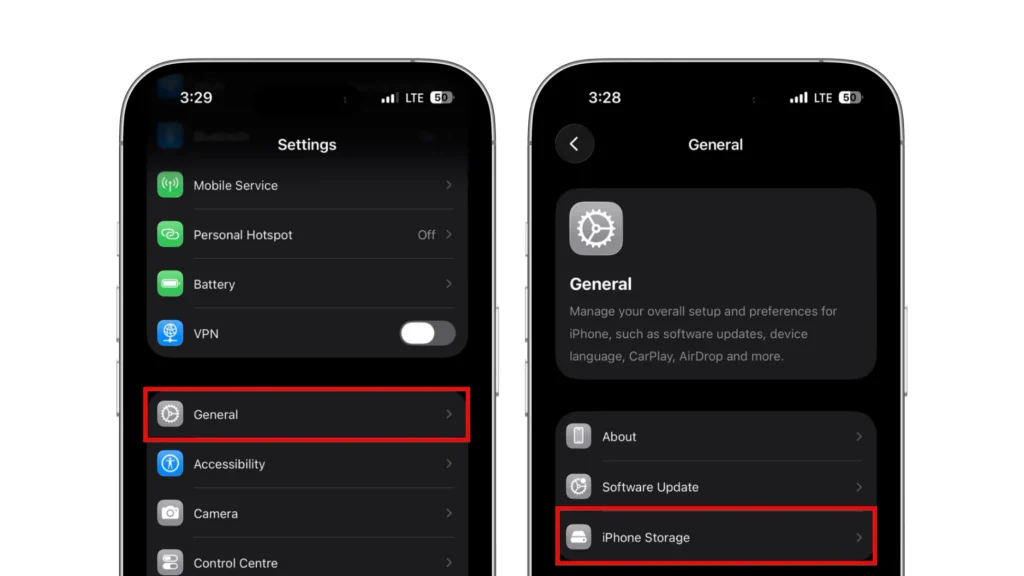
If you have not already done so, restart both devices. If transfers consistently fail with one particular iPhone, iPad, or Mac, check its AirDrop receiving settings, Wi-Fi, Bluetooth, and available software updates.
If possible, try sending the same file to it from another device. This gives you more information before deciding which device needs further troubleshooting.
If your iPhone becomes unusually hot or slows down during the process, pause and let it cool before retrying. Our guide on iPhone overheating and running slow explains how to investigate those symptoms.
Fix 9: Solve “AirDrop Stuck on Waiting”
If AirDrop stays on “Waiting,” unlock the receiving iPhone and check for an AirDrop request. Tap Accept if prompted, or complete any AirDrop code step shown on the devices.
If another transfer is already running, let it finish before changing wireless settings. Then cancel the stalled attempt. On each iPhone, turn Bluetooth off and back on through Settings > Bluetooth, then do the same under Settings > Wi-Fi.
Reopen the file, tap Share > AirDrop, and select the recipient again. If the transfer still stays on “Waiting,” restart both devices and retry with one small file.
Fix 10: Reset Network Settings
If you’ve worked through the fixes above and AirDrop still won’t cooperate, resetting your network settings is a reasonable next step. This won’t delete your photos, apps, or personal files, but it removes saved Wi-Fi networks and passwords and resets cellular, VPN, APN, and other network-related settings.
Go to Settings > General > Transfer or Reset iPhone > Reset > Reset Network Settings, enter your passcode, and confirm. Apple notes that resetting network settings removes saved Wi-Fi networks and passwords, along with other network-related settings.
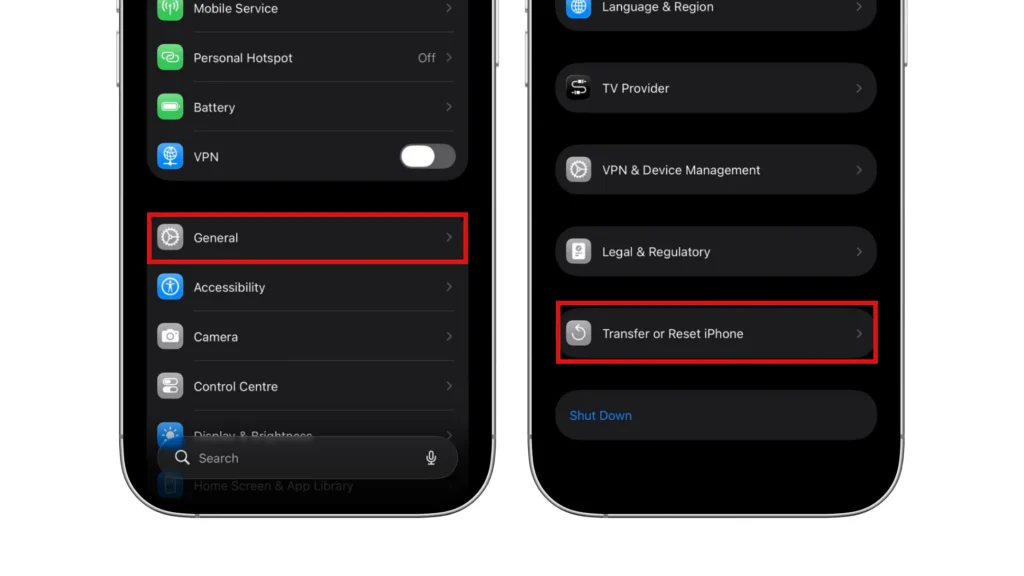

Once your phone restarts, reconnect to Wi-Fi and make sure Bluetooth is turned on, then try AirDrop again. This can clear network settings that may be interfering with AirDrop.
Fix 11: Check Screen Time Restrictions
Screen Time can disable AirDrop through its app and feature restrictions. Go to Settings > Screen Time > Content & Privacy Restrictions > Allowed Apps & Features. If restrictions are already off, skip this fix.
On iOS 27, go to Settings > Screen Time > Content & Privacy Restrictions > Other Features, then make sure AirDrop is allowed. On earlier Screen Time layouts, select Allowed Apps & Features instead.
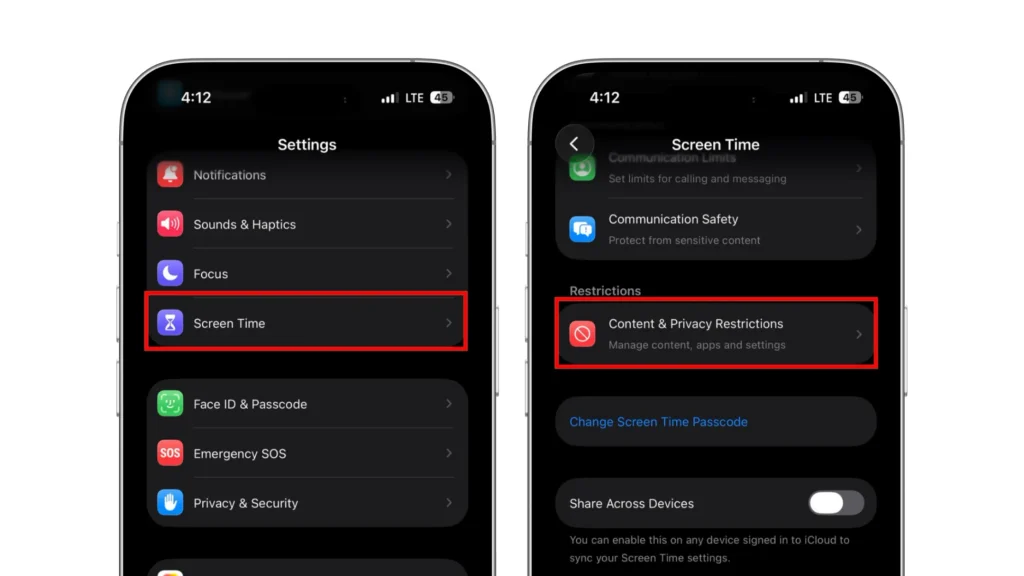
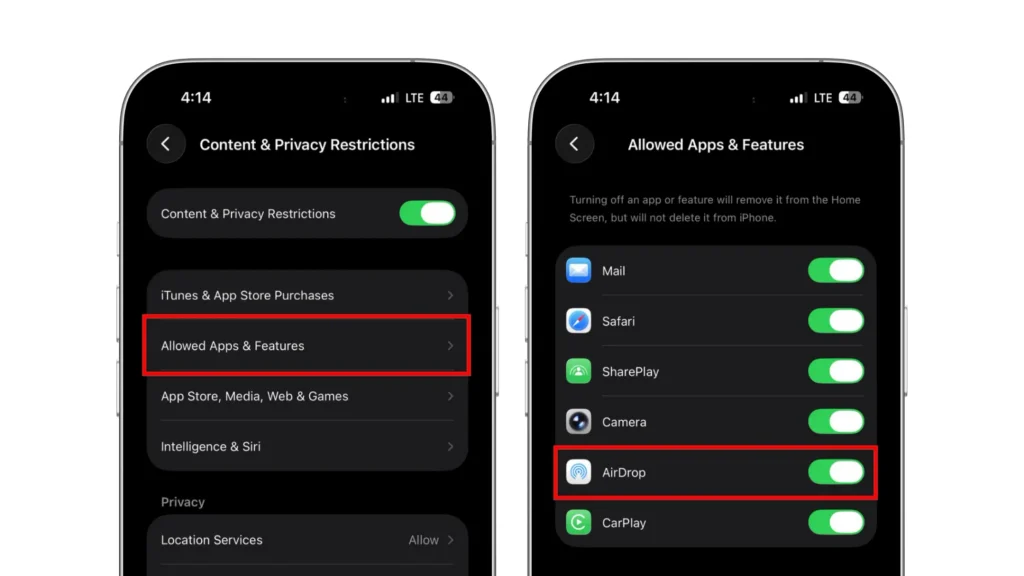
You may need your Screen Time passcode to change the setting. If AirDrop was blocked, allow it and try the transfer again.
Fix 12: Contact Apple Support
If AirDrop still does not work after these steps, contact Apple Support or open the Apple Support app. They can help investigate whether settings, software, or hardware are involved and advise whether diagnostics or a service appointment is needed.
Explain which devices you’re using, what happens when you try to share a file, and which fixes you’ve already tried. Before taking your iPhone for service, make a current backup to iCloud or a computer and follow Apple’s preparation instructions.
Final Thoughts
When AirDrop is not working on your iPhone, start by checking its receiving settings and making sure Wi-Fi and Bluetooth are on. Keep both devices nearby, unlock the receiving iPhone, and restart both devices if needed. Test AirDrop after each change before moving to the next fix.
If the earlier fixes haven’t helped, consider resetting network settings. This keeps your photos, apps, and other personal content, but removes saved Wi-Fi networks and passwords and resets other network settings. Contact Apple Support if AirDrop still won’t work.
If you’re also noticing shorter battery life, our iPhone Battery Health guide explains what the health reading means and which habits can help slow battery aging.
FAQs
Why is AirDrop not working on iPhone even when Wi-Fi and Bluetooth are on?
Wi-Fi and Bluetooth are only part of the setup. Check the receiving device’s AirDrop visibility, unlock it, disconnect any active Personal Hotspot connection, and keep both devices nearby. If they still won’t connect, restart both devices and try again.
Why does AirDrop keep saying “Transfer Failed”?
The message means the transfer didn’t finish, but it doesn’t identify the exact cause. Keep both devices nearby and try sending one small file. If that works, retry the original file or send a large batch in smaller groups. Restart both devices if transfers continue to fail.
How do I fix AirDrop stuck on Waiting?
Unlock the receiving device and check both screens for an acceptance prompt or AirDrop code request. Follow any prompts that appear. If the transfer still won’t start, cancel the pending attempt, turn Wi-Fi and Bluetooth off and back on in Settings, and then try again. Restart both devices if needed.
Why is AirDrop not finding nearby devices?
The receiving device’s visibility settings may prevent it from appearing. Confirm that Wi-Fi and Bluetooth are on for both devices, then select Everyone for 10 Minutes on the receiving iPhone. Keep it nearby and unlocked. If you use Contacts Only the receiver needs your Apple Account email address or phone number saved in your contact card on their device.
Does updating iOS fix AirDrop problems?
It can if the update fixes the software bug causing the problem. Check Settings > General > Software Update for an available update, and check the other device for updates too. Updating doesn’t guarantee a fix, so you should still check AirDrop’s receiving settings and connection requirements.
When should I reset network settings to fix AirDrop?
Consider it after the basic checks, restarts, and available software updates haven’t helped. Reset Network Settings removes saved Wi-Fi networks and passwords and resets other network settings, including cellular, VPN, and APN settings. It keeps your photos, apps, and personal files, but you’ll need to reconnect to your Wi-Fi networks afterward.