
Contents
Introduction
The Apple ecosystem is the connected experience created when Apple devices, software, and services work together. You can start an email on an iPhone and finish it on a Mac, unlock a compatible Mac with an Apple Watch, or use supported AirPods to switch audio automatically between compatible Apple devices. With syncing enabled, iCloud can keep photos, files, passwords, and other information up to date across devices.
Much of the appeal comes from how these features fit into everyday use. The benefits often become more noticeable when you use two or more Apple products together and get used to moving between them throughout the day.
That convenience can also make switching less straightforward. Moving to another platform may involve transferring photos and files, replacing certain apps, or giving up familiar accessory features. This guide explains how the Apple ecosystem works, which products it includes, where it is useful, and what limitations to consider.
What Is the Apple Ecosystem?
The Apple ecosystem includes the devices, operating systems, apps, and services Apple designs to work together. It covers products such as the iPhone, iPad, Mac, Apple Watch, AirPods, Apple TV hardware, HomePod, and Apple Vision Pro. Its software and services include iOS, iPadOS, macOS, watchOS, iCloud, Apple Music, Apple Pay, and Apple Intelligence.
The benefits become clear when these products share information or let you continue a task on another device. This can reduce the need to move files manually or repeat steps when switching between devices.
For example, Universal Clipboard lets you copy text on an iPhone and paste it on a Mac. You can also answer an iPhone call on a Mac or use a compatible iPad as a second Mac display with Sidecar. Apple groups many of these features under the name Continuity.
Each Continuity feature has its own device and software requirements. Most require you to sign in to the same Apple Account on the devices involved, and many also need Wi-Fi and Bluetooth turned on. Once you set everything up, these connections become a convenient part of everyday use.
Apple Ecosystem Meaning in Simple Terms
In simple terms, the Apple ecosystem is the way Apple devices and services work together to make everyday tasks easier.
You can send a file from an iPhone to a Mac using AirDrop, keep passwords available across devices through iCloud, or answer an iPhone call on your Mac. With compatible devices and the right settings, these connections remove small steps from tasks you do regularly. Each convenience may seem minor, but it can become useful when you rely on it throughout the day.
Apple Ecosystem Devices and Services
Apple ecosystem devices serve different roles, from everyday computing to personal audio and home entertainment. Services such as iCloud and Apple Music add storage, syncing, and access to content.
| Device or Service | Main Role | Useful Ecosystem Features |
|---|---|---|
| iPhone | Communication, mobile apps, and accessory setup | Calls and messages on other devices, Instant Hotspot, and Continuity Camera |
| Mac | Work, content creation, and file management | Handoff, Universal Clipboard, and iPhone Mirroring |
| iPad | Portable work, entertainment, and drawing | Sidecar, Universal Control, and Universal Clipboard |
| Apple Watch | Health and activity tracking, notifications, and payments | Mac unlocking, Find My, and Apple Pay |
| AirPods | Personal audio and calls | Automatic switching on supported models and pairing across devices using the same Apple Account |
| Apple TV 4K | TV entertainment and home hub functions | AirPlay, HomePod audio, and Apple Home integration |
| HomePod | Home audio and smart-home control | AirPlay, Siri, and home hub functions |
| Apple Vision Pro | Spatial computing and immersive entertainment | Mac Virtual Display and access to iCloud content |
| iCloud | Storage, syncing, and backups for iPhone, iPad, and Apple Vision Pro | Photos, files, contacts, notes, and passwords across devices |
| Other Apple services | Music, video, games, fitness, and payments | Access to content and services across supported devices |
Feature availability varies by device, software version, language, and country or region. Some services require a subscription, and many connections need additional setup. Owning an Apple product does not automatically give you access to every feature listed here.
How the Apple Ecosystem Works
The Apple ecosystem relies on your Apple Account, iCloud, local connections, and features built into Apple’s operating systems. Different features use different combinations of these components.
Your Apple Account gives you access to services and purchases across your devices. iCloud stores supported information online and keeps it up to date on devices where syncing is enabled. Wi-Fi and Bluetooth help nearby devices discover and communicate with one another.
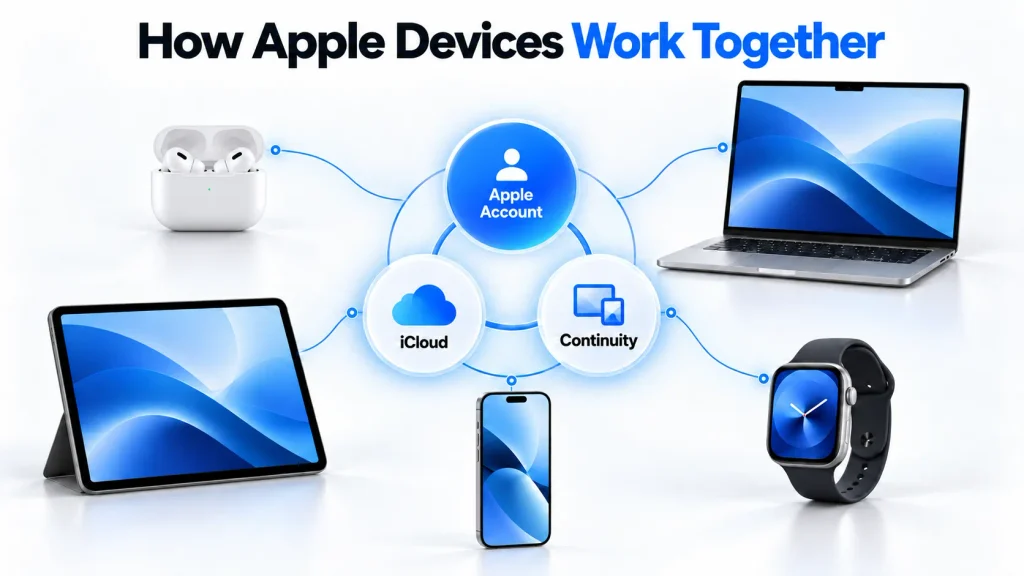
Continuity brings together features for specific tasks. Handoff lets you continue an activity on another device, Universal Clipboard lets you copy and paste between devices, and Call Relay lets you answer an iPhone’s cellular calls on a Mac or iPad.
The iPhone is essential for some of these functions, including relaying its calls. Other connections work independently of it. A Mac and an iPad can exchange files directly through AirDrop, for example, and each can connect to iCloud to sync information.
The iPhone as a Starting Point
The iPhone can be a starting point for building an Apple ecosystem. It is required for Apple Watch setup and enables features such as relaying its calls and text messages, sharing its internet connection through Personal Hotspot, and using its camera as a Mac webcam.
A compatible Mac and iPad can share files, use Universal Control, and access iCloud without an iPhone being involved. AirPods can also connect directly to either device.
Apple Watch can track workouts and perform other offline tasks when its paired iPhone is away. It can also use supported online features through Wi-Fi or through cellular on a GPS + Cellular model with an active plan. The exact capabilities depend on the connection, setup, and feature you use.
How Mac and iPhone Work Together
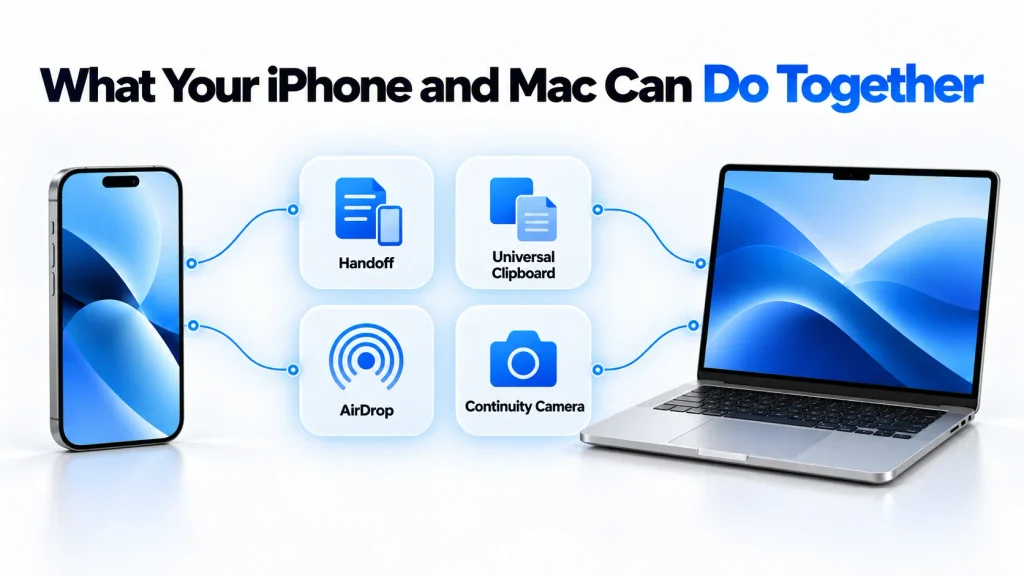
The Mac and iPhone show how Apple devices can work together while running separate operating systems. Features built into macOS and iOS let you continue tasks across devices, share files, and answer iPhone calls from your Mac.
Handoff
Handoff lets you start a task in a supported app on your iPhone and continue it on your Mac, or the other way around. For example, you can begin an email in Mail on your iPhone and finish it using your Mac’s keyboard, or continue viewing a Safari webpage on the other device.
On a Mac, clicking the app’s Handoff icon in the Dock opens the activity you were working on. This saves you from finding the same page or draft manually. Handoff requires compatible devices nearby, signed in to the same Apple Account, with Wi-Fi, Bluetooth, and Handoff turned on.
Universal Clipboard
Universal Clipboard lets you copy text, images, and other supported content on one compatible Apple device and paste it on another nearby device. It is useful for moving a verification code, address, link, or photo between your iPhone and Mac without sending it to yourself.
The copied content stays available briefly, or until you copy something else on either device, so it works best when you copy and paste soon afterward.
Calls and Messages
A Mac can make and receive your iPhone’s cellular calls when both devices use the same Apple Account and the required call settings are enabled. For standard call relay, the iPhone must be turned on and nearby, with both devices connected to the same network.
You can also send and receive iMessages on both devices. Text Message Forwarding brings your iPhone’s SMS, MMS, and supported RCS messages to the Mac, allowing you to continue conversations from your keyboard. This requires the iPhone to remain turned on and connected to Wi-Fi or a cellular network.
Enabling Messages in iCloud keeps your conversation history up to date across devices and includes text-message forwarding automatically.
AirDrop
AirDrop transfers photos, videos, documents, links, and other supported content between nearby compatible Apple devices. It works without a cable or a separate file-transfer app.
To share an item, select it, open the Share menu, choose AirDrop, and select the recipient or device. Both devices need Wi-Fi and Bluetooth turned on, and the recipient’s AirDrop settings must allow the transfer. When sharing between your devices signed in to the same Apple Account, items are accepted automatically.
On compatible iPhones, you can also open or select photos and videos, bring the phones together, and tap Share. NameDrop uses a similar gesture to exchange selected contact details.
Continuity Camera and iPhone Mirroring
Continuity Camera lets you use a compatible iPhone as your Mac’s webcam, wirelessly or through USB. This can improve video-call quality, depending on the devices and lighting. On supported iPhones, Desk View also shows an overhead view of your desk for demonstrations.
Continuity Camera also lets you take photos or scan documents on your iPhone and insert them directly into supported Mac apps. This function has different compatibility requirements from the webcam feature.
iPhone Mirroring lets you view and control a nearby, locked iPhone using your Mac’s keyboard, mouse, or trackpad. It requires macOS Sequoia 15 or later on a Mac with Apple Silicon or the Apple T2 Security Chip, plus an iPhone running iOS 18 or later. Both devices must use the same Apple Account with two-factor authentication. The feature is currently unavailable in the European Union.
The iPad’s Place in the Apple Ecosystem
The iPad offers a larger touchscreen than an iPhone in a form suited to reading, drawing, and portable work. Signing in with the same Apple Account lets you access existing iCloud files, synced passwords, and supported subscriptions.
On compatible devices, Sidecar turns the iPad into a display that extends or mirrors your Mac’s desktop. Universal Control lets you use one keyboard and mouse or trackpad across a Mac and iPad while each device runs its own apps. With the relevant iCloud settings enabled, your notes, photos, iCloud Drive files, and Safari information can also stay in sync.
Whether an iPad can replace a Mac depends on the work involved. Apps available only on macOS; particular file-management tasks or specific peripheral and display requirements may still make a Mac necessary. Used together, the devices let you switch between tablet and desktop workflows while keeping supported files and information available on both.
Apple Watch and the Apple Ecosystem
Apple Watch requires a compatible iPhone for standard setup. Once configured, it handles health and activity tracking, workouts, notifications, payments and navigation from your wrist, with availability depending on the model and region.
Its ecosystem connections include unlocking a compatible Mac, approving certain Mac password requests, locating your iPhone and controlling media playback. Health and workout data can also appear in the Health and Fitness apps on your iPhone.
Away from the phone, the watch can still track workouts, run alarms, and play downloaded music. Wi-Fi enables additional online features, while GPS + Cellular models with an active plan can connect to a mobile network. Some functions still require the paired iPhone to remain powered on and connected, even when it is elsewhere. Apple’s guide to using Apple Watch without an iPhone nearby explains what works with each connection.
AirPods and Automatic Switching
AirPods work as Bluetooth headphones with Apple and non-Apple devices. After you pair them with an iPhone, they can also become available on your other compatible Apple devices signed in to the same Apple Account, without separate pairing on each one.
Supported AirPods can switch audio automatically between compatible Apple devices. For example, you can listen to music on a Mac and then answer a call on your iPhone, with the AirPods switching to the call. This requires supported hardware and software, the same Apple Account, and two-factor authentication.
Apple’s automatic switching works between supported Apple devices. When using AirPods with Android phones or Windows PCs, connections rely on standard Bluetooth controls. If you prefer to choose when your AirPods switch between Apple devices, you can turn off automatic switching in their connection settings.
iCloud Is the Syncing Backbone
iCloud keeps supported information available across devices that are signed in to the same Apple account. Apple’s iCloud guide covers features such as iCloud Photos, iCloud Drive, device backups, contacts, calendars, notes, and Find My.
With iCloud Photos enabled, a photograph taken on an iPhone can appear in Photos on a Mac or iPad after syncing. A document saved in iCloud Drive can be opened on another device using the same account. Passwords and passkeys can also sync through iCloud Keychain when enabled.

The experience depends on available storage, an internet connection, and the settings on each device. Changes are not always immediate, and some apps use their cloud services or keep information locally.
Syncing and backup serve different purposes. For example, deleting a photo from iCloud Photos removes it from the other devices using that library. Photos already stored in iCloud Photos are also excluded from iCloud Backup.
Moving away from iCloud can take planning, especially when transferring a large photo library, cloud files, or saved passwords. Some iCloud features remain accessible through Windows and iCloud.com, however, so changing devices does not necessarily mean moving everything to another service.
Apple Services Add Another Layer
Hardware and operating systems form the base of the ecosystem, while Apple’s services add music, video, games, fitness content, and payments.
Apple Music works across supported Apple devices, including the iPhone, iPad, Mac, Apple Watch, HomePod, and Apple TV 4K. Apple TV (formerly Apple TV+), Apple Arcade, and Apple Fitness+ provide video, games, and workouts on supported devices.
Apple Pay lets users pay with supported cards. An iPhone or Apple Watch can make contactless payments in stores, while compatible iPads and Macs support purchases in apps and on websites. Availability depends on the device, participating card issuer, and country or region.
Apple One bundles several subscriptions, including iCloud+, into one plan. Family Sharing lets family members share eligible purchases and subscriptions while each person keeps their own Apple Account.
Paid entertainment subscriptions and Apple One are optional. Continuity and iCloud’s free service work without them. These subscriptions can make an existing Apple setup more convenient, but some also work beyond Apple hardware. Apple Music supports Android and Windows, while Apple TV is available on many smart TVs and streaming devices.
Apple Intelligence and the Apple Ecosystem
Apple Intelligence adds AI features to supported iPhone, iPad, and Mac models. Depending on the device and software, these can include Writing Tools, notification summaries, image creation, language features, and more capable ways to find or work with information.
Apple says many requests are processed directly on the device. More complex requests can use Private Cloud Compute, which runs larger server-based models while applying additional privacy protections. This hybrid approach is important because Apple Intelligence should not be described as entirely local or entirely cloud based.
Our on-device AI vs cloud AI comparison explains why smartphones use both approaches. A separate guide also covers Apple Intelligence features and supported devices in more detail.
Apple Intelligence strengthens the ecosystem when a supported feature is available across more than one Apple device. However, it should not be presented as universal. Support depends on hardware, language, region, and software version, and many older devices cannot run the full feature set.
Apple Ecosystem Benefits
The biggest Apple ecosystem benefits come from consistency and reduced setup rather than from one spectacular feature.
The same Apple Account can provide access to compatible purchased apps, subscriptions, and iCloud data across supported devices. When you enable the relevant iCloud features, photos, files, passwords, and passkeys stay synchronized. Familiar menus and design patterns also reduce the adjustment required when moving between Apple products.
Features such as Handoff, AirDrop, and Universal Clipboard remove small steps from everyday tasks. A file can move without a cable, copied text can appear on another device, and work can continue without manually reopening the same content.
Account and security management can also be simpler. Apple Account settings provide access to trusted devices, two-factor authentication options, and recovery contacts. Find My can help locate devices when you enable it. Ongoing software and security updates can extend a device’s useful life, although update availability and support periods vary by model.
Similar settings and services can also make it easier to help family members with basic setup and troubleshooting, especially when several people use Apple products.
These advantages are strongest when they match a person’s routine. Someone who owns only an iPhone may see less benefit than someone who regularly moves between an iPhone, Mac, and Apple Watch.
Security and Privacy
Apple makes privacy a central part of its platform, but the protection varies by service and settings. It would be inaccurate to describe everything in the ecosystem as end-to-end encrypted.
iMessage content and FaceTime calls use end-to-end encryption. Passwords in iCloud Keychain and Health data also receive strong protections. However, the protection of messages stored in iCloud depends partly on the user’s backup settings.
Under standard iCloud protection, data is encrypted in transit and while stored on Apple’s servers. Apple retains the encryption keys for some categories so it can help with data recovery. Other categories, including iCloud Keychain, already use end-to-end encryption.
Where available, optional Advanced Data Protection extends end-to-end encryption to more categories, including iCloud Backup, Photos, iCloud Drive, and Notes. It does not cover iCloud Mail, Contacts, or Calendars. Apple also cannot recover the data protected by end-to-end encryption, so enabling it requires a recovery contact or recovery key.
Apple’s overview of iCloud data security explains the differences, including exceptions for certain shared content and metadata.
One account connecting many devices and services is convenient, but it makes account security especially important. A strong, unique password, two-factor authentication, reliable recovery methods, and regular checks of signed-in devices help protect that access.
The ecosystem provides useful privacy protections, but users still need to understand which ones apply and how their settings affect them.
Apple Ecosystem Lock-In and Other Drawbacks
Apple ecosystem lock-in can grow as more of a person’s devices, purchases, and daily routines depend on Apple’s platform. Replacing one product may be straightforward. Moving away from the entire system can involve transferring data, replacing accessories, and buying some software again.
Apple Watch is a clear example because the standard setup requires a compatible iPhone. AirPods work as Bluetooth earphones with non-Apple devices, but features such as Siri and Apple’s automatic device switching do not carry over.
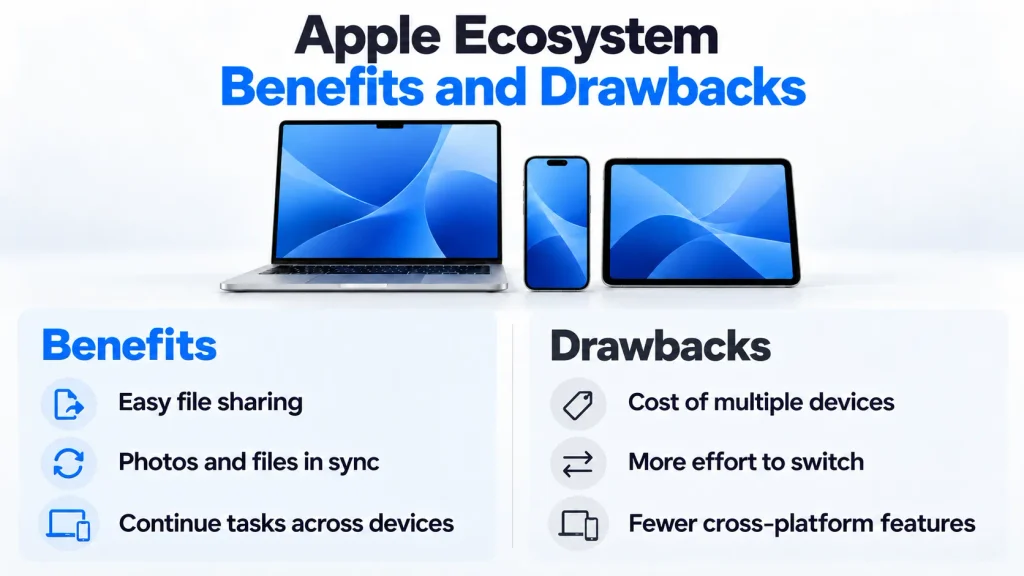
Buying an app from Apple’s App Store does not automatically include its Android or Windows version. Some subscriptions and services remain accessible through the same account on other platforms, however, so the cost of switching depends on the products and software a person uses.
Customization limits also vary across Apple’s products. On iPhone and iPad, users can change several default apps, but the available choices depend on the feature, software, and region. Restrictions on app installation and system behavior can still frustrate people who want more control.
Cost is another drawback. Buying an iPhone, Mac, iPad, Apple Watch, and AirPods can require a substantial investment, although using the ecosystem does not require owning all of them. Paid cloud storage and media subscriptions can add recurring expenses.
Existing connections can also influence the next purchase. Choosing an Apple product mainly because it works with devices already owned may mean overlooking a less expensive option or one better suited to the task. Compatibility has value, but it should be weighed alongside price, features, and actual needs.
Is the Apple Ecosystem Worth It?
The Apple ecosystem is worth considering for people who use several devices each day and value a consistent experience. It makes the most sense when its connections are useful in everyday life, such as continuing work from an iPhone on a Mac or accessing the same files from several devices.
It may be less appealing to people who prefer mixing brands, want deeper customization, or choose each device according to price and features. Someone who relies on Windows for work or prefers an Android phone should consider which Apple connections they would actually use before buying another product.
The sensible approach is to start with a device that meets your needs and budget. If another Apple product later fills a clear need and adds useful connections, the ecosystem can grow naturally. Buying an entire lineup at once to obtain the “full Apple experience” is unnecessary.
The value comes from how often those connections save time or make everyday tasks easier.
How It Compares With Other Ecosystems
Apple is one of several companies connecting everyday devices. Samsung, Google, and Microsoft also offer features for sharing information and using phones, computers, and other products together. Compatibility depends on the particular devices and features involved.
One of Apple’s strengths is coordination. It designs the hardware, operating systems, and many core services, which can make supported connections feel consistent. However, many of its closest integrations depend on using Apple products together, limiting the choices available to someone who wants those specific features.
Samsung combines Galaxy features with Google services, Windows integration through Phone Link and Link to Windows, and SmartThings for compatible home devices. This provides several ways to mix products from different manufacturers. Some features, including Galaxy Buds Auto Switch, still require compatible Samsung devices.
Our Apple ecosystem vs Samsung ecosystem comparison examines these differences directly. The Samsung ecosystem explained guide covers Samsung devices and connections in more detail.
Neither approach is automatically better. The right choice depends on the products a person already owns, the applications they need, and whether their preferred devices support the connections they will actually use.
Conclusion
The Apple ecosystem connects devices, apps, and services in ways that can make everyday tasks easier. Its value comes from small conveniences that add up, such as continuing work on another device, sharing files, and keeping information synchronized.
When those connections fit a person’s routine, they can make using several devices more convenient. When people rarely use them, justifying the cost of additional products and limits on mixing platforms becomes harder.
These connections are both a strength and a source of lock-in. They can make compatible products easier to use together while increasing the effort involved in switching platforms. Whether that trade-off is worthwhile depends on how useful the connections are in everyday life.
FAQs
What is the Apple ecosystem?
The Apple ecosystem is the collection of Apple devices, software, and services designed to work together. It connects products such as the iPhone, Mac, iPad, Apple Watch, and AirPods through features that let users share files, sync information, continue tasks, and switch audio between supported devices.
What devices are included in the Apple ecosystem?
The main Apple ecosystem devices include the iPhone, Mac, iPad, Apple Watch, AirPods, Apple TV 4K, HomePod, and Apple Vision Pro.
Can the Apple ecosystem work without an iPhone?
Yes. A Mac and iPad can use iCloud, AirDrop, Handoff, and other supported features without an iPhone. However, a compatible iPhone is required for standard Apple Watch setup and for phone-dependent features, such as relaying iPhone calls to a Mac.
What are the main benefits of the Apple ecosystem?
The main benefits include easier file sharing, synced passwords and other information, a familiar software experience, and the ability to continue tasks across devices. Features such as AirDrop, Handoff, and Universal Clipboard are especially useful when someone regularly uses two or more compatible Apple products.
What is the biggest disadvantage?
The main drawback is reduced flexibility when switching platforms. Some apps may need to be purchased again, accessories may lose features or need replacing, and moving cloud data can take time. The difficulty depends on which devices, apps, and services a person uses.
Is the Apple ecosystem worth the cost in 2026?
It can be worth the cost for people who regularly use its cross-device features and value consistency. Each product should also meet a real need and fit the buyer’s budget. Buying additional Apple devices is harder to justify when their connections add little to everyday use.