
Contents
Introduction
The Samsung ecosystem connects Samsung devices, software, and services to make everyday tasks easier. It brings together Galaxy phones, tablets, laptops, watches, and earbuds, along with compatible TVs and smart home products. These connections help you share files, sync notes, handle calls across supported devices, and control appliances from one place.
A Galaxy phone can be the starting point, with the benefits becoming clearer when you connect another compatible device. Quick Share lets you send a video to a compatible Windows laptop. Samsung Notes can sync your notes across a Galaxy phone, tablet, and Galaxy Book. Supported Galaxy Buds can switch audio between compatible devices using Auto Switch, while SmartThings brings compatible TVs, lights, and appliances into one app, including products from other brands.
Available features vary by device, software version, and region. Many also require you to sign in to the same Samsung account on each device. This guide explains how the Samsung ecosystem works, where it helps in daily use and which limitations to check.
What Is the Samsung Ecosystem?
The Samsung ecosystem brings together devices, apps, cloud services, and smart home technology. Galaxy phones, tablets, laptops, and wearables form its core, often called the Samsung Galaxy ecosystem. Features built into One UI and Samsung apps help compatible devices share information, while SmartThings connects supported TVs, appliances, and other smart home products.
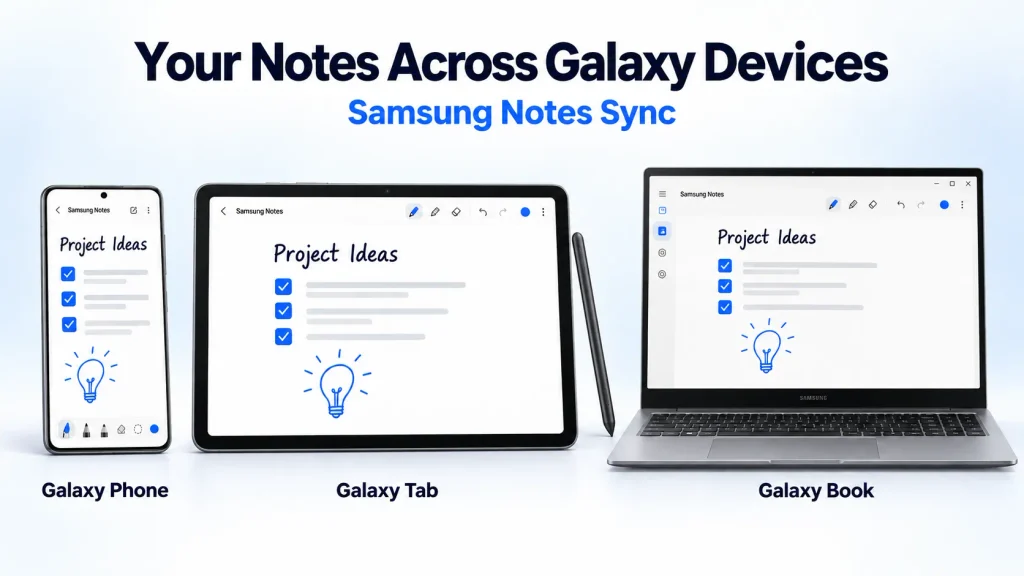
For example, you could start a note in Samsung Notes on a Galaxy phone, add handwritten ideas on a compatible Galaxy Tab, and continue editing the same note on a Galaxy Book. You need to use the same Samsung account and enable note syncing across those devices.
Quick Share lets you transfer a photo between compatible devices without attaching it to an email. Microsoft’s Phone Link also lets you view phone notifications, messages, and recent photos on a linked Windows computer, including compatible PCs from other brands.
The value comes from how these connections fit into your day: less time moving files manually, checking your phone, or switching devices to finish a task.
Samsung Ecosystem Devices
The Samsung ecosystem extends beyond phones and tablets to laptops, wearables, TVs and connected home appliances. Each product adds different functions, from sharing notes across screens to checking household devices through SmartThings.
| Devices or Sorvices | Role in the Ecosystem | Connected Features |
|---|---|---|
| Galaxy smartphones | Connect mobile, wearable, and smart home features | Quick Share, Samsung Notes, SmartThings, Samsung Health, and Phone Link |
| Galaxy tablets | Provide a larger screen for work, entertainment, and drawing | Samsung Notes, Multi Control, Second Screen, and Quick Share |
| Galaxy Book laptops | Bring Galaxy phone and tablet connections to a Windows laptop | Phone Link, Quick Share, Auto Hotspot, and Samsung Notes |
| Galaxy Watch | Adds activity tracking and convenient access to phone alerts | Samsung Health syncing, calls, messages, and media controls |
| Galaxy Buds | Provide wireless audio with switching between compatible devices | Auto Switch, phone calls, and media playback |
| Samsung smart TVs and supported monitors | Bring content to a larger screen and provide access to connected home controls | Screen mirroring, SmartThings, and phone-based remote controls |
| SmartThings-compatible appliances | Let you check and manage supported household products through one app | Status alerts, remote controls, routines, and energy monitoring |
| Samsung account | Provides a shared sign-in for Samsung apps and services | Samsung Cloud syncing, supported backups, and account-based connections |
These are examples across each product category. Availability depends on the model, software version, region, and setup. Features such as second screen, auto switch, and appliance energy monitoring require specific compatible products.
You do not need to own everything in this table. Useful combinations can start with just two products, such as a Galaxy phone and Galaxy Buds, a phone and Galaxy Watch, or a phone and Galaxy Book. The best starting point is a connection you would use regularly.
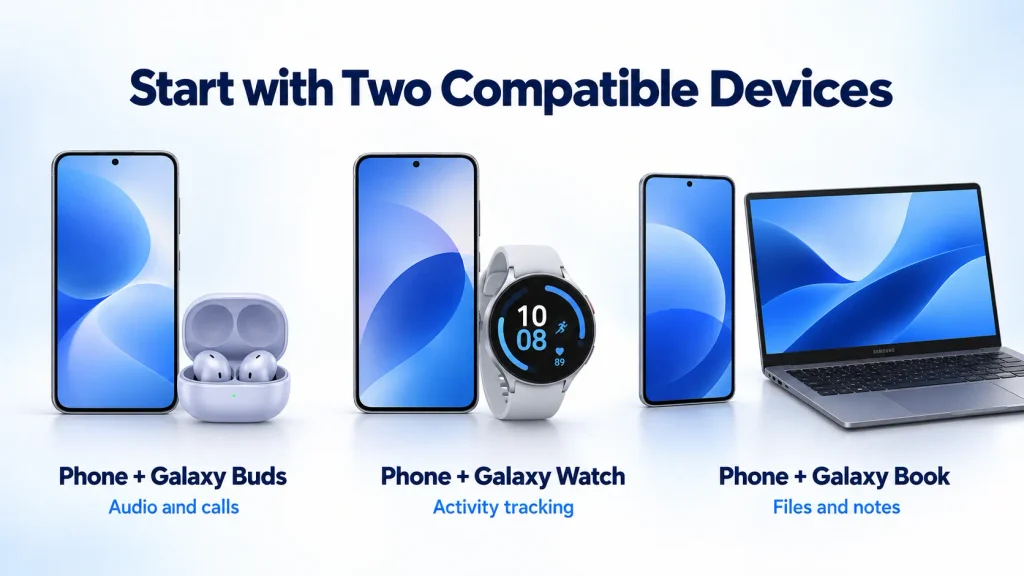
Galaxy Smartphones
A Galaxy phone is often the starting point for the Samsung ecosystem. It lets you connect compatible watches and earbuds, share files, sync notes, and control smart home products through SmartThings. You can also manage your Samsung account from the phone, and supported models provide access to Galaxy AI.
Many everyday connections are available on supported Galaxy A phones as well as Galaxy S and Galaxy Z models. More advanced features vary between individual devices, so availability depends on the exact model, One UI version, and region.
Galaxy Tablets
Galaxy tablets provide a larger screen for reading, multitasking, drawing, and entertainment. With Samsung Notes syncing enabled, you can continue a note started on your phone and add handwriting or sketches using an S Pen on a compatible tablet.
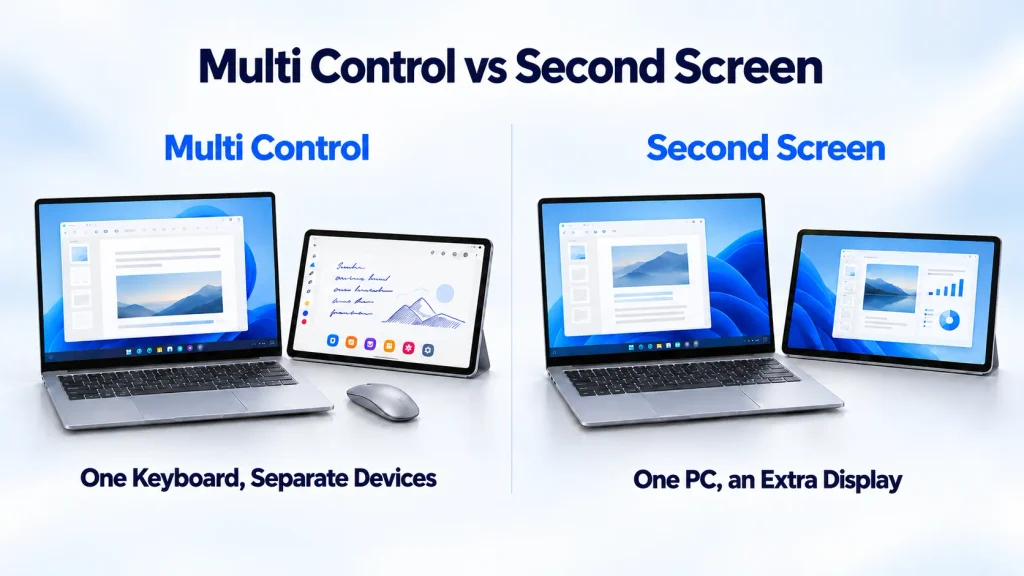
Supported models can also use Second Screen to extend or mirror a compatible Windows computer’s display. Multi Control lets you use the same keyboard and mouse across compatible Galaxy devices, such as a Galaxy Book and Galaxy Tab. Each device runs its apps, while you move between them without switching controls.
Galaxy Book Laptops
Galaxy Book laptops bring Samsung’s phone and tablet connections to a Windows computer. Quick Share lets you transfer files between nearby compatible devices, while Microsoft’s Phone Link lets you handle calls and messages, check notifications, and view recent phone photos from the laptop.
Quick Share and Phone Link also work on compatible Windows PCs from other brands, giving you useful connections even if you already own a different laptop. The available features depend on the computer’s hardware, installed apps, and software versions.
Galaxy Watch and Galaxy Buds
A Galaxy Watch brings health and workout tracking, notifications, and quick controls to your wrist. Activity data syncs with Samsung Health on your phone, where you can review your progress and follow trends over time.
Galaxy Buds make moving between devices more convenient. With Auto Switch enabled, supported models can switch from a video on a compatible tablet to an incoming call on your phone. The devices must have previously connected to the Buds and be signed in to the same Samsung account. Compatibility depends on the Buds model, connected devices, and software.
TVs, Appliances, and Smart Home Devices
Samsung’s connected range includes smart TVs, supported monitors, refrigerators, washing machines, air conditioners, and robot vacuums. SmartThings brings compatible products into one app and also works with supported devices from other brands, including lights, cameras, and smart locks.
These connections extend the Samsung ecosystem into entertainment, home monitoring, and household automation. You can check appliance status, monitor energy use on supported products, and create routines, such as turning lights on at a set time. Available functions vary by device and region.
Best Samsung Ecosystem Features
The most useful Samsung ecosystem features save you from repeating small tasks, such as sending yourself files, switching keyboards, or reaching for your phone to check a message. Here are the main features and the requirements you should keep in mind.
| Feature | What it Does | Key Requirements |
|---|---|---|
| Quick Share | Transfers files between nearby Android devices and compatible Windows PCs | Compatible devices with Wi-Fi and Bluetooth enabled |
| Samsung Notes sync | Keeps notes available across supported devices | Same Samsung account, syncing enabled, and internet access |
| Multi Control | Lets you use one keyboard and mouse or trackpad across compatible devices | Supported hardware and software, Samsung account setup, Wi-Fi, and Bluetooth |
| Second Screen | Extends or mirrors a Windows computer’s display on a supported Galaxy Tab | Compatible Galaxy Tab and Windows PC |
| Auto Hotspot | Makes it easier to connect compatible devices to a Galaxy phone’s hotspot | Supported devices, the same Samsung account or family sharing, and a mobile plan that allows hotspot use |
| Call & text on other devices | Lets you handle your phone’s calls and texts on a compatible Galaxy tablet | Same Samsung account, active phone service, supported devices and carrier, and same Wi-Fi network for calls |
| Microsoft Phone Link | Brings phone calls, messages, notifications, and recent photos to a Windows PC | Compatible linked devices, Microsoft account and permissions, and Bluetooth for calls |
| Galaxy Buds Auto Switch | Automatically switches the earbuds’ connection between supported devices for calls or media | Compatible with buds and devices, same Samsung account, and Auto Switch enabled |
| SmartThings routines | Runs actions on connected home devices at set times or when conditions are met | Compatible products added to SmartThings and a configured routine |
| Galaxy AI | Provides writing, translation, search, and editing tools | Supported device, software, language, and region; some tools require accounts and internet access |
Support varies by model and software version. Before buying a device for a particular feature, check that both products support it and that it is available in your region.
How Galaxy Devices Work Together
Samsung uses several different systems to connect its products. Some connections rely on a Samsung account, some work over nearby wireless links, and others use Microsoft or SmartThings services.
One UI Familiar Experience
Galaxy phones and tablets use One UI, Samsung’s interface built on Android. Recent Galaxy watches use One UI Watch on Wear OS. Each interface is designed for its screen, while shared design elements and familiar settings help the devices feel connected.
That consistency can make a second Galaxy product easier to learn. Software updates can also introduce new ways for compatible devices to work together. Our iOS vs One UI comparison explores how Samsung’s approach to phone software compares with Apple’s.
Quick Share
Quick Share sends photos, videos, and documents between nearby compatible Android devices and Windows PCs, including products from other brands. Google’s Windows app also supports sending folders.
This is especially useful for large files. You can transfer a video directly from your phone to a laptop without uploading it to cloud storage first. Wi-Fi and Bluetooth should be enabled, and the receiving device must be discoverable through Quick Share.
Galaxy Books uses Samsung’s Quick Share app, while Google’s Windows app is intended for compatible PCs from other manufacturers.
Multi Control and Second Screen
Multi Control lets you use the same keyboard and mouse or trackpad across compatible devices. You can move the pointer between screens while each device runs its apps. Supported combinations also let you copy and paste text or transfer files between devices.
Second Screen turns a supported Galaxy Tab into an additional display for a compatible Windows computer. In Extend mode, you can keep reference material or a messaging app on the tablet while working on the computer’s main screen. This provides extra workspace without carrying a separate monitor.
Phone Link
Phone Link is a Microsoft app that works with supported phones from several brands, including Samsung. With a compatible Galaxy phone, you can check notifications, send messages, make calls, and view recent photos from a Windows PC. Selected models also let you open and use phone apps on the computer.
Setup uses Phone Link on the PC and Link to Windows on the phone, with both signed in to the same Microsoft account. You also need to grant the relevant permissions. Calls require Bluetooth, while other features depend on the devices, software versions, and network connections.
Samsung Notes
Samsung Notes supports typed notes, handwriting, sketches, checklists, voice recordings, and PDF annotation. You can start a note on a Galaxy phone, then continue on a compatible tablet, where the larger screen gives you more room to write or draw with an S Pen.
With the same Samsung account and Samsung Cloud syncing enabled, supported Galaxy Books also let you open and edit your notes on a laptop. This makes it easier to keep lecture notes, meeting notes, or project ideas available as you move between devices.
Galaxy Buds and Wearables
A Galaxy Watch lets you check notifications and handle calls without picking up your phone. Its activity data syncs with Samsung Health for later review. With Auto Switch configured, supported Galaxy Buds can move audio between compatible devices.
These small conveniences can reduce interruptions throughout the day. You spend less time changing audio connections or reaching for your phone just to check an alert.
Galaxy AI in the Samsung Ecosystem
Galaxy AI is Samsung’s collection of artificial intelligence features built into supported devices and apps. Its tools appear in familiar places such as Samsung Keyboard, Samsung Notes, Gallery, Phone, and Voice Recorder.
Writing Assist can help rewrite or translate text, while Note Assist formats and summarizes notes. Live Translate translates supported voice calls in real time. Photo Assist includes tools for moving or removing objects and generating replacement details in photos.
Some tasks run directly on the device, while others use cloud processing and require an internet connection. The processing method depends on the feature and device. Our guide to on-device AI vs cloud AI explains how these approaches work together.
Available features vary by model, software version, language, and region. Some tools also require account sign-in, so check the requirements for the features you want to use. Our Galaxy AI explained guide covers the main tools and their practical limitations.
SmartThings and the Connected Home
SmartThings is Samsung’s platform for connected home products. It can manage compatible lights, plugs, cameras, thermostats, TVs, and appliances all from one app.
Routines let several devices respond to one trigger. A bedtime routine could turn off selected lights and lower the thermostat’s heating temperature. Other routines could run when someone arrives home or when a sensor detects movement.
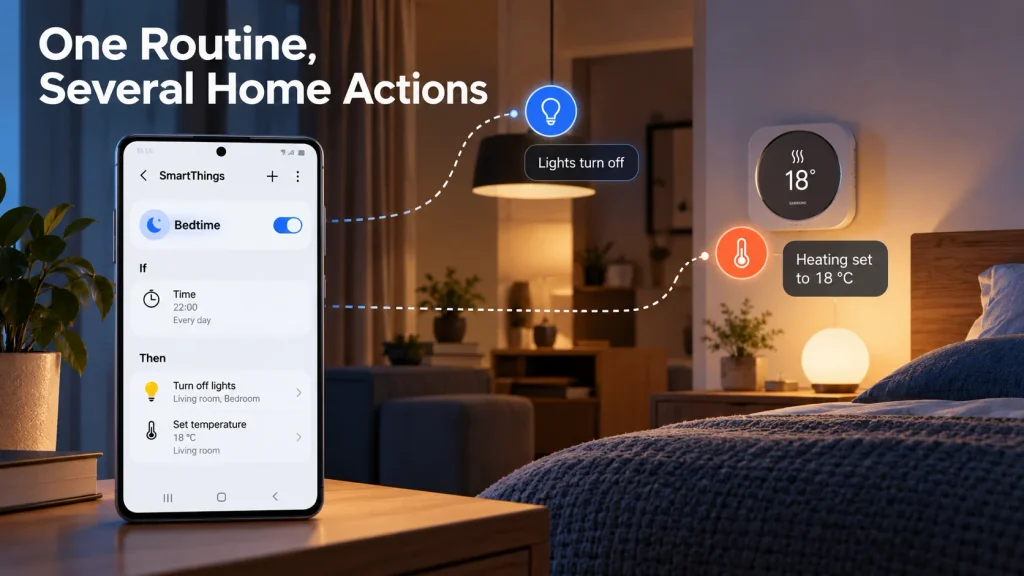
SmartThings also supports products from other brands. Its support for the Matter smart home standard helps compatible devices from different manufacturers work within the same smart home setup.
You still need to check compatibility product by product, including which controls and routine actions are available. Some devices also require a compatible hub. A product being described as “smart” does not automatically mean it works with SmartThings or supports every feature.
Security and Privacy
Connecting several devices means managing personal information, account access, and permissions across more screens. Samsung’s Knox security technologies provide hardware and software protections on supported devices, although the available protections vary by product.
Your Samsung account connects many syncing and device services. Protect it with a strong, unique password and keep your two-step verification details up to date.
Before selling or giving away a device, back up important data, remove your accounts, and follow its factory-reset instructions. A lost device needs a different approach. Use Samsung Find or SmartThings. Find out how to locate or lock a supported Galaxy phone before considering account removal.
Some Galaxy AI features process data on remote servers. On supported devices, the “Process data only on device” setting limits cloud processing for Galaxy AI, but features that depend on it may become unavailable. Cloud backups and synchronization need to be reviewed separately in their settings.
Regular maintenance also matters. Install available system, app, and connected-device updates, use a secure screen lock and review which apps can access sensitive information.
Is the Samsung Ecosystem Worth It?
The Samsung ecosystem can be worth it if you regularly use its connections to share files, continue notes across screens, manage phone tasks from a computer, or control home devices. Its value depends on how well those features fit your routine and the products you already own.
Main Benefits
- It connects products ranging from phones and wearables to TVs and home appliances.
- Phone Link brings supported Galaxy phone functions to compatible Windows PCs, including computers from other brands.
- Quick Share simplifies file transfers between nearby compatible devices.
- SmartThings brings many Samsung and third-party home products into one app.
- Samsung offers products at different prices, although their connected features vary.
- You can build your setup gradually, starting with two compatible devices.
Main Drawbacks
- Feature availability varies by model, software version, and region.
- Some connections require selected Samsung devices, limiting your choice of hardware.
- Different features may need Samsung or Microsoft accounts, separate setup, and additional permissions.
- Features that rely on cloud processing are unavailable or limited without an internet connection.
For someone who already owns a Galaxy phone and compatible Windows PC, it makes sense to try the available connections before buying anything else. A new device is easier to justify when it solves a specific problem, such as adding space for handwritten notes or making calls accessible from your wrist. Check that exact feature before purchasing.
Samsung Ecosystem vs Apple Ecosystem
Apple connects compatible iPhones, iPads, and Macs through features such as AirDrop, Handoff, and Universal Clipboard. Samsung combines Galaxy connections with tools such as Phone Link and Quick Share for compatible Windows PCs. Its product range also extends to TVs and home appliances, which SmartThings can manage alongside supported devices from other brands.
The better choice depends on what you already own and which connections you will use regularly. Both ecosystems have compatibility requirements, so compare the features that matter to you before buying. Our detailed Samsung ecosystem vs Apple ecosystem comparison looks at file sharing, continuity, smart homes, privacy, device choice, and long-term value.
Who gets the most value?
The Samsung ecosystem offers the most value to people who regularly use its connections. A Galaxy Watch can bring notifications and workout tracking to the wrist. Compatible Galaxy Buds can switch audio between supported devices, while a Galaxy Tab with S Pen support provides more space for handwritten notes and drawing.
Windows users can benefit even if their phone is their only Samsung product. Quick Share and Phone Link connect a Galaxy phone with compatible PCs from other brands. Samsung Notes can extend a phone-and-tablet workflow to a supported Galaxy Book, but its Windows app does not work on every PC.
The benefits are smaller if you rarely share files, sync information, or switch tasks between devices. Owning several Samsung products does not automatically make those connections useful.
Start with a device that solves a real need, then check which features it shares with the products you already own. There is little reason to buy extra hardware just to complete the ecosystem.
Final Thoughts
The Samsung ecosystem connects everyday tasks across compatible devices. Quick Share makes file transfers easier, Samsung Notes keeps ideas available across screens, and SmartThings brings supported home products into one app.
Flexibility is one of its strengths. A Galaxy phone can work with compatible Windows PCs and smart home products from other brands. However, the available connections depend on the devices and software involved, so check the features you want before buying.
Start by exploring what your current devices can do together. If another product meets a real need, its connections can make it more useful. The Samsung ecosystem earns its place through the tasks it makes easier, whether your setup includes two compatible products or several.
FAQs
What is the Samsung ecosystem?
The Samsung ecosystem is a connected group of Samsung devices, apps, accounts, and services. It helps compatible phones, tablets, computers, wearables, TVs, and smart home products work together through features such as file sharing, note syncing, and device control. Some connections also support products from other brands.
Which devices are part of the Samsung ecosystem?
The main products include Galaxy smartphones, Galaxy Tabs, Galaxy Book laptops, Galaxy Watches, Galaxy Buds, Samsung TVs, and connected home appliances. SmartThings also supports many compatible third-party products.
What are the best Samsung ecosystem features?
The most useful features include Quick Share, Phone Link, Samsung Notes sync, Multi Control, Second Screen, Auto Hotspot, Galaxy Buds Auto Switch, SmartThings routines, and selected Galaxy AI tools. Availability varies by device, software version, and region.
Do you need several Samsung devices to use the ecosystem?
No. One Galaxy device provides access to Samsung apps and services. Cross-device features need another compatible product, but some work with other brands. For example, Quick Share and Phone Link can connect a Galaxy phone with a compatible Windows PC.
Does the Samsung ecosystem work with Windows?
Yes. Galaxy phones can connect with Windows through Microsoft’s Phone Link, and Quick Share works with compatible Windows PCs. Some additional functions are designed specifically for supported Galaxy Book models.
Does every Galaxy phone support the same ecosystem features?
No. Support varies by phone model, One UI version, country, and connected device. Check the requirements for each feature you want to use, including compatibility on both devices for cross-device connections.
Is the Samsung ecosystem better than Apple’s?
Neither is better for everyone. Samsung offers useful connections with Windows PCs and compatible smart home products from other brands. Apple links compatible Apple devices through features such as AirDrop, Handoff, and Universal Clipboard. The better choice depends on what you already own and which connections you use most.
Is the Samsung ecosystem worth it in 2026?
It can be worth it for people who already own a Galaxy phone and regularly use another compatible device. Its advantages are less important for someone who only needs one phone or does not use cross-device features.