
Google Play Protect is Android’s built-in app security service. It checks apps from Google Play and other sources and periodically scans installed apps. If it finds a potentially harmful app, it can warn you, disable it, or remove it.
Google recommends keeping Play Protect enabled. Turning it off through the Play Store removes an important security check. If an APK triggers a warning, read it carefully, check where the app came from, and use the scan option if offered.
This guide explains what Google Play Protect is, how it works, how to run a manual scan, what its warnings mean, and whether you should turn it off.
Contents
What Is Google Play Protect?
Google Play Protect is a built-in security feature on Android devices that use Google Play services. You do not need to download a separate Play Protect app or pay for a subscription.
It checks apps from the Google Play Store before you download them. It also periodically scans installed apps, including those installed from sources outside Google Play.
According to Google’s official Play Protect documentation, the service can warn you about potentially harmful apps, disable them, or remove them from your device.
It can also send privacy alerts about apps removed from Google Play over concerns about access to your personal information. Separately, on Android 6.0–10, Play Protect may reset permissions for apps you have not used for three months.
Play Protect provides an important layer of security, but it does not guarantee that every installed app is safe. You should still download apps from trusted sources, review permissions, install Android security updates, and avoid modified or cracked APK files.
How Does Google Play Protect Work?
Play Protect checks apps when you install them and periodically rescans your device afterward. This allows Google to take action if an app is later identified as potentially harmful.
Google uses machine learning, checks against known harmful apps, analysis of app code and behavior, and reports from security researchers. Its cloud-based protection systems also examine developer relationships and suspicious app behavior. These checks help identify apps that could put your device or data at risk.
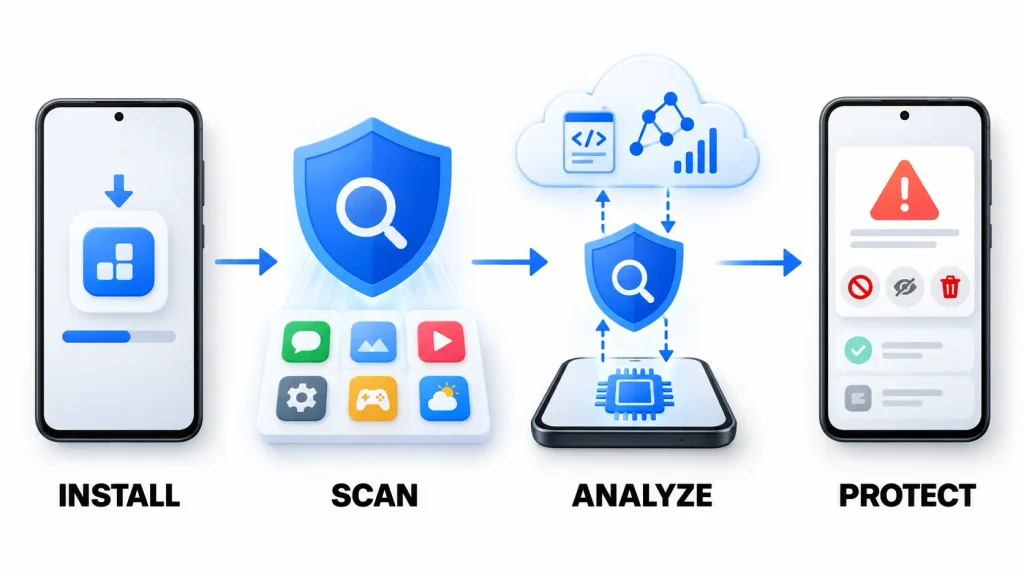
Depending on what it finds, Play Protect can display a warning before or after installation, block the installation, disable the app, or remove it from your device.
The service combines checks on your device with Google’s cloud-based analysis. Google updates these systems over time to help detect new threats, so you do not need to download a separate malware database manually.
How to Scan Apps With Google Play Protect
You do not have to wait for an automatic scan. You can run a manual scan after installing an unfamiliar app or whenever you want to check the apps on your phone.
Follow this path:
Google Play Store > Profile icon > Play Protect > Scan
Wait while Play Protect checks the apps installed on your device, then review the result.

If the scan displays “No harmful apps found,” Play Protect did not find any potentially harmful apps during that scan. This is reassuring, but it does not prove that every app is completely safe.
If Play Protect finds a harmful app, follow the recommended action. Play Protect may recommend uninstalling it or automatically disable or remove it from your device.
What Do Google Play Protect Messages and Warnings Mean?
A Google Play Protect warning can mean different things depending on the message. Some indicate that an unfamiliar app needs scanning, while others warn about specific security risks or harmful behavior. Read the complete message before deciding what to do.
“Verified by Play Protect”
This is a status message rather than a warning. In practical terms, it indicates that the app passed the Play Protect check shown at that time without being flagged as harmful.
It is not a permanent safety guarantee. Apps can change after updates, and new threats can be discovered. Continue checking the developer, download source, requested permissions, and any unusual app behavior.
App verification is also different from Play Protect certification. Certification concerns whether the device has passed Android compatibility testing and is licensed to include Google apps.
“App Scan Recommended”
You may see this message when installing an unfamiliar app from outside Google Play. It generally means Play Protect has not seen that app before and recommends checking it before installation.
Tap Scan app and wait for the result. This sends information about the app to Google for a code-level security evaluation. Read the result before deciding whether to continue.
“Play Protect Hasn’t Seen an App From This Developer Before”
This is an uncommon-app warning. It does not automatically confirm malware, but it indicates that Play Protect lacks an established history with that developer.
Check that the download is linked from the developer’s official website and matches its installation instructions. A familiar website alone does not prove an APK is safe.
If you cannot verify the developer or the download source, cancel the installation.
“App Blocked to Protect Your Device”
If the message mentions access to sensitive data, the block may relate to Google’s fraud protection. In selected markets, Play Protect blocks certain apps installed from online sources when they request permissions commonly abused in financial scams.
This type of block does not, by itself, confirm that the app contains malware. However, do not disable Play Protect simply to bypass it. Look for an official Google Play version or contact the developer for clarification.
Harmful App Warnings
Messages such as “Harmful app blocked” indicate that Play Protect has classified the app as potentially harmful. It may prevent installation or, if the app is already installed, recommend uninstalling it, disable it, or remove it automatically.
Follow the recommended action. If the developer believes the detection is incorrect, it can submit an appeal to Google.
Google explains these messages in its Play Protect warning guide and lists warnings for specific threat categories.
Is Google Play Protect Safe?
Yes, Google Play Protect is a legitimate security service built into Android devices with Google Play services. It helps protect against malware, spyware, fraudulent apps, and other potentially harmful software.
It runs mainly in the background and usually requires little interaction. However, some features use Google’s cloud-based systems.
For example, enabling Improve harmful app detection allows Play Protect to automatically send unknown apps to Google for additional analysis. You can find this setting under:
Google Play Store > Profile icon > Play Protect > Settings
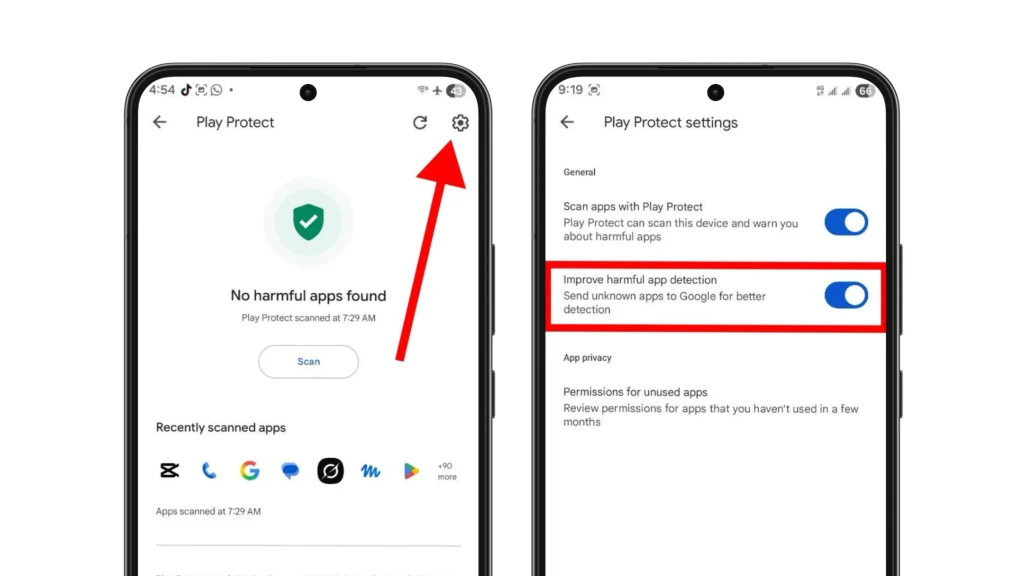
If you prefer not to submit unknown apps automatically, you can turn this option off while keeping Scan apps with Play Protect enabled. This does not make Play Protect entirely offline. Other security checks may still send information to Google.
Should You Disable Google Play Protect?
Most people should leave it enabled.
Turning Play Protect off does not infect your phone by itself, but it disables its app scanning and related warnings. This increases the risk that a harmful app will go undetected, especially if you install APK files from outside Google Play.
Other Android protections, including app permissions and the Android Application Sandbox, continue operating. However, they do not replace Play Protect’s checks for harmful apps.
If an unfamiliar APK triggers a warning, complete the offered scan and contact the developer if installation remains blocked. A trusted download source alone does not guarantee that the app is safe.
A developer might temporarily change Play Protect settings for a specific test. Such testing is better confined to a dedicated test device, with protection re-enabled afterward.
If Play Protect identifies an app as harmful, do not disable protection to force the installation. If the developer believes the detection is incorrect, it can submit an appeal to Google.
How to Disable Google Play Protect Temporarily
If you understand the risks and have a specific reason to turn it off temporarily, follow this path:
Google Play Store > Profile icon > Play Protect > Settings > Scan apps with Play Protect.
Turn off Scan apps with Play Protect, then confirm your choice if prompted.

Menu labels may vary slightly. Check Google’s current Play Protect instructions if your screen looks different. If Android’s Advanced Protection is enabled, Play Protect cannot be turned off.
Disabling Play Protect does not automatically allow APK installation. Android may still require the separate Install unknown apps permission for the browser or file manager you use.
If the app remains blocked or displays a harmful-app warning, stop and investigate the message instead of disabling more protections.
When you finish, turn Scan apps with Play Protect back on. Return to the main Play Protect screen and tap Scan to check your installed apps.
What if Google Play Protect won’t turn off?
If the switch is unavailable or will not stay off, check whether Android’s Advanced Protection is enabled. This feature requires Play Protect to remain on.
Play Protect may also prevent you from turning off app scanning during a phone or video call as an anti-scam safeguard. If someone on a call asks you to disable it to install an app, stop and verify their request independently.
A phone managed by a workplace or school may also have a policy that prevents users from disabling app verification. Contact the administrator if your organization controls the setting.
Make sure you are changing the correct control. Turning off Improve harmful app detection is not the same as turning off Scan apps with Play Protect.
If no restriction applies and the Play Store menu is unresponsive, restart your phone, update the Google Play Store, and check for available Google Play system updates. You can also try clearing the Play Store’s cache. These steps may help with an app glitch, but they will not override an enforced security policy.
Leave clearing Play Store data until simpler steps have failed. It may reset preferences such as parental controls and password protection, so review those settings afterward if you clear it.
Does Google Play Protect Replace an Antivirus App?
For many Android users, Play Protect provides a useful baseline for app scanning and malware detection. Combined with Android security updates, careful downloading, and sensible permission management, it may be enough for everyday use.
A third-party security app may offer additional tools, such as web protection, phishing alerts, or breach monitoring. Features vary by product and subscription, so check what each one includes before you choose.
If you are considering one, see our hands-on comparison of the best antivirus apps for Android. No antivirus app can guarantee complete protection, so safe downloading habits remain important.
If you notice persistent pop-ups, unexplained data use, or other suspicious behavior, follow our guide on how to remove malware from Android. It explains how to investigate your phone and secure affected accounts. These symptoms alone do not confirm an infection.
Final Verdict
For everyday use, keep Google Play Protect enabled. It checks apps from Google Play and other sources and can warn you about potentially harmful apps, disable them, or remove them. Continue downloading from trusted sources and installing available Android security updates.
If an APK triggers a warning, read the message, verify where the app came from, and use the scan option if offered. Do not disable protection simply to bypass a harmful-app warning. If you temporarily change the setting for controlled testing, turn it back on afterward.
FAQs
What Is Google Play Protect?
Google Play Protect is a built-in app security service on Android devices with Google Play services. It checks apps from Google Play and other sources, periodically scans installed apps, and can warn you about, disable, or remove potentially harmful apps.
Is Google Play Protect Safe?
Yes. It is a legitimate Google security service. Some features send apps or related information to Google for analysis. The Improve harmful app detection setting controls automatic submission of unknown apps, but turning it off does not stop every cloud-based security check.
How Do I Disable Google Play Protect?
Open Google Play Store > Profile icon > Play Protect > Settings. Turn off Scan apps with Play Protect and confirm if prompted. Re-enable it afterward. You cannot turn it off while Android’s Advanced Protection is enabled.
Does Disabling Play Protect Uninstall My Apps?
No. Turning Play Protect off does not uninstall apps already on your phone. It disables Play Protect’s app scanning and related warnings on that device.
Does Google Play Protect Scan APK Files?
Play Protect can check APKs when you try to install them, including apps from outside Google Play. It also scans installed apps. For unfamiliar apps, it may recommend sending app information to Google for a code-level scan before installation.
Can Google Play Protect Remove Malware?
Yes. Play Protect can disable or remove apps it identifies as potentially harmful. However, a clean scan does not guarantee that every security problem is resolved. Unwanted browser notifications, suspicious permissions, and compromised accounts may require separate troubleshooting.
Should I keep Google Play Protect on?
Yes. Google recommends keeping it enabled. It provides ongoing checks for potentially harmful apps, including apps installed from outside Google Play.
Does Google Play Protect Slow Down a Phone?
Google describes Play Protect’s automatic daily scan as lightweight, but performance impact can vary. If your phone becomes unusually slow or loses battery quickly, review battery usage and recently installed apps to help identify the cause.