
Your iPhone may hold private photos, saved passwords, banking apps, conversations, health information, and location history. Apple provides strong protections, but how you configure your phone matters too.
The most useful privacy and security settings on iPhone are spread across several menus. App permissions, tracking controls, and Safety Check are under Privacy & Security, while Stolen Device Protection, Find My, two-factor authentication, and Advanced Data Protection appear elsewhere in Settings.
I use an iPhone 15 as my main phone. This guide explains how to protect privacy on iPhone by reviewing app permissions and the protections that matter in everyday use. Some changes can limit useful features, so I’ll explain what each setting does and the trade-offs to consider before changing it.
Contents
Where Is Privacy and Security on iPhone?
Open Settings, scroll down, and tap Privacy & Security.
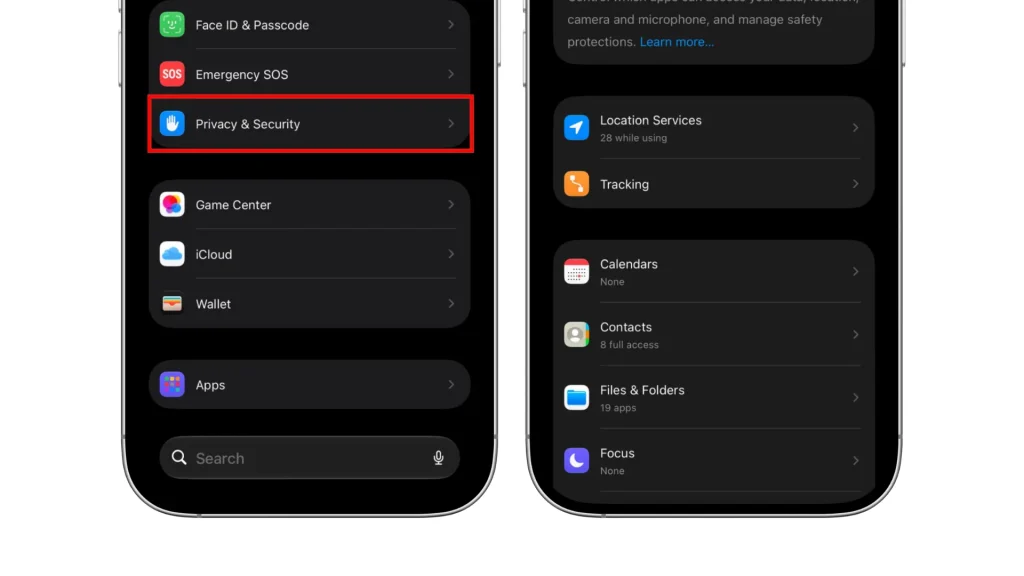
This menu lets you review which apps can access your location, contacts, photos, camera, microphone, Bluetooth, and local network. It also includes tracking controls, Analytics & Improvements, Apple Advertising, App Privacy Report, Safety Check, and Lockdown Mode.
If you cannot find the menu, use the search field in Settings to search for Privacy & Security, then tap the matching result.
Apple’s official Control What You Share on iPhone guide explains how these app permissions work.
Before Changing Your iPhone Privacy Settings
More restrictive does not always mean better.
Turning off location access for a navigation app can disrupt live navigation. Denying an app Bluetooth or local network access can prevent it from connecting to some smart home accessories. Disabling Find My iPhone removes its lost-device protections and turns off Activation Lock.
Review permissions one app at a time. Ask whether the app needs that access for a feature you actually use. If the purpose is unclear, deny access and restore it later only if you understand why it is needed.
When adjusting privacy and security settings on iPhone, focus on the apps and information that matter most to you.
1. Control App Tracking Requests
Some apps request permission to track your activity across apps and websites owned by other companies. This information is commonly used to personalize ads and measure their performance.
Open Settings > Privacy & Security > Tracking.
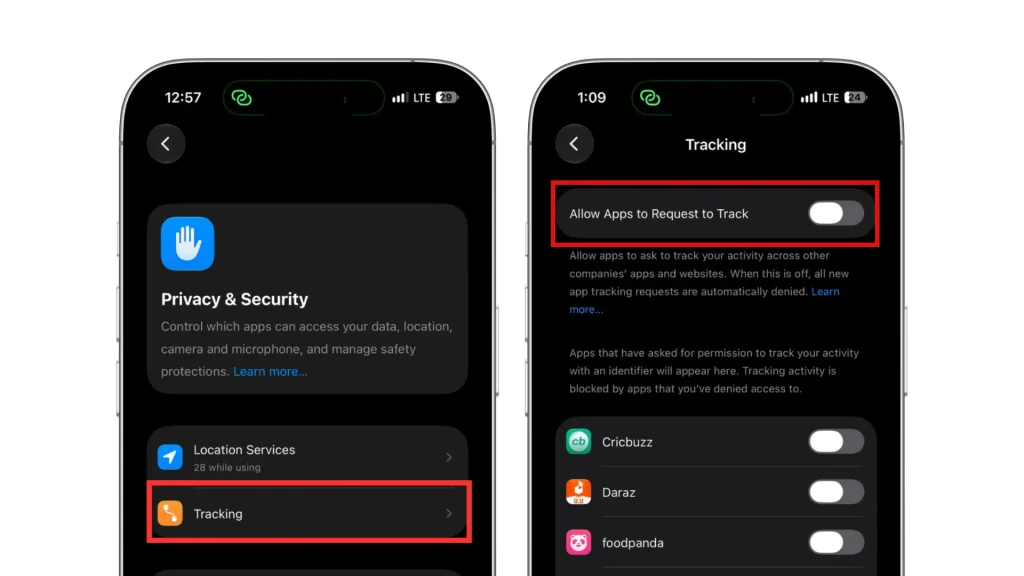
You can withdraw tracking permission for individual apps. To automatically deny new requests, turn off Allow Apps to Request to Track. If prompted, also choose to stop tracking by apps you previously allowed.
These controls do not block advertisements or stop all data collection. They restrict tracking covered by Apple’s rules, while apps may still collect information about your activity within their services.
Apple explains the available choices in its guide to controlling app tracking permissions.
2. Review Location Services and Precise Location
Location access is useful for maps, ride-hailing, weather, deliveries, and finding a lost device. It does not need to be available to every app all the time.
Open Settings > Privacy & Security > Location Services.
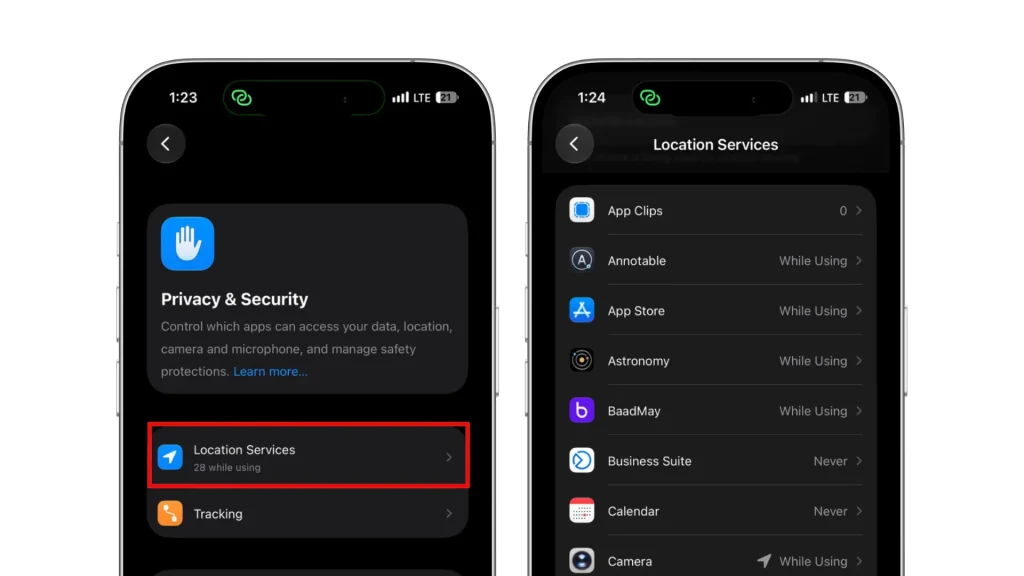
Tap an app and choose the least access needed for the features you use. Depending on the app, you may see Never, Ask Next Time or When I Share, While Using the App, or Always.
Turn off Precise Location when an approximate area is enough. A weather app may only need your general area for a basic forecast, while live navigation usually needs your exact position.
For everyday privacy adjustments, keep Location Services enabled and review permissions app by app. Turning it off entirely can disrupt navigation and other features that rely on your location. Apple’s Location Services guide explains these options.
3. Limit Access to Your Photo Library
An app does not always need access to every photo and video in your library.
Open Settings > Privacy & Security > Photos.
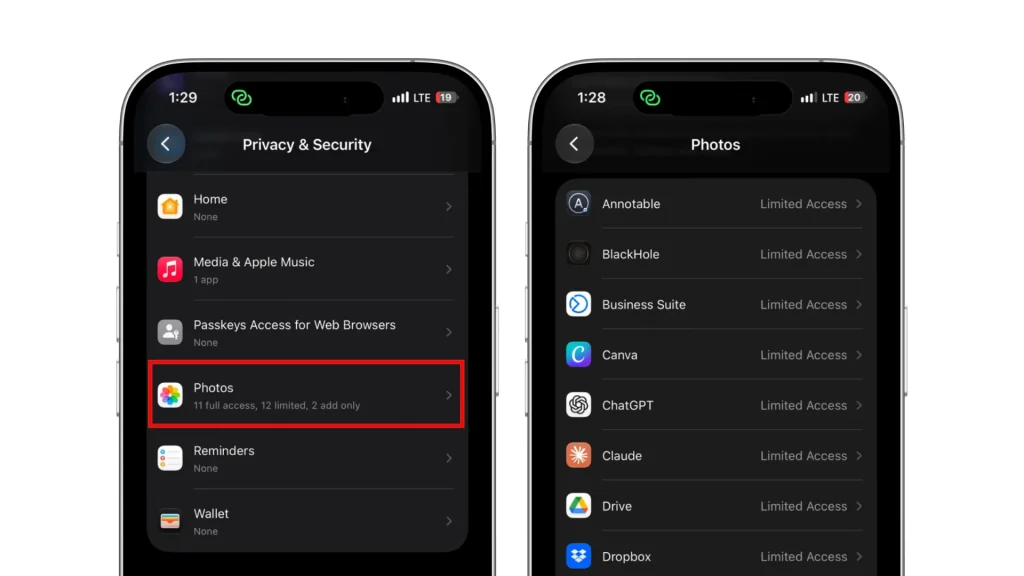
Tap an app in the list and review its permissions. When available, choose Limited Access and select only the photos and videos it needs.
Full access may be appropriate for a trusted service backing up your entire library. For editing or uploading a few images, access to selected photos is often enough.
Some apps use Apple’s photo picker, which lets you share individual photos without granting access to the rest of your library.
Review these permissions occasionally, especially if you granted full access during a quick upload.
4. Restrict Contact Access
Your contacts can contain other people’s names, phone numbers, email addresses, home addresses, and birthdays. Sharing your address book affects their privacy too.
Open Settings > Privacy & Security > Contacts, then tap an app.
Remove access from apps that have no clear need for it. On iOS 18 or later, choose Limited Access when an app only needs a few contacts. Tap Edit Selected Contacts to choose which ones it can access.
Messaging apps may use your contacts to find friends using the same service. Decide whether you want that feature before granting access. For games, photo filters, and basic utilities, check whether the requested access serves a feature you actually use.
5. Check Camera, Microphone, Bluetooth, and Local Network Access
Open Settings > Privacy & Security, then review Camera, Microphone, Bluetooth, and Local Network separately.
Turn off access when an app does not need it for a feature you use. A video-calling app needs camera and microphone access for video conversations. A smart home app may need Bluetooth or local network access to discover and control accessories.
An orange indicator means an app is using the microphone without the camera. A green indicator means the camera is active, possibly alongside the microphone. Open Control Center to check which app recently used either.
These indicators show activity, while the permission lists let you review and change which apps have access. Apple explains the steps in its guide to controlling access to hardware features.
6. Turn On App Privacy Report
Permission lists show what an app can access. App Privacy Report helps you review how it uses that access.
Open Settings > Privacy & Security > App Privacy Report, then tap Turn On App Privacy Report.
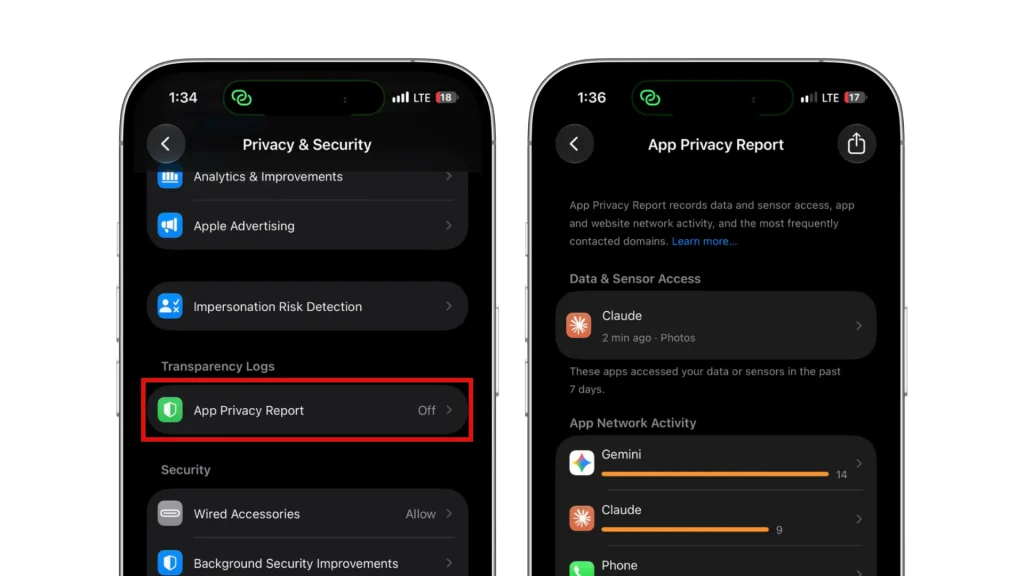
Recording starts only after you enable it. As you use your phone, the report builds a history of your app activity over the past seven days. You can see when and how often apps accessed your location, camera, microphone, and other information, alongside network activity and contacted domains.
An unfamiliar domain does not automatically signal a privacy problem. Apps connect to services for logins, media, analytics, and content delivery. Accessing information also does not necessarily mean the app uploaded it.
For practical iPhone privacy protection, review activity that seems unrelated to an app’s purpose. Check its explanation and remove permissions you do not need.
Apple’s App Privacy Report documentation confirms that report data is encrypted and stored only on your device. Turning off the report clears its collected data.
7. Decide Whether to Share iPhone Analytics
You can choose to share diagnostic and usage information to help Apple improve its products and services. This sharing is optional.
Open Settings > Privacy & Security > Analytics & Improvements.
Review Share iPhone Analytics, or Share iPhone & Watch Analytics if an Apple Watch is paired. Also check Share With App Developers and any additional options shown. Turn off the categories you do not want to share.
These options control analytics sharing through Apple. Turning them off does not automatically stop an app’s own analytics collection or change its tracking permissions. Review Tracking, app permissions, and individual apps’ privacy settings separately.
8. Turn Off Personalized Apple Ads if You Prefer
Apple can use details such as your account information and download history to personalize ads in the App Store, Apple News, and Stocks.
Open Settings > Privacy & Security > Apple Advertising, then turn off Personalized Ads if you prefer.
This stops Apple from using that information for ad personalization. It does not necessarily reduce the number of ads you see. Ads may still relate to your current search or the content you are viewing.
You can also tap View Ad Targeting Information to review details Apple may use for personalization. Apple explains these controls in its guide to controlling personalized ads.
9. Use Safety Check for Sharing and Personal Safety
Safety Check helps you review information shared with people, app permissions, and devices connected to your Apple Account. It is especially useful if someone may have access you no longer want them to have.
Go to Settings > Privacy & Security > Safety Check
Manage Sharing & Access walks you through sharing with individual people, app permissions, connected devices, and account security. Use this option for an ordinary review.
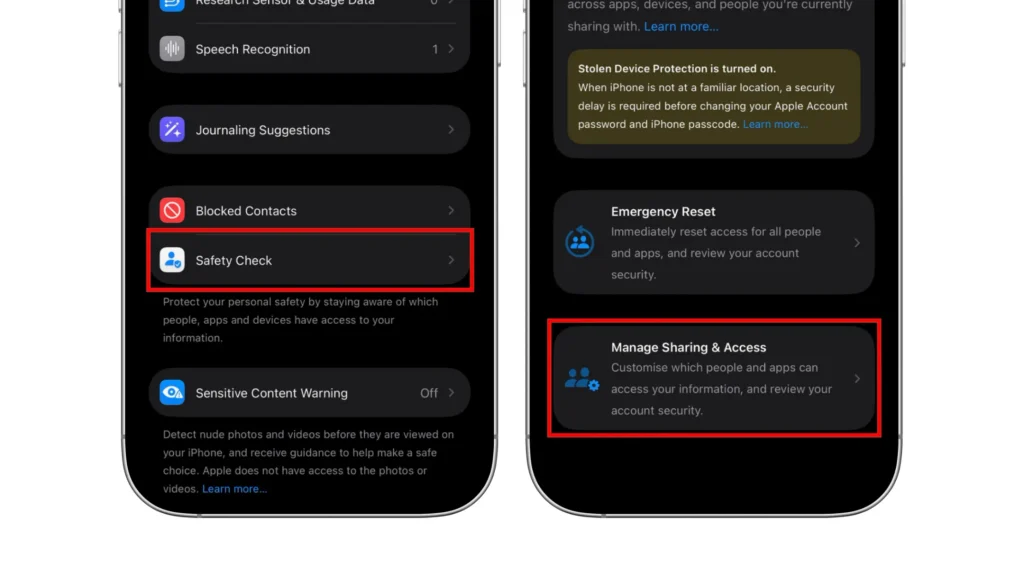
Emergency Reset lets you quickly stop the sharing covered by Safety Check and review your account security. Use it when you need to stop sharing urgently. Both options save changes as you go, so read each screen carefully before making changes.
Before changing sharing settings, consider whether doing so could affect your safety. If you need to leave Safety Check quickly, tap Quick Exit in the top-right corner. This closes Settings and returns you to the Home Screen, but any changes you have already made remain saved.
Safety Check does not cover everything. Review non-Apple accounts and sharing within social media services separately. Apple explains these capabilities and limits in its official Safety Check guide.
10. Strengthen Your Passcode and Face ID Protection
Your passcode helps protect your iPhone and its encrypted data. Avoid birthdays, repeated digits, and other predictable combinations.
Open:
Settings > Face ID & Passcode
Enter your current passcode, then tap Change Passcode if necessary. Choose an unpredictable code of at least six digits. For stronger protection, tap Passcode Options and choose Custom Numeric Code or Custom Alphanumeric Code to create a longer passcode.
Keep Face ID enabled for convenient authentication, but remember that your passcode can still unlock the phone in many situations. Keep it private and shield the screen when entering it around other people.
In the same menu, review Allow Access When Locked. Turn off features such as Control Center or Reply with Message if you do not need them while the phone is locked. This limits access but removes those shortcuts until you unlock.
To hide notification content while locked, go to Settings > Notifications > Show Previews and choose When Unlocked or Never.
On current iOS versions, wired-accessory permissions are under Settings > Privacy & Security > Wired Accessories. Keep Automatically Allow When Unlocked, or choose a stricter approval option if available.
For a closer look at how Apple’s Secure Enclave and biometric protection compare with Samsung Knox, read our iPhone vs Samsung security and privacy comparison.
11. Lock or Hide Sensitive Apps and Photos
If another person occasionally handles your unlocked iPhone, locking sensitive apps adds another layer of privacy.
On iOS 18 or later, press and hold a supported app, then tap Require Face ID and confirm. To hide an eligible app, choose Hide and Require Face ID, authenticate, and then tap Hide App. It moves to the locked Hidden folder at the bottom of the App Library. Apps that came preinstalled cannot be hidden.
A locked or hidden app can normally be opened with your iPhone’s passcode, so someone who knows it may still gain access. With Stolen Device Protection enabled, opening locked apps requires Face ID or Touch ID without a passcode fallback when you are away from familiar locations or everywhere if you select Always.
I have used the hidden-app feature on my iPhone and found the setup and Face ID access straightforward. It is useful for casual privacy, although the app’s name can still appear in Screen Time, battery usage, and App Store purchase history. Apple explains these limits in its guide to locking and hiding apps.
You can also hide selected photos. In Photos, press and hold a photo, tap Hide, and confirm. The Hidden album is locked by default. To check its protection on current iOS versions, open Settings > Apps > Photos and keep Use Face ID enabled. Your device passcode can also unlock the album.
12. Check Stolen Device Protection
A thief who knows your passcode may try to access saved passwords or change your Apple Account settings. Stolen Device Protection adds biometric checks without a passcode fallback for certain actions. Sensitive changes, such as changing your Apple Account password, can also require a one-hour delay followed by another biometric check.
Go to Settings > Face ID & Passcode > Stolen Device Protection
To use Stolen Device Protection, you need a device passcode, Face ID or Touch ID, two-factor authentication, Find My, and Significant Locations enabled within Location Services.
Turn on Stolen Device Protection if it is not already enabled. Under Require Security Delay, the default Away from Familiar Locations option applies the additional protections when you are away from places such as home or work. Choose Always to apply them everywhere. This provides broader protection, but certain security changes will require a delay even at home.
I keep Stolen Device Protection enabled on my iPhone 15. In normal use, it stays out of the way, but I value the extra protection for sensitive account changes. Apple lists the protected actions and requirements in its Stolen Device Protection documentation.
13. Verify Two-Factor Authentication and Trusted Devices
Two-factor authentication helps protect your Apple Account even if someone learns your password.
Open:
Settings > [your name] > Sign-In & Security > Two-Factor Authentication
Confirm that two-factor authentication is enabled. Review your trusted phone numbers and make sure you can still receive verification codes through them.
To review signed-in devices, return to Settings > [your name] and scroll down. Tap a device to check its details. Use Remove from Account for devices you have sold, given away, or do not recognize.
I have used Apple’s two-factor authentication and found it straightforward. However, it is worth planning for a lost phone. If your iPhone is your only trusted device and your only way to receive verification codes, losing it can make regaining access difficult.
Apple requires at least one trusted phone number and suggests adding another that is not tied to your iPhone. Choose a number you can reliably access if your phone is unavailable. Apple explains the options in its trusted phone number and device guide.
14. Keep Find My Ready Before You Need It
Find My must be enabled before your iPhone is lost or stolen. Go to Settings > [your name] > Find My > Find My iPhone
Keep Find My iPhone enabled so you can locate your phone, mark it as lost, or erase it remotely.
Turn on Find My network to let nearby Apple devices help locate your iPhone even when it is offline. Also enable Send Last Location, which sends your iPhone’s location to Apple when its battery becomes critically low.
I have used Find My from another device to view my iPhone on a map and play a sound. Both the nearby and remote checks were straightforward.
The Find My network protects offline location reports with end-to-end encryption. Its recovery and remote-protection benefits make it worth keeping enabled for most people.
Apple provides the complete setup instructions in its guide to turning on Find My.
15. Consider Advanced Data Protection for iCloud
Advanced Data Protection expands end-to-end encryption to additional iCloud categories, including iCloud Backup, Photos, and Notes. It strengthens protection against a cloud data breach, but it also gives you more responsibility for recovery.
Go to:
Settings > [your name] > iCloud > Advanced Data Protection
Before enabling it, make sure every device signed into your Apple Account meets Apple’s software requirements. You also need two-factor authentication, a device passcode, and at least one recovery contact or recovery key.
If you lose access to your account and all your recovery methods, Apple cannot recover the protected data because it does not hold the necessary encryption keys.
The protection does not cover every iCloud category. iCloud Mail, Contacts, and Calendars continue to use standard protection without end-to-end encryption.
If you use multiple Apple devices, it’s also worth understanding what iCloud stores and synchronizes between them. Our Apple ecosystem guide explains how iCloud syncing, backups, and account security work together.
Read Apple’s Advanced Data Protection instructions, prepare a reliable recovery method, and then decide whether to enable it. Availability varies by region. Apple currently does not allow new users in the UK to turn it on.
Which iPhone Privacy and Security Settings Matter Most?
If you cannot review everything at once, start with the privacy and security settings on iPhone that protect access to your device and account.
Use a strong passcode and Face ID. Keep iOS updated, and leave two-factor authentication, Find My, and Stolen Device Protection enabled.
Next, review which apps can access your location, photos, contacts, camera, and microphone. Turn on App Privacy Report and check it after several days of normal use for access that seems unexpected.
Most people do not need Lockdown Mode. It is designed for people at risk of highly sophisticated targeted attacks and restricts some everyday features. Consider Advanced Data Protection after preparing a reliable recovery method and understanding your responsibility for recovering the protected data.
Final Thoughts
You do not need to change every setting at once. Start with the protections that matter most to you, then review permissions as you install apps and use new features. Revisit them every few months and after major iOS updates to check whether each app still needs the access you gave it.
FAQs
Where is Privacy and Security on iPhone?
Open Settings, scroll down, and tap Privacy & Security. You can also use the search field in Settings to find the menu by name.
What are the most important privacy and security settings on iPhone?
Use a strong passcode and Face ID, keep two-factor authentication, Find My, and Stolen Device Protection enabled, and review app permissions, location access, and tracking requests. Keeping iOS updated also supports everyday iPhone privacy and security.
Should I turn off every permission for maximum privacy?
No. Some permissions support features you use. Navigation uses your location, video calling uses the camera and microphone, and smart-home apps may need Bluetooth or local-network access. Give each app only the access it needs.
Why is an app missing from a permission list?
An app normally appears after requesting that type of access. If it has never asked to use your camera, contacts, or location, it may not appear in that permission category.
Does resetting Location and Privacy delete my data?
No. Reset Location & Privacy restores location and privacy settings to their defaults without deleting your photos, messages, or apps.
Go to Settings > General > Transfer or Reset iPhone > Reset > Reset Location & Privacy. Apps will request permission again when they need access.
Can these settings make an iPhone completely private?
No. These controls can limit unnecessary data access, strengthen account and device protection, and make sharing more visible. Your app choices, browsing habits, online accounts, and the information you choose to share also affect your privacy.