
Introduction
Your phone holds private photos, messages, saved passwords, and access to your banking accounts. When choosing between an iPhone and a Samsung Galaxy, protecting that information matters as much as the camera or battery life.
Both can provide strong everyday protection. The better choice depends on the model, its remaining security support, and the features you need. Apple offers a tightly managed app environment, while compatible Galaxy phones provide tools such as Auto Blocker, Secure Folder, and Maintenance Mode.
This iPhone vs Samsung security comparison covers hardware protection, software updates, malware risks, privacy controls, and cloud backups. Alongside official documentation, I share everyday observations from my iPhone 15 and Galaxy S22 Ultra to show how some of these features work in practice.
Contents
iPhone vs Samsung Security: The Quick Answer
Both an up-to-date iPhone and a supported Samsung Galaxy phone can provide strong everyday protection. The better choice depends on the specific model, its remaining security support, and the features you value.
An iPhone suits people who prefer Apple’s tightly controlled app ecosystem and integrated hardware and software. A Samsung Galaxy may appeal more if you want features such as Secure Folder and Maintenance Mode. Samsung’s flexibility also makes it important to understand any warnings before allowing unfamiliar apps or disabling protections.
Security is only one part of the buying decision. If you’re comparing both phones more broadly, our complete iPhone vs Samsung comparison covers software, cameras, battery life, and everyday usability.
Privacy deserves a separate comparison. Apple’s App Tracking Transparency, Samsung’s permission controls, and each company’s cloud services address different concerns. A useful comparison looks at what these features protect and where their limits apply.
| Security area | iPhone | Samsung Galaxy |
|---|---|---|
| Security out of the box | Built-in hardware, operating-system, and app protections | Built-in Android and Knox protections: Play Protect is on by default, with Auto Blocker defaults depending on software and setup history. |
| Hardware protection | Secure Enclave isolates sensitive security operations | Knox Vault provides an isolated security environment on supported models; hardware capabilities vary across the range. |
| Software support | Apple supplies security updates for supported models; check support for the specific device | Selected models receive seven years of security updates from launch; update frequency and delivery vary. |
| App installation | Tightly controlled distribution, with alternative installation options in eligible regions | More installation options; Auto Blocker can restrict apps from unauthorized sources. |
| Protection against harmful apps | App review, code signing and app isolation | Google Play Protect checks apps from Google Play and other sources, alongside Android and Samsung security protections. |
| Privacy controls | App Tracking Transparency, App Privacy Report and app permissions | Permission controls and a privacy dashboard, with settings for Samsung and Google services. |
| Cloud encryption | Advanced Data Protection adds end-to-end encryption to supported iCloud categories, including backups and photos, where available | Enhanced Data Protection adds end-to-end encryption to supported Samsung Cloud data; coverage and availability differ. |
| Lost-phone and theft protection | Find My, Activation Lock and Stolen Device Protection | Samsung Find and Android theft protections, including Identity Check on supported devices. |
| Private apps and files | Supported apps can be locked or hidden | Secure Folder provides a separate protected space for apps and files on supported models. |
| Protection during repairs | Ready for Repair or Trade In keeps Find My active during eligible repairs on iOS 27 or later | Maintenance Mode restricts access to personal data during repairs on supported models. These features serve different purposes. |
| Enterprise management | Device-management controls for organizational security policies | Android Enterprise support and Samsung Knox management tools; suitability depends on the organization’s requirements. |
Feature availability depends on the model, software version, and region. Cloud-encryption settings also need to be checked separately for each service you use.
Security and Privacy Are Not the Same Thing
Security helps protect your phone, data, and accounts from unauthorized access and malicious software. It also helps protect your information if your phone is lost or stolen. Privacy concerns how apps, websites, and service providers collect, use, and share your information, and how much control you have over those activities.
A phone can have strong security while still collecting data for personalization, diagnostics, or advertising. Likewise, strong privacy settings do not remove the security risks of installing harmful software or ignoring security updates.
That distinction matters in an Apple vs Samsung security comparison. Apple’s tightly controlled app environment does not make an iPhone immune to phishing, account theft, or highly targeted spyware attacks.
Apple itself provides guidance on these threats. Samsung also provides several layers of protection, with features that vary by model and software version. For either brand, consider security protections and data-collection practices separately, along with the phone’s update support and the settings you use.
Hardware Security: Secure Enclave vs Samsung Knox Vault
Both Apple and Samsung use hardware-based protections to safeguard sensitive information, including encryption keys and authentication data.
When an iPhone starts, its secure boot chain verifies Apple-signed startup software before allowing it to run. The Secure Enclave operates in isolation from the main processor and handles sensitive security operations, including key management and biometric authentication through Face ID or Touch ID, depending on the model.
Apple’s Data Protection system also encrypts stored files. Its encryption keys are protected through the device’s hardware and, for certain classes of data, the user’s passcode. Different protection classes determine when files can be accessed.
Samsung builds on Android’s app sandboxing, Verified Boot and file-based encryption. These protections help separate apps, check system software for unauthorized changes, and encrypt stored data. Samsung adds its Knox security layers to this foundation.
On supported Galaxy phones, Samsung Knox Vault adds an isolated security subsystem with its own processor, memory, and access to dedicated secure storage. Samsung describes it as designed to protect selected credentials, cryptographic keys, and biometric data even if the main processor running Android is compromised.

For buyers, one practical difference is availability. Secure Enclave is present across modern iPhones, although its capabilities have evolved across chip generations. Knox Vault availability and implementation vary by Galaxy model, and some Galaxy A phones include it too. Galaxy devices without Knox Vault can still use other hardware-based protections, so check the exact model’s security features before comparing it with an iPhone.
Security Updates and Software Support
Strong security hardware cannot replace software updates. Newly discovered vulnerabilities still need patches, making update support an important part of the iPhone vs Samsung security comparison.
Apple supplies iOS updates directly to supported iPhones and has a long record of supporting older models. As of October 2026, its iOS 27 compatibility list includes the iPhone 11 series and second-generation iPhone SE. However, compatibility does not guarantee access to every new feature, since some functions require newer hardware.
Apple also publishes security release information, including details of disclosed vulnerabilities. There is an important limitation: Apple says older operating-system versions do not receive fixes for every known security issue. An older iPhone receiving occasional updates should therefore not be assumed to have the same patch coverage as a device running the latest supported iOS version.
Samsung promises seven generations of operating system upgrades and seven years of security updates for the Galaxy S24 series and selected newer phones. Older models follow different commitments. The Galaxy S22 and S23 series, for example, were promised four generations of OS upgrades and five years of security updates.
These support periods run from the model’s launch date. Buying an older Galaxy phone does not restart its update window, so check how much support remains before purchasing.
Update frequency matters too. Samsung’s security update schedule lists devices receiving monthly, quarterly, or twice-yearly patches. Availability and timing can vary by model, market, and carrier, and a phone’s schedule can change as it ages.
Apple provides centralized iOS update delivery, while Samsung publishes explicit support commitments for selected models. For either brand, consider the remaining support period, the software version the phone can run, and how regularly it receives security fixes.
My update experience has been smoother on the iPhone 15. I mostly leave automatic updates enabled, and they have installed without difficulty. On my Galaxy S22 Ultra, I have encountered download and installation failures with major Android updates. Smart Switch has shown the available update, and I have used a computer to complete the installation. That extra step makes updating my Samsung feel less convenient.
App Security and Malware Protection
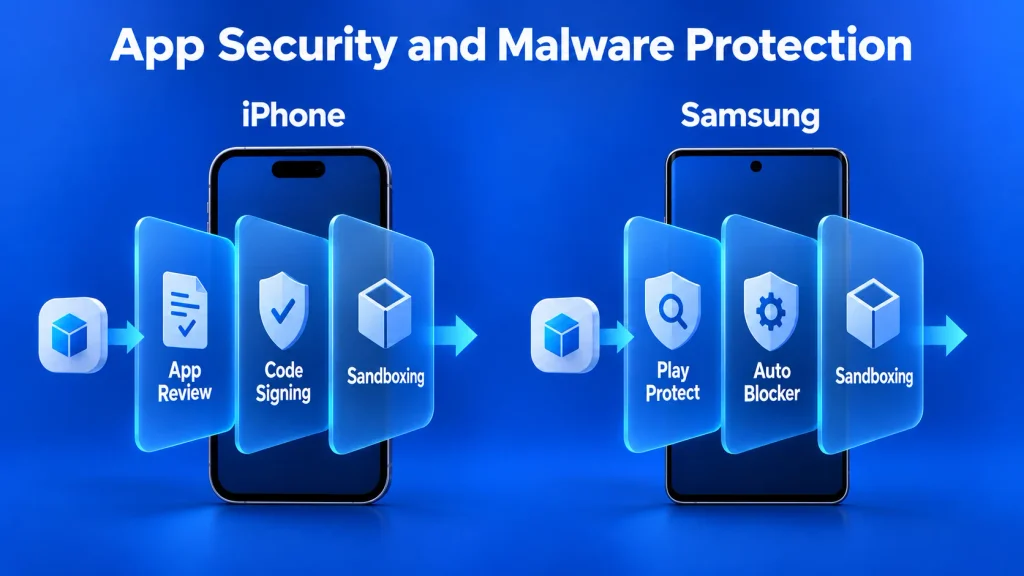
When comparing Samsung vs iPhone security, one important difference is how each platform controls app installation.
Apple combines mandatory code signing, developer identity checks, App Store review, and runtime sandboxing. iOS verifies code signatures and restricts how apps access other apps’ data and sensitive system resources. These layers help prevent tampering and limit what an app can do, but they do not guarantee that every app is trustworthy.
Alternative iPhone app distribution is available to eligible users in Brazil, Japan, and the European Union, although the available options differ by region. Apps installed through these channels undergo Apple’s baseline notarization process, but they do not receive the full App Store review. The claim that every iPhone app must come from the App Store is therefore no longer accurate.
Samsung Galaxy phones also use app sandboxing through Android, which limits access between apps and protects system resources. Galaxy phones generally offer Google Play and the Galaxy Store while allowing installation from other sources when the necessary settings permit it.
Google Play Protect is enabled by default. It checks apps during installation and periodically scans the device, including apps obtained outside Google Play. When it detects potentially harmful software, it can warn the user, disable the app, or remove it. These checks provide another layer of protection, rather than a guarantee that an unfamiliar download is safe.

On my Galaxy S22 Ultra, I have opened Google Play Protect and run manual scans, which have usually shown “No harmful apps found.” I also occasionally install APKs from websites. Some installation attempts have triggered harmful-app warnings. When that happens, I cancel the installation.
If you want to understand what these warnings mean, how manual scans work, and which protections you lose by disabling the feature, read our complete Google Play Protect guide.
Samsung adds Auto Blocker on supported Galaxy devices. It blocks app installations from unauthorized sources, commands sent through USB connections, and unauthorized system software installations through USB. It also enables protections against malicious images in messaging apps. The optional Maximum Restrictions setting adds further safeguards, although it can limit some apps and device features.
I keep Auto Blocker enabled on my Galaxy S22 Ultra, and it has blocked APK installation attempts several times. This is a restriction I have encountered firsthand when trying to install apps from websites.
These protections do not always require manual setup. Samsung enables Auto Blocker by default on Galaxy devices released with One UI 6.1.1. Devices upgrading to that version retain their previous Auto Blocker setting, so owners should check whether it is active.
Taken together, these features suggest a trade-off between Apple’s tighter app-distribution rules and Samsung’s broader installation choices. Samsung’s flexibility can increase exposure when installation safeguards are disabled, but a comparison of default security should account for the protections that newer Galaxy phones already provide.
Can iPhones or Samsung Phones Get Malware?
Yes. Both iPhones and Samsung Galaxy phones can be affected by malware. Their built-in protections reduce the risk, but neither platform is immune.
On an iPhone, code signing, app sandboxing, and restricted system access create barriers against malicious software. However, sophisticated spyware can still compromise devices. Apple says most users will never be targeted by mercenary spyware attacks, which typically focus on a small number of specific individuals.
Because iOS isolates third-party apps, an iPhone security app cannot freely inspect other apps’ private data or scan the operating system in the way desktop antivirus software can. This limits what an app advertised as “antivirus for iPhone” can actually check.
On Samsung phones, installing untrusted apps or disabling installation safeguards can increase exposure to malware. Google Play Protect checks installed apps, including those obtained outside Google Play, and can warn about, disable, or remove potentially harmful software. These checks are useful, but they cannot guarantee that every app is safe.
If your Samsung phone is already showing suspicious pop-ups, unfamiliar apps, or other warning signs, follow our step-by-step guide on how to remove malware from Android.
Phishing and account theft are separate risks on both platforms. A fake login page can steal your password without infecting your phone. On an iPhone, unfamiliar configuration profiles can also introduce unwanted settings or device management, so they should not be installed simply because a website asks you to.
The practical advice is similar for both: keep software updated, leave security protections enabled, and choose app sources carefully. Protect accounts separately with unique passwords or passkeys and two-factor authentication. A phone’s brand cannot compensate for exposed login credentials.
Lost or Stolen Phone Protection
Both Apple and Samsung provide tools to locate, lock, and remotely erase a missing phone. Check that the relevant accounts, finding services, and theft protections are configured before the device disappears.
Apple’s Find My can put an iPhone in Lost Mode, lock it, display a contact message, and suspend payment cards and passes used with Apple Pay. It also allows you to request a remote erase. Find My must have been enabled before the phone went missing.
I have used Find My from another device to view my iPhone 15’s location on a map and make it play a sound. I have tried locating it both nearby and when it was somewhere else. In my experience, the location shown felt accurate, and both features worked well.
Stolen Device Protection adds safeguards when a thief knows the iPhone’s passcode. Certain sensitive actions require Face ID or Touch ID without a passcode fallback. Changes such as updating the Apple Account password require biometric authentication, normally a one-hour security delay, and another biometric check.
By default, these additional checks apply away from familiar locations. Choosing Always also extends these additional checks to familiar locations.
Samsung Find and SmartThings Find provide location and remote-protection tools for compatible Galaxy devices, including locking the phone and erasing its data. Supported phones also offer Theft Detection Lock, Offline Device Lock, and Remote Lock. Availability depends on the device and software.
Samsung also introduced Identity Check on supported Galaxy phones with One UI 7. When enabled, it requires biometric authentication for sensitive security changes outside designated safe places, helping protect the phone even if someone knows its PIN, pattern, or password.
Both platforms therefore offer protection against someone who knows the unlock code. Stolen Device Protection is valuable, but it does not establish an automatic iPhone advantage over Galaxy models with comparable safeguards enabled.
Apple vs Samsung Privacy Controls
Both iPhone and Samsung Galaxy phones provide controls for app permissions and data sharing, although they organize them differently.
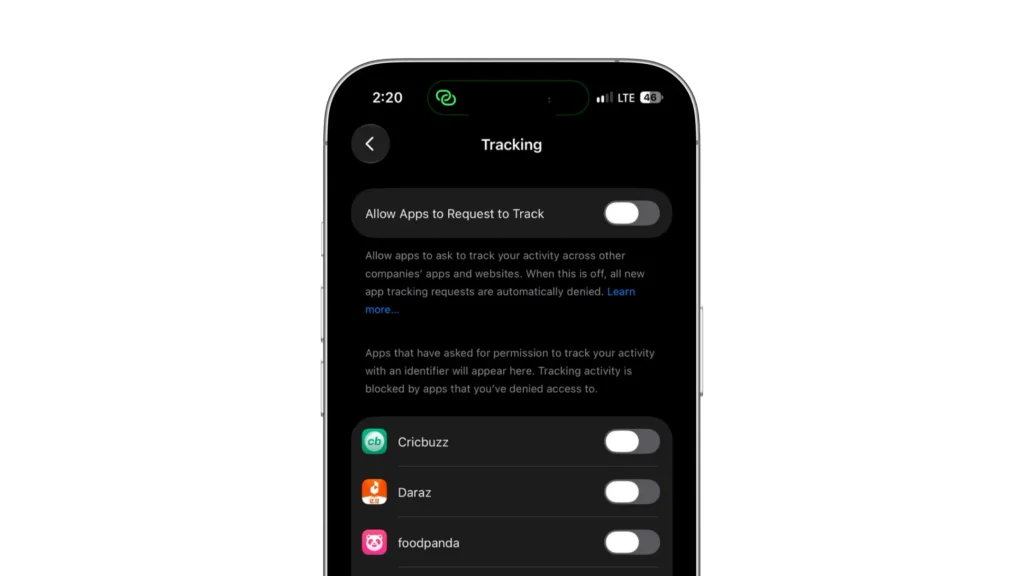
Apple’s App Tracking Transparency requires permission before apps track you across other companies’ apps and websites for targeted advertising or advertising measurement or share your data with data brokers. Declining permission limits these practices, but apps may still collect data for their services.
App Privacy Report shows when and how frequently apps accessed information such as your location, photos, camera, microphone, and contacts over the previous seven days. It also lists domains contacted by apps and their embedded content. The report starts gathering information only after you enable it.
App Store privacy labels help explain an app’s reported data practices before installation. However, developers supply this information and are responsible for keeping it accurate. Treat the labels as useful disclosures rather than an independent privacy audit.
Samsung combines Android’s privacy tools with its One UI. The Privacy Dashboard shows recent access to sensitive permissions, while Permission Manager lets you review and change access to the camera, microphone, location, contacts, and other information. Android can also automatically revoke permissions from unused apps on supported devices.
Galaxy settings also include controls for Samsung and Google services, including diagnostic data, advertising preferences, and account activity. Menu names and available options can vary by model and software version. Individual apps may have additional privacy settings on either platform.
Apple’s explicit tracking prompt may appeal to people concerned about advertising-related tracking. Samsung also offers extensive permission controls. A broader privacy comparison needs to consider what the apps and services actually collect and share, alongside how easily users can manage those choices.
Cloud Backup Security
Local device encryption does not automatically mean cloud backups are end-to-end encrypted. A backup can be encrypted during transfer and storage while the provider still holds the keys needed to decrypt it.
Apple’s Advanced Data Protection extends end-to-end encryption to 25 iCloud data categories, including iCloud Backup, Photos, and Notes. Trusted devices retain the keys for protected content. However, iCloud Mail, Contacts, and Calendars remain outside this protection, as do certain metadata.
Enabling Advanced Data Protection requires supported software and at least one recovery contact or recovery key. Availability also matters: users in the United Kingdom who have not already enabled it currently cannot turn it on.
Samsung’s Enhanced Data Protection provides end-to-end encryption for supported Samsung Cloud backups and synchronized data. It is available on compatible devices running One UI 5.1.1 or later, with availability varying by carrier and region. Setup generates a recovery code that Samsung does not store. Coverage has exceptions: Samsung says some large files, including message attachments, may fall outside this encryption protection.
Check which protection is enabled and which data it covers. These settings do not automatically extend to other cloud providers, so review services such as Google Photos or OneDrive separately. Having end-to-end encryption available on both platforms does not mean their backup coverage is identical.
Keep recovery details somewhere secure outside the phone. Losing a recovery code does not necessarily mean losing your data if a trusted device or another valid recovery route remains available. However, if you lose access to all supported recovery options, Apple or Samsung cannot recover the end-to-end encrypted data for you.
Where Samsung Has an Advantage
Samsung offers practical tools for separating sensitive information and protecting privacy during repairs. Availability depends on the Galaxy model and software version.
Secure Folder provides a protected space for selected files, separate app copies, and accounts. It can use its own PIN, password, or pattern, and its icon can be hidden. When the folder is locked, access to the unlocked phone alone does not grant access to its contents. Check its automatic locking and notification settings before lending your phone to someone.
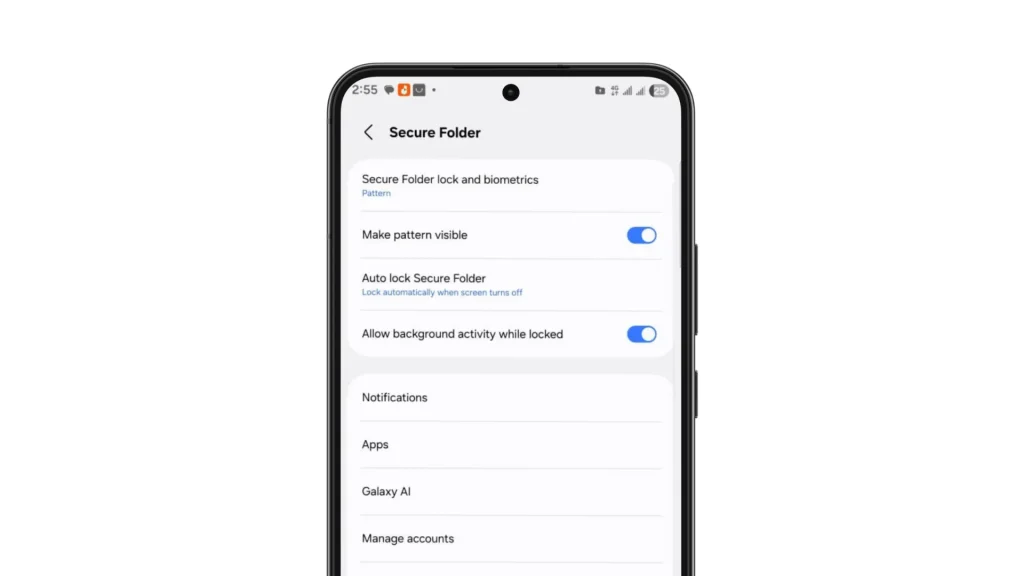
iPhones also support locking and hiding apps. Secure Folder’s distinctive benefit is the separate environment for app copies, accounts, and files, which goes beyond hiding an existing app.
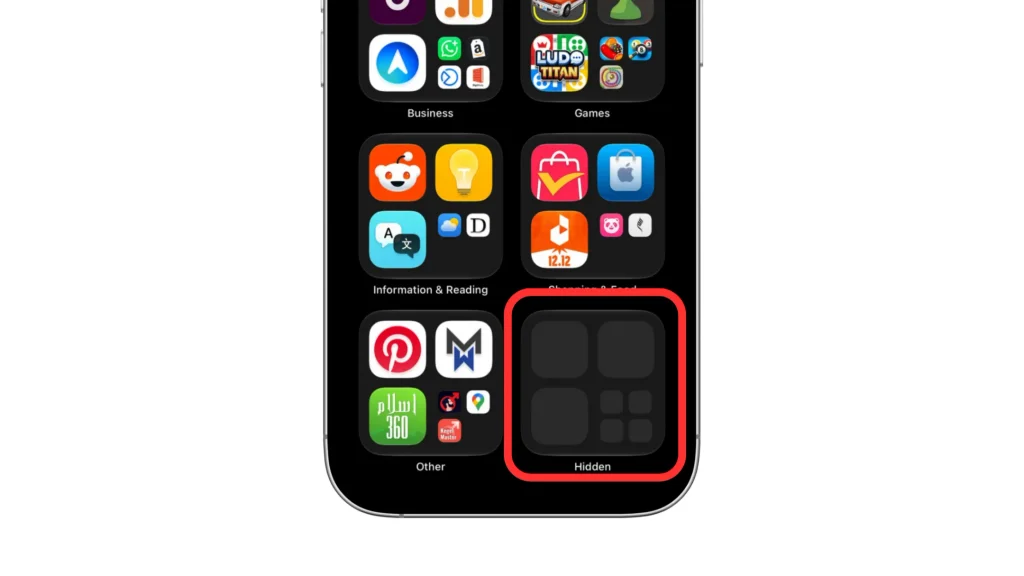
I have used both Secure Folder on my Galaxy S22 Ultra and hidden apps on my iPhone 15. I find hiding apps on the iPhone easier and more straightforward. However, Secure Folder feels more secure to me because it has its own lock, separate from the phone’s screen lock. I prefer the iPhone’s simplicity, but Samsung’s separate protected space gives me extra reassurance when storing private content.
Maintenance Mode is another useful Samsung feature. It creates a separate repair environment that lets technicians use basic functions while keeping personal photos, messages, and accounts inaccessible. When the owner exits Maintenance Mode, the system deletes any temporary apps, accounts, and data created inside it. Back up first, because some repairs still require a factory reset or storage replacement.
On my Galaxy S22 Ultra, I took screenshots while using Maintenance Mode. After exiting the mode, I could no longer find those screenshots in the Gallery. This gave me a practical example of how data created inside the repair environment is kept separate from normal use and why anything you want to keep should be saved elsewhere before leaving it.
For setup instructions, supported devices, and what happens after a repair, see our detailed guide to Samsung Maintenance Mode.
Samsung’s Knox enterprise tools help IT teams manage devices, enforce security policies, and control work profiles. Apple also supports device management and separation of managed and personal data. Samsung may be a better fit for organizations already using Knox or needing its specific management features.
For individual buyers, Secure Folder and Maintenance Mode are the clearest practical reasons to consider Samsung when separate private storage and repair privacy are priorities.
Where the iPhone Has an Advantage
One of Apple’s clearest strengths is the consistency of its security platform.
Apple designs the processor and security hardware, develops iOS, and manages software updates. This gives supported iPhones a common security foundation, including secure boot, hardware-protected encryption keys, and app isolation. Individual protections can still differ by hardware generation and software version.
Apple also maintains tight control over consumer app distribution. App Store apps undergo Apple’s review, while apps installed through alternative distribution channels in eligible regions must still pass baseline notarization. Mandatory code signing provides another check against unauthorized or modified code. This approach may appeal to users who prefer fewer decisions about which installation sources to trust.
Apple’s Lockdown Mode provides additional protection for people who may face highly sophisticated, targeted attacks. It blocks most message attachment types, restricts certain web technologies, and limits some unsolicited invitations. These restrictions can affect everyday use, so most people do not need to enable it.
When I tried Lockdown Mode on my iPhone 15, I noticed changes in both messaging and browsing. Link previews disappeared in Messages, I could not open a message attachment, and a website did not load or function as it normally did. These restrictions made the trade-off between additional protection and everyday convenience more noticeable to me.
Android also offers Advanced Protection on supported devices, with a different combination of safeguards. Lockdown Mode is therefore a strength of Apple’s security offering, but its presence alone does not establish that every iPhone is better protected against targeted attacks.
Is Apple More Secure Than Samsung?
Apple’s controlled app distribution can reduce some installation risks, but it does not make iPhones universally more secure than Samsung phones. The familiar “iPhone safe, Android unsafe” distinction oversimplifies the comparison.
A recent, supported Galaxy with current patches, hardware-backed security, and built-in app protections provides strong protection. These safeguards do not all require manual configuration. Google Play Protect is on by default, and many newer Galaxy devices ship with Auto Blocker enabled. The exact model and software version still matter.
Samsung offers more flexibility around app installation. That can increase exposure when users disable safeguards to install untrusted software, but flexibility alone does not establish weaker security. Owners of both platforms still need to protect their accounts and keep their devices updated.
Remaining update support and installed security patches are more useful buying criteria than brand or age alone. An updated Galaxy receiving important security fixes is generally a better security choice than an iPhone that no longer receives them. The same principle applies in reverse.
Which Phone Should You Choose for Security and Privacy?
The iPhone vs Samsung security decision becomes easier when you consider your own priorities, including update support, app protection, and privacy features.
Choose a supported iPhone if you prefer a tightly managed app environment and Apple’s privacy controls. It suits people who value restrictions on app installation and a consistent approach across supported models.
Choose a supported Samsung Galaxy if you want a separate space for private apps and files through Secure Folder or repair privacy through Maintenance Mode. Check that the specific model supports the features you need, especially when buying a budget phone.
If your current phone still receives security updates and meets your needs, this comparison alone is not a reason to replace it. When buying either brand, check the remaining support period and available protections.
For my own use, I prefer the iPhone 15 for sensitive apps and do most of my banking on it. Apple’s Passwords app is a particular favorite. I mainly use it to look up saved passwords, and accessing them with Face ID feels convenient. Keeping my login details together makes signing in easier for me. Along with the tracking permission prompts and my smoother update experience, these everyday conveniences would lead me to choose an iPhone again.
How to Make an iPhone More Secure
Install iOS updates promptly, use a long, unique passcode, and keep two-factor authentication enabled for your Apple Account. Confirm that Find My is active. Use Face ID or Touch ID to reduce how often you enter your passcode in public.
Open Settings > Face ID & Passcode > Stolen Device Protection and enable it. On Touch ID models, use Touch ID & Passcode instead. Select Always under Require Security Delay if you want the additional protections to apply at familiar locations too.
I keep Stolen Device Protection enabled on my iPhone 15 and appreciate having that additional safeguard. I have also used two-factor authentication when signing into my Apple Account on another device and found the verification process straightforward.
For privacy, review Settings > Privacy & Security > Tracking and revoke unwanted tracking permissions. Enable App Privacy Report under Privacy & Security to review permission use and domains contacted by apps. It starts gathering information only after you enable it.
Consider Settings > [your name] > iCloud > Advanced Data Protection if it is available in your region. Set up a recovery contact or recovery key, and keep any recovery key somewhere secure that you can access without your iPhone. Apple cannot recover your end-to-end encrypted data if you lose access to all recovery methods.
How to Make a Samsung Phone More Secure
Install the available system, Google Play system, and app updates. Check your model’s security patch date and remaining support. Use a strong PIN or password, and keep two-step verification enabled for your Samsung and Google accounts.
Leave Google Play Protect enabled. On compatible phones, check Settings > Security and privacy > Auto Blocker and turn it on if needed. Review what Maximum restrictions disables before enabling it, especially if you use work profiles or rely on affected messaging features.
Use Permission Manager and the privacy dashboard to review unnecessary permissions. Grant accessibility, device administrator, and VPN access only to trusted apps that need it. Keep permission to install unknown apps disabled unless required for a trusted source.
Set up Samsung Find your phone’s available lost-device service before you need it. Enable theft protection features, including Identity Check, where supported.
Use Secure Folder for sensitive apps and files, and check its locking settings. Before repairs, back up your data and enable Maintenance Mode where supported.
Feature availability and menu names vary by Galaxy model, region, and One UI version.
Conclusion
The iPhone vs Samsung security comparison depends on the models, their remaining support, and the protections you need. Apple’s consistent design and tightly controlled app environment make a supported iPhone a strong choice for everyday security.
A supported Samsung Galaxy also offers strong protection. Secure Folder and Maintenance Mode can make Samsung particularly useful for separating sensitive apps and protecting privacy during repairs. Its Knox management tools may also suit organizations with specific requirements.
Whichever you choose, prioritize continued security updates, a strong screen lock, and secure accounts. Review app permissions and cloud backup settings too. Choose the phone whose support and privacy features match your needs, then keep its protections enabled.
FAQs
Which phone is more secure, iPhone or Samsung?
Both can provide strong security. Apple offers a tightly controlled app environment, while Samsung adds protections such as Auto Blocker on supported Galaxy models. The better choice depends on the exact phones, their remaining update support, and enabled safeguards. Neither brand is automatically safer in every comparison.
Is Apple better than Samsung for privacy?
Apple offers useful tracking controls through App Tracking Transparency, but that alone does not establish an overall privacy winner. Samsung also provides detailed permission controls and privacy monitoring. On both platforms, privacy depends on the apps, services, account settings, and permissions you use.
Can Samsung Knox be hacked?
No security platform is immune to compromise. Knox adds several protective layers, while Knox Vault isolates sensitive credentials on supported models. These safeguards do not replace security updates or guarantee protection against every attack. An outdated phone retains some protections, but unpatched vulnerabilities can increase its risk.
Does Samsung need antivirus protection?
Galaxy phones already include malware protection through Google Play Protect, which checks apps and can warn about, disable, or remove harmful software. For everyday use, a separate antivirus app is optional. Keep built-in protections enabled, install updates, and avoid unverified downloads. Additional scanners cannot replace those precautions.
Is iPhone completely safe from malware?
No. iPhones can be targeted by spyware and other malicious software, including attacks that exploit security vulnerabilities. Keep iOS and apps updated. Phishing and account theft are separate risks that can occur even when no malware is installed.
Is Samsung Secure Folder safer than hiding an app on iPhone?
Secure Folder provides a separate space for app copies, accounts, and files, protected by its own lock. Hidden iPhone apps also require authentication. Secure Folder offers more flexibility for keeping separate accounts and data, but that does not make it universally safer. Its locking settings also matter.