
Contents
Introduction
Handing your phone to a repair technician can feel uncomfortable when it holds years of photos, private messages, and personal files.
Samsung Maintenance Mode helps protect that information during repairs. On a compatible Galaxy phone or tablet, it creates a separate user account that lets a technician check the device without accessing your personal data.
Your photos, messages, contacts, and existing accounts stay hidden from the technician. Preinstalled apps and core device functions remain available to help diagnose problems.
This guide explains how Samsung Maintenance Mode works, how to turn it on and off, and what you should know before sending your Galaxy device for repair.
What Is Samsung Maintenance Mode?
Samsung Maintenance Mode is a privacy feature that keeps your personal information hidden while a technician repairs a compatible Galaxy phone or tablet.
When you enable it and restart the device, it creates a separate user account for the technician. This account cannot access information stored in your normal profile, including:
- Photos and videos
- Messages and call history
- Contacts
- Personal files
- Existing user accounts
- Apps you installed and their data
The technician can still use preinstalled apps and core device functions to test the device and investigate problems. After the repair, you verify your identity to exit Maintenance Mode. The device then restarts and returns to your normal profile.
However, Maintenance Mode does not replace a backup. A repair that requires a factory reset or mainboard replacement can still result in data loss, so back up your device before handing it over.
What Is Samsung Maintenance Mode Used For?
The main purpose is simple: to protect your privacy while someone else has physical access to your phone. A repair technician may need to operate the device to check problems with the display, cameras, charging, speakers, microphones, connectivity, or other components.
If charging is the reason you are considering a repair, it may be worth trying our Samsung fast charging troubleshooting guide first to rule out a cable, charger, setting, temperature, or software problem.
Without a restricted environment, handing over an unlocked phone could potentially expose personal information. Maintenance Mode avoids such risks by giving the technician a separate environment where preinstalled apps and system functions can still be used for testing, while your personal data remains unavailable.
This makes it particularly useful before:
- Sending a Galaxy phone for repair
- Leaving your device at a service center
- Having hardware or software problems diagnosed
- Handing the phone to a technician for servicing
It is not designed to improve performance, extend battery life, or perform routine Android maintenance. Despite the name, its main purpose is protecting your privacy during servicing and repair.
Maintenance Mode is not designed to scan apps or protect the phone from malware. For that type of security, Android uses separate protections such as Google Play Protect.
What Does Samsung Maintenance Mode Hide?
Once Maintenance Mode is active, your personal data becomes inaccessible from the separate environment used during repair. Samsung lists photos, videos, messages, contacts, call history, and other personal files among the information that cannot be accessed.
Photos and Videos: Photos and videos stored in your normal profile are not available while the phone is in Maintenance Mode. This means someone using the device for repair cannot simply open Gallery and browse through your personal media.
Messages and Contacts: Your messages, contacts, and call history are also inaccessible. This helps keep conversations, phone numbers, and details about who you communicate with private while the device is being serviced.
Accounts: Your existing user accounts are not available in the Maintenance Mode environment. Even when a preinstalled app is accessible, your existing account is logged out, preventing the technician from opening the app with your normal account access.
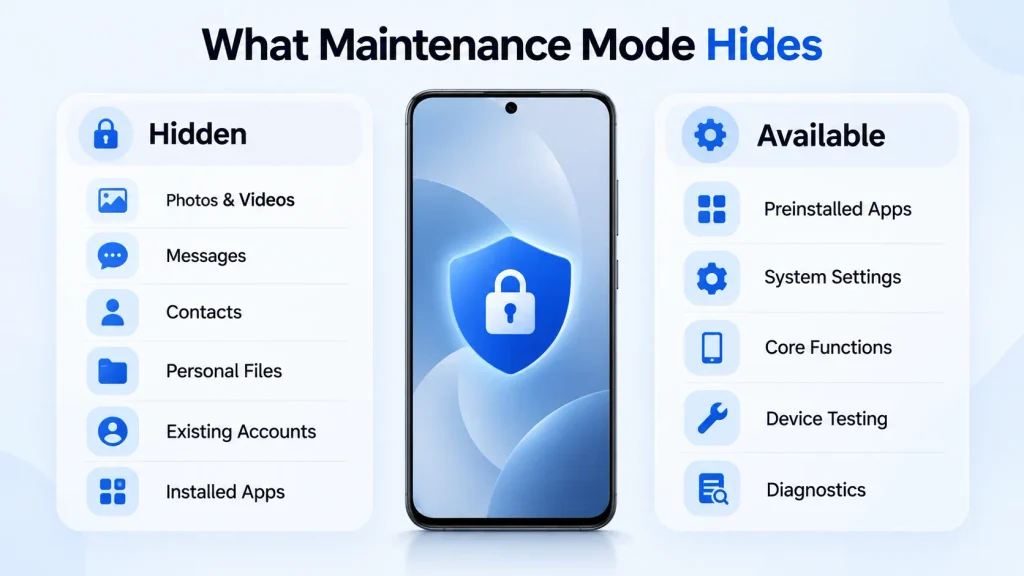
Personal files: Personal files stored under your normal profile are also hidden from the Maintenance Mode environment. Documents, downloads, and other private files therefore remain separate from the temporary environment used for diagnosis or repair.
Third-party Apps: Apps you installed under your normal profile are not available in Maintenance Mode. The technician primarily has access to the device’s preinstalled apps.
If an app is downloaded while Maintenance Mode is active, it exists only in that temporary environment and is removed when Maintenance Mode is turned off.
What Can a Repair Technician Access?
Maintenance Mode does not completely lock the phone. That would defeat its purpose because a technician still needs to operate and test the device during a repair. Instead, it separates your personal data from the working environment available to the technician.
Preinstalled apps and essential system functions remain available, allowing the technician to diagnose problems involving areas such as the display, cameras, speakers, microphones, charging, and other hardware or software functions.
What they cannot normally access through Maintenance Mode is your personal content, including photos, messages, contacts, files, and logged-in accounts.
Think of it as giving the technician a clean working profile for testing the phone rather than access to the profile you use every day.
Is Samsung Maintenance Mode Safe?
For its intended purpose, Samsung Maintenance Mode serves as a useful privacy safeguard when a Galaxy device is under repair. Instead of simply relying on a technician not to open your files or apps, it creates a separate environment where your personal information is unavailable.
You also have to verify your identity before Maintenance Mode can be turned off and the device returned to your normal profile. However, there is an important difference between protecting your data from access and protecting it from loss.
Maintenance Mode is not a backup.
Some repairs may require a factory reset or replacement of a component that affects the data stored on the device. For this reason, Samsung recommends backing up important information before sending a phone or tablet for repair.
The sensible approach is simple: Use Maintenance Mode for privacy and keep a separate backup for data protection. They solve two different problems.
Does Maintenance Mode Delete Your Data?
Activating Maintenance Mode does not delete the personal information stored in your normal profile. Instead, that information is unavailable in the separate Maintenance Mode environment.
When you exit Maintenance Mode and verify your identity, the phone restarts and your normal profile becomes available again. There is an important difference for anything created while Maintenance Mode is active.
Samsung states that data and accounts created inside Maintenance Mode are automatically deleted when the mode is turned off. Apps downloaded while using the temporary environment are also removed.
This means anything added during the repair session does not remain on the device after you return to your normal profile.
How to Turn On Samsung Maintenance Mode
The exact wording of settings menus can vary slightly depending on your Galaxy model, region, and One UI version.
On supported devices, open Settings and go to Device Care or Battery and Device Care. Find Maintenance Mode, tap Turn On, and set up a screen lock if you do not already have one.
Follow the instructions shown on the screen, tap Restart, and verify your identity when requested. The device will then restart in Maintenance Mode.

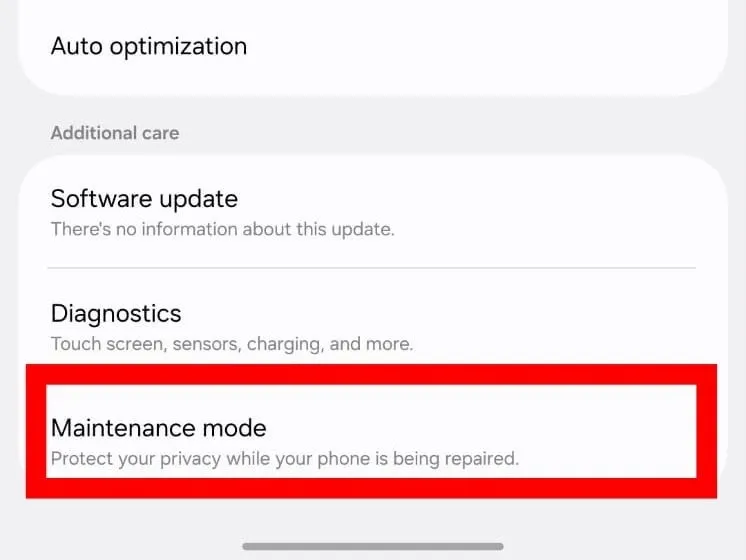
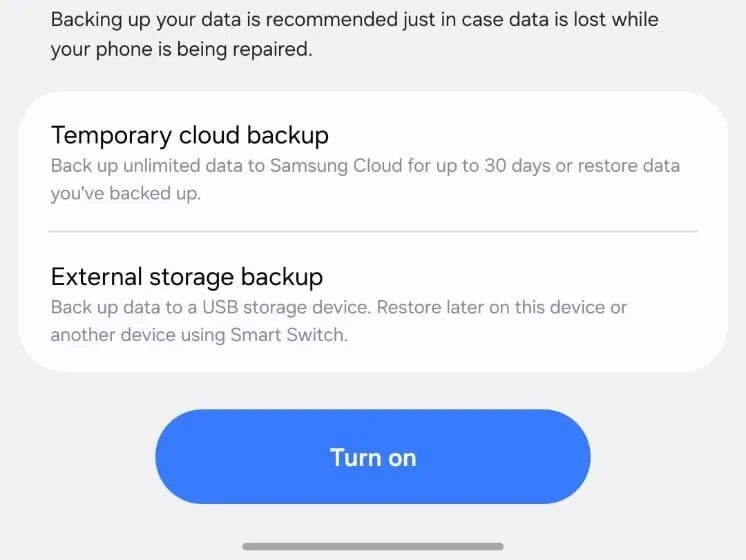
A screen lock is required so your identity can be verified when Maintenance Mode is turned off and the device returns to your normal profile.
Depending on the device and software version, you may also be given the option to create a system log that can help the technician diagnose problems.
Should You Create a System Log?
When you turn on Maintenance Mode, some Galaxy devices may give you the option to create a system log. The log contains technical information about recent app usage and system errors that can help a technician understand what was happening before the device was brought in for repair.

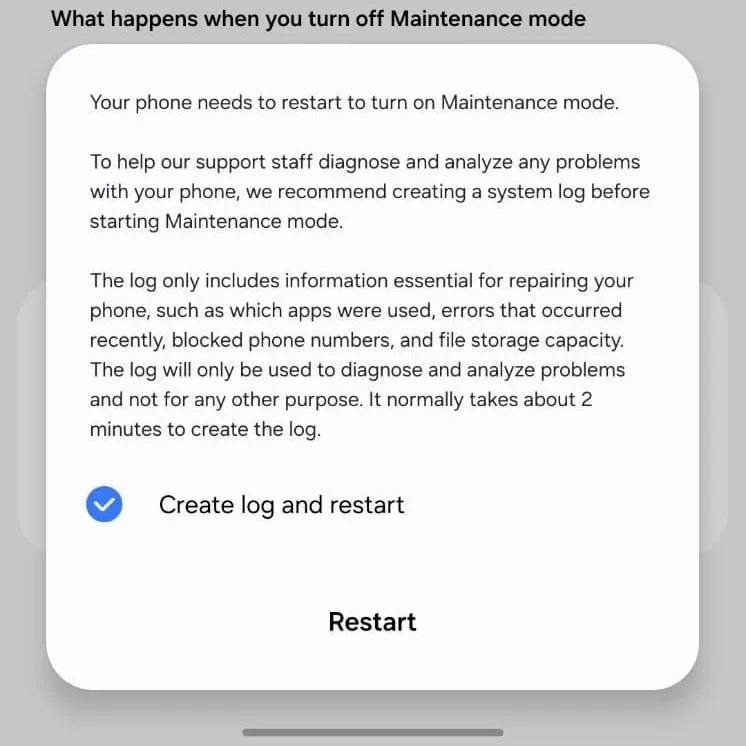
Whether you need it depends on the problem. It can be particularly useful for crashes, software errors, unusual app behavior, or problems that are difficult to reproduce.
For a straightforward physical repair, such as replacing a visibly damaged component, the log may be less important. Samsung also states that the Maintenance Mode system log does not contain personal data.
How to Get Out of Samsung Maintenance Mode
Once your phone has been returned, leaving Maintenance Mode is straightforward.
Swipe down from the top of the screen to open the notification panel. Tap the Maintenance Mode notification, select Exit, then tap Restart. Verify your identity when prompted.

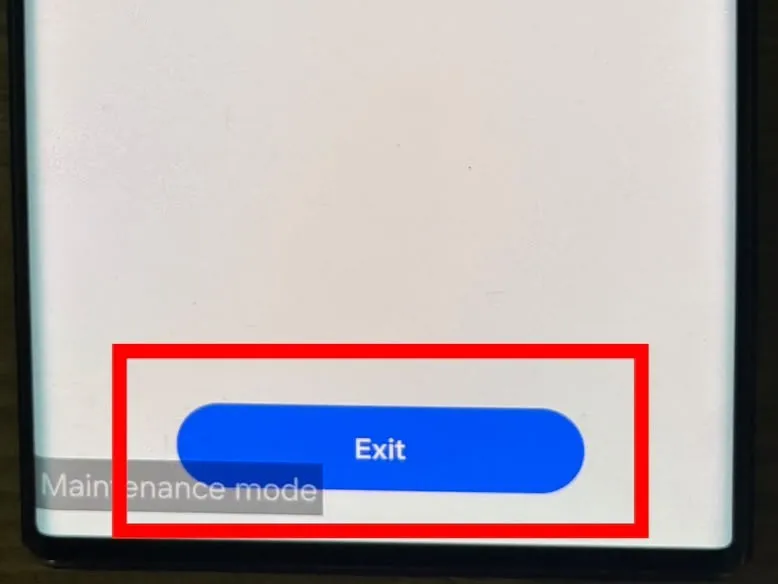

The phone will restart and return to your normal profile.
You can also exit through Settings → Device care → Maintenance mode → Exit. The exact menu names may vary slightly depending on your Galaxy model and One UI version.
After the phone restarts, your normal apps, accounts, photos, messages, and other personal data become accessible again.
Why Does Maintenance Mode Require a Screen Lock?
Samsung requires screen-lock protection before Maintenance Mode can be activated. This is important because the privacy protection would have little value if someone could simply turn off Maintenance Mode and return to your personal profile.
When Maintenance Mode is turned off, the phone asks you to verify your identity before normal access is restored. If you do not already have a supported screen lock set up, your Galaxy device will prompt you to create one before entering Maintenance Mode.
Should You Back Up Your Phone First?
Yes. Maintenance Mode helps protect your privacy during repair, but it does not guarantee that your data will survive every repair procedure.
Some repairs may require a factory reset, storage replacement, or another hardware procedure that can remove data from the device. Samsung therefore recommends creating a backup before sending a Galaxy phone or tablet for service.
Depending on your device and software, you may be able to use Samsung Cloud, Temporary Cloud Backup, Smart Switch, external storage, or another backup service you already use.
The important point is that Maintenance Mode and backups serve different purposes. Maintenance Mode protects your privacy. A backup protects you from losing your data entirely.
Which Samsung Phones Support Maintenance Mode?
Support depends on your Galaxy model, region, and installed software. Maintenance Mode is generally available on compatible Galaxy devices running One UI 5 or later, although availability can vary between models and software versions.
Samsung’s current support information includes compatible devices from several Galaxy families, including Galaxy S, Galaxy Z, Galaxy Note, and Galaxy Tab models.
The easiest way to check your device is to open Settings > Device Care and look for Maintenance Mode. If the option is not there, check for available software updates. If it still does not appear, confirm whether your particular Galaxy model supports the feature.
Is Maintenance Mode Better Than Factory Resetting Before Repair?
They serve very different purposes. A factory reset removes your personal information from the phone completely. You will then need to restore the device from a backup if you want that data back.
Maintenance Mode works differently. Your normal data remains on the device, but access to it is restricted while the phone is being serviced. For many routine repairs, Maintenance Mode lets you protect your privacy without wiping the phone first.
A factory reset may still be required in some situations, particularly when troubleshooting certain software problems or replacing hardware such as the mainboard. That is another reason to keep a backup even when Maintenance Mode is enabled.
Should You Use Samsung Maintenance Mode Before a Repair?
If your supported Galaxy phone is still working well enough to activate it, Maintenance Mode is worth using before handing the device to someone for servicing.
It creates a useful separation between the information a technician needs to access and the personal information they do not.
You should still back up anything important, remove accessories or external storage when appropriate, and follow any preparation instructions provided by the repair center.
Maintenance Mode should be viewed as an additional privacy layer rather than a replacement for sensible repair preparation.
Final Thoughts
Samsung Maintenance Mode solves a simple but important problem: how to let someone repair your phone without giving them normal access to the personal information stored on it.
It keeps photos, messages, contacts, files, and accounts out of reach while still allowing access to the preinstalled apps and system functions needed for testing and repair.
For supported Galaxy devices, it is a simple precaution worth taking before handing the phone over for service.
Just remember that Maintenance Mode protects your privacy, not your backup. Turn it on before the repair, but also keep an up-to-date copy of your important data in case the device needs to be reset or certain hardware has to be replaced.
Frequently Asked Questions
What is Samsung Maintenance Mode?
Samsung Maintenance Mode creates a separate, restricted environment on a compatible Galaxy device. It allows a repair technician to operate and diagnose the phone without normal access to your photos, messages, contacts, accounts and other personal information.
What is the use of Maintenance Mode in Samsung phones?
Its main purpose is to protect your personal data while a Galaxy phone or tablet is being inspected or repaired. Preinstalled apps and essential system functions remain available for testing, while your normal personal profile stays inaccessible.
How do I turn on Samsung Maintenance Mode?
Open Settings → Device care → Maintenance mode → Turn on, follow the prompts, and restart the phone. On some Galaxy devices, the menu may appear under Battery and device care instead.
Is Samsung Maintenance Mode safe?
Maintenance Mode is designed to protect your personal information during servicing by separating it from the environment used for repair. However, it is not a backup, so you should still back up important data before handing over the device.
Can technicians see my photos in Samsung Maintenance Mode?
No. Photos and videos stored in your normal profile are inaccessible from the Maintenance Mode environment.
Can someone turn off Maintenance Mode without my password?
Maintenance Mode requires identity verification before it can be turned off. Your configured screen-lock security is used to prevent someone in the repair environment from simply returning to your normal profile.
How do I get out of Samsung Maintenance Mode?
Open the Maintenance Mode notification and select Exit, or go to Settings → Device care → Maintenance mode → Exit. Restart the device and verify your identity when prompted. The exact menu wording may vary slightly by Galaxy model and software version.