
Your iPhone can listen for important sounds around you and alert you when it detects one. That includes sounds such as a doorbell, smoke alarm, siren, dog barking, glass breaking, or a crying baby. It can even learn certain custom alarms and appliances that are unique to your home.
So, what is Sound Recognition on iPhone? It is an accessibility feature that continuously checks for selected environmental sounds and sends a notification when it believes one has occurred.
The feature was designed primarily for people who are Deaf or hard of hearing, but it can also be useful when you are wearing headphones, working in another room, or waiting for a particular household sound. Here is how iPhone Sound Recognition works, how to set it up, and where its limitations matter.
Contents
What Does Sound Recognition Do on iPhone?
When Sound Recognition is enabled, your iPhone uses its microphone to monitor surrounding audio for the sounds you select. If it detects a likely match, it sends a notification naming the sound.
For example, you can enable Door Knock while wearing headphones. If your iPhone recognizes a knock, an alert appears on the screen. It identifies the type of sound but cannot tell you who knocked.
According to Apple’s accessibility documentation, Sound Recognition uses on-device intelligence and can recognize 15 different environmental sounds, grouped into four categories.
| Category | Recognizable Sounds |
|---|---|
| Alarms | Fire alarms, sirens, and smoke alarms |
| Animals | Cat and dog sounds |
| Household | Appliances, car horns, doorbells, door knocks, glass breaking, kettles, and running water |
| People | Baby crying, coughing, and shouting |
You do not need to enable every option. Choose the sounds that matter to you to avoid receiving alerts for sounds you do not need to monitor.
Sound Recognition is separate from Siri, Voice Control, Dictation, and Music Recognition. It does not transcribe conversations, follow spoken commands, or identify songs. To identify music, use Shazam Music Recognition through the Recognize Music control in Control Center.
How Does iPhone Sound Recognition Work?
Your iPhone analyzes audio picked up by its microphone for patterns associated with the sounds you selected. When it identifies a likely match, iOS sends a notification.
Apple calls this on-device intelligence, meaning the sound analysis happens directly on your iPhone. Our on-device AI vs cloud AI comparison explains how local processing differs from sending information to a remote server.
Recognition is not perfect. Background noise, distance from the sound, or a covered microphone can make detection less reliable. The phone may miss a sound or mistake something similar for one of your selected sounds.
Use these notifications as an extra prompt to check what is happening around you. Apple warns against relying on Sound Recognition in emergencies, high-risk situations, for navigation, or whenever an incorrect or missed alert could lead to harm.
How to Turn On Sound Recognition on iPhone
On iOS 26 and iOS 27, follow these steps:
1. Open Settings.
2. Tap Accessibility.
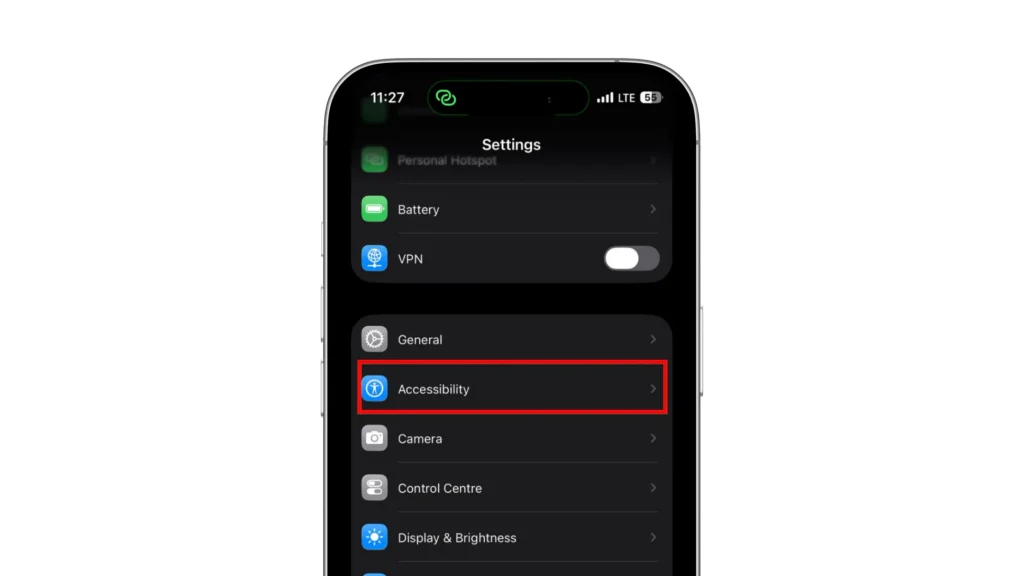
3. Tap Sound & Name Recognition.
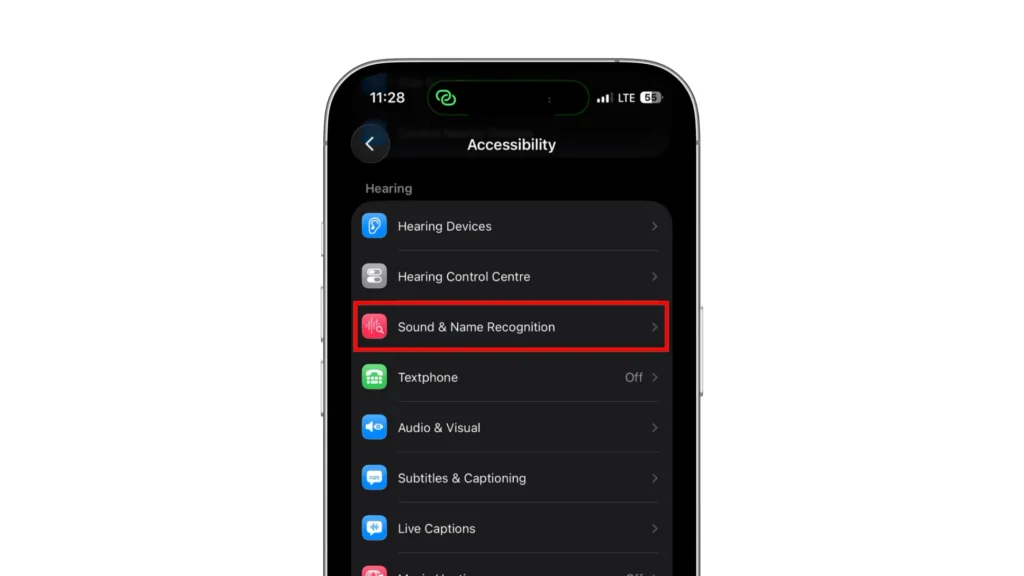
4. Tap Sound Recognition.
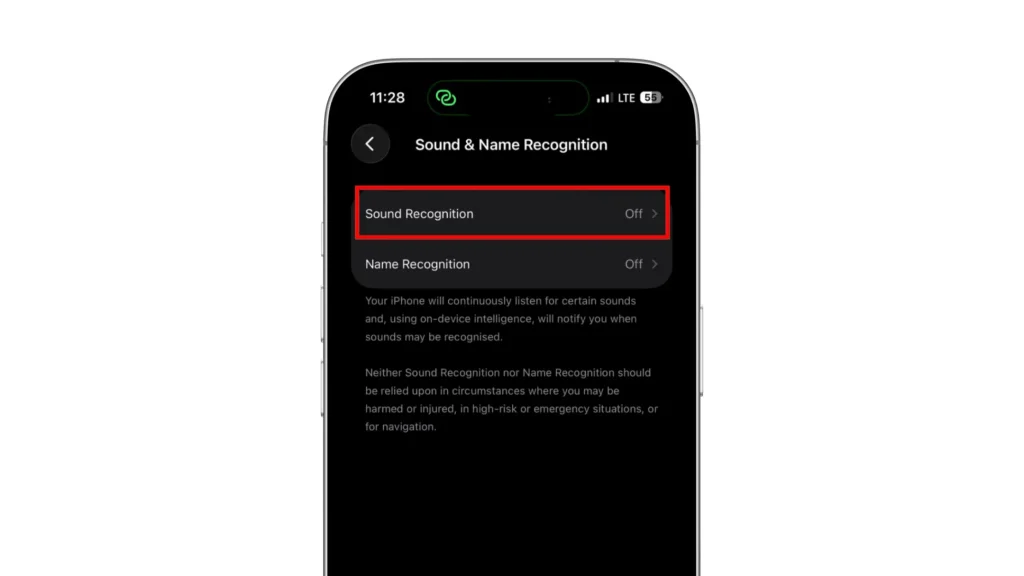
5. Turn on Sound Recognition.
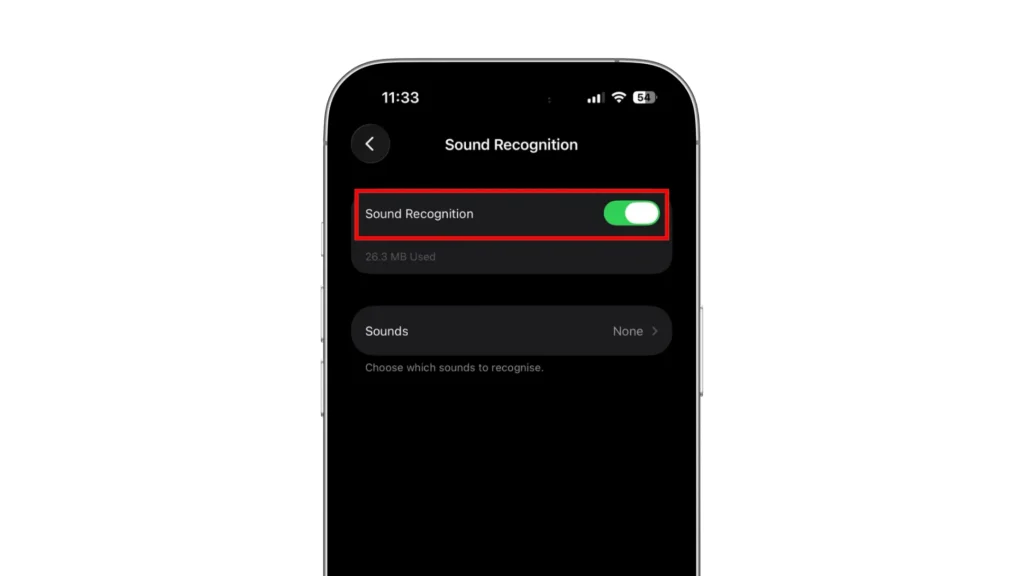
6. Tap Sounds and enable the sounds you want your iPhone to detect.
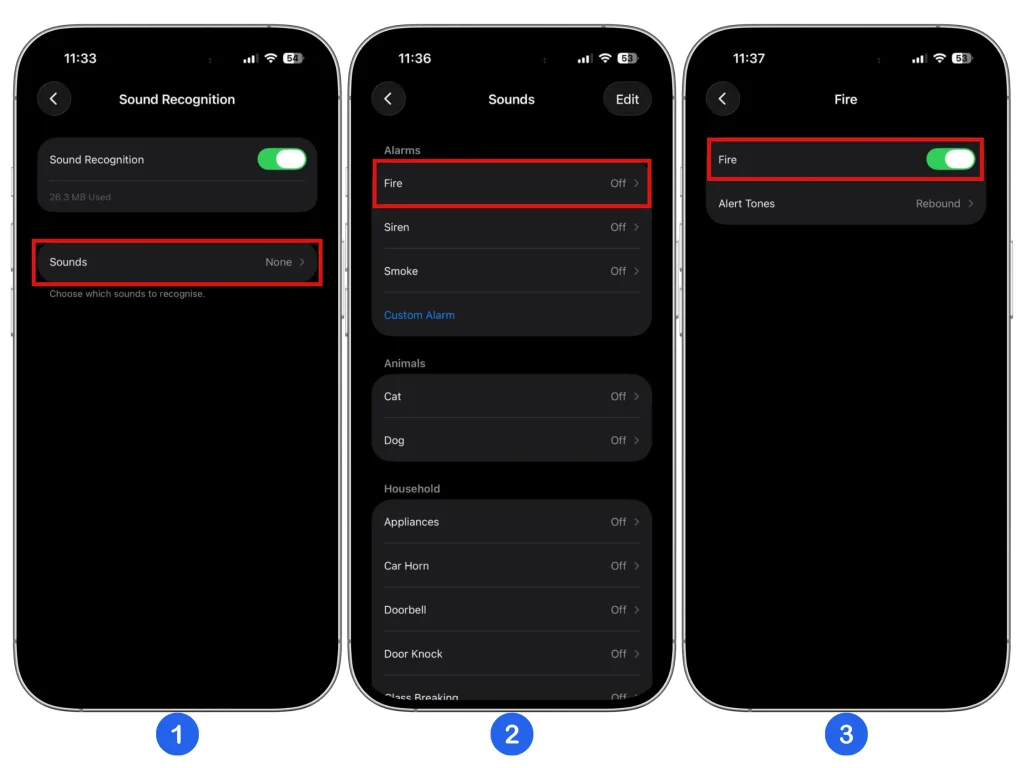
Your iPhone may need to download sound data during setup. If a download is required, keep the phone connected to the internet and wait for it to finish.
On older versions such as iOS 18, go directly to Settings > Accessibility > Sound Recognition. Turn on the feature, then tap Sounds to choose what it should detect.
Apple also provides an official Sound Recognition setup guide covering the current settings path, sound downloads, Control Center access, and custom sounds.
How to Use Sound Recognition on iPhone
Once Sound Recognition and at least one sound are enabled, your iPhone starts listening automatically. You do not need to start a separate listening session.
When it recognizes a selected sound, such as a doorbell, it sends a notification that identifies the likely sound. Treat the alert as a prompt to check what is happening, since the phone can mistake one sound for another.
To make the alerts more useful:
- Choose relevant sounds. Enable only the sounds you want notifications about.
- Keep the phone near the sound source. For quieter sounds, placing it in the same room is a sensible starting point.
- Keep the microphones clear. Avoid covering the microphone openings with fabric, a poorly fitted case, or other objects.
- Try a safe household sound. Test a doorbell or appliance timer with your iPhone in its usual position and check whether an alert appears.
- Try custom recognition when needed. If the built-in option repeatedly misses your alarm, appliance, or doorbell, set up a custom sound and test it again.
Add Sound Recognition to Control Center
You do not need to return to Settings every time you want to enable or disable the feature. Apple lets you add Sound Recognition to Control Center for quicker access.
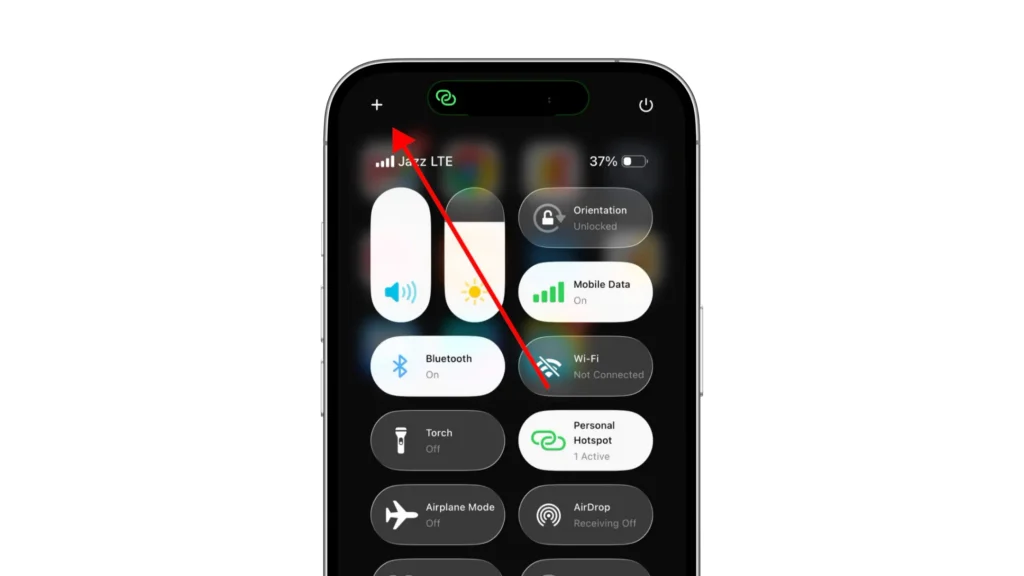
1. Open Control Center.
2. Tap the + button or touch and hold a blank area
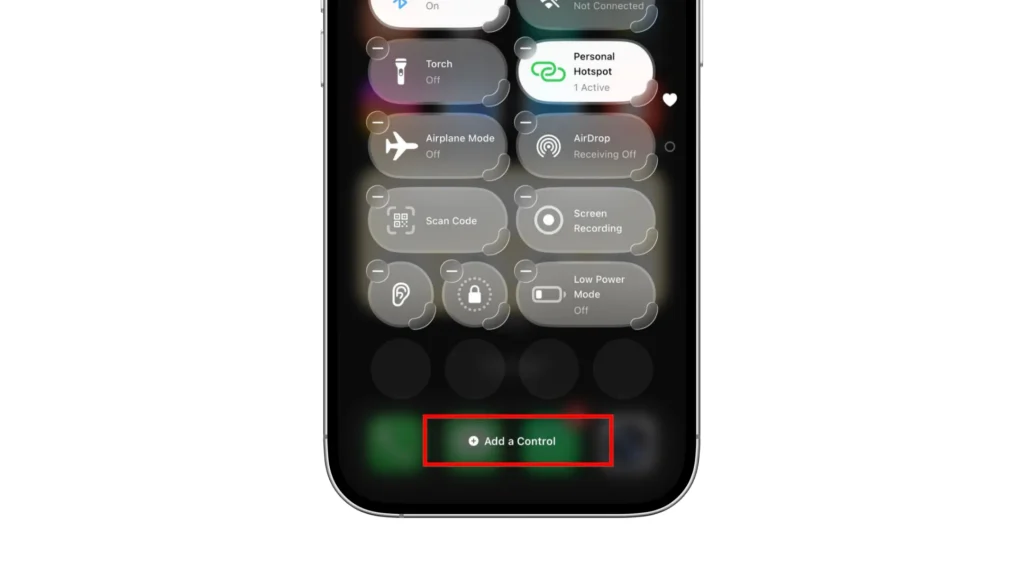
3. Tap Add a Control.
4. Search for Sound Recognition and tap to add it.
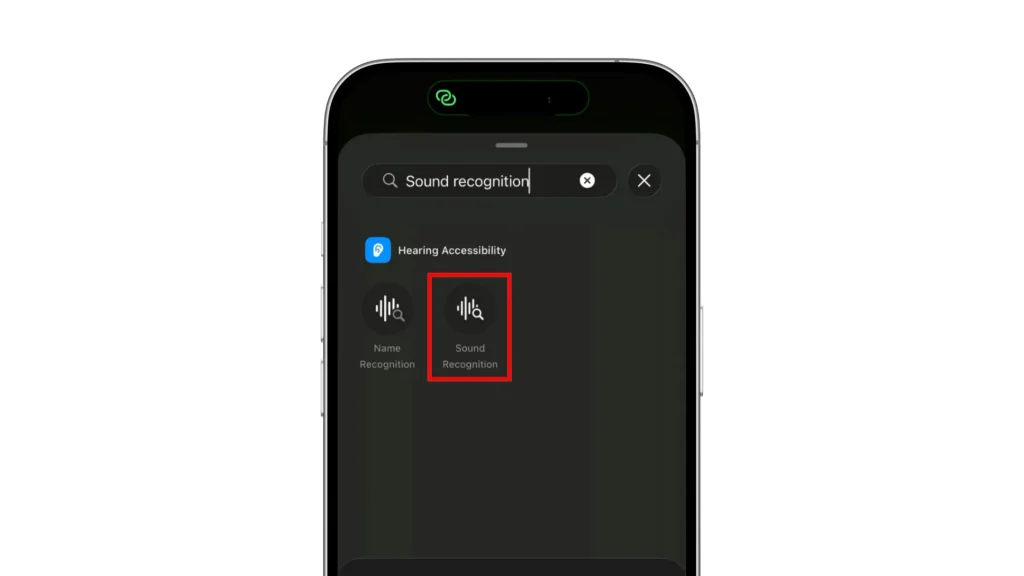
You can then open Control Center and tap the Sound Recognition control. Depending on the current iOS layout, tapping or holding it may also let you choose which sounds are active.
This shortcut is particularly useful if you only need the feature at certain times, such as while wearing headphones or working behind a closed door.
How to Train iPhone to Recognize a Custom Sound
If the built-in options miss a particular alarm, appliance alert, or doorbell, you can try training your iPhone to recognize it. This can be useful for microwave beeps, washing-machine alerts, or a distinctive doorbell.
With Sound Recognition enabled:
1. Open Settings.
2. Go to Accessibility > Sound & Name Recognition > Sound Recognition.
3. Tap Sounds.
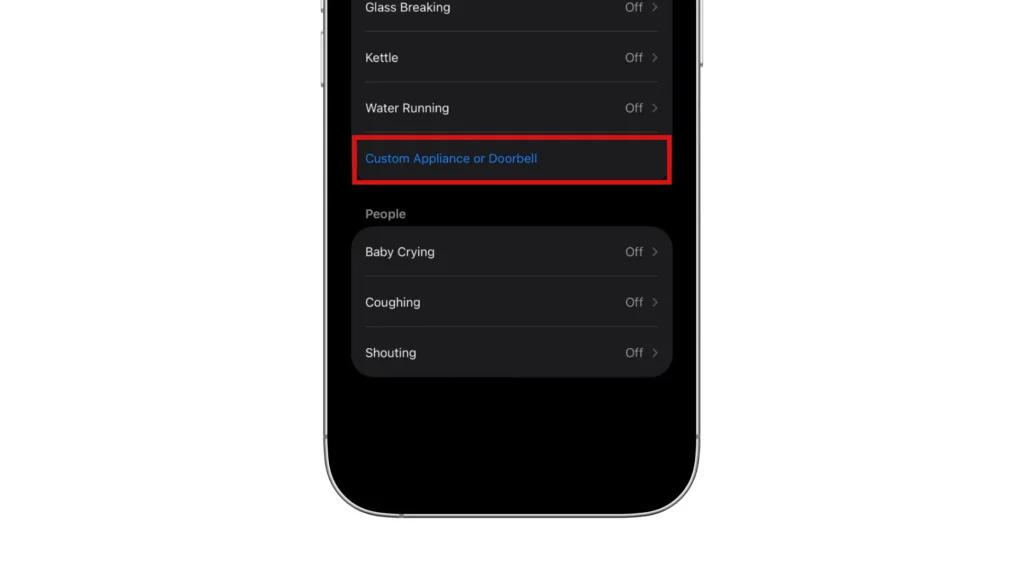
4. Choose Custom Alarm or Custom Appliance or Doorbell.
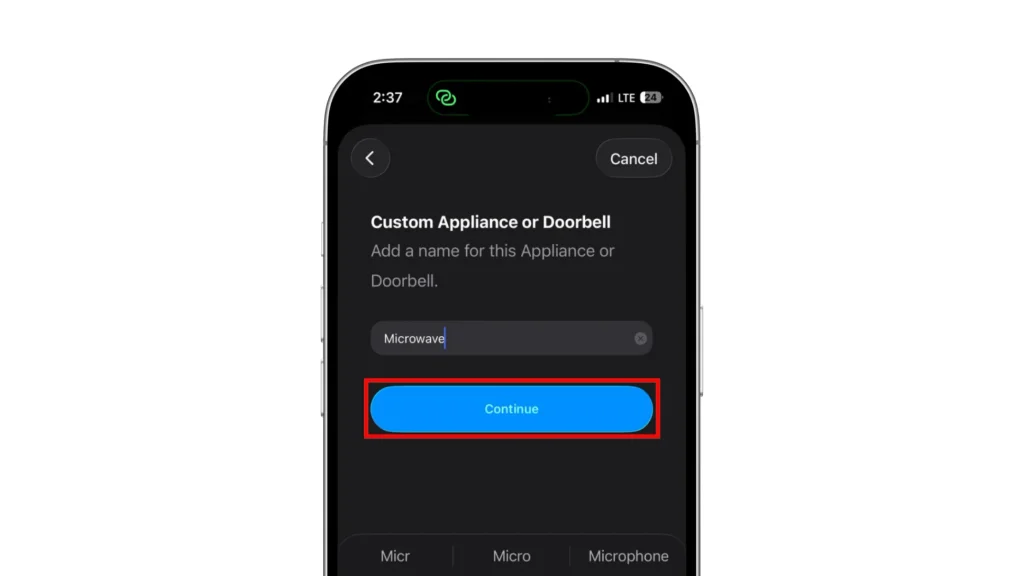
5. Enter a clear name, such as Microwave.
Place your iPhone near the sound source and reduce background noise.
Tap Start Listening and follow the onscreen instructions, repeating the sound when requested.

Once training finishes, check that your custom sound is enabled under Sounds. Then test it with your iPhone in the position and at the distance where you expect to use it.
Custom recognition is designed for alarm, appliance, and doorbell sounds. It is not a general tool for teaching your iPhone any sound you choose.
What Is Sound and Name Recognition on iPhone?
On iOS 26 and later, Sound & Name Recognition is a menu within Settings > Accessibility. It contains Sound Recognition for environmental sounds and a separate Name Recognition feature that can notify you when someone calls your name.
You can record how you or another person says your name to help the iPhone recognize its pronunciation. You can also add multiple names, including a shortened name or nickname.
To set it up:
1. Open Settings.
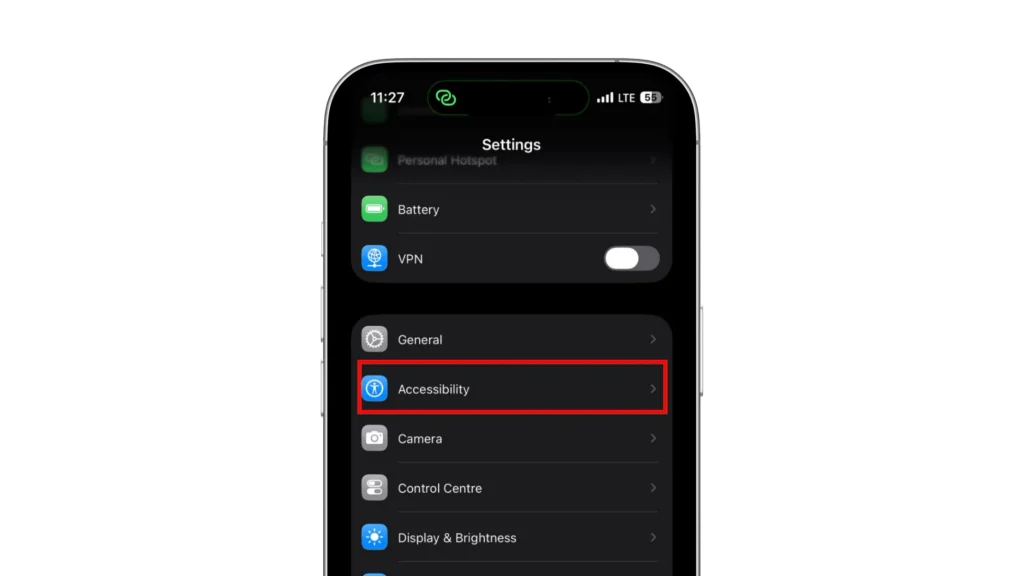
2. Tap Accessibility
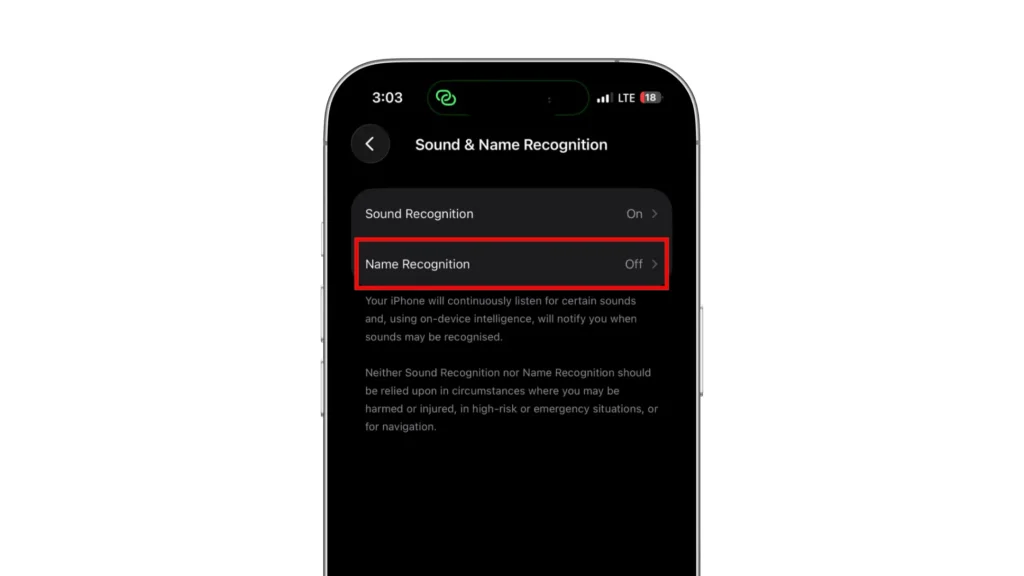
3. Tap Sound & Name Recognition.

4. Tap Name Recognition.
5. Tap Set Up Name Recognition.
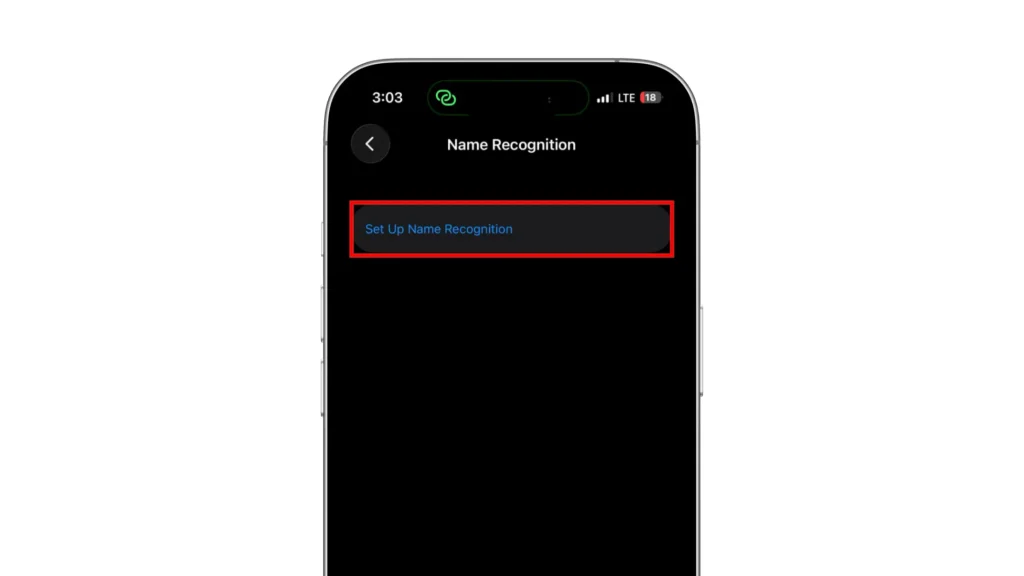
Follow the onscreen instructions to add your name and complete setup.
To add another name later, return to Name Recognition and tap Add Name. You can also add its control to Control Center to quickly switch the feature on or off.
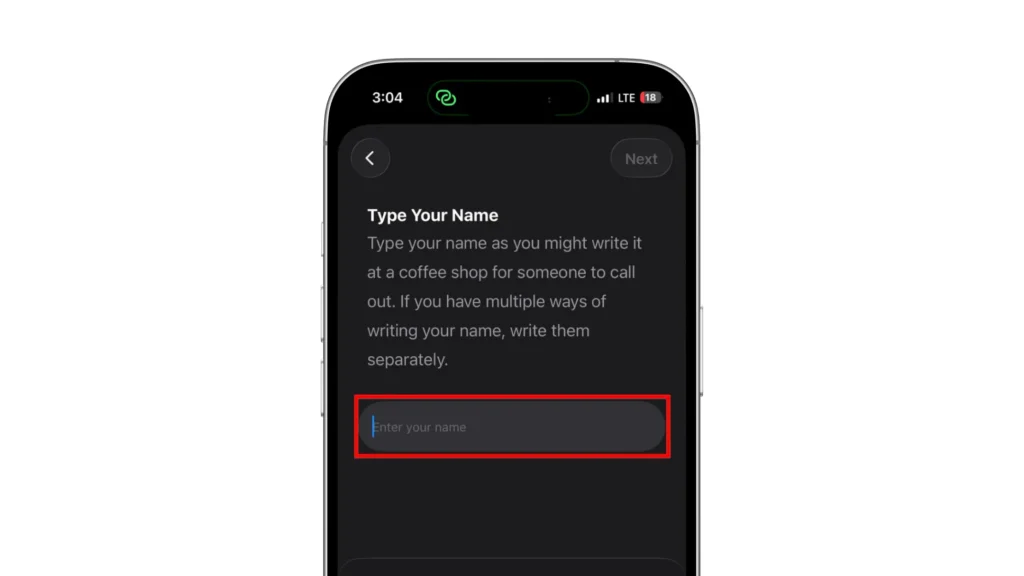
Language support varies by iOS version and device settings. Check Apple’s current iOS and iPadOS feature availability page for the languages and locales supported by Name Recognition. If the option is missing, confirm that your iPhone runs iOS 26 or later and that its language is supported.
How to Turn Off Sound Recognition on iPhone
If you no longer need sound alerts, you can turn off Sound Recognition:
- Open Settings.
- Go to Accessibility > Sound & Name Recognition > Sound Recognition.
- Turn off Sound Recognition.
If only one sound is causing unwanted alerts, keep the main feature enabled, open Sounds, and turn off that sound.
If you added Sound Recognition to Control Center, you can also switch it off there by tapping its control.
Does iPhone Sound Recognition Drain the Battery?
Sound Recognition can increase battery use because listening through the microphone and analyzing sounds require power. The impact can vary between devices and usage patterns. Apple’s Sound Recognition guide does not provide a standard hourly drain figure, so claims of a fixed percentage should be treated cautiously.
If you notice unusual drain, start with Settings > Battery to review recent usage and activity.
For a rough comparison, try similar periods with Sound Recognition enabled and disabled. Start at the same battery percentage, compare the same length of time, and avoid charging during either period. Keep screen brightness, screen time, network conditions, and app use as similar as possible.
Repeat the comparison before attributing a small difference to Sound Recognition. Normal changes in daily use can affect the result.
If your iPhone loses a noticeable amount of power while sitting unused, Sound Recognition may not be the only cause. Our guide to fixing iPhone battery drain overnight explains how to check background activity, cellular signal, location access, and other possible causes.
Why Is iPhone Sound Recognition Not Working?
If Sound Recognition alerts are not appearing, start with these simple checks.
Confirm the Feature and Sound Are Enabled
Go to Settings > Accessibility > Sound & Name Recognition > Sound Recognition and confirm that the main switch is on. Then tap Sounds and make sure the sound you want to detect is enabled.
Wait for the Sound Download
Your iPhone may need to download sound data after you enable the feature. Keep it connected to a stable internet connection and allow the download to finish before testing. If it appears stuck, try restarting the phone and checking again.
Test From a Shorter Distance
Move the iPhone closer to the sound and reduce background noise from televisions, conversations, or fans. Test with an ordinary household sound, such as a doorbell or appliance alert, to see whether recognition improves.
Check the Microphones and Case
Remove the case temporarily and inspect whether dust, fabric, or an accessory is blocking the microphone openings. Do not insert objects into the openings.
Set Up the Custom Sound Again
If a custom sound is repeatedly missed, try creating a new entry under Custom Alarm or Custom Appliance or Doorbell. Disable the old entry to avoid duplicate alerts.
Train with the actual appliance, alarm, or doorbell nearby and minimize background noise. After setup, make sure the new entry is enabled and test it from your usual phone position.
Restart and Update the iPhone
Restart the iPhone and test again. If the problem continues, check Settings > General > Software Update and install an available iOS update.
If Name Recognition is missing specifically, check that your iPhone runs iOS 26 or later and supports the language you need.
Test the Microphones
Record and play back a short clip in Voice Memos. Also record videos using the front and rear cameras, and speak during each recording.
If your voice sounds muffled or is missing, follow Apple’s microphone troubleshooting guidance. If the recordings sound clear but Sound Recognition still fails repeatedly, contact Apple Support for further troubleshooting.
Sound Recognition Limitations You Should Know
Sound Recognition can miss sounds or send false alerts. Background noise, closed doors, unusual alarm tones, quiet sounds, and distance can make detection less reliable.
It should not replace a certified smoke alarm, carbon monoxide detector, baby monitor, medical alert system, security system, or other dedicated safety device. Never rely on an iPhone notification as your only warning in a dangerous situation.
Use it as an extra source of awareness. Receiving an alert does not confirm what happened, and receiving none does not mean everything is safe.
Final Thoughts
Sound Recognition helps you notice selected sounds around you in everyday use. It is an accessibility feature that helps you notice selected sounds around you, but it should never replace a dedicated safety device. Enable the sound categories that matter to you, or set up a custom alarm, appliance, or doorbell.
The separate Name Recognition feature can also alert you when someone calls your name. It is available on iOS 26 and later in supported languages. Both features can miss sounds or produce false alerts, so test them in your usual surroundings and keep dedicated safety equipment in place.
If you only need sound alerts at certain times, add Sound Recognition to Control Center. You can then switch it on and off without returning to Settings.
FAQs
What Is Sound Recognition on iPhone Used For?
Sound Recognition alerts you when your iPhone detects a selected environmental sound, such as a doorbell, siren, smoke alarm, dog barking, glass breaking, or baby crying. It is primarily an accessibility feature for people who are Deaf or hard of hearing.
Is iPhone Sound Recognition Always Listening?
While enabled, Sound Recognition continuously listens for the sounds you have selected. You can turn it off through Accessibility settings or Control Center when you no longer need it.
Can an iPhone Recognize My Name?
Yes. The separate Name Recognition feature can notify you when your iPhone detects what may be someone calling your name. It requires iOS 26 or later and a supported language.
Can Sound Recognition Identify Songs?
No. To identify songs, use the Recognize Music control in Control Center or the Shazam app. Sound Recognition detects environmental sounds and supports custom alarms, appliances, and doorbells.
Why does Sound Recognition send an incorrect notification?
The iPhone can mistake one sound for another when their acoustic patterns are similar. Background noise can also make detection less reliable. If one sound repeatedly triggers unwanted alerts, disable it under Sounds. For a specific alarm, appliance, or doorbell, you can try custom training.
Does Sound Recognition Work Without an Internet Connection?
Apple describes Sound Recognition as using on-device intelligence, meaning sound analysis happens on the iPhone. An internet connection may be needed to download the sound data during setup, while recognition itself is processed locally.