
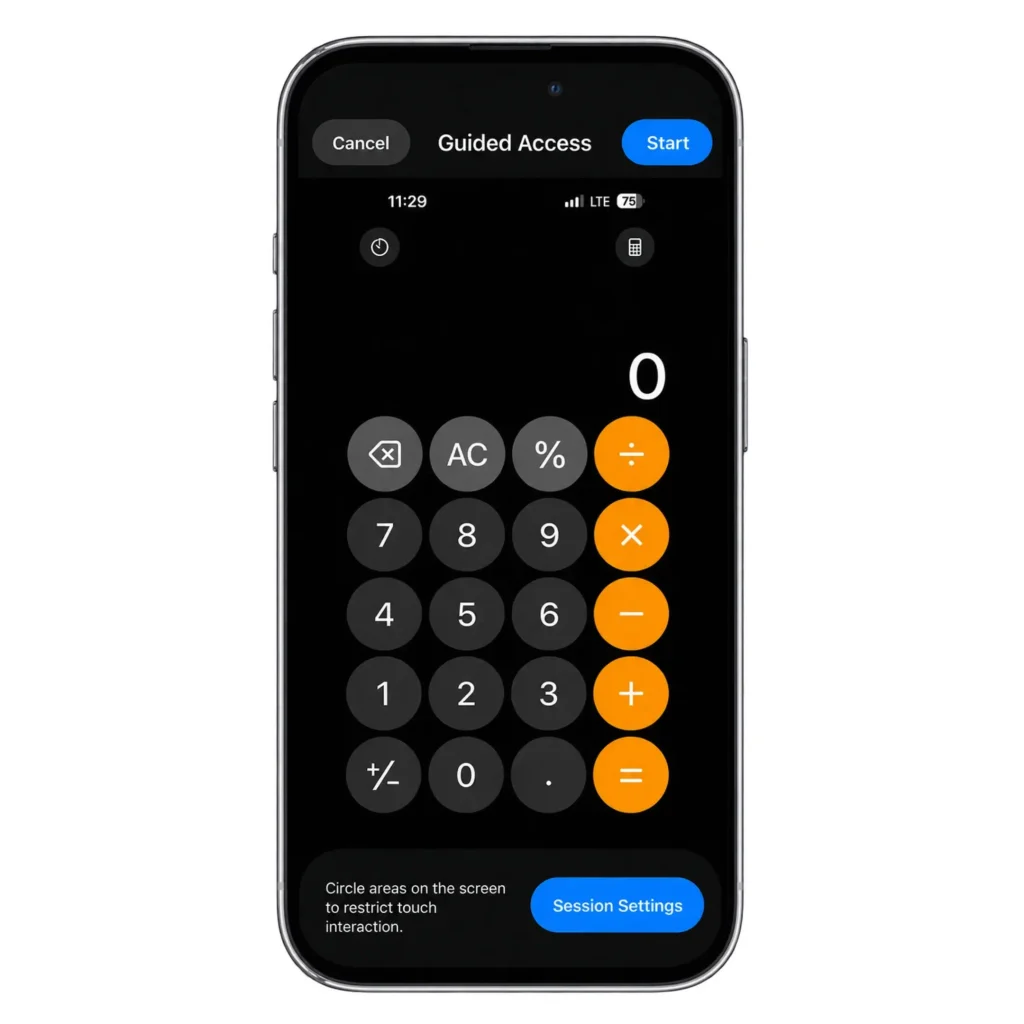
Guided Access on iPhone temporarily keeps the device in one app. It prevents the person using it from opening other apps or returning to the Home Screen and lets you restrict buttons, touch input, the keyboard, and parts of the screen.
The feature can be useful when a child is playing a game, someone needs to use Calculator, or you want to display a ticket without accidental taps. It does not automatically hide information within the selected app, so check what remains accessible before handing over your phone.
This guide explains how to set up, use, and turn off Guided Access, with observations from my iPhone 15 tests.
Quick answer: Go to Settings > Accessibility > Guided Access, turn it on, and set a Guided Access passcode. Open the app you want to use and triple-click the Side button. If the setup screen appears, adjust the restrictions and tap Start. To end a session on the tested iOS version, triple-click again, authenticate, and tap End. A previously configured app may start immediately with its saved settings.
Table of Contents
How I Tested Guided Access
I tested Guided Access on an iPhone 15 running iOS 27.0.1. In Calculator, I checked navigation, hardware buttons, rotation, touch restrictions, selected screen areas, time limits, Face ID, passcode delays, and force-restart behavior. In Apple Notes, I checked the onscreen keyboard and whether I could navigate to other notes.
These observations apply to that device and software version. For the general setup instructions and supported controls, I also referenced Apple’s official Guided Access guide. Some versions use Options instead of Session Settings, and the exit shortcut can differ on older iOS versions.
Before starting, Apple states that Crash Detection and Emergency Services are unavailable during Guided Access. End the session before making an emergency call.
What Is Guided Access on iPhone?
Guided Access is an accessibility feature that limits the iPhone to a single app for the duration of a session. You can leave the app fully interactive or restrict specific controls.
For example, you can let a child use a learning app while disabling the volume buttons, keep a photo onscreen with touch turned off, or block a button that should not be pressed.
It can also help you stay within one app while concentrating on a task. For ongoing app limits or parental controls across the device, Screen Time offers a different set of tools.
Guided Access is one of several accessibility features built into iOS. Another is Sound Recognition on iPhone, which can alert you to selected sounds such as doorbells, alarms, and a crying baby.
What Guided Access Blocked in My Test
I started Guided Access in Calculator and tried to leave the app using the usual gestures. The Home Screen and App Switcher did not open. Swiping down from the top corners did not open Control Center or Notification Center either.
| Action Tested | Result on iPhone 15 with iOS 27.0.1 |
|---|---|
| Return to the Home Screen | Blocked |
| Open the App Switcher | Blocked |
| Open Control Center | Blocked |
| Open Notification Center | Blocked |
| Use Calculator | Worked normally while touch was enabled |
| Turn off the display with the Side button | Worked when Side Button was allowed |
| Wake the display | Returned to Calculator with Guided Access still active |
| Take a screenshot with Side + Volume Up | No screenshot was captured during my test |
Turning off the display did not end Guided Access. When I woke the phone, Calculator was still available, but normal navigation remained blocked.
How to Turn On Guided Access on iPhone
Set a passcode before lending your phone. Choose one that the other person does not know.
1. Open Settings > Accessibility > Guided Access.
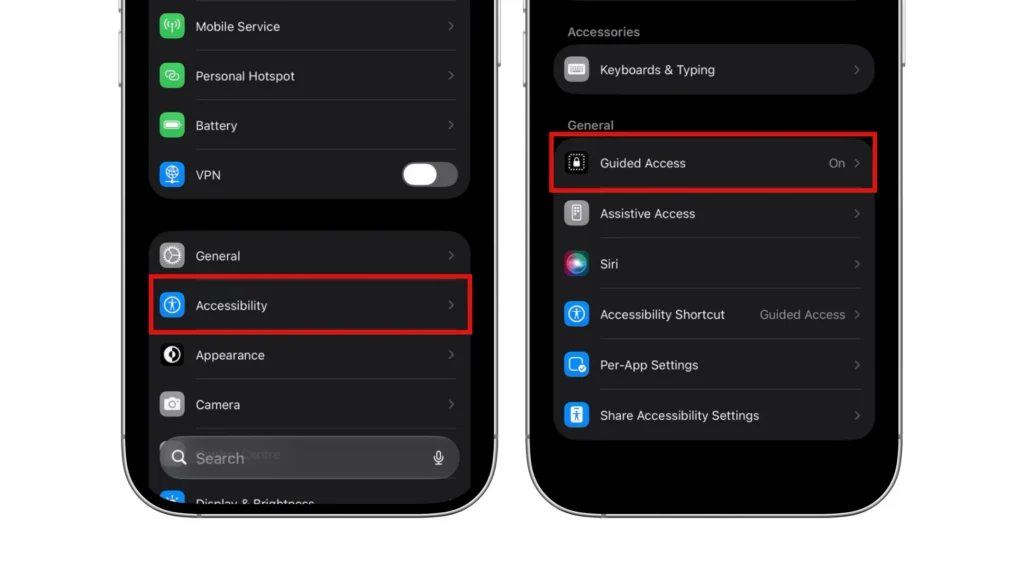
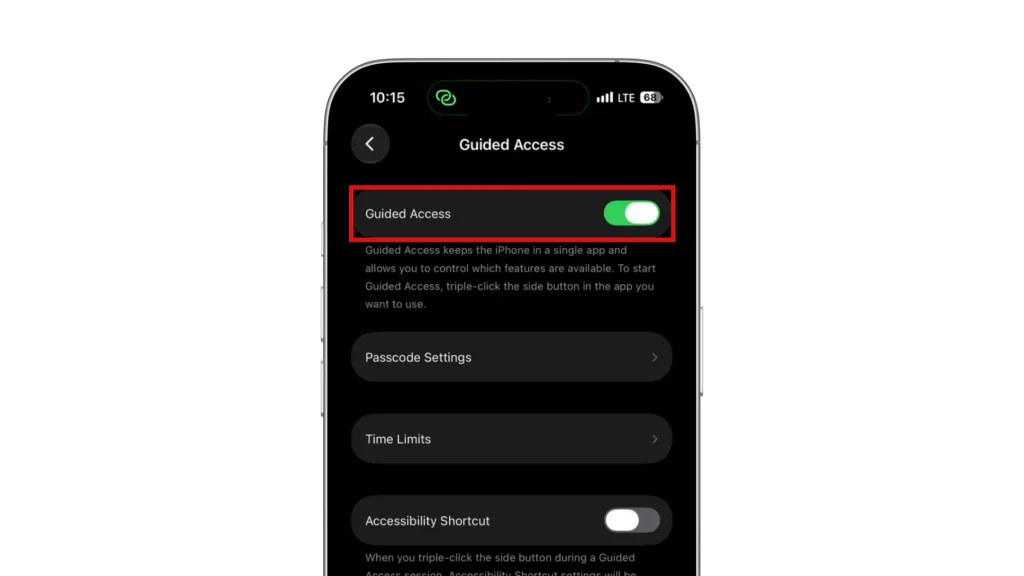
2. Turn on Guided Access.
3. Open Passcode Settings.
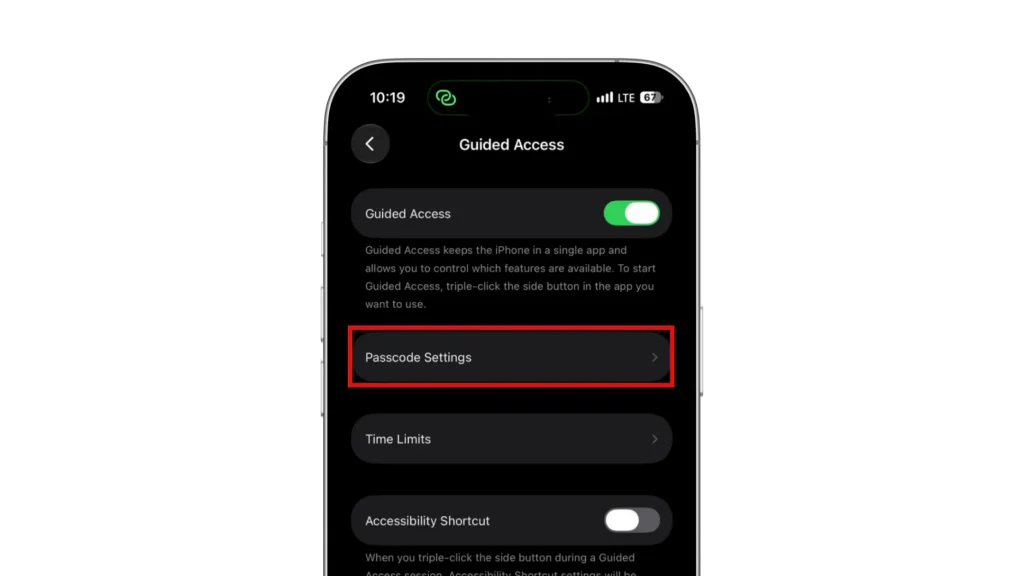
4. Tap Set Guided Access Passcode, then enter and confirm it.
5. Enable Face ID if you want to use it to pause or end sessions.
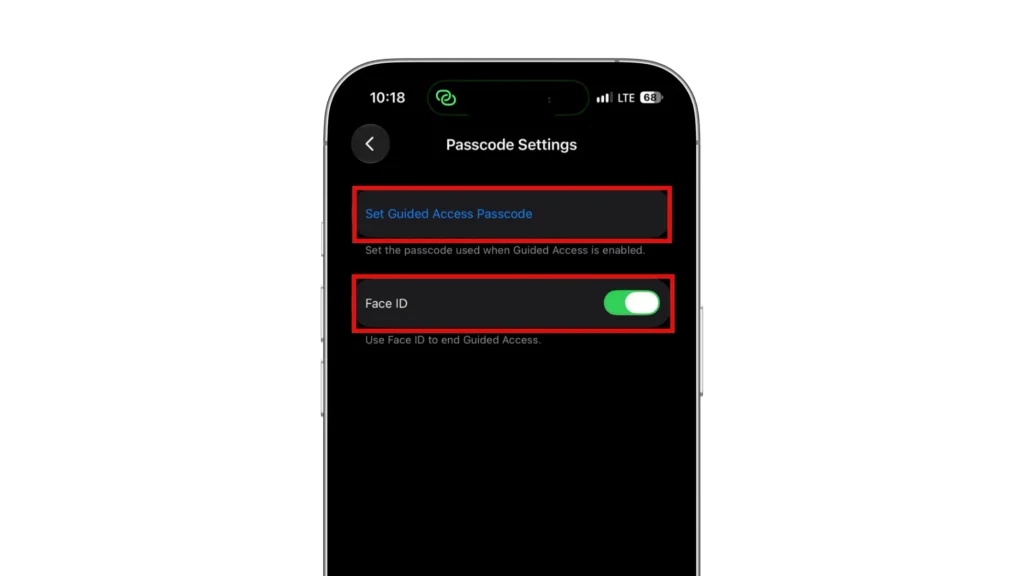
Face ID is optional. On supported models, Touch ID is available instead. The Guided Access passcode can differ from your normal iPhone passcode, so make sure you remember which one you set.
The main settings page also includes three additional controls:
- Time Limits: Choose a sound and enable spoken warnings for timed sessions. The session duration is set separately.
- Accessibility Shortcut: Choose whether the accessibility shortcuts panel can appear during a session.
- Display Auto-Lock: Choose how long the display stays on when the phone is inactive during Guided Access.
My Display Auto-Lock setting initially showed Default. In my shortcut configuration, enabling Accessibility Shortcut still took me to the usual Guided Access controls.
How to Start Guided Access on iPhone
- Open the app you want to allow.
- Quickly triple-click the Side button, or the Home button on an iPhone that has one.
- If the accessibility shortcuts panel appears, select Guided Access.
- If the setup screen appears, select any screen areas to block and adjust Session Settings.
- Tap Start.
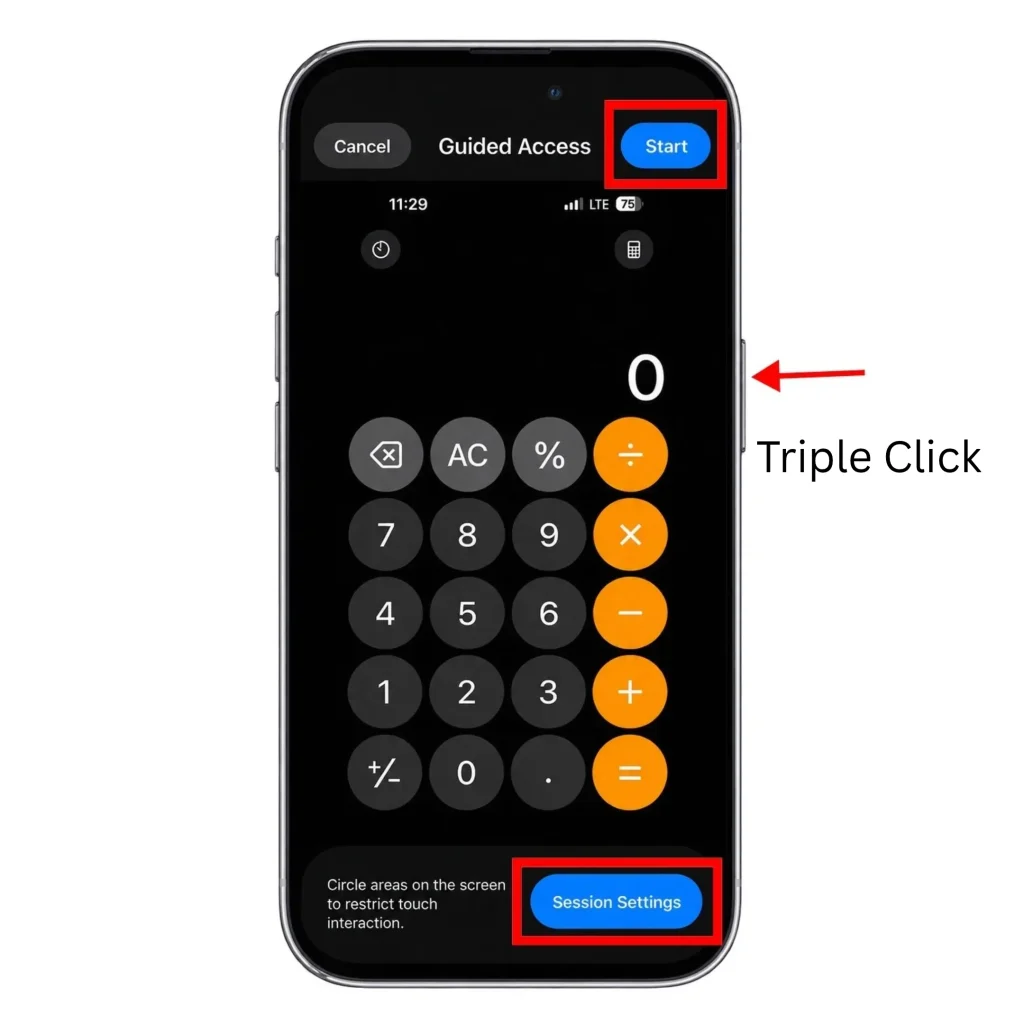
Apple notes that an app with an existing Guided Access configuration can start immediately using its previous settings. If that happens, pause the session to check or change the restrictions before handing over the phone.
Guided Access Session Settings Explained
Session Settings controls which inputs remain available. The table below describes the options used in my iPhone 15 tests.
| Setting | What it Controls |
|---|---|
| Side Button | When off, ordinary presses do not turn off the display. The exit shortcut remains available. |
| Volume Buttons | When off, the physical volume buttons do not adjust the volume. |
| Motion | When off, the app’s response to rotation and other motion is restricted. |
| Software Keyboards | When off, the onscreen keyboard does not appear. |
| Touch | When off, touch input within the app is disabled. |
| Time Limit | When enabled, sets how long the session remains interactive before an expiration screen appears. |
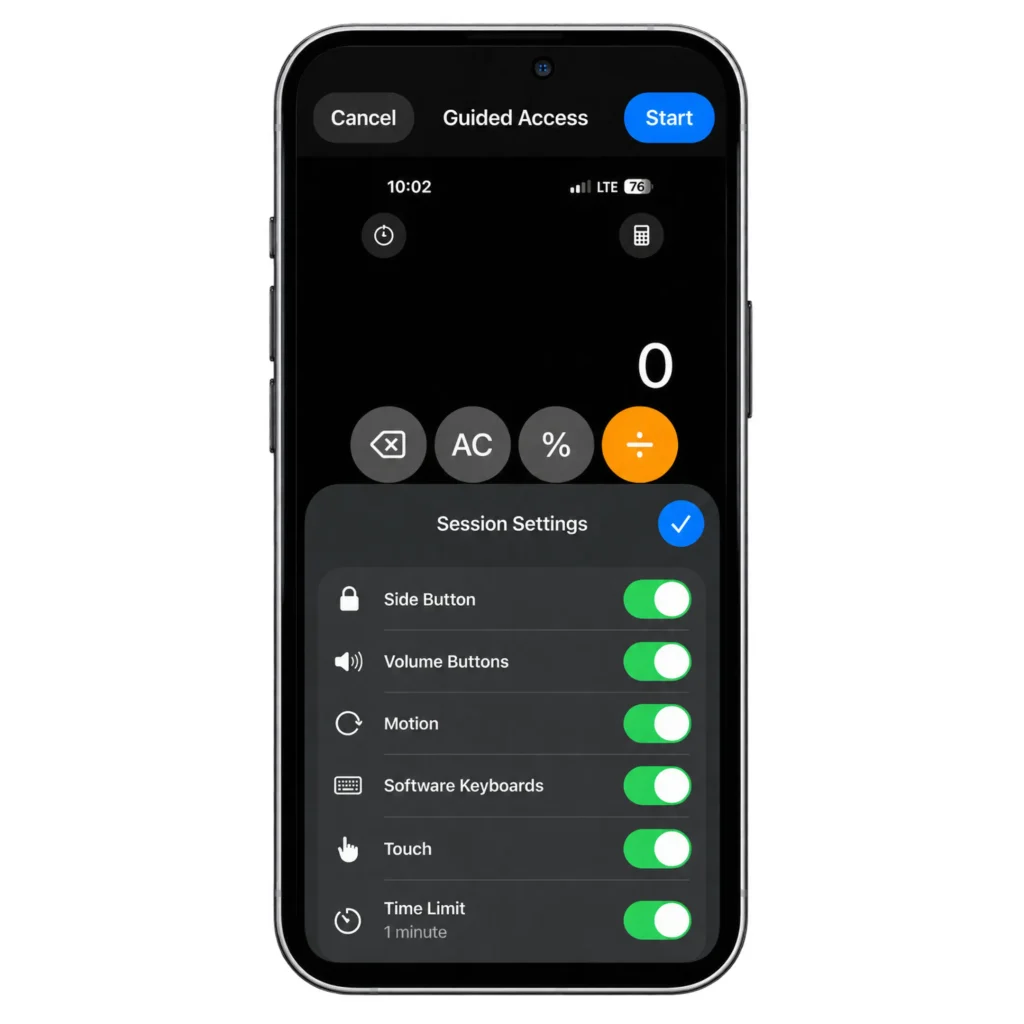
What I Observed With Each Setting
Side Button: With Side Button enabled, pressing it once turned off the display. Waking the phone returned directly to Calculator without Face ID, while Guided Access remained active.
Turning Side Button off stopped a single press from turning off the display. Triple-clicking still opened the exit controls.
Volume Buttons: The volume buttons worked when allowed. After I disabled the Volume Buttons option, neither volume button responded.
Motion: I turned off the iPhone’s normal Portrait Orientation Lock before testing this option. Calculator rotated with Motion enabled and stayed in the same orientation when Motion was disabled.
Software Keyboards: In a blank Apple Note, tapping the text area did not open the keyboard while Software Keyboards was off. Re-enabling the option allowed the keyboard to appear again.
Touch: Turning Touch off made the entire Calculator screen unresponsive to taps. The Side-button shortcut still worked, allowing me to authenticate and change the setting.
This option is useful when the screen only needs to display something, such as a photo or ticket.
How to Disable Part of the Screen
You can block a selected area while leaving the rest of the app usable.
- Open the app and bring up the Guided Access setup screen. If a saved session starts immediately, pause it first.
- Draw around the area you want to disable.
- Move or resize the shaded shape using its borders or handles.
- Tap Start, or Resume if you are adjusting an existing session.
I blocked the AC button in Calculator. The selected area stayed shaded and did not respond to touch, while nearby numbers and operation buttons continued to work.
Check the result before handing over the phone. A selection that is too large can also block controls the person needs.
How to Set a Guided Access Time Limit
Open Settings > Accessibility > Guided Access > Time Limits to choose an alert sound and enable Speak if you want spoken warnings.
To set the duration:
- Open the app and bring up the Guided Access setup screen.
- Tap Session Settings.
- Enable Time Limit and select a duration.
- Then tap Start for a new session or Resume for a paused session.
If the session starts with saved settings, pause it before changing the limit.
I tested a one-minute session with a sound selected and Speak enabled. The iPhone announced that 30 seconds remained. When the timer expired, it played the alert, announced the end of the session, and displayed an expiration message. The app no longer responded to touch.
The expiration message remained until I used the Side-button shortcut, authenticated, and ended the session. Reaching the time limit did not automatically restore normal access to the phone.
How to Turn Off Guided Access on iPhone
On my iPhone 15 with iOS 27.0.1:
- Triple-click the Side button.
- Authenticate with Face ID or enter the Guided Access passcode.
- Select Guided Access if an accessibility shortcuts panel appears.
- Tap End.
With Face ID enabled, authentication happened automatically during my test. After I tapped End, the phone displayed “Guided Access Ended” and returned to normal use.
I also tested with Face ID disabled in Guided Access settings. Starting a configured session did not require authentication, but opening the exit controls required the Guided Access passcode.
To change restrictions without ending the session, open Session Settings, make your changes, and tap Resume.
Older iOS versions: Apple’s current support guide lists a double-click for pausing sessions on iOS 18 or earlier. Check its pause and end instructions if your phone behaves differently.
How to Disable Guided Access in Settings
Ending a session leaves the feature available for future use. To switch it off:
- End the active session.
- Go to Settings > Accessibility > Guided Access.
- Turn off Guided Access.
After I disabled the main switch, triple-clicking no longer started Guided Access. The Side button resumed its usual locking behavior. Other accessibility shortcuts may still respond if you have configured them.
Privacy Limits to Check Before Lending Your Phone
iPhone Guided Access restricts your iPhone to one app, but it does not automatically limit access to a single note, photo, or conversation within that app.
In Apple Notes, I could return to the notes list and view other available notes during the session. Guided Access blocked access to other apps but did not keep me inside the original note.
The same issue can arise with Photos, messaging apps, or a browser. Depending on the app and your restrictions, the person may still be able to view other photos, open conversations, or follow links.
For a static image or document, turning off Touch can prevent navigation. If interaction is necessary, block the relevant controls and test what remains accessible. For additional protections during normal use, see our guide to privacy and security settings on iPhone.
Guided Access vs Screen Time and App Locking
| Feature | Main Purpose | Typical Use |
|---|---|---|
| Guided Access | Keeps the phone in one app during a session | Lending an unlocked phone for a specific task |
| Screen Time | Manages usage limits, content restrictions, and communication settings | Ongoing personal or family controls |
| App locking | Requires authentication to open a supported app | Restricting access to sensitive apps during normal use |
Screen Time is useful for restrictions that extend beyond one session. App locking prevents anyone from opening supported apps without authentication.
Guided Access applies after you have chosen an app for someone to use. These features can complement one another, but they serve different purposes.
If you also use a Samsung phone, our iPhone vs Samsung security and privacy comparison explains how both platforms protect sensitive apps and personal information.
What to Do If Guided Access Will Not Turn Off
1. Check the Button Shortcut
Quickly triple-click the Side button, or the Home button on an iPhone that has one. Authenticate with your Guided Access passcode, Face ID, or Touch ID, then tap End.
Turning off Side Button in Session Settings does not disable the shortcut used to access Guided Access controls. The exit shortcut can differ on older iOS versions, so check Apple’s Guided Access instructions if the button sequence does not work.
2. Wait for Any Passcode Delay
If an incorrect passcode triggers a waiting period, let the timer finish before trying again. Enter the Guided Access passcode carefully and avoid repeatedly guessing.
The Guided Access passcode may differ from the passcode you normally use to unlock your iPhone.
3. Use the Guided Access Passcode if Face ID Fails
Face ID must be enabled under Settings > Accessibility > Guided Access > Passcode Settings before you can use it to pause or end a session.
If Face ID does not recognize you, use the Guided Access passcode to open the session controls, then tap End.
4. Check Whether Touch Was Disabled
An app that does not respond to taps may be restricted rather than frozen. Touch may be disabled for the entire app, or you may be tapping a blocked area.
Use the button shortcut, authenticate, and open Session Settings or Options. Turn Touch back on and remove any unwanted shaded areas before tapping Resume. If you want to leave Guided Access, tap End instead.
5. Force-Restart an Unresponsive iPhone
If the iPhone is unresponsive and the Guided Access controls will not open, try a force restart. For an iPhone 8 or later, follow Apple’s force-restart instructions:
- Quickly press and release Volume Up.
- Quickly press and release Volume Down.
- Press and hold the Side button until the Apple logo appears, then release it.
A force restart is a recovery step for an unresponsive phone, not a method for resetting a forgotten Guided Access passcode. If the problem continues after restarting, check for available iOS updates when you can access Settings, or contact Apple Support.
Is Guided Access Secure?
Guided Access is useful for a brief, supervised handoff because it restricts normal navigation to other apps. Its protection depends partly on what the permitted app contains and which controls remain available.
It does not create a separate user account or private workspace. During my testing on an iPhone 15 running iOS 27.0.1, a force restart ended the active Guided Access session.
Use a Guided Access passcode the other person does not know, review the app before handing over the phone, and keep the iPhone’s normal passcode protection in place.
My Experience With Guided Access
On my iPhone 15, Guided Access blocked normal navigation while allowing me to control touch, buttons, rotation, and keyboard access. Blocking an individual screen area also worked without making the rest of Calculator unusable.
The main limitation was access to content within the selected app. Before lending the phone, it is useful to check what the person can open or change inside that app and adjust the restrictions accordingly.
FAQs
What is Guided Access on an iPhone?
Guided Access temporarily keeps the iPhone in one app. You can also restrict hardware buttons, rotation, the onscreen keyboard, touch input, selected screen areas, and session duration.
How do I turn on Guided Access on my iPhone?
Go to Settings > Accessibility > Guided Access, enable it, and set a passcode. Open an app, triple-click the Side or Home button, and adjust the restrictions if the setup screen appears. Tap Start to begin.
How do I turn off Guided Access on my iPhone?
On the tested iOS version, triple-click the Side button, authenticate, and tap End. To disable the feature itself, turn it off under Settings > Accessibility > Guided Access after ending the session.
Can Guided Access Lock an iPhone to One Photo?
It limits the phone to Photos, but does not automatically stop someone from browsing within the app. Open the photo and turn off Touch if the person only needs to view it.
Why Does My iPhone Seem Stuck in Guided Access?
The button shortcut may not have registered, touch may be disabled, or an incorrect passcode may have triggered a waiting period. Try opening the exit controls and authenticating. Consider a force restart if the phone itself is unresponsive.
Can Someone Exit Guided Access Without the Passcode?
Configured Face ID or Touch ID can authorize an exit without entering the Guided Access passcode. In my test, a force restart also ended the active session, but that observation does not establish the same behavior on every iPhone or bypass the normal device passcode.
Does Guided Access Continue After the Display Turns Off?
It did during my test. With Side Button allowed, I could turn off the display and wake it again. Calculator reappeared, and the session restrictions remained active.
What Happens When the Time Limit Ends?
The app stops responding to touch and an expiration message appears. The timer does not automatically restore normal access to the phone. Use the exit shortcut and authenticate to manage or end the session.
Is Guided Access the Same as Screen Time?
No. Guided Access applies to one app during a session. Screen Time manages broader usage limits and restrictions across the device.