
Contents
Introduction
You go to bed with your iPhone fully charged and wake up to find it at 80% or lower, even though you haven’t touched it all night.
Some overnight battery loss is expected as your phone stays connected and handles background activity. But if your iPhone loses battery overnight faster than usual, it’s worth investigating.
A weak signal, background apps, or recent software updates could be responsible, so don’t assume you need a new battery.
This guide explains the possible causes, fixes to try, and when your battery needs attention. For long-term battery care, see our guide on how to improve iPhone battery health.
Is Overnight Battery Drain Normal?
Some overnight battery drain is expected because your iPhone still uses power when the screen is off. There’s no single percentage that counts as normal for everyone. Signal strength, background activity, battery condition, and how long you leave it unplugged all affect the result.
If your iPhone repeatedly loses 15%, 20%, or more while sitting unused overnight, it’s worth investigating. These aren’t official fault thresholds, but a recurring drop that large, or a clear increase from your usual drain, deserves a closer look in Settings > Battery.
If you leave your iPhone plugged in and wake up to around 80%, check its charging settings instead. Optimized Battery Charging can delay charging beyond 80% until closer to your usual unplugging time. A Charge Limit on iPhone 15 and later can stop charging near your chosen percentage.
How to Fix iPhone Battery Draining Overnight
Start by checking what used power while you were asleep. Open Settings > Battery. On iOS 26 and later, Apple provides a detailed View All Battery Usage screen where you can compare app and system activity by day.
Look for apps showing substantial background activity during the night. Also check for entries or notices about weak signal, notifications, or an ongoing iOS update. Background activity doesn’t necessarily mean an app is faulty, but unexpected activity is worth investigating.
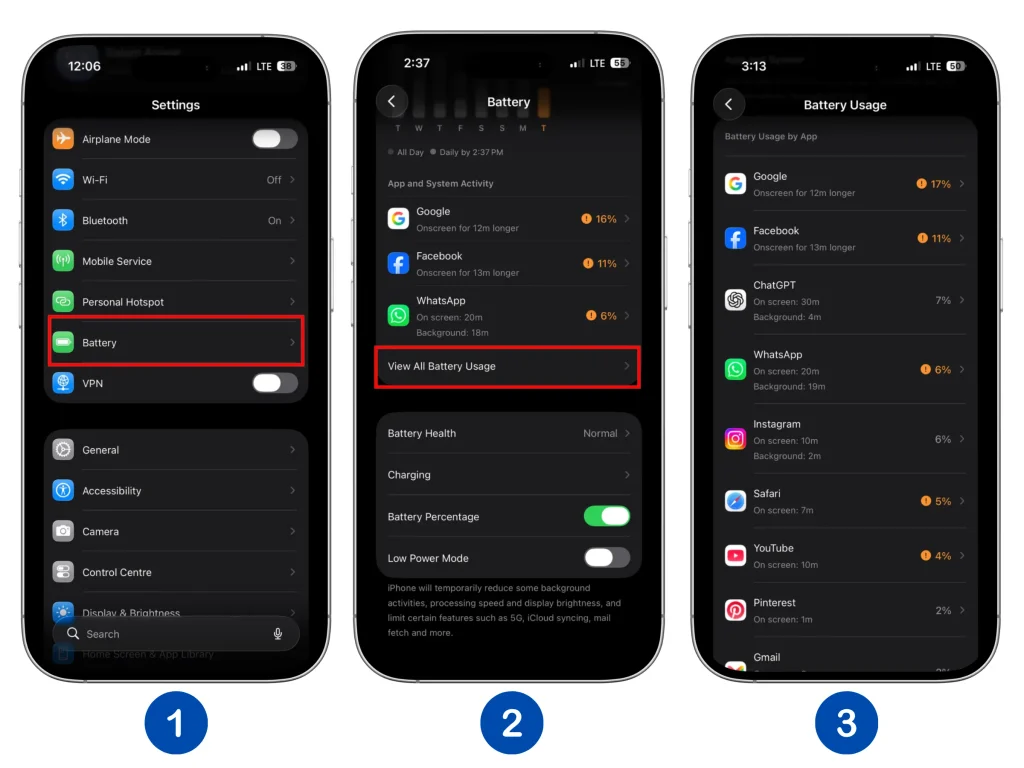
Compare the overnight battery drop with the activity recorded during those hours. The graph shows when power was used, but its shape alone cannot tell you why. Use it alongside the app and system activity details to narrow down the cause before changing settings.
Fix 1: Limit Background App Activity
In Settings > Battery, look for apps showing unexpected background activity while you were asleep. An app appearing at the top of the list isn’t necessarily a problem, especially if you used it heavily during the day. Focus on activity that overlaps with the overnight drain.
If you identify an app that seems responsible, update it from the App Store. Then go to Settings > General > Background App Refresh and turn it off for that app if you don’t need its content refreshed while you’re away. Content may take longer to update when you next open it.
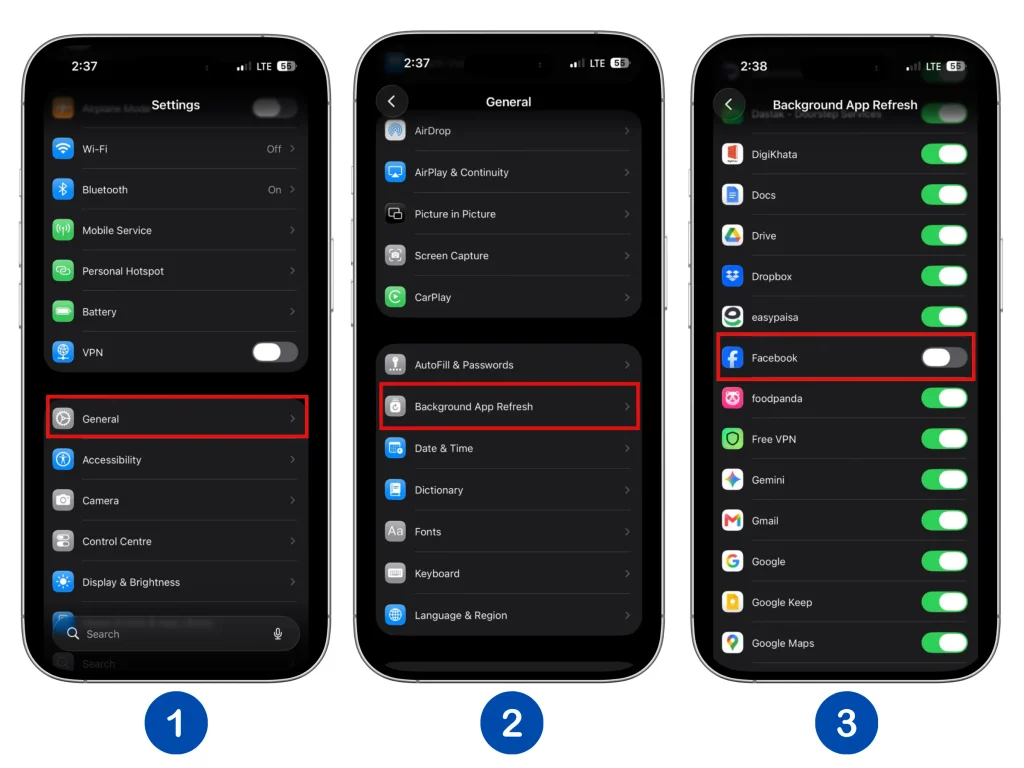
This setting doesn’t stop all background activity. Active navigation, audio playback, and some other services work separately, so also review the app’s own settings for unnecessary activity.
If the app becomes unresponsive, close and reopen it. If problems persist, consider reinstalling it, but first back up any important app data because deleting it may remove locally stored information. Check the battery usage again the following morning to see whether the change helped.
Fix 2: Check Your Cellular Signal
Weak cellular coverage can increase battery use, even when you’re not using your iPhone. If reception is poor in your bedroom, check Settings > Battery for an entry mentioning low signal or no mobile coverage.
If you don’t need cellular calls or texts overnight, try using Airplane Mode for one night and see how much battery you lose. You can turn Wi-Fi back on while leaving Airplane Mode enabled to keep internet access.
If you need to receive calls, Wi-Fi Calling may help where cellular coverage is weak, provided your carrier supports it. However, enabling it alone doesn’t guarantee lower battery drain. Before relying on it in Airplane Mode, confirm that you can receive calls with Wi-Fi connected.
Keep your iPhone connected to a strong, stable Wi-Fi network overnight. If the connection regularly drops in your bedroom, address that coverage problem too.
Fix 3: Limit Location Access
Not every app needs your location throughout the day and night. Go to Settings > Privacy & Security > Location Services and review each app’s permissions.
For apps set to Always, consider switching to While Using the App if you don’t need background location features. Choose Never for apps that have no reason to access your location. Keep in mind that restricting access may affect features such as automatic location sharing or location-based alerts.
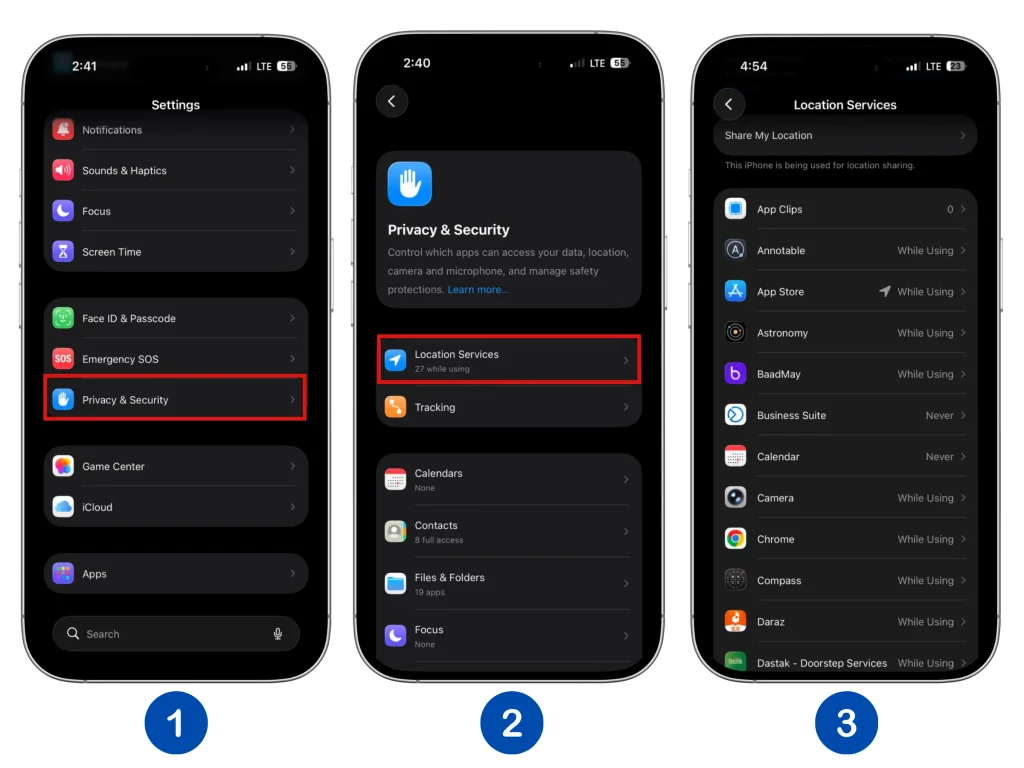
Always allowing permission doesn’t mean an app is constantly tracking you. Focus on apps showing unexpected overnight activity rather than changing every permission.
You can also review System Services at the bottom of the list, but only disable features you understand and don’t use. Reducing unnecessary location activity may help if it contributes to the drain, though the benefit will vary.
Fix 4: Update iOS
An iOS bug can sometimes contribute to overnight battery drain. Updates may resolve these issues, so go to Settings > General > Software Update and install the latest version available for your iPhone.
If the drain started immediately after an update, give it a few days before judging the result. Update-related tasks can continue in the background, temporarily increasing battery use and making your phone warmer. You may also see an Ongoing iOS Update notice in Settings > Battery.
Battery life should improve once those tasks finish. If the drain continues after a few days, check battery usage again and continue troubleshooting.
If your iPhone also feels unusually warm or sluggish, see our guide on iPhone overheating and running slow.
Fix 5: Optimize Mail Fetch Settings
If Settings > Battery shows substantial background activity for Apple’s Mail app, review how often it checks for messages. Go to Settings > Apps > Mail > Mail Accounts > Fetch New Data.
For accounts using Fetch, change frequent checks to Hourly, or choose Manually if you’re happy to check for messages yourself. This may delay new-email alerts. If you already use Automatically, keep in mind that background fetching happens while your iPhone is charging and connected to Wi-Fi.
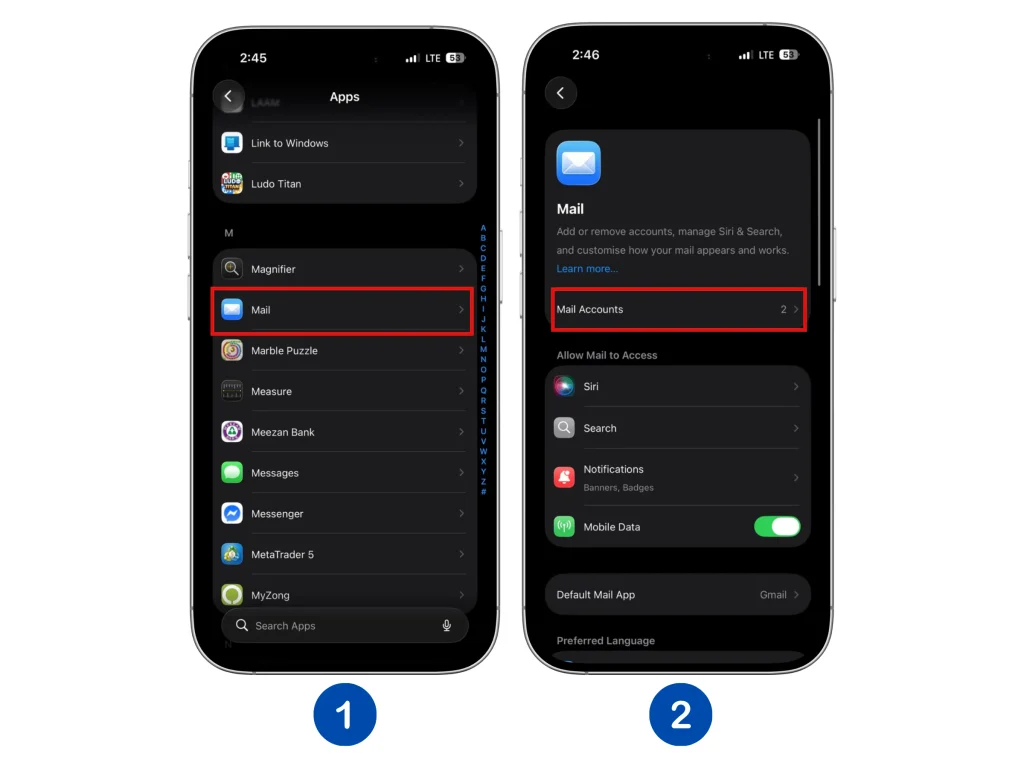
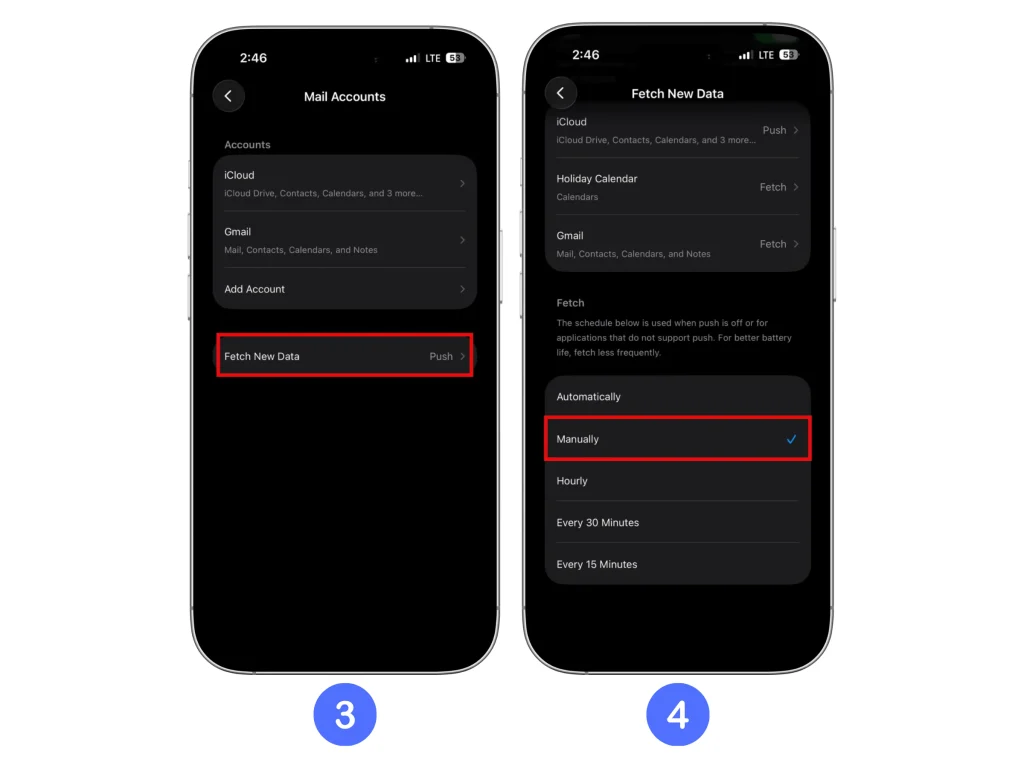
Keep Push enabled for supported accounts where prompt delivery matters. For an account you rarely use, you can turn off Mail in its account settings instead of removing the account entirely.
These settings apply to Apple Mail. Separate apps such as Gmail or Outlook manage syncing through their settings.
Fix 6: Turn Off Always-On Display
On supported iPhones, Always-On Display keeps a dimmed Lock Screen visible while the phone is locked. Turning it off may help reduce battery use if it stays active overnight.
Go to Settings > Display & Brightness > Always On Display and switch it off. Compare the battery loss over a similar overnight period.
Apple explains that the display already turns off automatically during Sleep Focus, at your usual bedtime, or when your iPhone is face down or covered. If it’s already off while you sleep, disabling the feature is unlikely to improve overnight battery life.
Fix 7: Remove Unused Lock Screen Widgets
Lock Screen widgets such as Weather, Calendar, and Fitness update their information periodically. These updates use some power, although iOS manages their frequency to limit battery consumption.
To remove widgets you rarely use, press and hold your Lock Screen, tap Customize, and select Lock Screen. Tap the widget area, use the minus button to remove unwanted widgets, then tap Done.
Try this if you suspect a widget is contributing to overnight drain, especially if its app also shows unexpected background activity. Compare battery loss over similar nights to see whether it helps.
Fix 8: Check Connected Bluetooth Accessories
Some Bluetooth accessories sync data with your iPhone in the background, but a connected accessory isn’t automatically causing excessive battery drain.
If the problem began after connecting a new accessory, or if its companion app shows unexpected overnight activity, try disconnecting that accessory for one night. Compare battery loss under similar conditions to see whether it makes a difference.
Avoid turning off Bluetooth every night without a clear reason. Apple specifically notes that disabling Bluetooth on your iPhone increases battery drain on a paired Apple Watch. Start by testing the accessory you suspect rather than disconnecting everything.
Fix 9: Check Battery Health
An aging battery holds less charge, which can shorten battery life even while your iPhone is idle. Open Settings > Battery > Battery Health on iPhone 15 and later, or Battery Health & Charging on older models. Check Maximum Capacity and any service recommendation.
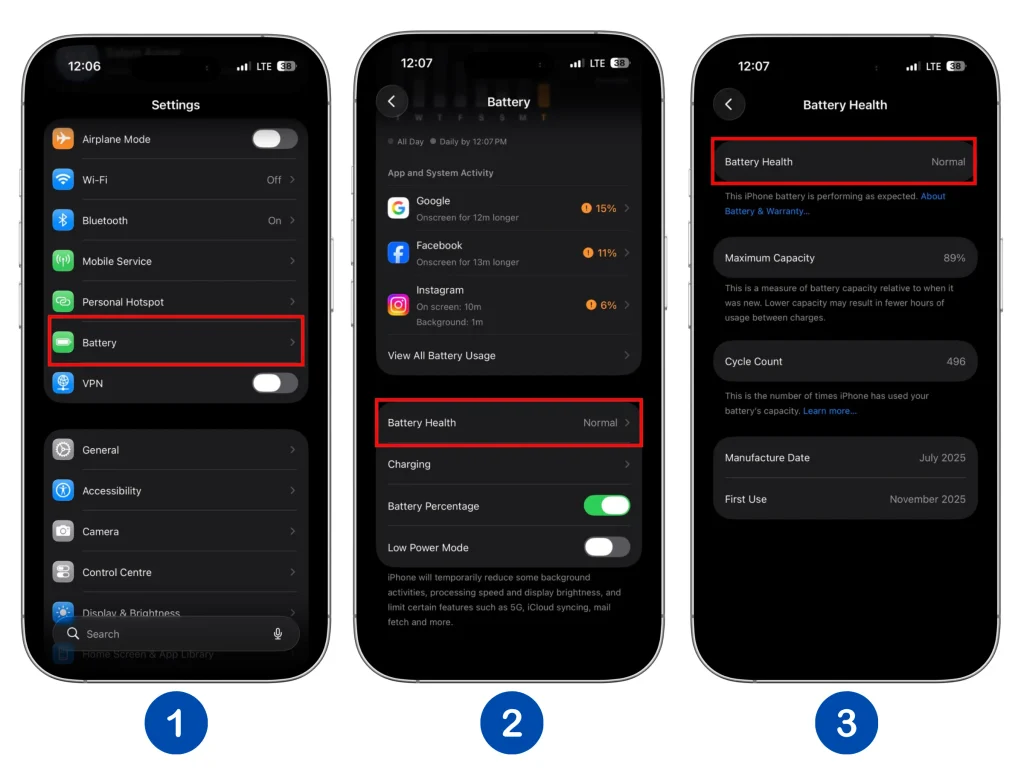
Apple says its batteries are designed to retain 80% of their original capacity after 500 complete charge cycles on iPhone 14 and earlier, or 1,000 cycles on iPhone 15 and later, under ideal conditions. Actual battery aging varies with use and charging habits.
If your iPhone recommends battery service, consider a replacement to restore capacity and performance. You don’t need to wait until Maximum Capacity falls well below 80% to seek advice about poor battery life.
However, the percentage alone won’t explain unusually high overnight drain. A reading above 80% doesn’t rule out a battery problem, and a lower reading doesn’t prove the battery is the only cause. Check overnight app and system activity too.
Fix 10: Use Low Power Mode Before Bed
Low Power Mode reduces power use by limiting features such as Background App Refresh, email fetching, and automatic downloads.
Open Settings > Battery > Power Mode, then enable Low Power Mode. On older models or iOS versions, the switch may appear directly under Battery.
Try it for one night and compare battery loss under similar conditions. If the drain improves, one or more of the features it limits may be contributing. However, this test doesn’t identify a specific app or rule out a battery problem.
We also tested Low Power Mode ourselves on an iPhone 15 to see how much battery it actually saves during real-world use.
Fix 11: Restart Your iPhone
If overnight battery drain has suddenly increased, try restarting your iPhone. A restart may clear a temporary software issue contributing to the drain, making it a useful step before more involved troubleshooting.
Use the power-off slider, wait about 30 seconds for your iPhone to shut down, then turn it back on.
Check battery usage the following morning under similar conditions. If the drain returns, review the app and system activity again rather than relying on repeated restarts.
Fix 12: Reset All Settings
If the earlier steps haven’t helped, consider Reset All Settings as a final option. It may resolve problems caused by incorrect or damaged settings, but it isn’t a guaranteed solution for overnight battery drain.
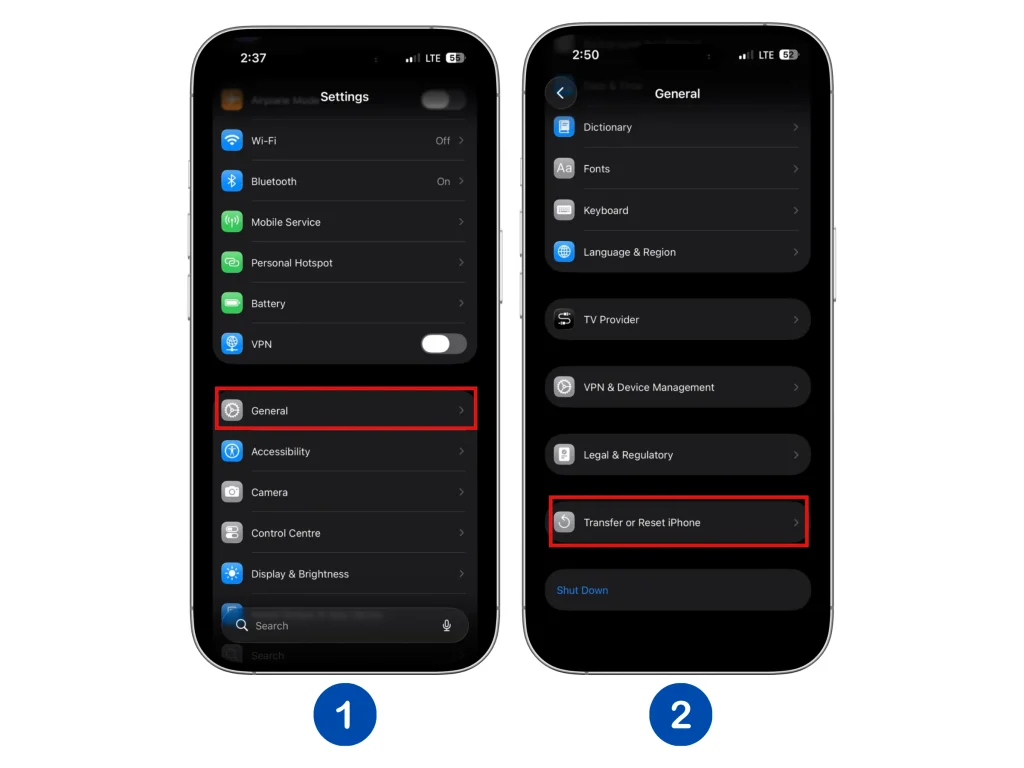
Back up your iPhone first, then go to Settings > General > Transfer or Reset iPhone > Reset > Reset All Settings. Choose this option carefully, not Erase All Content and Settings.
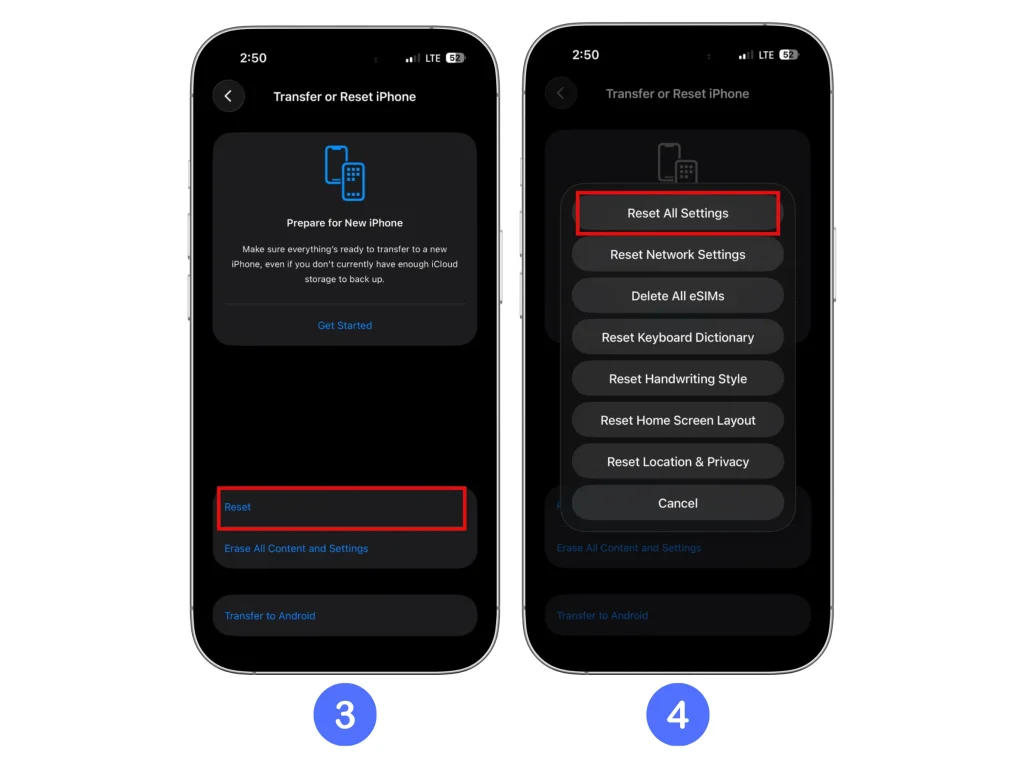
Your photos, apps, messages, and files remain intact. However, many preferences return to their defaults, and Apple Pay cards are removed. Be prepared to reconnect Wi-Fi, pair accessories and your Apple Watch, set up Face ID or Touch ID, and restore your preferred settings.
Compare battery loss over the next few nights under similar conditions. If substantial unexplained drain continues, contact Apple Support or an authorized service provider for further assessment.
Fix 13: Restore Your iPhone as a Last Resort
If substantial overnight drain continues after the earlier checks, a factory restore may help investigate a persistent software issue. First, make a backup and confirm it completed, because this process erases your personal content and settings.
For a fresh installation of iOS, follow Apple’s instructions for restoring your iPhone using a computer. Then set it up as a new device without immediately restoring your backup or reinstalling every app.
Allow initial setup and any iCloud syncing to finish before comparing battery loss over a few similar nights. If the drain improves, add apps back gradually. This may help narrow down a contributing app or setting, though it won’t prove the exact cause.
If unusually high drain continues after setup activity settles, contact Apple Support or an authorized service provider for diagnostics rather than repeating the restore.
When Overnight Battery Drain Is Temporary
Higher overnight battery use can be temporary after an iOS update, restoring a backup, or syncing a large photo library. Your iPhone may still be completing setup, processing content, or transferring data in the background.
Check Settings > Battery for notices such as Ongoing iOS Update or Ongoing Device Setup. Give these tasks a few days to finish before judging battery life. Large transfers may take longer, depending on your connection and the amount of data.
If the overnight drain returns to its usual level afterward, you may not need to do further troubleshooting. If the drain remains unusually high or worsens, check your battery usage and keep investigating.
When to Contact Apple Support
If your iPhone continues losing an unusual amount of battery overnight despite the basic checks, contact Apple Support or an Apple Authorized Service Provider. You don’t need to erase or restore your phone before asking for help. A battery or other hardware issue may need professional diagnosis.
Before contacting support, note the bedtime and morning battery percentages, how long the phone was unplugged, and what you’ve already tried. Save screenshots from Settings > Battery showing the overnight drain and app activity.
If your iPhone recommends battery service, arrange an assessment through Apple or an Apple Authorized Service Provider to discuss whether replacement is appropriate.
Final Verdict
If your iPhone battery is draining overnight, start with Settings > Battery to see what’s using power. Background activity, weak cellular coverage, and tasks finishing after an update can all contribute.
Try the relevant fixes one at a time, comparing battery loss over similar nights. After an update or restore, allow background setup tasks to finish before judging the result.
Some overnight drain is expected, but a persistent increase deserves attention. If the basic checks don’t help, or your iPhone recommends battery service, contact Apple Support or an authorized service provider to identify the cause.
Frequently Asked Questions
Why is my iPhone battery draining overnight?
Your iPhone still uses power for network connections and background activity while you sleep. Weak cellular coverage, app activity, and tasks finishing after an update can increase that use. Some drain is expected, but there’s no single percentage that is normal for every iPhone. Investigate a persistent increase from your usual overnight loss.
How do I fix iPhone battery draining overnight?
Start with Settings > Battery and review activity during the overnight period. Update apps showing unexpected activity, limit unnecessary Background App Refresh, and check cellular reception. Try changes individually and compare similar nights. Airplane Mode can help test poor coverage as a cause, but it disables cellular calls and texts.
Is iPhone battery drain while idle normal?
Yes. Turning off the screen doesn’t stop all background activity. The amount of battery used depends on signal strength, running tasks, battery condition, and how long the phone stays unplugged. If idle drain suddenly increases or remains unusually high, check the battery usage details.
Does Low Power Mode stop overnight battery drain?
No, but it may reduce it by limiting features such as Background App Refresh, email fetching, and automatic downloads. You can use it regularly if those limitations suit you. However, an improvement doesn’t prove what caused the drain or rule out a battery problem.
When should I replace my iPhone battery?
Consider an assessment if your iPhone recommends battery service or its reduced runtime no longer meets your needs. Maximum Capacity below 80% is a reason to discuss replacement, but the percentage alone isn’t a complete diagnosis. Persistent unexplained drain deserves investigation even when capacity remains above 80%.