
Table of Contents
Introduction
If your Samsung phone suddenly starts draining its battery faster while connected to UScellular, the network may be part of the problem. A weak or unstable cellular signal can make a Galaxy phone work harder to maintain its connection, which can increase power use.
If you think UScellular is draining battery on Samsung, that doesn’t automatically mean the carrier is responsible. Battery drain can also come from 5G coverage, background apps, software, network settings, or an aging battery. Before replacing the battery or resetting the phone, try these nine fixes to narrow down what’s causing the drain.
1. Check Your UScellular Signal Strength
Start by checking the cellular signal in the places where you use your Samsung phone most. When coverage is weak or unstable, the phone may use more power trying to maintain a connection. You can also check UScellular’s coverage information to see whether the areas where you experience the problem have known coverage limitations.
You may notice the signal dropping, the phone switching between 5G and LTE, or service disappearing temporarily. Samsung lists unstable network connections as one possible cause of increased battery consumption.
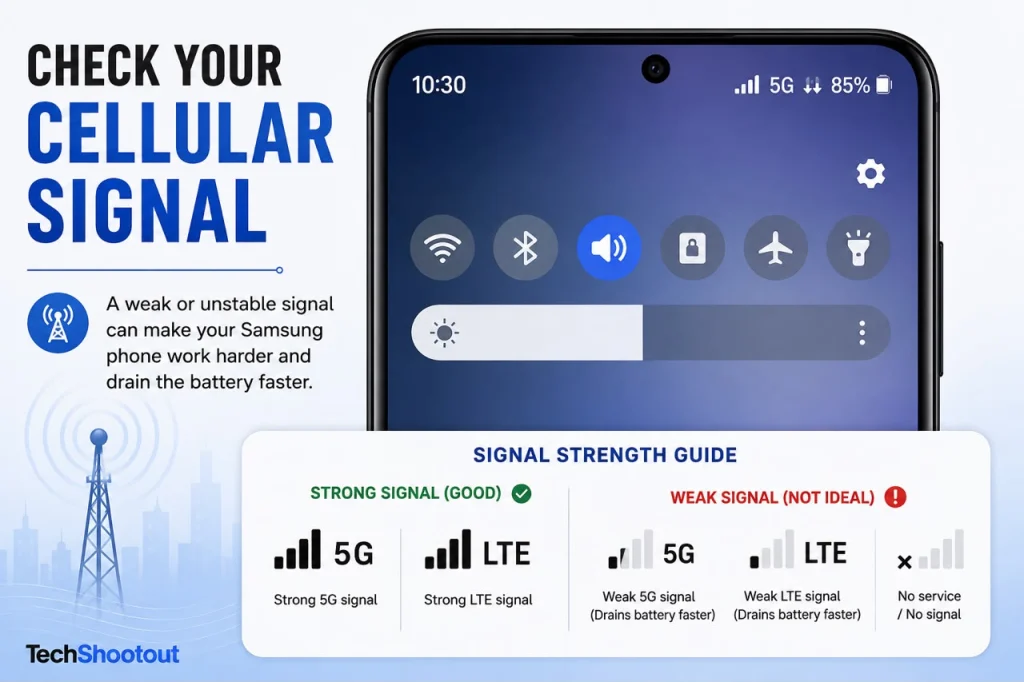
Try using the phone in an area where the UScellular signal is stronger and compare the battery drain. For example, if your Samsung battery is draining fast on UScellular at home but lasts normally in another location with better coverage, network conditions may be part of the reason.
2. Switch From 5G to LTE and Compare Battery Life
5G can deliver faster mobile data speeds, but it can affect battery life, particularly when your phone is dealing with inconsistent network coverage. If UScellular’s 5G signal is weak in your area, temporarily switching to LTE can help you determine whether the cellular connection is contributing to the drain.
On many Galaxy phones, you can find the setting under Settings → Connections → Mobile networks. Look for Network Mode or a similar option. The available choices vary by Galaxy model and One UI version.
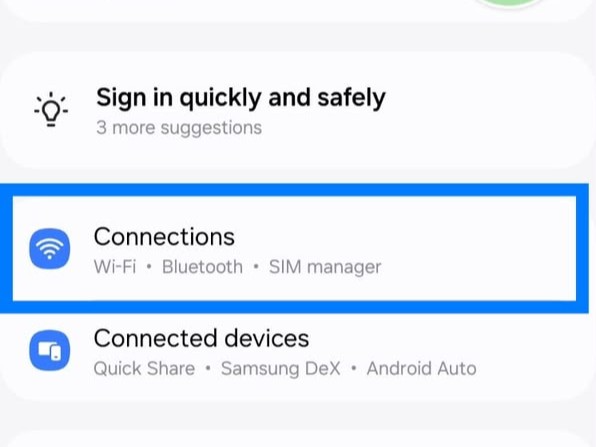
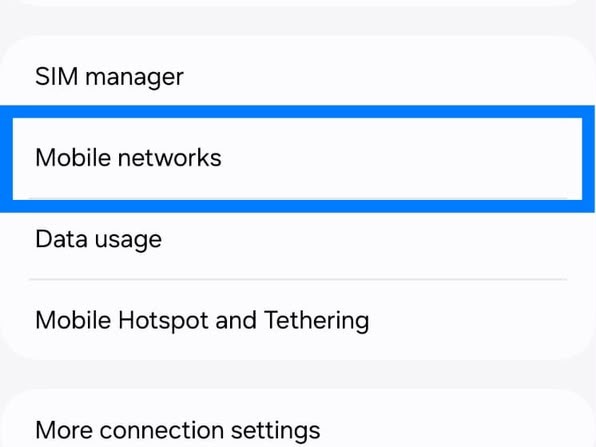
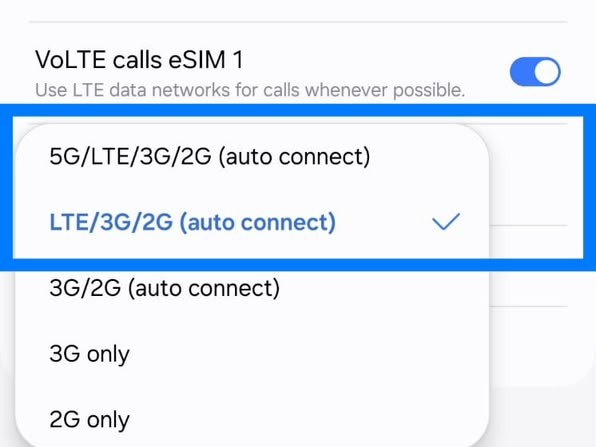
If your phone provides an LTE option, select it and use the phone normally for a few hours. If the battery lasts noticeably longer, inconsistent 5G coverage could be one cause of the UScellular battery drain on Samsung.
3. Check Which Apps Are Draining Your Battery
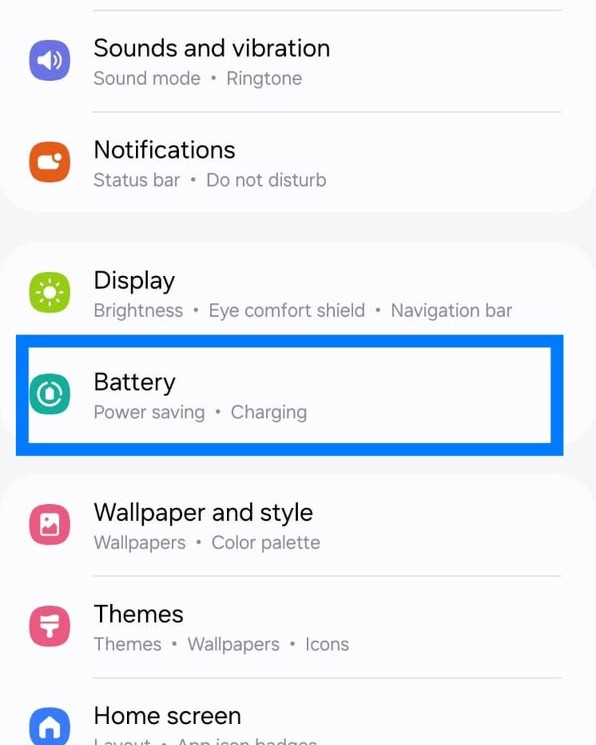
Before blaming the network, examine your Samsung’s battery usage. Go to Settings → Battery → Battery usage. The menu names may vary by Galaxy model and One UI version.
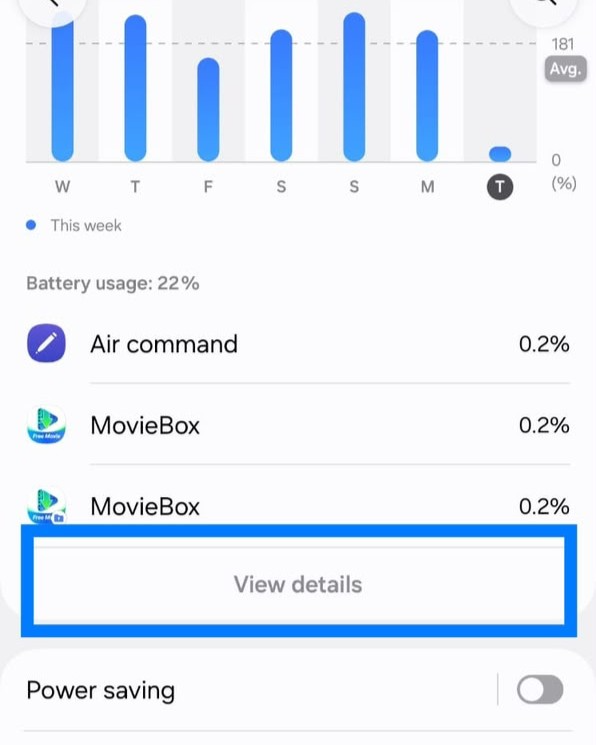
Look for apps or services using an unusually large amount of power. Navigation, social media, video streaming, mobile games, VPNs, and frequent location use can all contribute to faster battery drain. If your Galaxy is also charging more slowly than usual, check our guide on Samsung fast charging not working
If UScellular is draining battery on Samsung but one app is responsible for most of the usage, the problem may actually be coming from the app rather than the network. Samsung’s battery and device-care features can also help you identify heavy usage and manage background activity, depending on your Galaxy model.
4. Limit Background Apps
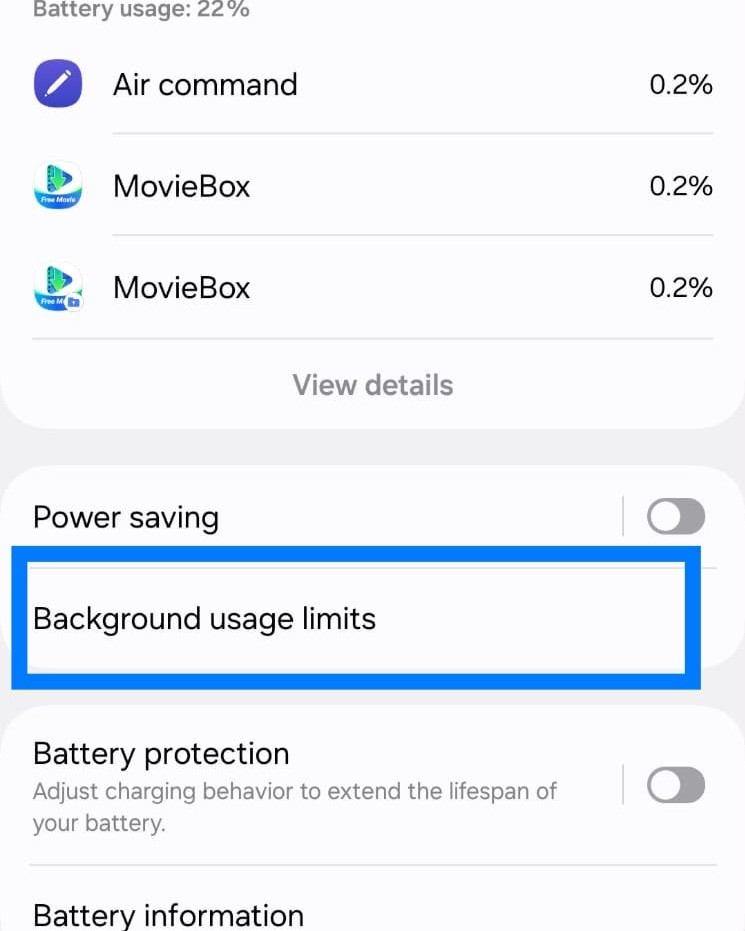
Apps don’t always stop working when you leave them. Some can continue using the processor, mobile data, location services, or syncing in the background. Samsung’s Background usage limits can help reduce that background activity.
Depending on your Galaxy model, go to Settings → Battery → Background usage limits. You may see options such as Sleeping apps, Deep sleeping apps, and Apps that never sleep.
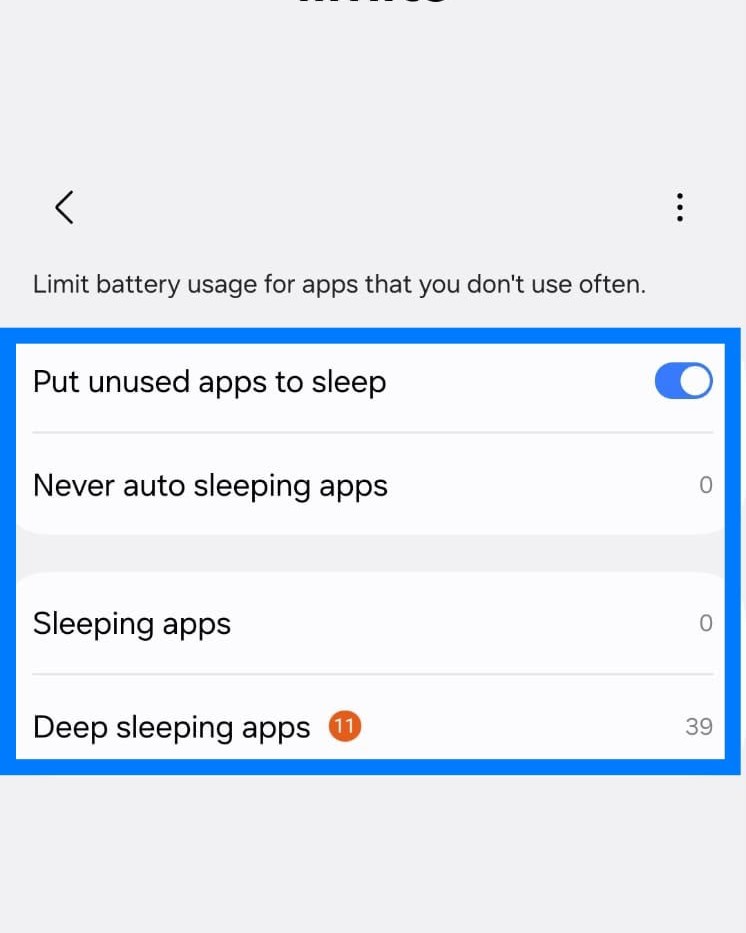
Consider adding apps you rarely use to Sleeping apps or Deep sleeping apps. Be careful with apps that you need to work in the background, though. Communication, security, navigation, and other important apps may not function as expected if their background activity is restricted.
If an app is constantly using mobile data in the background, limiting it may reduce battery consumption. It can also help you determine whether the app or the network is contributing to the drain.
5. Restart Your Samsung Galaxy
If the battery drain started suddenly, restart your Galaxy before trying more complicated fixes. A temporary software or network glitch can sometimes cause unusual battery drain, especially after an update, a change in network conditions, or a long period without restarting the phone.
Restart the phone, then use it normally for the next several hours and see whether the battery drain improves. If the drain disappears after the restart but eventually comes back, move on to the other fixes rather than repeatedly restarting the phone.
6. Update One UI and Your Apps
An outdated version of One UI, Android, or an app can sometimes contribute to unusual battery drain. Check for a Samsung software update under Settings → Software update → Download and install.
Samsung’s software-update instructions can vary slightly by device and software version, so check its support documentation if the menu looks different.
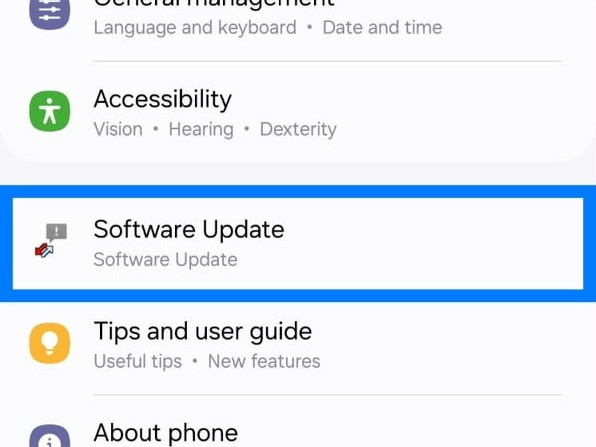
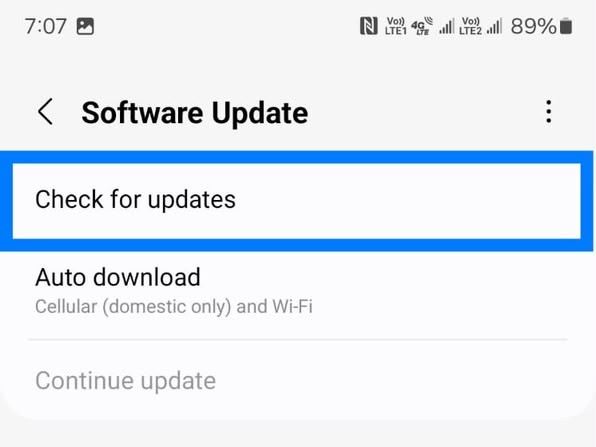
If you’re dealing with UScellular causing battery drain on Samsung, updating the phone and its apps can help rule out a software-related problem, especially if the drain started after a recent software or network change.
If the problem began immediately after an update, however, don’t assume the update is the cause. Keep monitoring battery usage and see whether the drain mainly occurs when you’re using cellular services.
7. Reset Network Settings
If the battery drain seems tied to cellular connectivity, resetting your network settings is worth trying. On many Samsung Galaxy phones, go to Settings → General management → Reset → Reset network settings. The menu names may vary by model and software version.
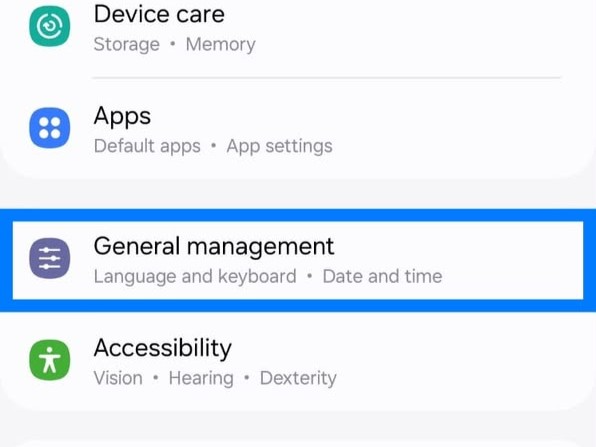
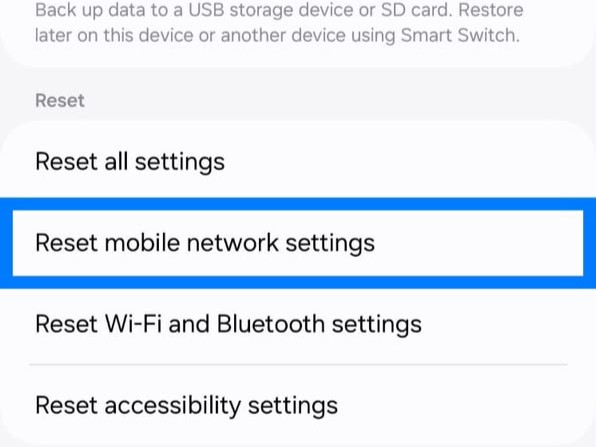
Keep in mind that resetting network settings can remove saved Wi-Fi and Bluetooth connections and reset other network settings. You’ll need to reconnect to your Wi-Fi networks afterward.
This can be particularly useful if your Samsung started having cellular connection or battery issues after a SIM, eSIM, network, or other carrier-related change. If a network configuration issue is contributing to the drain, resetting them may help resolve it.
8. Use Safe Mode to Find Problematic Apps
If your Samsung battery drains while you’re connected to UScellular, an app running in the background could still be responsible. Samsung’s Safe Mode temporarily prevents downloaded apps from running, making it useful for checking whether a third-party app is contributing to the battery drain.
Once you’ve finished testing, you can use our guide on how to turn off Safe Mode on Android if your phone remains in Safe Mode.
To test your phone, open the power menu, press and hold Power off, and then tap Safe mode. Use the phone normally for a while, then compare its battery life with what you see outside Safe Mode. If the battery lasts noticeably longer in Safe Mode, a recently installed or updated app could be responsible.
Think about which apps were installed or updated shortly before the battery problem began. If you’re seeing Samsung battery draining with UScellular only under certain conditions, this test can help determine whether an app is contributing to the problem.
9. Contact Your Carrier if the Problem Follows the Network
If you’ve tried the steps above and the battery still drains unusually fast while connected to your carrier’s network, it may be time to contact your carrier for help.
Pay attention to patterns such as your phone constantly switching between network types or showing a consistently weak cellular signal in places where you normally use it. It can also be a clue if the phone gets unusually warm on mobile data or the battery drains much faster on cellular data than on Wi-Fi.
Also note whether the problem started after a SIM, eSIM, network, or carrier change or whether other Samsung phones in the same location show similar network behavior. These clues can help distinguish a network-related issue from a problem with the phone itself.
If the problem appears only in certain locations, check your carrier’s coverage information and contact its support team if the issue persists. The carrier can help troubleshoot account, SIM/eSIM, and network-related problems.
Is UScellular Actually Causing the Samsung Battery Drain?
Not necessarily. If you’re wondering whether UScellular is draining battery on Samsung, that doesn’t automatically mean UScellular is directly causing the battery drain.
In some cases, the problem may come from how your Samsung phone interacts with the cellular network in your area. If coverage is weak, the phone may use more power to maintain its connection. If 5G coverage is inconsistent, switching to LTE temporarily can help you see whether it improves battery life.
At the same time, background apps, software, network settings, and the physical condition of the battery can all produce similar symptoms. That’s why it’s useful to compare battery life on cellular data and Wi-Fi instead of assuming the carrier is responsible right away.
When Should You Suspect the Battery?
If your Samsung’s battery drains quickly on both Wi-Fi and cellular, the problem may not be related to UScellular. Samsung batteries naturally lose some of their capacity as they go through charging and discharging cycles over time.
Samsung’s battery troubleshooting tools can help identify whether an app, system process, or battery-related issue is contributing instead.
Pay closer attention if your phone gets unusually hot during light use, shuts down unexpectedly, loses a lot of charge while idle, or has noticeably worse battery life than it used to. In these situations, check the phone’s battery diagnostics or have the device inspected instead of changing network settings.
Final thoughts
If you think UScellular is draining battery on Samsung, don’t immediately assume the carrier is directly responsible.
Start with the easiest checks: look at your signal strength, compare 5G with LTE, and inspect Samsung’s battery usage screen. Then move on to background apps, restarting the phone, software updates, network settings, and Safe Mode.
If the drain appears mainly during cellular use, network conditions may be involved. If the drain is about the same on Wi-Fi, look more closely at apps, software, and the battery itself.
The most useful clue is not simply how fast the battery drops. It’s when and where the drain happens. That pattern can help determine whether the problem is related to UScellular connectivity, a Samsung setting, an app, or an aging battery.
FAQs
Why is my Samsung battery draining fast on UScellular?
If your UScellular signal is weak, your Samsung phone may use more power trying to stay connected, which can drain the battery faster. But it’s not always the signal. 5G use, background apps, outdated software, network settings, or an aging battery can also contribute to the problem.
Can a weak UScellular signal drain my Samsung battery?
It can, especially if 5G coverage is weak or inconsistent in your area; your Samsung may use more power to maintain a connection. If your battery lasts longer in an area with stronger UScellular coverage, network conditions may be causing the drain.
Does turning off 5G improve Samsung battery life on UScellular?
Yes, especially if 5G coverage is weak or inconsistent in your area. Try switching to LTE temporarily and use your phone normally for a few hours. If battery life improves noticeably, inconsistent 5G coverage may be contributing to the drain.
How do I fix UScellular battery drain on Samsung?
If your Samsung battery is draining while you’re using UScellular, start by checking your signal strength and battery usage. If 5G coverage is inconsistent, switch to LTE temporarily and see whether battery life improves. You can also restrict background apps, restart the phone, install software updates, reset network settings, or use Safe Mode to rule out an app.