
Contents
Introduction
You can record a phone call directly from the Phone app if Apple’s call recording feature is available on your iPhone and in your region. During a connected call, tap More, then Call Recording. Both participants hear an announcement that the call is being recorded, and the finished recording is saved automatically in the Notes app.
The built-in feature supports regular phone calls and FaceTime audio calls, so you don’t need a separate recording app. However, availability varies by iOS version, language, and region. The option can also be turned off in your phone settings.
This guide explains how to record a phone call on iPhone, where to find saved recordings, how transcripts and summaries work, and what to check if the recording option is missing.
Is Recording a Phone Call Legal?
Whether you can legally record a phone call depends on where you are located and which laws apply. Some places allow one-party consent, meaning your own consent may be enough if you are taking part in the call. Others require consent from everyone involved. Additional rules may apply to workplace and business calls.
Apple’s audio announcement notifies both participants, but it may not satisfy every legal requirement. Please obtain clear permission before starting the recording, and verify the applicable rules through an official source or a qualified legal professional if you are unsure. This article provides general information, not legal advice.
What You Need Before Recording a Call
Before recording a call on your iPhone, check the following.
iOS 18.1 or Later
Built-in call recording requires iOS 18.1 or later. Go to Settings > General > Software Update to check for updates. Updating your iPhone does not remove regional restrictions.
Availability in Your Region
Call recording is not available everywhere. Apple currently lists the European Union, Pakistan, the United Arab Emirates, Saudi Arabia, Turkey, South Africa, and Nigeria among the unsupported locations.
Check Apple’s call recording guide for regional restrictions and its Feature Availability page for supported languages.
Call Recording Enabled
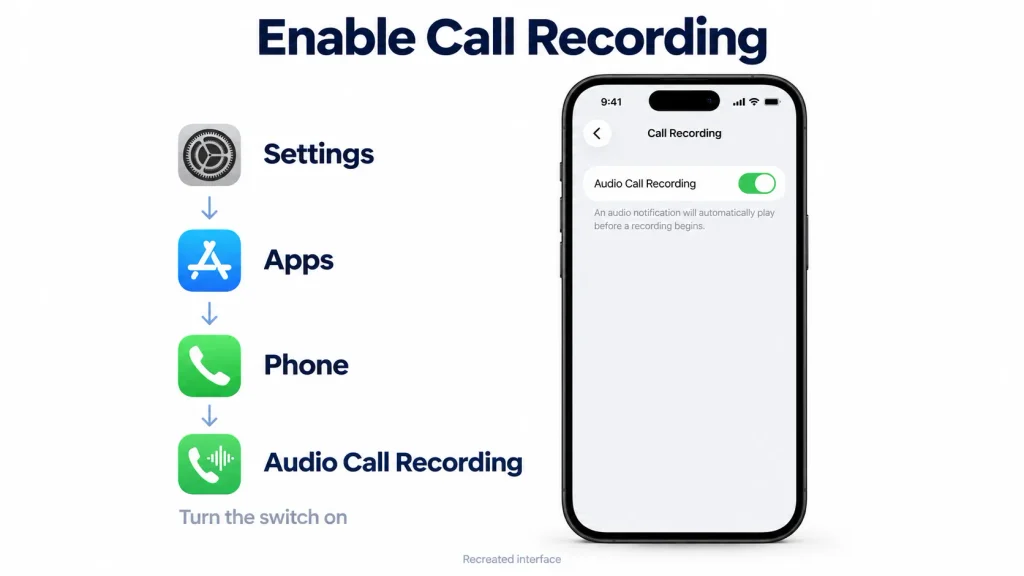
Call recording is enabled by default, but it may have been switched off. Go to Settings > Apps > Phone > Audio Call Recording and make sure the option is turned on.
Permission of Participant
Ask the other person for permission before starting. Apple’s announcement informs both participants that the call is being recorded, but you still need to follow the applicable laws.
How to Record a Phone Call on iPhone
Once you’ve checked availability and obtained the other person’s permission, follow these steps:
- Open the Phone app and make or answer a call.
- Wait until the call connects.
- Tap More, then Call Recording.
- Wait for the announcement informing both participants that the call is being recorded.
- Tap the Stop button when you’ve finished recording or end the call.
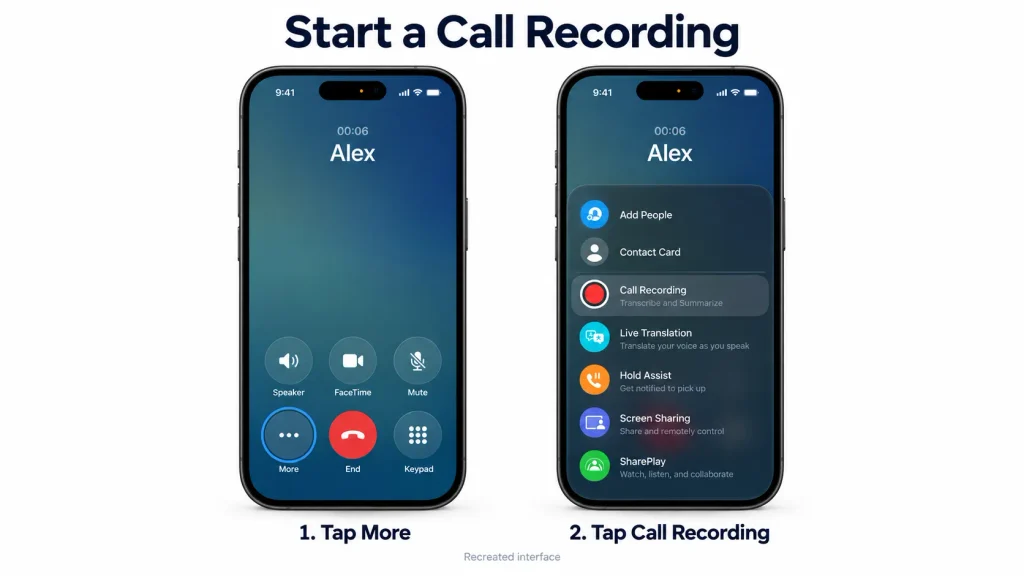
Ending the call automatically stops the recording. Your iPhone saves it in the Call Recordings folder in Notes. Tap View Saved Call to open it.
If your call screen looks different, check Apple’s official call recording instructions and select the guide for your iOS version.
Can You Record Incoming Calls on iPhone?
Yes, if Apple’s built-in call recording feature is available on your iPhone and in your region. Incoming and outgoing calls use the same process.
Answer the call, then tap More > Call Recording once connected. Both participants hear Apple’s announcement before recording begins.
Why Does Apple Announce the Recording?
Apple plays an automatic audio announcement so both participants know the call is being recorded. This helps protect both participants’ privacy by making them aware that the conversation is being recorded.
There is no separate iPhone setting to turn off this announcement while keeping Apple’s built-in call recording enabled.
Where Are iPhone Call Recordings Saved?
Your iPhone saves call recordings in the Call Recordings folder in the Notes app. To listen, open Notes, enter the folder, select the note containing your call, and tap Play.
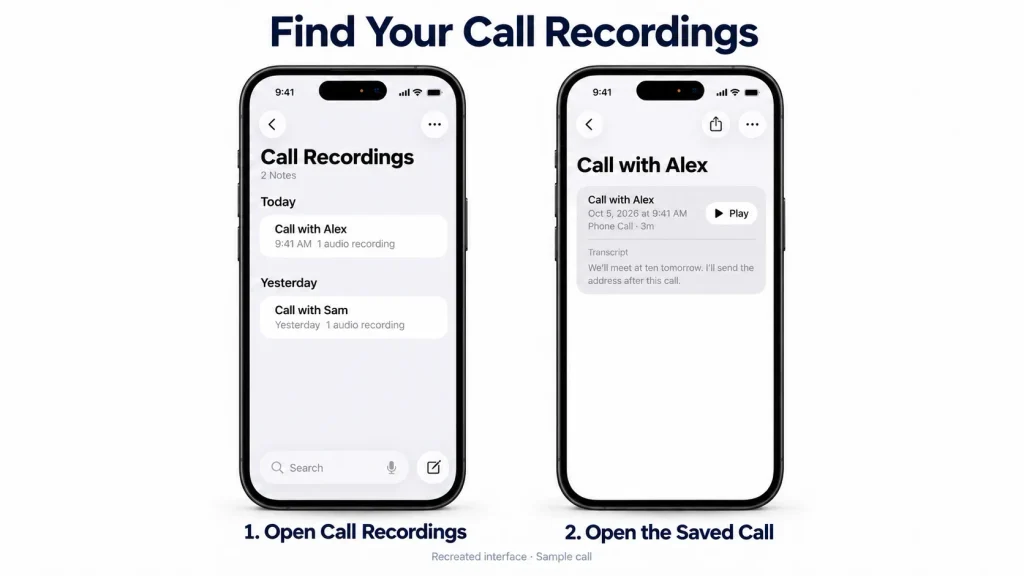
You can also tap View Saved Call after recording to open the note directly. A transcript may also be available, depending on your device, language, and region.
How Call Transcripts and Summaries Work
Call recording saves the audio, transcription turns speech into text, and an AI summary highlights the main points.
| Feature | What It Does | Main Requirements |
|---|---|---|
| Call recording | Saves the conversation as audio | iOS 18.1 or later, with supported language and regional availability |
| Call transcription | Converts speech into text | Supported iPhone, spoken language, and region |
| Call summary | Creates a short AI-generated overview | Apple Intelligence is enabled on a compatible iPhone, with supported language and regional availability |
To read an available transcript, open the call’s note in Notes, then tap the recording. The transcript labels speakers and lets you select text to play that part of the conversation.
Transcription may take time to finish and can contain mistakes. Check important names, numbers, and instructions against the original audio. Review AI summaries too, as they can miss details or misinterpret what was said.
If summaries are available, tap Summary to view an overview of the call. Our Apple Intelligence guide explains which devices support Apple’s AI features and how they work.
How to Share or Export a Recorded Call
To share or export a recording, open Notes > Call Recordings, select the note containing your call, and tap the recording. Tap More, then choose Share Audio to send it through an available app or Save Audio Files to save a copy in Files.
If a transcript is available, you can also select Copy Transcript or Add Transcript to Note. Before sharing, check for sensitive information and make sure the recipient has access.
Why Can’t I Find Call Recording on My iPhone?
If Call Recording is missing, check these possible causes.
Regional Restrictions: Call recording is unavailable in some locations, even on updated iPhones. Check Apple’s call recording guide for regional restrictions and its Feature Availability page for supported languages.
Recording Disabled: Go to Settings > Apps > Phone > Audio Call Recording and make sure it is enabled. If the setting is missing, check your iOS version and regional availability.
Outdated iOS: Call recording requires iOS 18.1 or later. Open Settings > General > Software Update to check for updates. Updating does not remove regional restrictions.
Unsupported Call: Try a connected, one-to-one phone call or FaceTime audio call. These recording instructions do not apply to calls inside third-party apps.
Device Restrictions: Companies and schools can disable call recording on supervised iPhones. Ask your IT administrator whether this restriction applies to your device.
Software Glitch: If all requirements are met, restart your iPhone and try another one-to-one call. Contact Apple Support if the option remains missing.
Built-In Call Recording vs Third-Party Apps
Apple’s built-in recorder is usually the simplest option when available. You start recording from the call screen and access the saved audio in Notes.
Third-party services work differently. Some merge a recording line into a conference call, while others handle calls through their own apps. Setup, carrier requirements, costs, and storage policies vary by provider.
| Feature | Apple’s Built-In Recording | Third-Party Services |
|---|---|---|
| Recording method | Built into the call interface | May use a recording line or a separate calling app |
| Extra app | No separate recording app needed | Depends on the service |
| Recording announcement | Automatic | Varies by service |
| Storage | Notes, with possible iCloud syncing | Provider storage, app storage, or exported files |
| Transcription | Requires a supported device, language, and region | Availability and pricing vary |
| Cost | No separate recording fee | May require payment or a subscription |
| Privacy considerations | Notes account, iCloud settings, and sharing permissions | Provider access, processing, retention, and deletion policies |
Before choosing a third-party service, check its carrier and regional requirements. Read its privacy policy to understand whether recordings are uploaded to its servers, how long they are kept, and what happens when you delete them.
Final Thoughts
Learning how to record calls on iPhone is straightforward once you know where Apple placed the control. During a connected call, tap More > Call Recording, wait for the announcement, and find the saved audio later under Notes > Call Recordings.
The main limitation is availability. Your iPhone needs compatible software, the feature must be available in your region, and recording must be enabled in Phone settings. Before recording anyone, make sure they know and follow the consent rules that apply to the conversation.
FAQs
How Do You Record a Phone Call on iPhone?
If the feature is available, make or answer a one-to-one call, then tap More > Call Recording. Both participants hear an announcement. When recording stops, the audio is saved in Notes > Call Recordings.
Can you record a phone call on an iPhone without an app?
Yes. Apple’s built-in recorder works without downloading an additional app, provided your iPhone meets the software, language, and regional requirements.
Can You Record Incoming Calls on iPhone?
Yes, where Apple’s call recording feature is available. Answer the call, then tap More > Call Recording once connected. Both participants hear the recording announcement.
Where Are iPhone Call Recordings Saved?
Recordings are saved in the Call Recordings folder in Notes. Open the note containing your call to play the audio or access sharing, export, and deletion options.
Does iPhone Call Recording Require Apple Intelligence?
No. Basic call recording does not require Apple Intelligence. AI-generated summaries require Apple Intelligence to be enabled on a compatible iPhone, with supported language and regional availability.
Can You Record a Call Without the Other Person Knowing?
Apple’s built-in recorder automatically announces the recording to both participants. There is no separate setting to disable this announcement while keeping recording enabled.
Why Is Call Recording Missing From My iPhone?
Check your region, language, iOS version, and Settings > Apps > Phone > Audio Call Recording. The option may also be restricted on a managed device or unavailable for the type of call you are making.
Is iPhone Call Recording Legal?
It depends on the applicable laws. Some places allow one-party consent, while others require everyone’s permission. Check the rules that apply to both participants before recording.
What Can I Do if Built-In Call Recording Is Unavailable?
Consider a third-party recording service that supports your country and carrier. Check its recording method, costs, privacy policy, and deletion options, and make sure your use complies with the applicable laws.