
Contents
Introduction
If your iPhone is charging slowly, it’s natural to worry that the battery needs replacing. But the cause could be a low-power charger, a damaged cable, debris in the charging port, or excess heat.
Charging settings and demanding apps can also affect how quickly the battery fills. Sometimes, your iPhone slows or pauses charging to protect its battery, so a delay does not always indicate a fault.
Before spending money on new accessories or a repair, try these 11 fixes. Work through the checks one at a time to narrow down the cause and see whether charging improves.
Why Is Your iPhone Charging Slowly?
If your iPhone is charging slowly, the cause could be excessive heat, a low-power charger, a damaged cable, debris inside the charging port, or one of Apple’s battery-protection features.
Your iPhone monitors its temperature while charging. If it becomes too warm, charging may slow down or stop temporarily until the device cools. Apple recommends charging and using an iPhone in an environment between 32°F and 95°F (0°C and 35°C).
Charging speed also depends on the power adapter and cable. iPhone 8 and later models support fast charging, but they need a compatible USB-C power adapter and the correct cable. A low-wattage adapter or some computer USB ports may provide less power, resulting in longer charging times.
Your charging equipment can also develop problems over time. Cables may fray or suffer internal damage near the connectors, while pocket lint and dust can prevent a secure connection inside the charging port.
Keep in mind that an iPhone normally charges more slowly as the battery approaches full capacity. Charging may also pause around 80% because of heat, Charge Limit, or Optimized Battery Charging.
The troubleshooting steps below will help you identify the cause and get your iPhone charging normally again
How to Fix an iPhone Charging Slowly (11 Easy Fixes)
If your iPhone is charging slowly, it’s natural to want to go straight to the advanced fixes, but it’s better to follow these steps in order.
1. Check Your Charger and Charging Cable
A faulty cable or an unsuitable charger can cause slow charging on your iPhone, so start by checking both. Even a charger that works properly may charge slowly if it cannot provide enough power.
Inspect the cable for fraying, exposed wires, bent connectors, or burn marks. If you notice any damage, please stop using it. If charging cuts in and out or only works at an angle, try a different cable. A loose or dirty charging port can cause similar symptoms, so the cable is not always to blame.
Check the adapter for cracks, bent prongs, or burn marks too. Avoid using a damaged adapter, even if it still charges your phone.
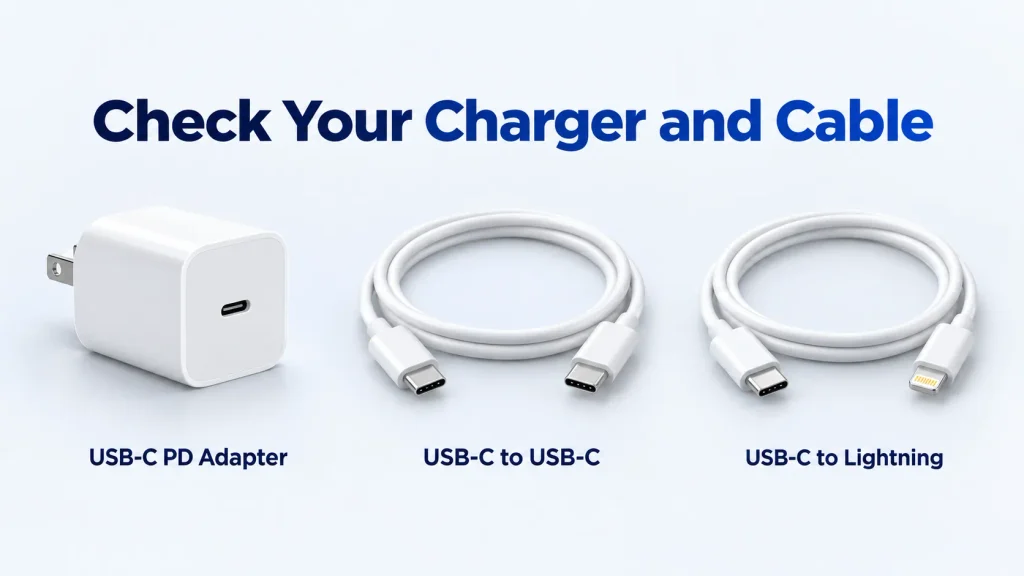
If everything looks intact, test a different compatible cable, then a different charger, changing one at a time. If charging improves under similar conditions, the accessory you replaced may be faulty or limiting the charging speed.
For an iPhone with a Lightning port, choose an Apple or MFi-certified cable. If you have a USB-C iPhone, use a cable that meets the USB-C standard. To enable fast charging on supported models, use the appropriate cable along with a compatible USB-C Power Delivery (PD) adapter.
2. Use a Faster Power Adapter
If you’re still using an older 5W adapter, switching to a compatible 20W USB-C Power Delivery (PD) charger can noticeably reduce charging time. A charger does not have to be faulty to cause slow charging; it may simply provide less power than your iPhone can use.
A 20W adapter supports fast charging on many iPhones, although some newer models need a more powerful adapter to reach their fastest advertised speeds. Use a compatible cable too: USB-C to USB-C for iPhones with a USB-C port, or USB-C to Lightning for models with a Lightning port.
Charging from a computer or USB hub can also be slower if the port provides limited power or shares it with other devices. If you normally charge this way, try a compatible USB-C PD adapter plugged into a wall outlet.
Not sure whether your adapter is suitable? Check its output rating and USB PD support on the label or in its specifications, then compare these with Apple’s fast-charging recommendations for your iPhone model.
Which iPhones Support Fast Charging?
iPhone 8 and later, including iPhone SE (2nd and 3rd generation), support wired fast charging with a compatible USB-C Power Delivery (PD) adapter and cable.
A 20W adapter supports fast charging on many models, but some newer iPhones need more power for their fastest charging speeds. Check Apple’s recommendations for your iPhone model before choosing an adapter.
If you’re concerned about using a higher-wattage charger regularly, our guide to whether fast charging is bad for iPhone battery includes a real iPhone 15 charging test and long-term battery health data.
Approximate Fast-Charging Times
Charging time depends on your iPhone model, starting battery level, temperature, and whether you use the phone while charging. These examples reflect Apple’s advertised wired fast-charging results from a drained battery, rather than guaranteed everyday times.
| iPhone Model | Compatible Adapter | Approximate Time to Reach 50% |
|---|---|---|
| iPhone 15 | 20W USB-C PD or higher | Around 30 minutes |
| iPhone 17e and iPhone Air | 20W USB-C PD or higher | Around 30 minutes |
| iPhone 17, 17 Pro, and 17 Pro Max | 40W USB-C PD or higher | Around 20 minutes |
| iPhone 18 Pro and 18 Pro Max | Apple 40W Dynamic Power Adapter with 60W Max | Around 15 minutes |
Use a compatible charging cable and check Apple’s fast-charging guidance for your model. Taking longer than these estimates does not necessarily mean your charger is faulty.
You can use a compatible higher-wattage USB-C PD charger. A 65W adapter, for example, does not force 65W into your iPhone; the phone controls how much power it draws.
3. Check the Charging Port for Debris
Pocket lint and dust can build up inside the charging port and prevent the cable from connecting securely. This can interrupt charging or stop it altogether.
Unplug the cable, turn off your iPhone, and use a flashlight to inspect the port. Avoid digging inside with toothpicks, pins, or paper clips, as these can damage its delicate components. Do not use compressed air or put cleaning liquids into the port.

You can wipe around the opening and clean the disconnected cable’s connector with a soft, dry, lint-free cloth. Do not push the cloth inside the port.
If debris is packed inside or the cable will not fit securely, have Apple or a qualified repair technician inspect and clean it. Once the obstruction is removed, reconnect the cable and check whether charging improves.
4. Let Your iPhone Cool Down
Some warmth during charging is normal. However, if your iPhone gets too hot, iOS can slow or pause charging to protect the device. You may see a “Charging On Hold” message.
Gaming, recording video, using navigation, or leaving your phone in direct sunlight can increase its temperature, especially while charging.
If your iPhone feels unusually hot, unplug it, stop using demanding apps, and move it to a cool, shaded place. Remove the case if it is trapping heat. If a temperature warning appears, turn the phone off until it cools down.
Let it cool naturally rather than putting it in a refrigerator or freezer. Once it returns to a normal temperature, reconnect the charger.
If overheating keeps happening, see our guide to iPhone overheating and running slow for more troubleshooting steps.
5. Check Your Battery Health
Every rechargeable battery gradually loses capacity as it ages. After hundreds of charge cycles, your iPhone may take longer to charge and won’t hold as much power as it did when it was new. If battery health has dropped significantly, replacing the battery may restore normal performance.
To check your battery, open Settings > Battery. On iPhone 15 and later, tap Battery Health. On iPhone 14 and earlier, tap Battery Health & Charging. Maximum Capacity shows how your battery’s current capacity compares with when it was new.
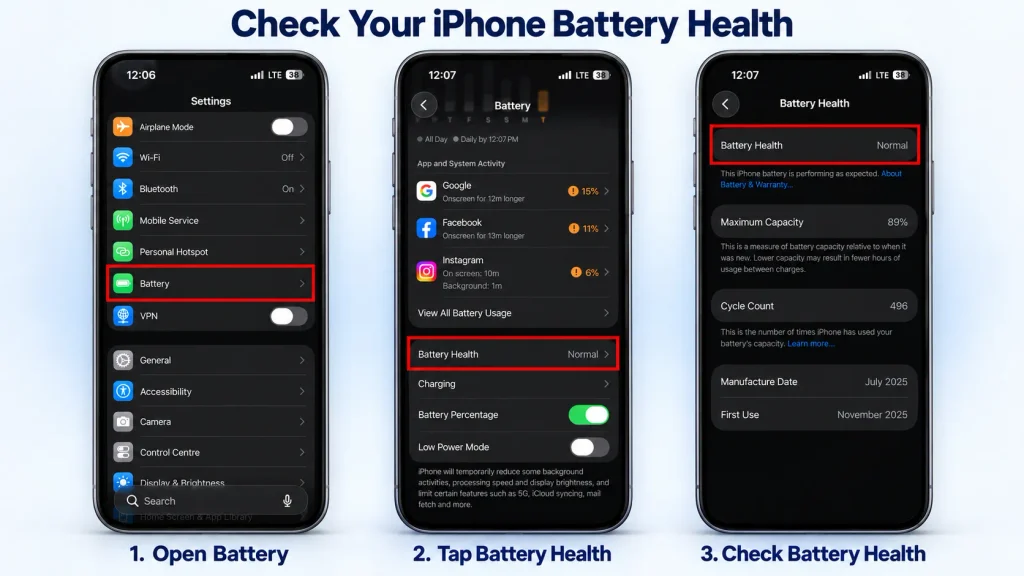
A lower number doesn’t mean you have to replace the battery immediately. But if your battery drains much faster than normal and your iPhone is also charging slowly, it may be time to replace it.
When iOS displays a service message, Apple recommends getting your battery replaced at an Apple Store or an authorized service provider. If Battery Health appears normal, continue with the remaining fixes.
6. Review Optimized Battery Charging Settings
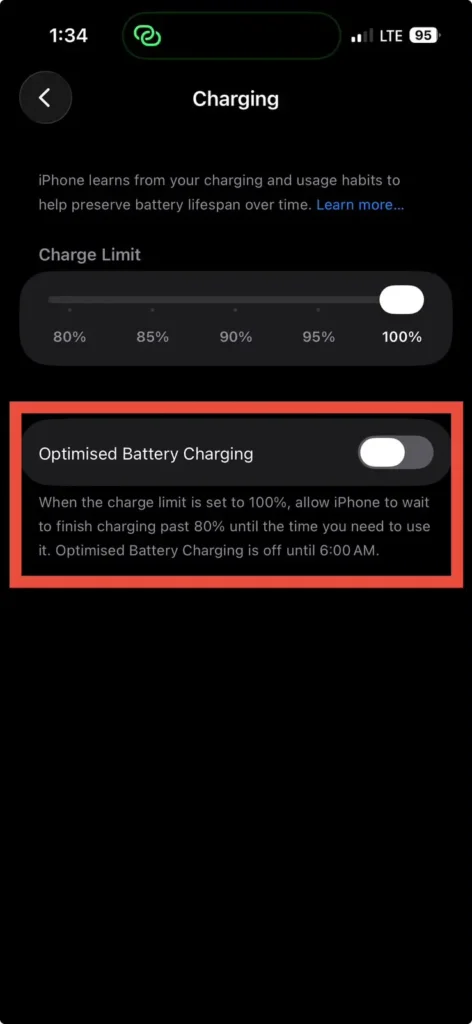
If your phone stops charging around 80%, that isn’t a problem; it’s a built-in feature to protect and extend your battery lifespan. According to Apple Support, Optimized Battery Charging learns your daily routine and waits to finish the last 20% until it thinks you actually need your phone.
It’s designed to stop your battery from being at 100% for too long, and that will improve its longevity over time. A lot of people think the issue is a charging problem, but it is actually just Apple looking after your battery.
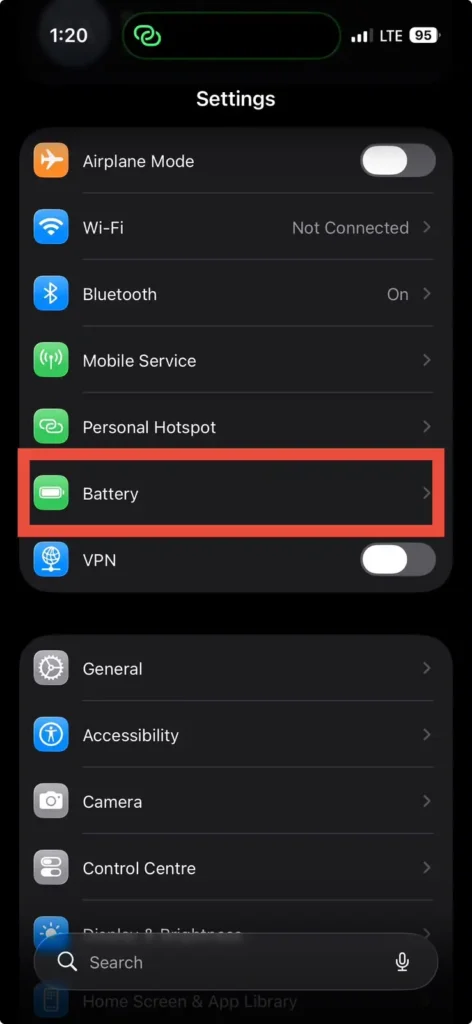
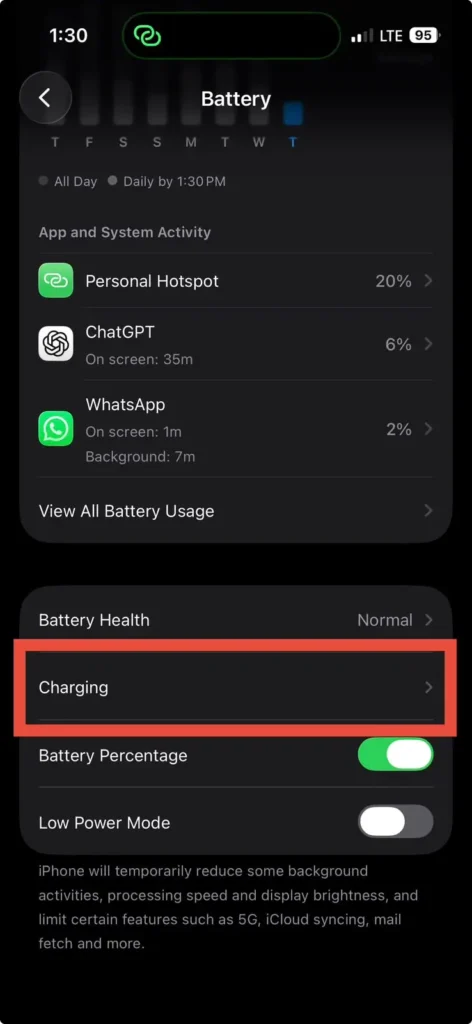
Check whether it’s on in Settings > Battery > Charging > Optimized Battery Charging. If you need a full charge sooner and say you are heading to the airport, you can turn it off for a while or tap “Charge Now” on the lock screen notification when it appears.
7. Reduce Power Usage While Charging
Gaming, editing videos, using navigation, or running a personal hotspot consumes power while your iPhone charges. These activities can leave less power available to charge the battery and generate heat that slows charging further.
Background tasks, such as syncing photos and downloading app updates, also use power. Activity may temporarily increase after setting up your iPhone or installing a major iOS update.
To help your iPhone charge faster, pause demanding activities, turn off Personal Hotspot if you do not need it, and lock the screen. If you must use the phone, lower the brightness.
You can also enable Low Power Mode to reduce background activity. We tested this ourselves in our Low Power Mode battery test to see how much difference it actually makes during everyday iPhone use.
8. Update Your iPhone
Software issues can contribute to charging problems. iOS updates include bug fixes, so installing the latest version available for your model is a useful troubleshooting step.
Back up your iPhone, connect it to power and Wi-Fi, then go to Settings > General > Software Update. Install any available update by following the onscreen instructions.
If charging became slower immediately after an update, allow a few days before reassessing. Apple explains that update-related background tasks can temporarily increase power use and affect temperature. If those tasks caused the slowdown, charging may improve once they finish.
If insufficient storage prevents you from installing the update, see our guide on clearing System Data on iPhone for ways to manage storage.
9. Restart Your iPhone
A restart may resolve temporary software glitches that affect charging, so it is worth trying before moving to more involved troubleshooting.
Turn your iPhone off and wait about 30 seconds for it to shut down completely. Then turn it back on, reconnect the same charger and cable, and leave the screen locked for 15–20 minutes before checking the battery level.
If charging improves, a temporary software issue may have contributed. However, one successful charging session does not confirm the exact cause.
10. Try a Different Power Source
If your iPhone is charging slowly even after trying the earlier fixes, don’t assume your iPhone is the problem just yet. Sometimes the problem is not your phone at all. It could simply be where you are plugging it in.
Try a different electric socket. If you’re plugged into an extension cable or multi-socket extension, plug it directly into the wall. A damaged power outlet or an extension with too many devices plugged into it may reduce the power your charger receives.
If your phone supports it, try a Qi-certified or MagSafe wireless charger too. Wireless charging is naturally slower than wired, but it’s a decent way to check whether the issue is with the port itself or your accessories.
If different accessories allow your phone to charge normally and solve the problem, you’ve found the cause and likely saved yourself the cost of an unnecessary repair. If charging remains slow regardless of the outlet or charging method, continue to the final fix. The issue may require professional diagnosis.
11. Contact Apple Support
If your iPhone is still charging unusually slowly after trying these fixes, contact Apple Support or an Apple Authorized Service Provider. A technician can inspect the charging port, assess the battery, and check for other faults to determine whether a repair is needed.
You can arrange service even if your iPhone is no longer under warranty. If you have Apple’s limited warranty or AppleCare+, ask whether the diagnosed issue is covered and whether any fees apply. The limited warranty does not cover accidental damage or normal battery wear.
Before your appointment, back up your iPhone to iCloud or a computer and follow Apple’s instructions for preparing it for service. Bring your charging cable and adapter, and explain which fixes you have already tried.
Quick Tips to Charge Your iPhone Faster
- Use a compatible fast charger. Choose a USB-C Power Delivery adapter and suitable cable. Some iPhones need more than 20W for their fastest charging speeds.
- Keep your iPhone cool. Avoid direct sunlight and remove the case if your phone gets hot while charging.
- Leave the screen off. Avoid gaming, navigation, streaming, and recording video during a quick top-up.
- Consider Airplane Mode. It can reduce power use in weak-signal areas, but charging benefits vary. Cellular calls and mobile data will be unavailable.
- Check your accessories. Use an undamaged cable and adapter, and make sure the charging connector fits securely.
Final Thoughts
If your iPhone is charging slowly, it does not automatically mean the battery needs replacing. A low-power charger, damaged cable, debris in the charging port, or excessive heat could explain the slowdown. Charging settings can also affect when your phone finishes charging.
Work through the fixes one at a time. Start with your accessories, inspect the port, and check the phone’s temperature and charging settings. This can help you narrow down the cause and avoid replacing parts unnecessarily.
If charging remains unusually slow after these checks, contact Apple Support or an Apple Authorized Service Provider. They can assess your iPhone and explain whether it needs a repair.
FAQs
Why is my iPhone charging slowly?
Possible causes include a low-power charger, a damaged cable, debris in the port, excessive heat, or heavy app use. Charging also slows naturally as the battery approaches full. Optimized Battery Charging may delay charging past 80%, so a slowdown does not always indicate a fault.
Why is my iPhone charging slowly after an iOS update?
Background tasks after an update can use extra power and make your iPhone warmer, which may affect charging. If these tasks are responsible, charging should improve once they finish. If it remains unusually slow after a few days, check your accessories, temperature, and charging settings.
How can I make my iPhone charge faster?
Use a compatible USB-C Power Delivery adapter and cable, keep the phone cool, and leave the screen off. A 20W adapter supports fast charging on many iPhones, but some models need a higher-output compatible adapter for their fastest speeds.
Is slow charging a sign that my iPhone battery needs replacing?
Not necessarily. Check your charger, cable, charging port, and temperature first. If iOS recommends battery service, have the battery assessed. A replacement may be appropriate for a worn or faulty battery, but slow charging alone is not enough to confirm that.
Does a dirty charging port cause an iPhone to charge slowly?
Yes. Dust or lint can prevent a secure connection, causing unreliable charging or repeated disconnections. Disconnect the charger and inspect the port with a light. Avoid poking tools into it or using liquids or compressed air. If debris is packed inside, seek professional cleaning.
Why is my iPhone charging slowly with a wireless charger?
A low-power charging pad, an unsuitable power adapter, poor alignment, or excessive heat can slow wireless charging. A thick or incompatible case may also interfere. Check the charger’s compatibility, position the phone correctly, and remove the case if it affects charging.
Can a 30W or 65W charger damage my iPhone?
A compatible 30W or 65W USB-C Power Delivery charger will not damage your iPhone simply because of its wattage. That rating is its maximum available output; your phone draws only the power it supports. Use a charger that meets safety standards and a suitable cable.
Why does my iPhone charge slowly in the car?
Some built-in car USB ports provide limited power. Navigation, streaming, and CarPlay can add power demand and heat, leaving the battery charging slowly or barely gaining charge. Direct sunlight and a hot car interior can make the problem worse.
Does MagSafe charge slower than a cable?
Often, it is slower than a compatible wired fast charger. However, the result depends on your iPhone, MagSafe charger, power adapter, and temperature. MagSafe can outperform a low-power wired charger, so wireless charging is not always the slower option.