
Table of Contents
Introduction
AirDrop is one of the easiest ways to send photos, videos, documents, and contacts between Apple devices. No cables, no email, no third-party apps, just tap and send. But if you use it regularly, you’ve probably run into moments when it suddenly refuses to cooperate.
AirDrop is one of the features that makes Apple’s devices work so well together. For a broader look at how these connections work, see our guide to the Apple ecosystem.
Your iPhone might not detect nearby devices, a transfer might get stuck on “Waiting,” or the file might fail partway through. In many cases, the cause is something simple: a setting, a temporary software glitch, or a problem with Wi-Fi or Bluetooth.
If AirDrop is not working on iPhone, the fixes below start with the simplest solutions and work up to the more advanced ones. The guide also explains why AirDrop stops working in the first place, so you’re less likely to run into the same issue twice. Apple’s official AirDrop guide explains how AirDrop works and how to adjust its receiving settings.
Why Is AirDrop Not Working on iPhone?
AirDrop relies on Bluetooth and Wi-Fi working together to create a secure, direct connection between Apple devices. Bluetooth helps the devices discover each other, while a direct peer-to-peer Wi-Fi connection handles the actual file transfer. If either Bluetooth or Wi-Fi is disabled or runs into a problem, the transfer can stall or fail outright.
A few other things can cause the same kind of trouble: AirDrop visibility settings that keep your device hidden from others, a temporary software glitch, a software bug or an older version of iOS, or Screen Time restrictions that prevent AirDrop from being used. Since so many different issues can produce nearly identical symptoms, it’s not always obvious what’s actually causing the issue.

Fortunately, if AirDrop isn’t working, most issues are easy to sort out. Restarting your iPhone, toggling Bluetooth and Wi-Fi off and back on, or double-checking your AirDrop settings can often get things working again.
AirDrop Not Working: (12 Fixes)
Fix 1: Make Sure AirDrop Is Enabled
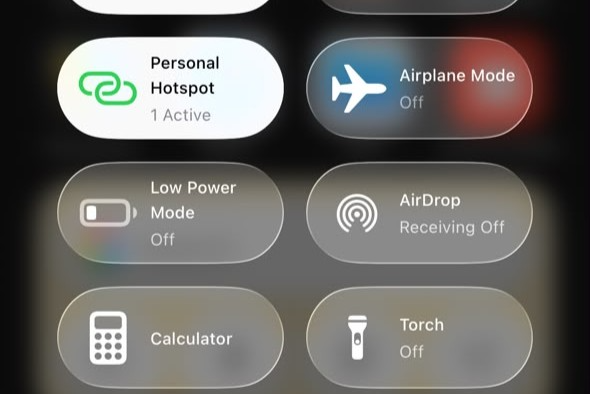
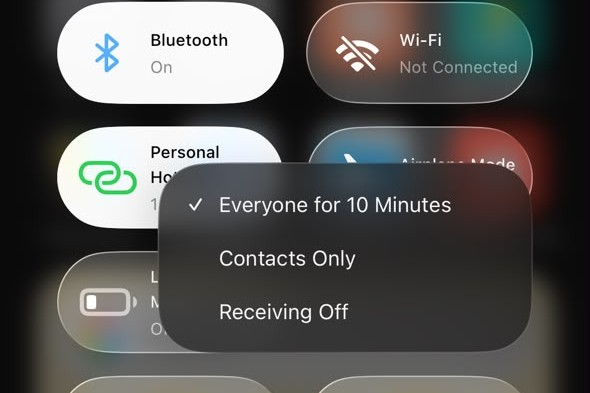
Start with the obvious check. It’s easy to assume AirDrop is on when it isn’t. Swipe down from the top-right corner to open Control Center, then press and hold the network settings panel with the Wi-Fi and Bluetooth icons. Tap AirDrop and choose either Contacts Only or Everyone for 10 Minutes.
If you’re sending files to someone who isn’t saved in your contacts, choose Everyone for 10 Minutes. Have the other person set AirDrop the same way before you try sending anything.
If you’re using Contacts Only and a specific person still doesn’t appear, check that their contact card contains the email address or phone number associated with their Apple Account.
On iOS 26.2 or later, AirDrop may also require a code when someone outside your contacts sends you a file. If you see a prompt for an AirDrop code, tap Get AirDrop Code on the receiving device and give the code to the sender.
Fix 2: Turn On Wi-Fi and Bluetooth
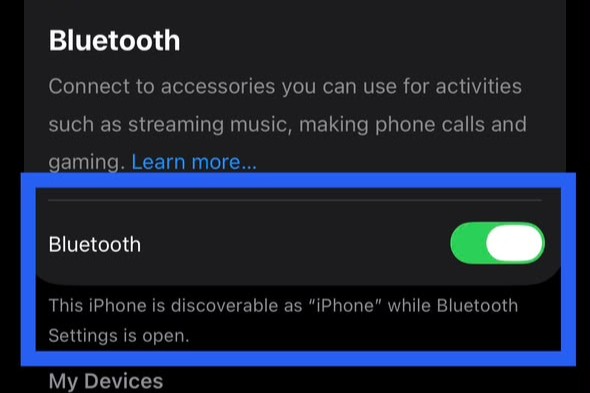
AirDrop needs both Bluetooth and Wi-Fi turned on, even if your iPhone isn’t connected to a Wi-Fi network. That’s because AirDrop builds its own direct connection using your phone’s Wi-Fi hardware, not an internet connection.
Apple says both Wi-Fi and Bluetooth need to be turned on for AirDrop to work. Go to Settings, tap Wi-Fi, and confirm it’s on. Then check Bluetooth the same way.
Check both settings in the Settings app rather than relying only on Control Center. Settings gives you a clearer view of whether Wi-Fi and Bluetooth are actually turned on. Once both are turned on, test AirDrop again.

Fix 3: Keep the Devices Close Together
If AirDrop is not finding devices, distance could be the reason, especially if the two devices aren’t close together. AirDrop uses Bluetooth to help discover nearby devices, so keeping the devices closer can make discovery more reliable.
Keep both devices nearby while you start the transfer. Closing the gap between them can sometimes be enough for the receiving device to appear.
Fix 4: Unlock the Receiving iPhone
This one gets overlooked a lot. If the receiving iPhone is locked, unlock it before trying the transfer so it can appear and respond to the AirDrop request.
Once the receiving device appears on screen, tap it and accept the transfer when the prompt shows up. If the receiving iPhone isn’t ready, the transfer may not go through even though AirDrop itself is working.
Fix 5: Restart Both Devices
Temporary software glitches can interfere with wireless features, including AirDrop. Restarting both devices gives iOS and its wireless services a clean start.
Turn both iPhones off, wait a few seconds, then turn them back on. Once they’ve booted up, check that Wi-Fi and Bluetooth are still on, then try AirDrop again. A restart can clear temporary software or connection issues.
Fix 6: Turn Off Personal Hotspot
An active Personal Hotspot can interfere with AirDrop, so turn it off while you’re troubleshooting the connection. Go to Settings > Personal Hotspot, and confirm that Allow Others to Join is off.
If Personal Hotspot is active on either device, turn it off before trying again. Wait a few seconds after disabling it, then try the transfer again and see if the receiving device appears.
Fix 7: Update iOS
Apple occasionally fixes AirDrop and other connectivity issues through iOS updates. If you’re running an older version of iOS, a software update may contain a fix for the issue you’re experiencing.
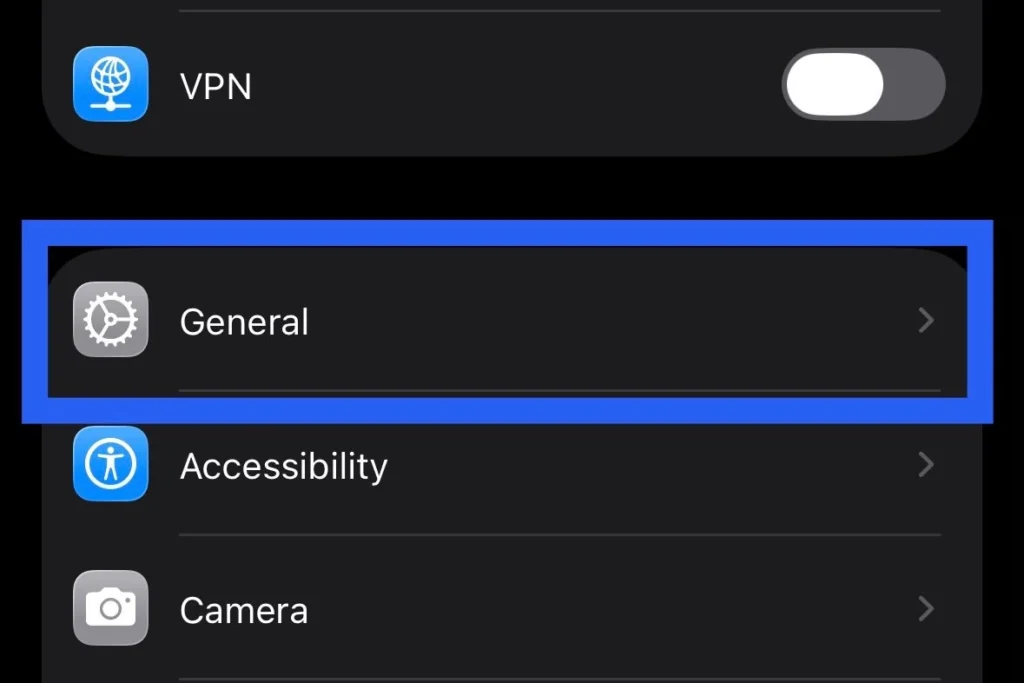
Go to Settings > General > Software Update and install any available update. Then restart your iPhone. Apple recommends keeping iOS up to date to get the latest bug fixes, security updates, and improvements.
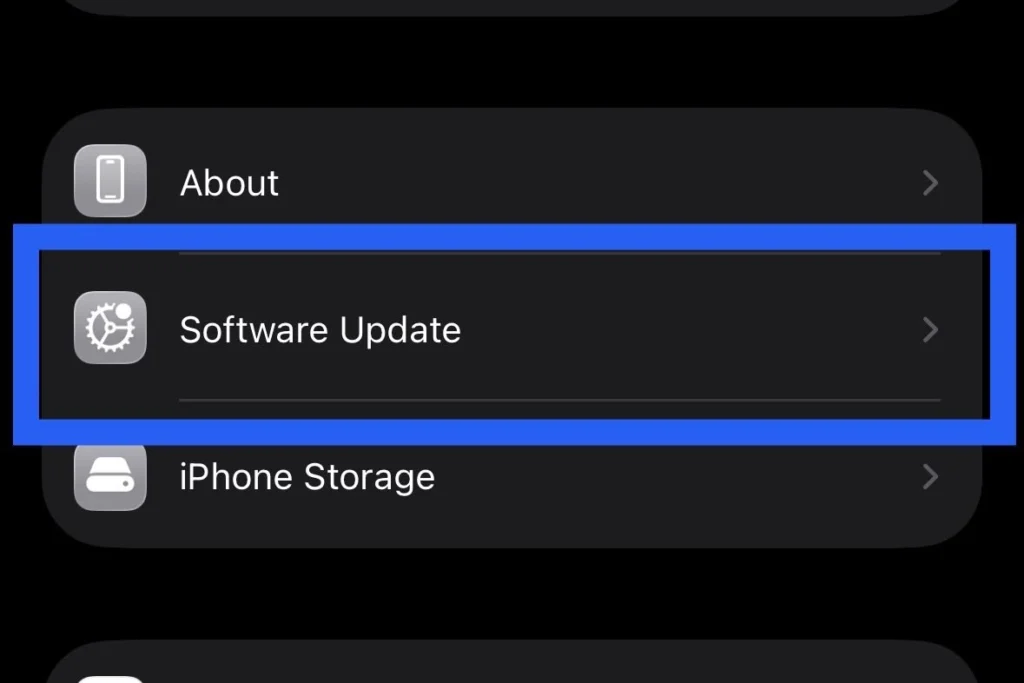
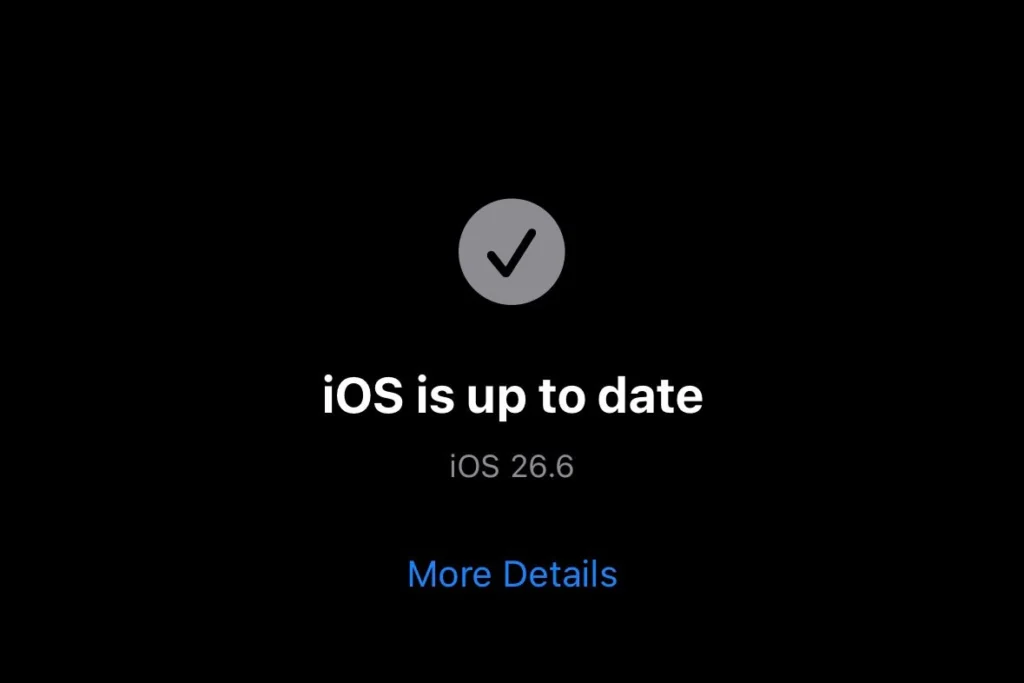
Keeping iOS up to date also brings security fixes and can improve compatibility with newer software and devices. If both phones have updates available, installing them can help rule out software-related compatibility or connectivity problems.
Fix 8: Solve “AirDrop Transfer Failed”
Few things are more frustrating than watching a transfer sit for several seconds only to end with “AirDrop Transfer Failed.” It can mean the connection between the two devices was interrupted before the file finished sending.
Keep both phones nearby and awake while the transfer is running. If you’re sending a large video, give it time to finish without switching away or locking either device.
If the transfer keeps failing, cancel it completely and start a fresh transfer instead of repeatedly tapping “Retry.” Restarting both devices can also clear out whatever’s causing the communication error.
If AirDrop works with other Apple devices but consistently fails with one specific iPhone, iPad, or Mac, the problem is likely on that device. Check its AirDrop settings, Wi-Fi and Bluetooth connection, and software version before troubleshooting the sending device further.
Large transfers can also make the phone work harder, especially when you’re sending a long 4K video or several files at once. If your iPhone is already getting unusually warm or slowing down during these tasks, our guide on iPhone overheating and running slow explains what can cause those symptoms and what you can do about them.
Fix 9: Solve “AirDrop Stuck on Waiting”
This is a different kind of issue: the receiving device shows up, but the transfer never actually starts. Start by checking that the receiving iPhone is unlocked and AirDrop is turned on. If it’s still stuck on “Waiting,” turn Bluetooth off and back on in Settings, then do the same with Wi-Fi.
Still stuck? Close the Share Sheet and start the transfer again. This cancels the stalled request and lets you try again from scratch.

Also check whether the receiving device is busy with another transfer. Let that finish before starting a new one. If the problem persists, restart both devices and test AirDrop again.
Fix 10: Reset Network Settings
If you’ve worked through the fixes above and AirDrop still won’t cooperate, resetting your network settings is a reasonable next step. This won’t touch your photos, apps, or personal files, but it will erase saved Wi-Fi networks, paired Bluetooth devices, VPN configurations, and other network preferences.
Go to Settings > General > Transfer or Reset iPhone > Reset > Reset Network Settings, enter your passcode, and confirm. Apple notes that resetting network settings removes saved Wi-Fi networks and passwords, along with other network-related settings.
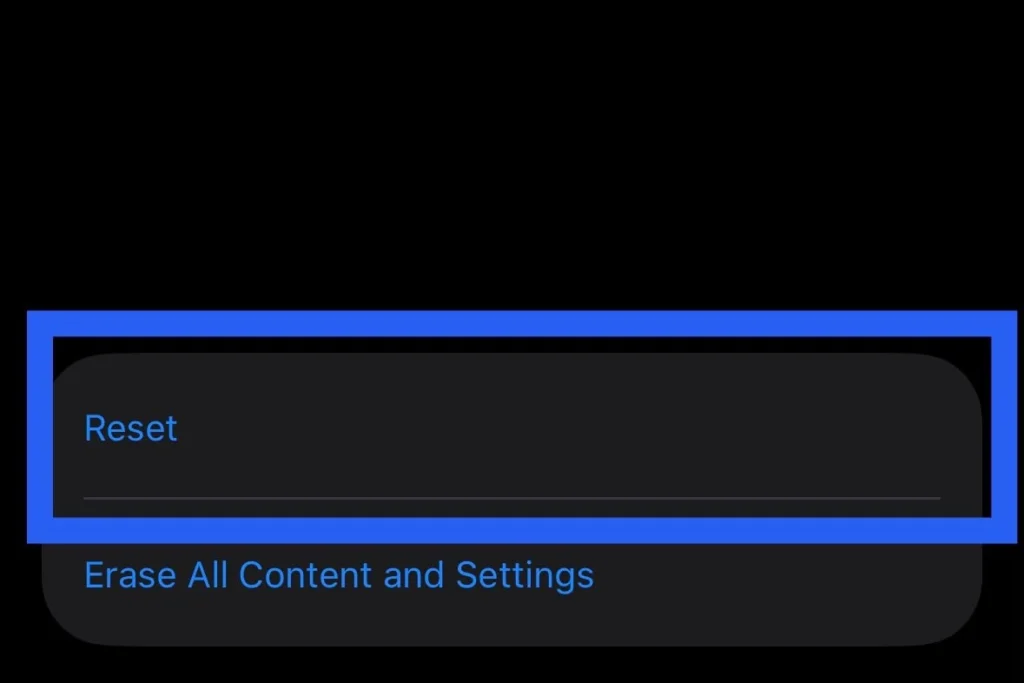
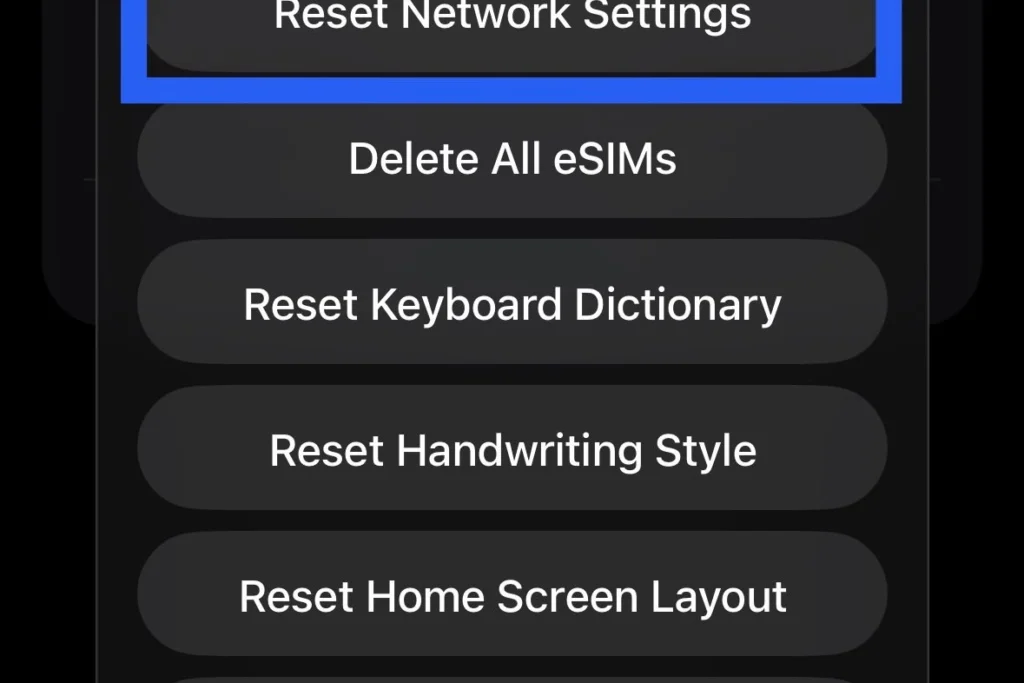
Once your phone restarts, reconnect to Wi-Fi and make sure Bluetooth is turned on, then try AirDrop again. This can clear network settings that may be interfering with AirDrop.
Fix 11: Check Screen Time Restrictions
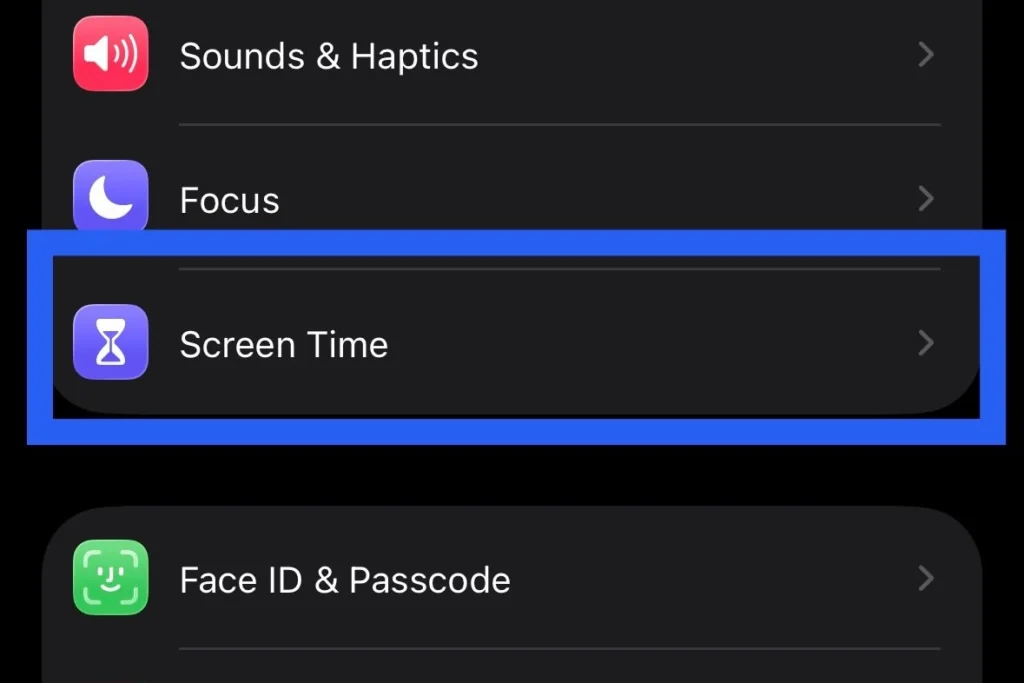
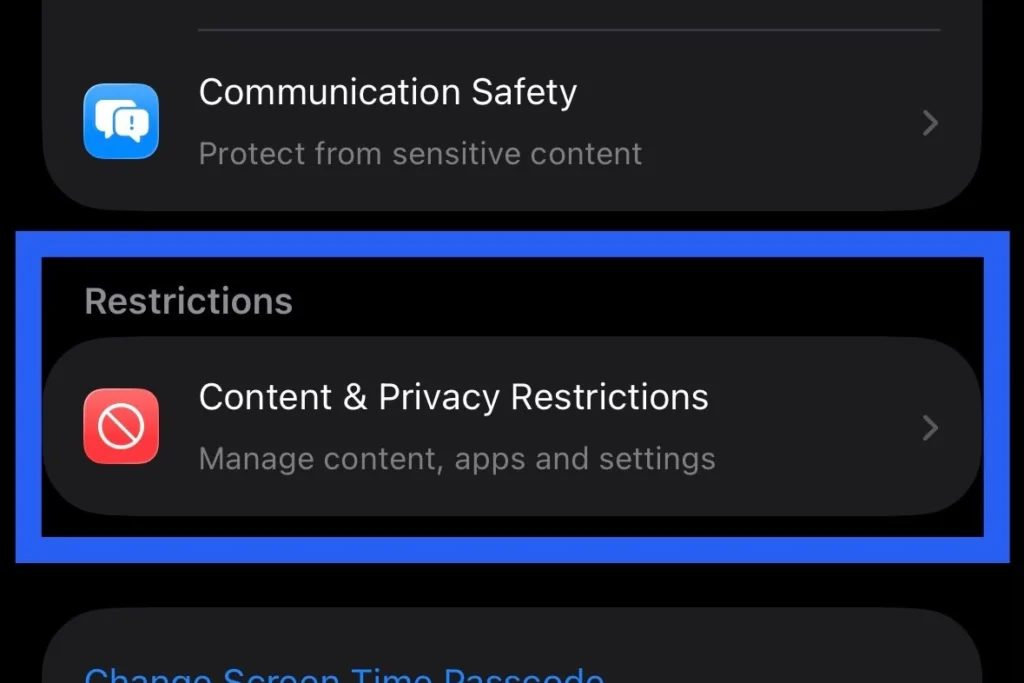
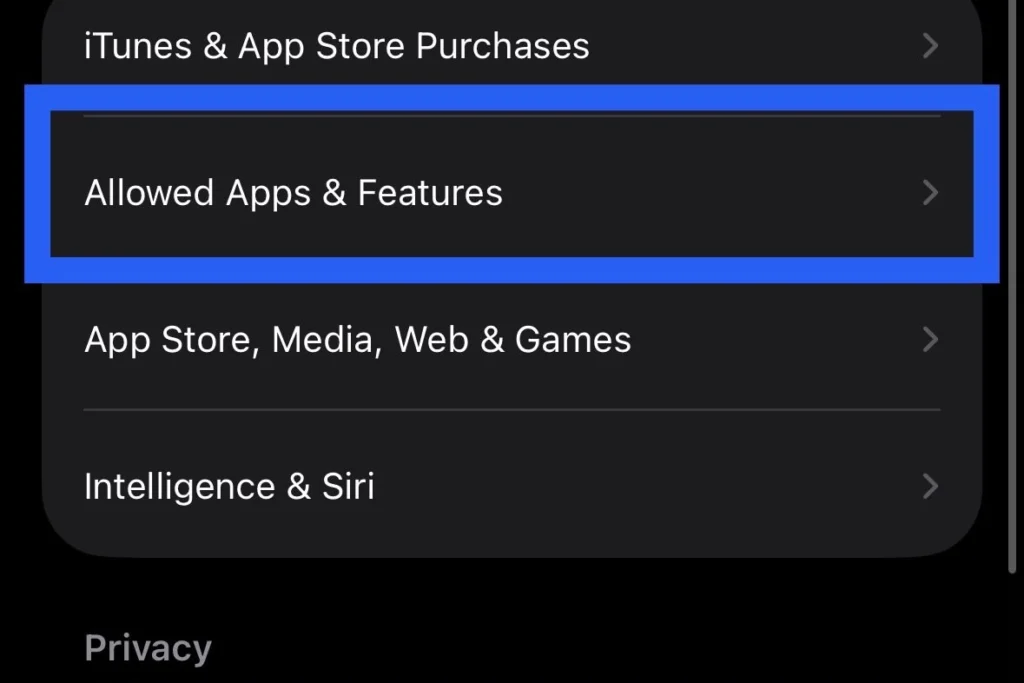
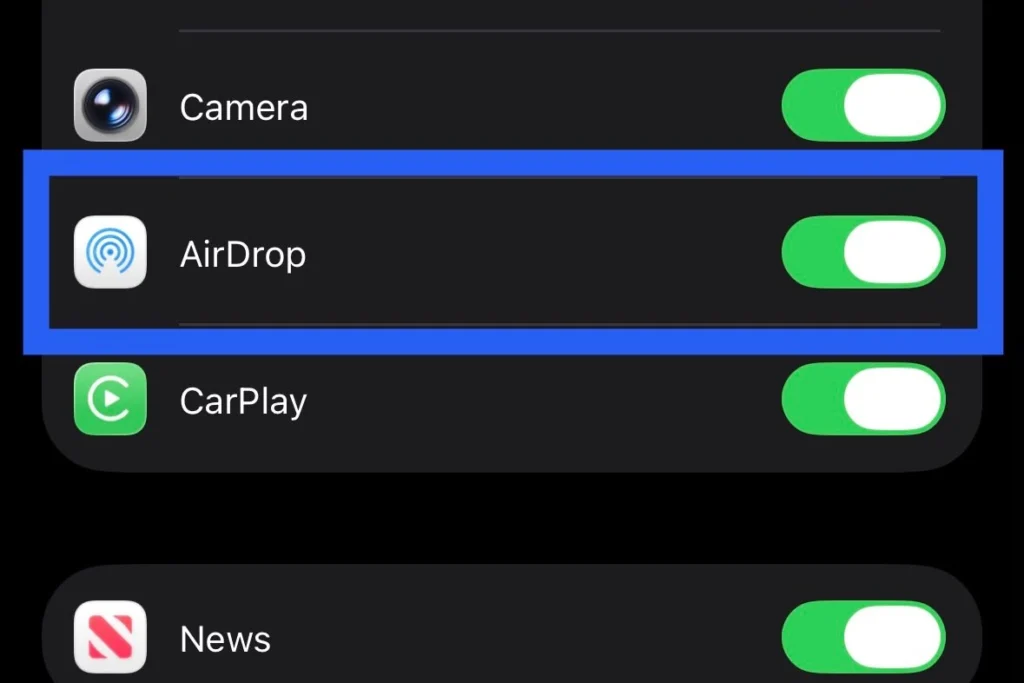
Screen Time can quietly block AirDrop if restrictions are enabled. Go to Settings > Screen Time > Content & Privacy Restrictions, then tap Allowed Apps & Features and check that AirDrop is enabled.
If it was switched off, turn it back on and test again. It’s an easy setting to forget about, and it can make AirDrop look completely broken when it’s actually just been disabled by a restriction.
Fix 12: Contact Apple Support
If you’ve been through every fix here and AirDrop still won’t work, the problem may go deeper than software. A hardware fault affecting the Wi-Fi or Bluetooth components can stop AirDrop from working even when the settings look correct.
If AirDrop still doesn’t work after these steps, contact Apple Support or use the Apple Support app to check whether diagnostics are available for your iPhone. Back up your important data to iCloud or a computer before heading to a service center, just in case.
Final Thoughts
When AirDrop is not working on iPhone, the cause is often a setting, a temporary glitch, or a network issue rather than a hardware failure. Checking AirDrop, Wi-Fi, and Bluetooth settings and restarting your device are good places to start before moving on to more advanced fixes.
If AirDrop still isn’t working after the basic checks, move on to the network reset and Apple Support steps. Most connection and discovery problems can be resolved without affecting your personal files.
If AirDrop is working again but your iPhone is also showing other performance issues, such as shorter battery life or faster battery drain, it may be worth checking your iPhone Battery Health. Battery condition can affect the overall experience of an older iPhone, and the guide covers what the Battery Health reading means and which habits can help slow battery aging.
FAQs
Why is AirDrop not working on iPhone even when Wi-Fi and Bluetooth are on?
AirDrop needs both Wi-Fi and Bluetooth on, but that’s not the whole story. If AirDrop is not working on iPhone, check a few other things too: the receiving device should be unlocked and available to accept the transfer, AirDrop visibility should be set correctly, Personal Hotspot should be turned off, and the devices should be reasonably close to each other. A quick restart of both devices often clears up minor glitches as well.
Why does AirDrop keep saying “Transfer Failed”?
When you see “AirDrop Transfer Failed,” it often means the connection between the two devices was interrupted during the transfer. This can happen if the receiving device isn’t available, the devices move too far apart, or the Wi-Fi or Bluetooth connection is interrupted during the transfer. Cancel the transfer, keep both devices nearby and awake, and try sending the file again.
How do I fix AirDrop stuck on Waiting?
If AirDrop is stuck on Waiting, make sure the receiving device is unlocked and AirDrop is enabled. You can also turn Wi-Fi and Bluetooth off and back on in Settings, close the Share Sheet, and restart both devices if the transfer still doesn’t begin.
Why is AirDrop not finding nearby devices?
If you’re dealing with AirDrop not finding devices, first verify that both devices have AirDrop turned on and are within range. Setting AirDrop to Everyone for 10 Minutes, making sure the receiving device is unlocked, and disabling Personal Hotspot can also help resolve discovery issues.
Does updating iOS fix AirDrop problems?
Yes, an iOS update can fix an AirDrop issue when the problem is caused by a software bug or compatibility issue. If your iPhone is running an older version of iOS, check Settings > General > Software Update for an available update.
When should I reset network settings to fix AirDrop?
Reset Network Settings should be one of the last troubleshooting steps. If none of the basic fixes work, resetting your network settings can clear problematic Wi-Fi, Bluetooth, and other network configurations that may be preventing AirDrop from working. Keep in mind that the reset also removes saved Wi-Fi networks and paired Bluetooth devices.