
Table of Contents
Introduction
Your phone probably knows more about you than any other device you own. It can hold or provide access to your contacts, photos, messages, location data, passwords, and financial information. Android includes a range of privacy tools to help protect that information, but some of the most useful controls are easy to overlook after the initial setup.
That can leave apps with access to information they no longer need. Over the past several Android releases, Google has added stronger controls such as the Privacy Dashboard, one-time permissions, and automatic permission removal for unused apps, giving you much more control over when and how apps can access sensitive information.
The tricky part is that these controls aren’t always in the same place on every Android phone. Spending a few minutes reviewing your Android privacy settings can limit unnecessary access to sensitive information, often without affecting the way you use your phone day to day. Whether you have a Samsung Galaxy, Google Pixel, Motorola, OnePlus, Xiaomi, OPPO, Vivo, or another Android device, this guide covers the best privacy settings for Android to check on Android 13, 14, 15, and newer versions.
Why Android Privacy Settings Matter
Apps need some permissions to work right, but that doesn’t mean every permission they ask for actually makes sense. A map app needs your location to give you directions. A video call app needs your camera and mic during calls. But if a flashlight app wants your contacts, or a calculator wants your exact location, that’s worth questioning.
Some apps also collect data for things like analytics, ads, and personalization. Just because an app asks for permission doesn’t mean you should give it. A helpful rule of thumb: does this permission actually match what the app does?
Android also gives you more choices than just “Allow” or “Deny.” Depending on the permission and your Android version, you can often allow access only while using the app, allow it just once, or share your approximate location instead of your exact one. It’s worth checking these options before giving an app more access than it really needs.
If you’re also comparing Android with Apple’s approach, our iOS vs One UI comparison looks more closely at how the two platforms handle privacy, security, and everyday software features.
15 Android Privacy Settings You Should Check
1. Review the Privacy Dashboard First
The Privacy Dashboard brings recent permission activity together in one place, making it one of the first privacy tools worth checking on a modern Android phone.
Open Settings and search for Privacy Dashboard, or look under Privacy or Security & Privacy, depending on your device. Here you can see which apps have recently accessed permissions such as your camera, microphone, location, and contacts. On Android 12, the dashboard shows activity from the past 24 hours, while Android 13 and newer can show activity from the past seven days.
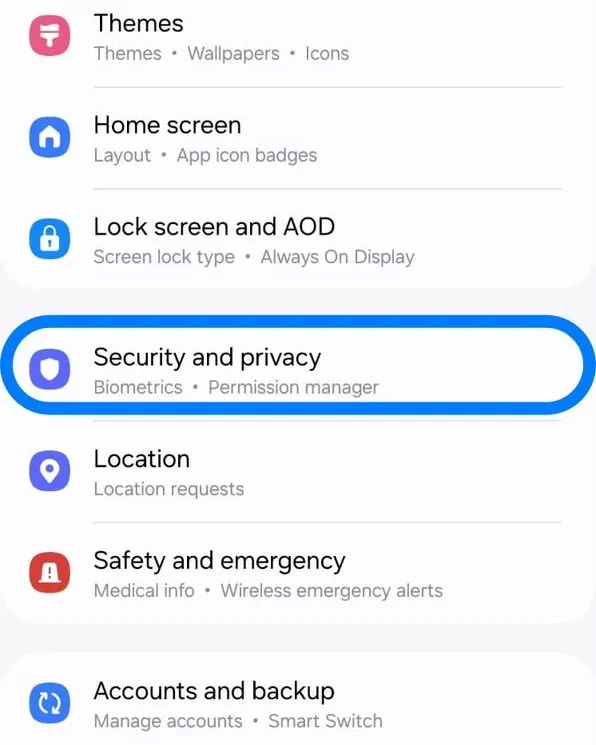
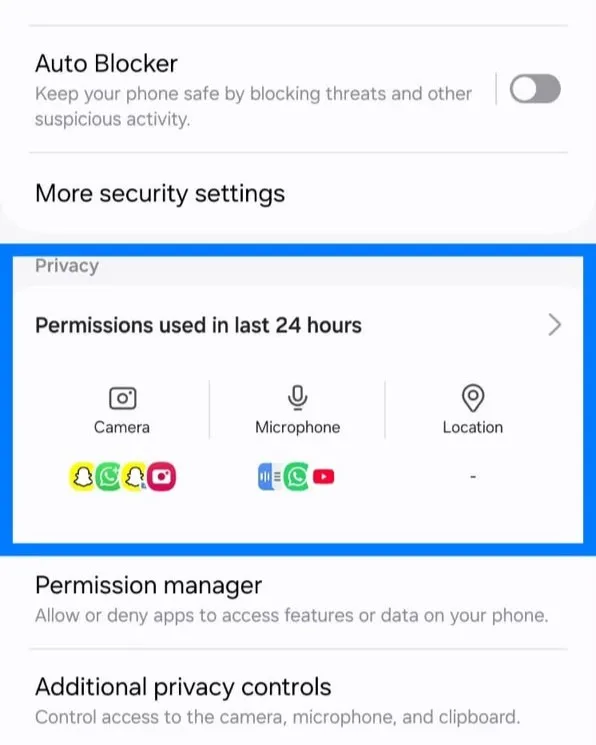
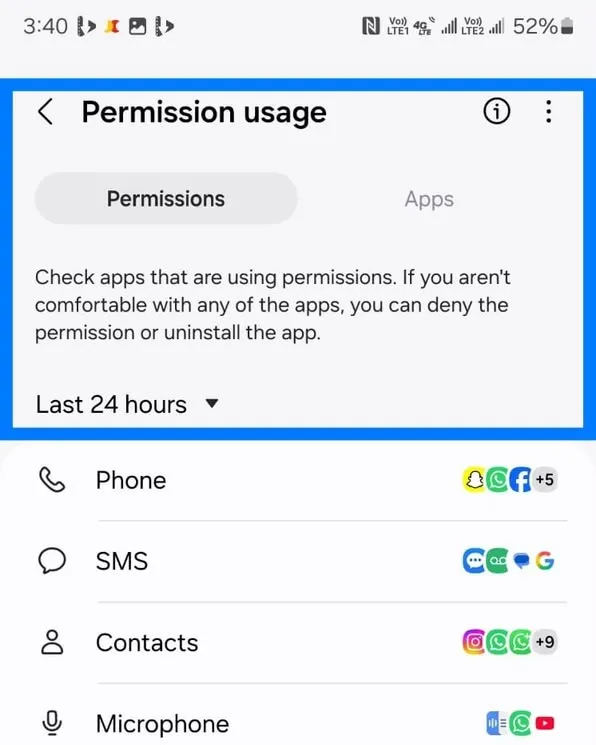
Tap a permission to see which apps have accessed it and change an app’s access if something doesn’t seem right. An app appearing here isn’t automatically a privacy problem. A maps app using your location after you’ve asked for directions is exactly what you’d expect. What deserves a closer look is permission activity that doesn’t seem to match how you’ve been using the app.
That makes the Privacy Dashboard particularly useful for spotting unexpected access rather than simply reviewing a long list of permissions.
2. Limit Location Access and Precise Location
Your location is one of the more sensitive types of information an app can access, so it’s worth being selective about both when an app can use it and how precise that location needs to be.
When possible, choose “Allow only while using the app” instead of “Allow all the time.” Maps, ride-sharing, and delivery apps may need your location while you’re actively using certain features, but that doesn’t necessarily mean they need access in the background.
It’s also worth checking whether an app needs your precise location. On Android 12 and newer, you can generally choose between Precise and Approximate Location for apps that request location access. Turn-by-turn navigation usually benefits from precise location, while weather apps or services that only need your general area can often work with approximate location.
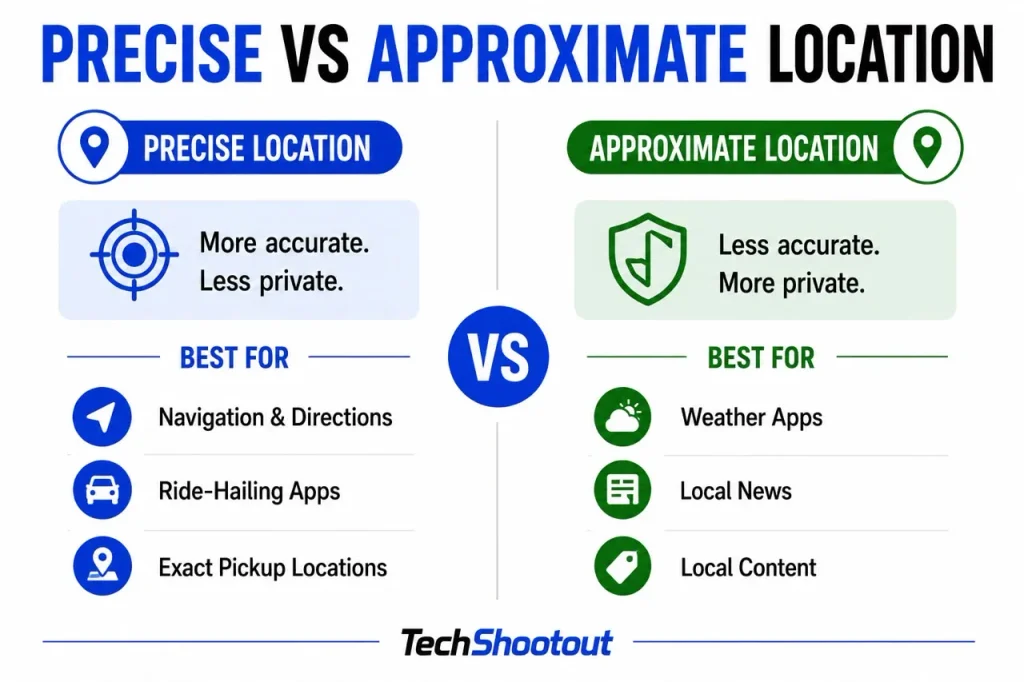
You can change this separately for each app in its location permission settings. If an app has no clear reason to know where you are, deny the permission. If it does need your location but not your exact position, turning off “Use precise location” gives the app an approximate location instead.
3. Review Camera and Microphone Permissions
Camera and microphone access are about as sensitive as permissions get, so it’s worth knowing which apps have them.
On Android 12 and newer, you’ll see a green indicator in the top-right corner whenever an app is using your Camera or Microphone. If it appears when you’re not expecting it, swipe down and tap the indicator. Android will show you which app or service is using it, so you don’t have to hunt around trying to figure it out.
You can also open Permission Manager and check the apps listed under Camera and Microphone. A video calling app obviously needs your camera, and a voice recorder needs your microphone. But if you find an app with access that doesn’t seem to match anything you use it for, there’s little reason to leave that permission on.
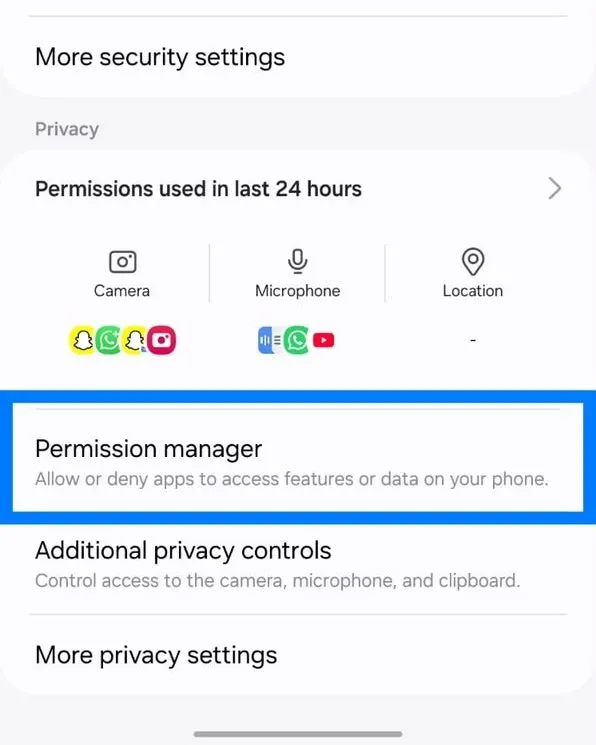
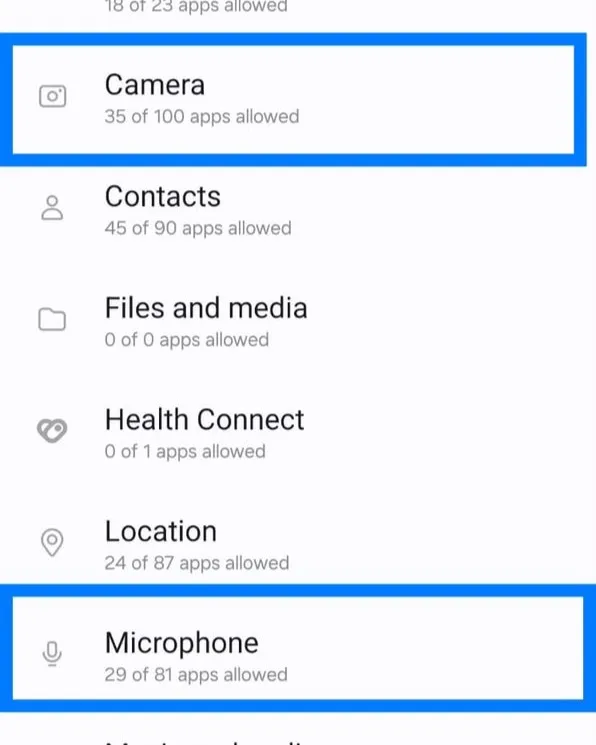
If you want to go a step further, supported Android phones also let you switch camera or microphone access off for all apps from the privacy controls or Quick Settings. You probably won’t need to use that every day, but it’s handy when you want to temporarily block either sensor completely.
4. Check App Permissions Regularly
It’s easy to forget about apps you installed months or years ago, along with the permissions you gave them at the time.
Camera and microphone aren’t the only ones worth checking. Open Permission Manager occasionally and look through sensitive permissions such as Contacts, Calendar, SMS, Nearby devices, Phone, and any other categories that matter to you. If an app no longer needs access, remove the permission. If you don’t use the app anymore, uninstalling it is even simpler.
Just remember that removing a permission stops that type of future access. It doesn’t automatically delete information the app may already have.
5. Enable Automatic Permission Removal
You don’t have to manage every forgotten app yourself. Android can automatically remove permissions from apps you haven’t used in a while, so an old app isn’t left with access it no longer needs.
Android’s unused-app protections can also limit what those apps do in the background. If you open one again later, you may need to grant some permissions again. It’s worth leaving this feature on, especially if you tend to install apps and forget about them.
6. Manage Clipboard Access
Anything you copy, including passwords or financial details, can temporarily remain on your clipboard, so it’s worth paying attention to unexpected clipboard access.
Android includes several protections around copied content. On Android 12, the system can notify you when an app reads clipboard content that was copied from another app. Android 13 introduced additional clipboard privacy protections, including a standardized clipboard preview and automatic clearing of clipboard content after a period of time.
These protections reduce the chance of sensitive information remaining available indefinitely, but it’s still a good habit to avoid copying passwords, card numbers, or other sensitive information unless you actually need to.
7. Control Notification Privacy
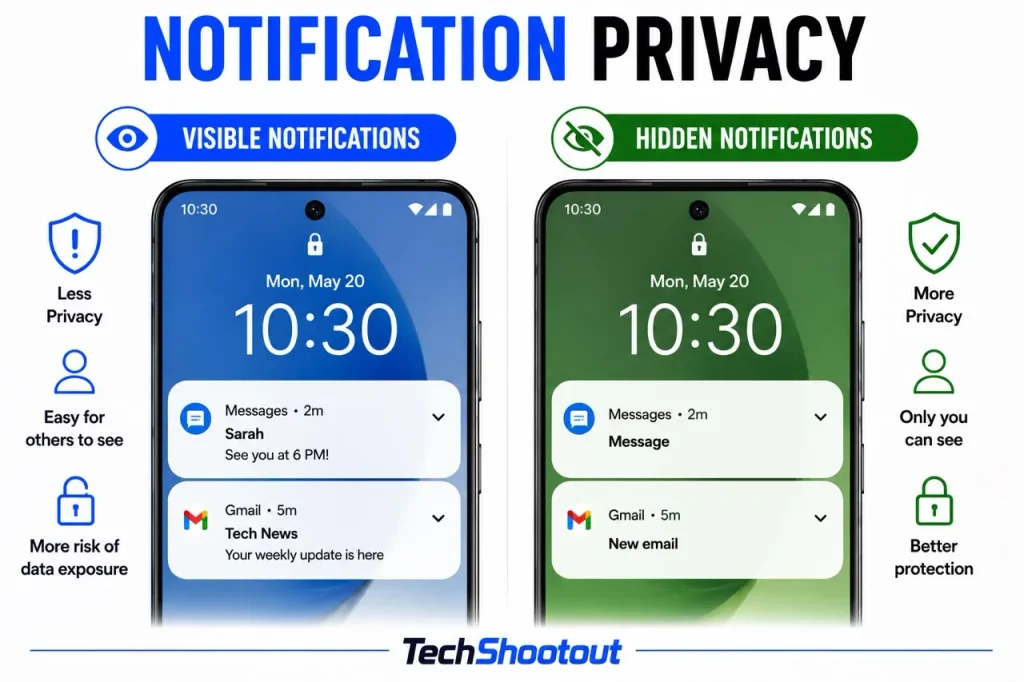
Notifications can give away more than you might expect. A message preview on your lock screen can reveal part of a private conversation, a verification code, or even a banking alert before you’ve unlocked your phone.
Android lets you control how much notification content appears on the lock screen. Depending on your phone, you can hide sensitive details while still seeing that a notification arrived or hide lock-screen notifications altogether. It’s one of the simplest privacy settings on Android to change, especially if you often leave your phone where other people can see the screen.
8. Use Private Space for Sensitive Apps
If your phone runs Android 15 or newer and supports the feature, Private Space gives you a separate area for apps you may not want easily accessible from your regular app list.
You can protect Private Space with its own lock and install apps inside it separately. When the space is locked, apps inside it are hidden from places such as the launcher and recent apps, and their notifications aren’t shown, making it useful for apps or information you want to keep less visible to someone using your phone.
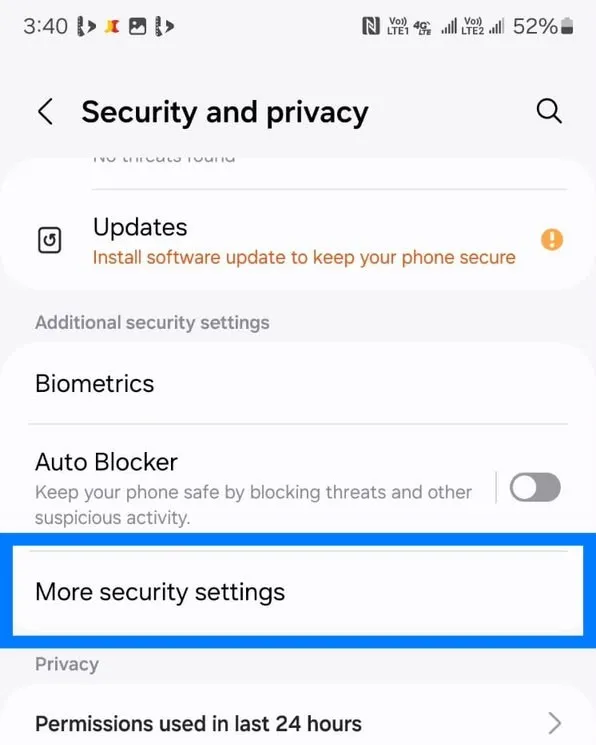
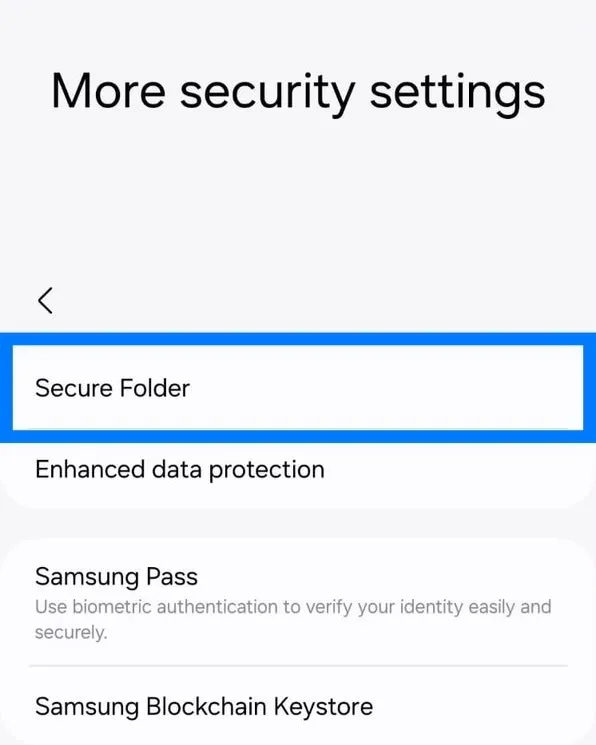
Private Space isn’t available on every Android device, and some manufacturers provide their own alternatives. Samsung Galaxy phones, for example, offer Secure Folder, so the exact option available depends on your phone and software version.
Samsung users can also read our Samsung ecosystem guide for a closer look at how Knox and other security and privacy features work across Galaxy devices.
9. Review Google Activity Controls
If your Android phone is linked to a Google account, there are privacy controls worth checking there too. These are separate from app permissions and let you manage some of the activity Google saves when you use its services.
Go to Settings > Google > Manage your Google Account > Data & privacy and look through controls such as Web & App Activity and YouTube History. You can turn off certain activity saving or set supported activity to delete automatically after a period of time. If you use Google Maps, it’s also worth checking Timeline, which has its own controls for location history.
Changing these settings won’t stop you from using your Android phone, but it can affect things like personalized recommendations and other experiences across Google services. The important part is choosing how much activity you actually want saved.
10. Use Strong Screen Lock Security
Privacy also depends on keeping other people out of your phone. If someone can unlock it, they may be able to see your messages, photos, accounts, and other personal information regardless of how carefully you’ve set up individual app permissions.
Use a strong PIN or password, and avoid obvious choices like 1234, 0000, or your birth year. Fingerprint unlock is convenient too, while face unlock is worth checking more carefully because the level of security can vary between Android phones.
A good screen lock won’t change how you use your phone much, but it becomes especially important if your phone is ever lost or stolen.
11. Install Apps Only from Trusted Sources
Installing apps from untrusted sources makes it easier to end up with malware, spyware, or a fake version of a legitimate app. For most people, the safest approach is to stick with the Google Play Store or your phone maker’s official app store.
Before installing an app from Google Play, you can also check its Data safety section. It shows information the developer has provided about the types of data the app may collect or share, along with some of its security and data-handling practices. It’s useful context when deciding whether you’re comfortable installing an app, although the information is based largely on details supplied by the developer.
Android also has Google Play Protect, which checks apps for potentially harmful behavior, including apps installed from outside Google Play. You can check that it’s turned on by opening the Play Store, tapping your Profile Picture, and selecting Play Protect.
Sideloading isn’t automatically unsafe, but the source matters. If you install an app manually, get it directly from a developer or another source you trust, and don’t treat Play Protect as a replacement for checking where the app came from.
12. Keep Android Updated
Software updates aren’t just about new features. They also bring security patches that fix vulnerabilities discovered after your phone was released.
It’s worth checking for both Android security updates and Google Play system updates, since they can arrive separately. Where you’ll find them depends on your phone, but searching Settings for Security update, Google Play system update, or Software update is usually the quickest way there.
Don’t put off security updates for too long. Once a vulnerability is known and a fix is available, keeping your phone updated is one of the simplest ways to reduce your exposure to known security problems.
13. Use Android’s Photo Picker Instead of Full Photo Access
An app doesn’t always need access to your entire photo library just because you want to upload one picture. Newer versions of Android give you more control over which photos and videos an app can see.
When you’re given the choice, select only the photos or videos you actually want to share instead of giving the app access to everything. This makes sense for things like attaching a photo to a message, uploading a profile picture, or adding an image to a shopping app.
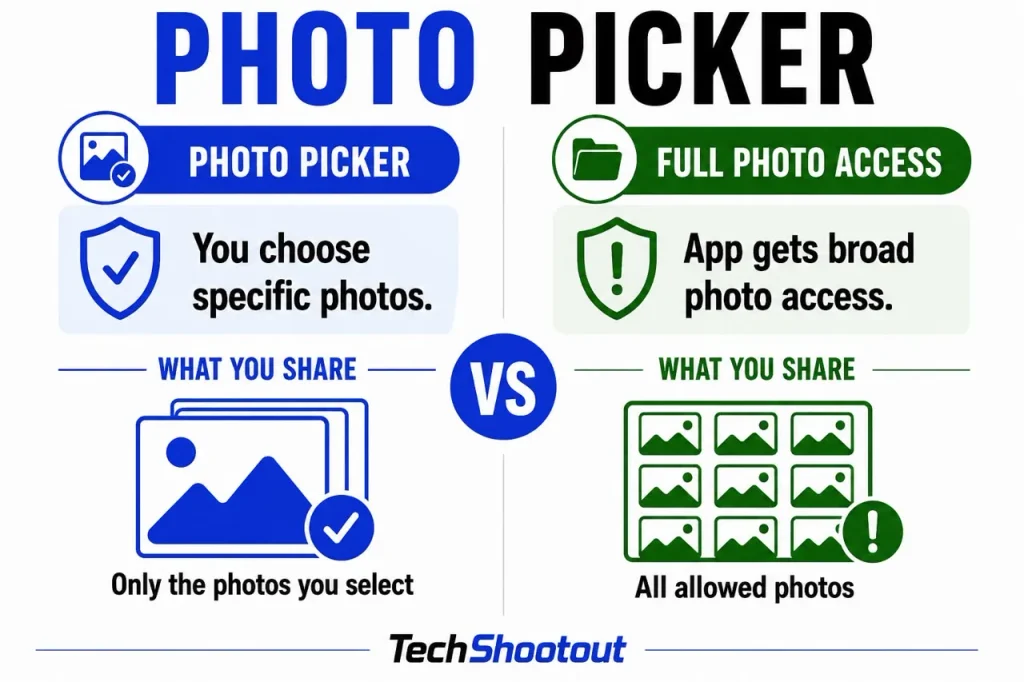
If an app genuinely needs broader access to manage or organize your photos, full access may make sense. Otherwise, sharing only what the app needs keeps the rest of your library out of reach.
14. Review Ad Privacy Settings
Android and your Google account include controls that can affect how information is used for advertising. The options available can vary depending on your Android version, device, and Google services you use.
Search your phone’s Settings for Ads or Ad privacy and review the options available on your device. You can also check the advertising and personalization controls in your Google account if you want to limit how your activity is used to personalize ads.
Changing these settings won’t remove ads or prevent every form of advertising-related data collection. Instead, they give you more control over some of the information and technologies used for ad personalization.
15. Review Special App Access
Some apps need access that goes beyond the usual camera, location, or microphone permissions. Android puts many of these controls under Special App Access, including Display over other apps, Install unknown apps, Notification access, and Modify system settings.
Search Settings for Special App Access, or look under Apps, since the location can vary by phone. You probably won’t need to change everything here. Just check whether the apps with these privileges still have a good reason to keep them.
Pay particular attention to access you don’t recognize. An app that can appear over other apps, read notifications, or install apps from another source has capabilities that ordinary permissions don’t provide, so these are worth being more selective about.
Final Thoughts
Improving your Android privacy doesn’t mean turning everything off. The better approach is to give apps the access they actually need and be more selective about everything else.
Once you’ve gone through these Android privacy settings, most of the important work is done. From there, pay attention when a new app asks for permission and review your settings from time to time, especially for apps you no longer use regularly.
You don’t need to make your phone inconvenient to use. A few sensible choices about what you share, and with which apps, can give you more control without getting in the way of everyday use.
If you’re choosing between Android and iPhone partly because of privacy and security, our iPhone vs Samsung comparison explains how the two approaches differ.
FAQs
Where can I find Android privacy settings?
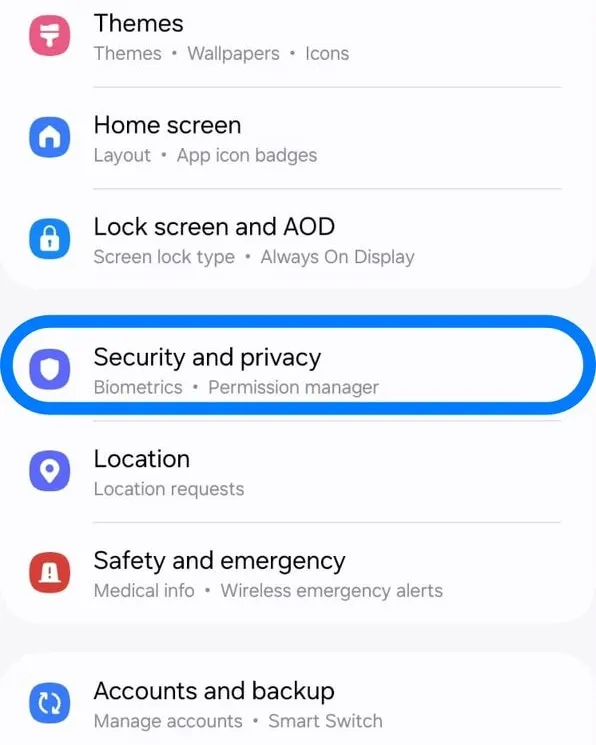
You can find most Android privacy settings under Settings > Privacy or Settings > Security & privacy, depending on your phone. If you can’t find a specific setting, use the Settings search bar to look for features like Privacy Dashboard, Permission Manager, or Special App Access.
What are the best privacy settings for Android?
Some of the best privacy settings for Android are limiting location access, removing permissions apps don’t need, hiding sensitive lock-screen notifications, using automatic permission removal for unused apps, and sharing only selected photos when possible. Keeping Android and its security patches up to date is just as important.
Do Android privacy settings improve security?
Yes, some Android privacy settings can also improve security by limiting unnecessary access to sensitive parts of your phone, including your location, camera, microphone, and contacts. Privacy and security aren’t the same thing, but some Android protections contribute to both.
How often should I review the privacy settings on Android?
There’s no set schedule, but it’s worth reviewing the privacy settings on Android after installing new apps or whenever you notice something unusual. An occasional check also helps catch permissions you granted earlier but no longer need.
What’s the difference between Android privacy settings and Android security settings?
Android privacy settings mainly control how apps and services access personal information such as your location, camera, microphone, and contacts. Android security settings are more focused on protecting your phone and accounts, with features like screen locks, Google Play Protect, and security updates. The two overlap in some areas, but privacy is mostly about controlling your data, while security is about keeping your device and information protected.
Can I improve my privacy without installing third-party apps?
Yes. Android already includes privacy controls for managing app permissions, location access, camera and microphone use, lock-screen notifications, and other sensitive information. For most people, these built-in Android privacy settings are a good place to start, without installing another privacy app.