
Your phone probably knows more about you than any other device you own. It holds or provides access to your contacts, photos, messages, location data, passwords, and financial information. Android includes privacy tools to help protect that information, but some useful controls are easy to overlook after the initial setup.
Apps can retain permissions they no longer need. Features such as the Privacy Dashboard, one-time permissions, and automatic permission removal for unused apps help you monitor and limit that access. Spending a few minutes reviewing your Android phone privacy settings can help you decide which apps still need access to sensitive information.
Finding these controls can be confusing because their names and locations vary between phones. This guide covers the best privacy settings for Android to check on Android 13 and later, whether you use a Samsung Galaxy, Google Pixel, or another Android device. Available options may differ depending on your phone and software version.
Contents
Why Android Privacy Settings Matter
Apps need certain permissions to work, but each request should make sense for the feature you’re using. A map app needs location access to show your current position. A video calling app needs your camera and microphone when you share video and audio. But a flashlight asking for your contacts, or a basic calculator requesting your precise location, deserves a closer look.
Some apps also collect data for analytics, advertising, and personalization. Before granting permission, ask whether that access supports a feature you actually want to use.
Android gives you more choices than simply Allow or Deny. Depending on the permission and your Android version, you may be able to allow access only while using the app, grant it just once, or share your approximate location instead of your precise location. Choose the option that gives the app only the access it needs.
For a closer look at privacy, security, and everyday software features on iPhones and Samsung Galaxy phones, see our iOS vs One UI comparison.
15 Android Privacy Settings You Should Check
1. Review the Privacy Dashboard First
The Privacy Dashboard brings recent permission activity together in one place, making it one of the first privacy tools worth checking on a modern Android phone.
Open Settings and search for Privacy Dashboard, or look under Privacy or Security & Privacy, depending on your device. Here you can see which apps have recently accessed permissions such as your camera, microphone, location, and contacts. On Android 12, the dashboard shows activity from the past 24 hours, while Android 13 and newer can show activity from the past seven days.
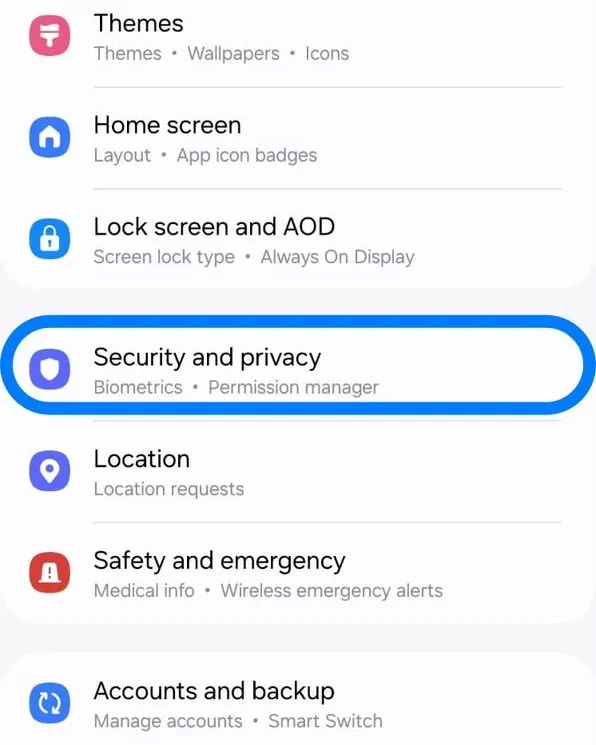
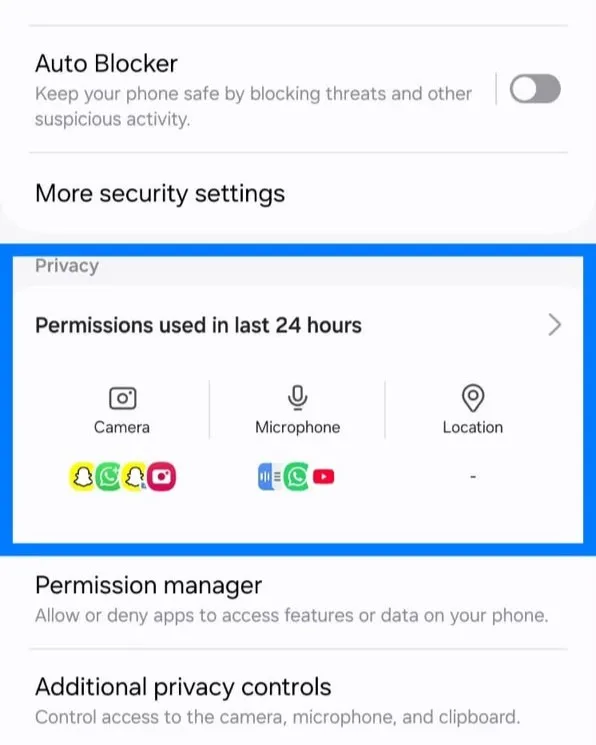
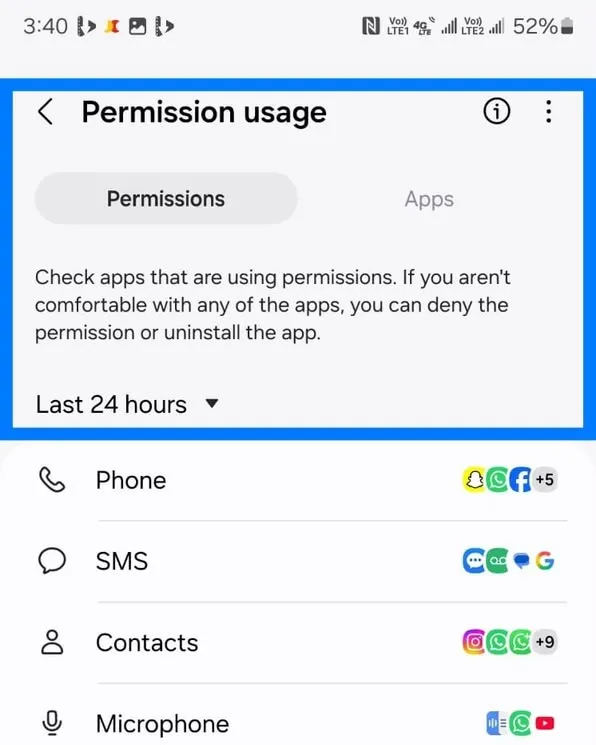
Tap a permission to see which apps have accessed it and change an app’s access if something doesn’t seem right. An app appearing here isn’t automatically a privacy problem. A maps app using your location after you’ve asked for directions is exactly what you’d expect. What deserves a closer look is permission activity that doesn’t seem to match how you’ve been using the app.
That makes the Privacy Dashboard particularly useful for spotting unexpected access rather than simply reviewing a long list of permissions.
2. Limit Location Access and Precise Location
Your location is sensitive information, so be selective about which apps can access it and how much detail they need.
Choose Allow only while using the app whenever it meets your needs. Reserve Allow all the time for features you deliberately use that require background access, such as continuous location sharing. An active navigation session can still use your location when you switch apps or turn off the screen.
On Android 12 and newer, you can limit apps to approximate location instead of sharing your precise position. Turn-by-turn navigation generally works best with precise location, while weather apps and other services that only need your general area can often work with approximate location.
To review an app’s access, open App info > Permissions > Location. Choose Don’t allow if the app has no clear reason to know where you are. If it needs your location but not your exact position, turn off Use precise location where available. Menu names may vary depending on your phone.
3. Review Camera and Microphone Permissions
Camera and microphone access are about as sensitive as permissions get, so it’s worth knowing which apps have them.
On Android 12 and newer, you’ll see a green indicator in the top-right corner whenever an app is using your Camera or Microphone. If it appears when you’re not expecting it, swipe down and tap the indicator. Android will show you which app or service is using it, so you don’t have to hunt around.
You can also open Permission Manager and check the apps listed under Camera and Microphone. A video calling app obviously needs your camera, and a voice recorder needs your microphone. But if you find an app with access that doesn’t seem to match anything you use it for, there’s little reason to leave that permission on.
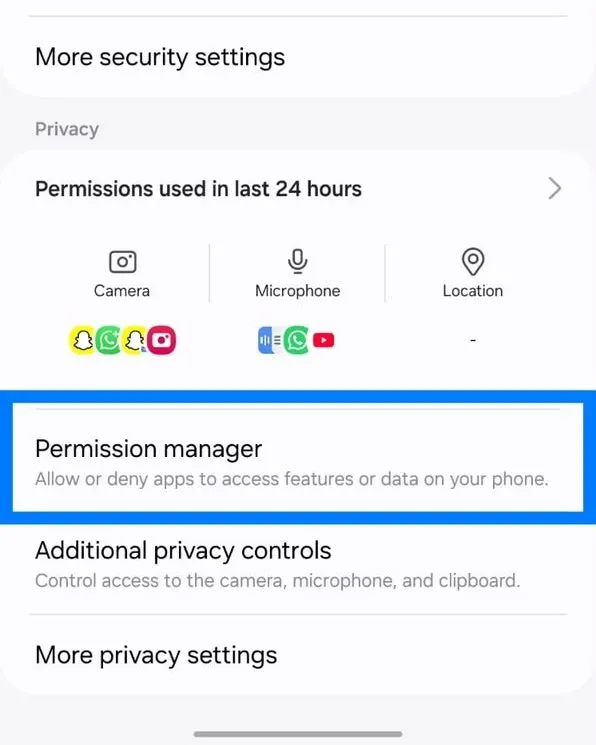
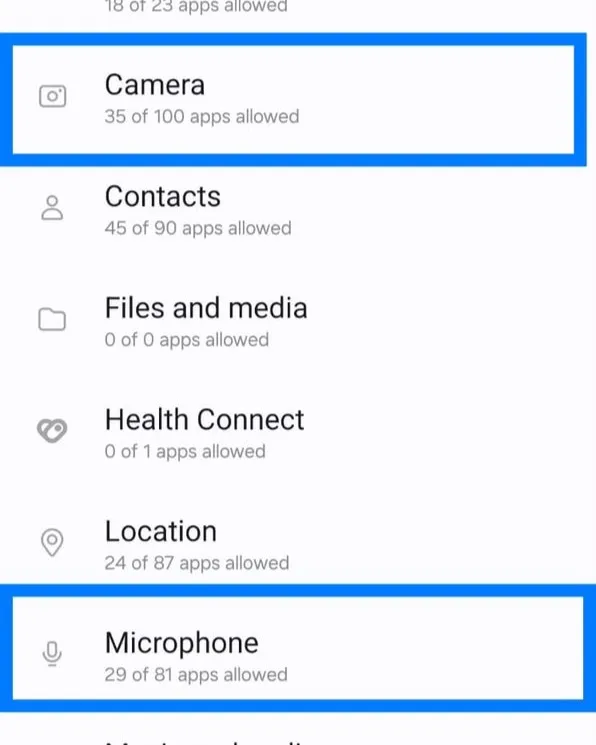
If you want to go a step further, supported Android phones also let you switch camera or microphone access off for all apps from the privacy controls or Quick Settings. You probably won’t need to use that every day, but it’s handy when you want to temporarily block either sensor completely.
4. Check App Permissions Regularly
It’s easy to forget about apps you installed months or years ago, along with the permissions you gave them at the time.
Camera and microphone aren’t the only ones worth checking. Open Permission Manager occasionally and look through sensitive permissions such as Contacts, Calendar, SMS, Nearby Devices, Phone, and any other categories that matter to you. If an app no longer needs access, remove the permission. If you don’t use the app anymore, uninstalling it is even simpler.
Just remember that removing a permission stops that type of future access. It doesn’t automatically delete information the app may already have.
5. Enable Automatic Permission Removal
You don’t have to manage every forgotten app yourself. Android can automatically remove permissions from apps you haven’t used in a while, so an old app isn’t left with access it no longer needs.
Android’s unused-app protections can also limit what those apps do in the background. If you open one again later, you may need to grant some permissions again. It’s worth leaving this feature on, especially if you tend to install apps and forget about them.
To check this for an app, open Settings > Apps > select the app and look for Pause app activity if unused under the unused-app settings. Keep the switch on unless you have a specific reason to exclude that app. The wording and location may differ depending on your phone and Android version.
6. Review Clipboard Privacy Protections
Anything you copy, including passwords or financial details, can temporarily remain on your clipboard, so it’s worth paying attention to unexpected clipboard access.
Android includes several protections around copied content. On Android 12, the system can notify you when an app reads clipboard content that was copied from another app. Android 13 introduced additional clipboard privacy protections, including a standardized clipboard preview and automatic clearing of clipboard content after a period of time.
These protections reduce the chance of sensitive information remaining available indefinitely, but it’s still a good habit to avoid copying passwords, card numbers, or other sensitive information unless you actually need to.
7. Control Notification Privacy
Notifications can give away more than you might expect. A message preview on your lock screen can reveal part of a private conversation, a verification code, or even a banking alert before you’ve unlocked your phone.
Android lets you control how much notification content appears on the lock screen. Depending on your phone, you can hide sensitive details while still seeing that a notification arrived or hide lock-screen notifications altogether. It’s one of the simplest privacy settings on Android to change, especially if you often leave your phone where other people can see the screen.
Open Settings > Notifications and look for the lock-screen notification controls. Depending on your phone, turn off Sensitive notifications or Show sensitive content, or select Hide content. You can also hide lock-screen notifications entirely if you prefer. If you cannot find these options, search Settings for Lock screen notifications.
8. Use Private Space or Samsung Secure Folder
On supported phones running Android 15 or newer, Private Space provides a separate area for sensitive apps. You install apps inside it separately and can protect it with a different lock from your main phone.
To set it up, open Settings > Security & privacy > Private Space (if available) and follow the prompts. When Private Space is locked, its apps are hidden from places such as the launcher and recent apps. They also stop running and cannot send notifications, so keep apps you rely on for continuous background activity outside it.
For stronger separation, consider using a dedicated Google account inside Private Space. Using the same account as your main profile can make synced information, such as photos or browsing history, available outside the space.
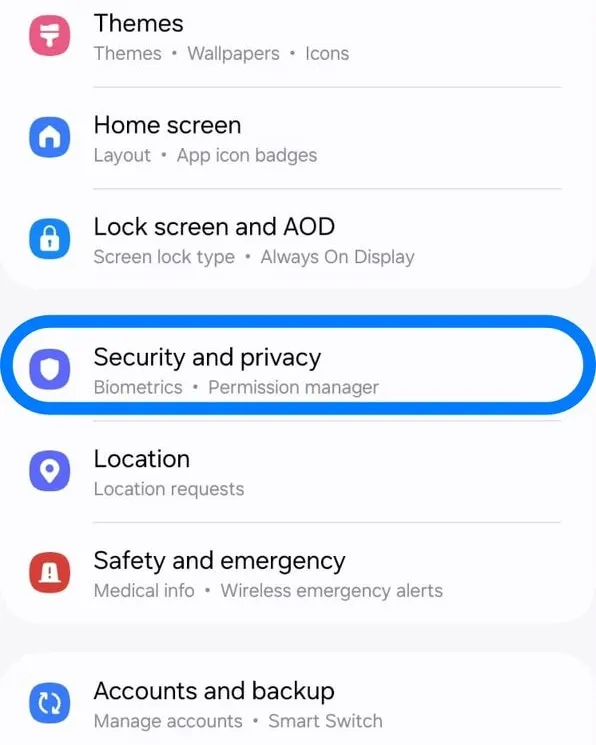
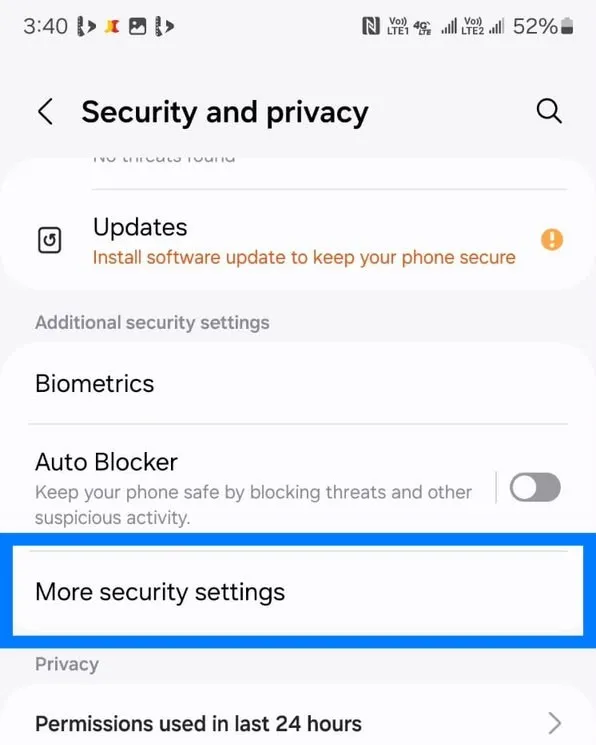
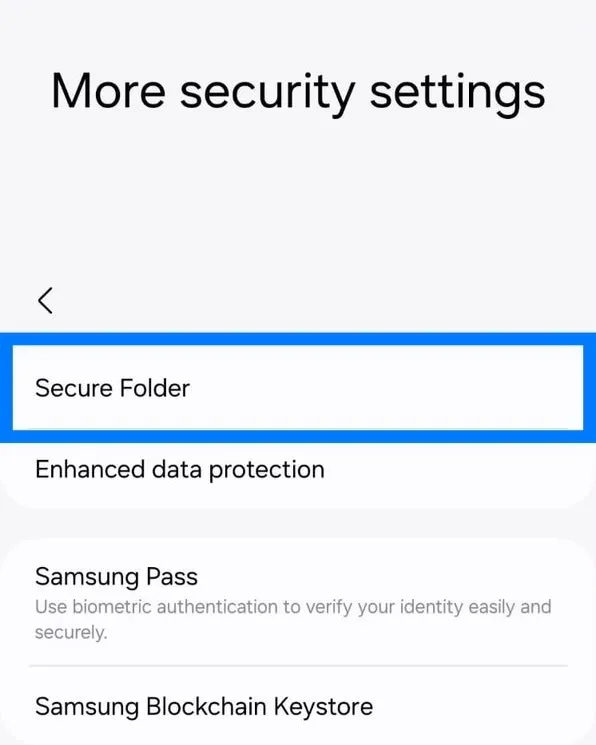
Private Space is not available on every Android phone. Supported Samsung Galaxy devices offer Secure Folder as an alternative. In the Samsung software shown below, you can find it under Settings > Security and privacy > More security settings > Secure Folder. The location may differ on other software versions.
Samsung users can also read our Samsung ecosystem guide for a closer look at how Knox and other security and privacy features work across Galaxy devices.
9. Review Google Activity Controls
If your Android phone is linked to a Google account, there are privacy controls worth checking there too. These are separate from app permissions and let you manage some of the activity Google saves when you use its services.
Go to Settings > Google > Manage your Google Account > Data & privacy and look through controls such as Web & App Activity and YouTube History. You can turn off certain activity saving or set supported activity to delete automatically after a period of time. If you use Google Maps, it’s also worth checking Timeline, which has its own controls for location history.
Changing these settings won’t stop you from using your Android phone, but it can affect things like personalized recommendations and other experiences across Google services. The important part is choosing how much activity you actually want saved.
10. Use Strong Screen Lock Security
Privacy also depends on keeping other people out of your phone. If someone can unlock it, they may be able to see your messages, photos, accounts, and other personal information regardless of how carefully you’ve set up individual app permissions.
Use a strong PIN or password, and avoid obvious choices like 1234, 0000, or your birth year. Fingerprint unlock is convenient too, while face unlock is worth checking more carefully because the level of security can vary between Android phones.
To change your screen lock, open Settings and search for Screen lock or Screen lock type. Open the matching setting, enter your current credentials, and choose a PIN or password that is difficult to guess. If you also use fingerprint or face unlock, make sure your backup PIN or password is strong.
A good screen lock won’t change how you use your phone much, but it becomes especially important if your phone is ever lost or stolen.
11. Install Apps Only from Trusted Sources
For most people, the Google Play Store or their phone manufacturer’s official app store is the safest starting point. Avoid downloading APK files from pop-ups, unsolicited messages, or unfamiliar websites.
Before installing an app from Google Play, check the developer’s name and its Data safety section. This explains what the developer says the app collects or shares and describes some security practices. Treat it as useful information, rather than an independent guarantee of privacy.
Keep Google Play Protect enabled too. It checks apps for potentially harmful behavior, including apps installed from outside Google Play. Open Play Store > Profile picture > Play Protect > Settings and check that Scan apps with Play Protect is on.
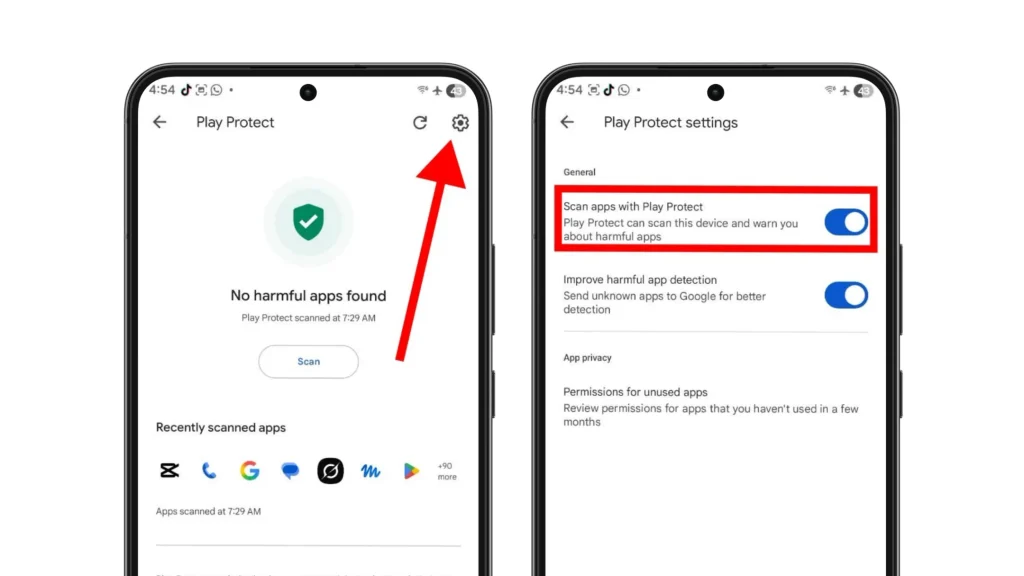
Installing an APK manually is not automatically unsafe, but its source matters. If you need to sideload an app, use the developer’s verified website and read any security warning carefully. Even a legitimate app should receive only the permissions its features need.
12. Keep Android Updated
Software updates aren’t just about new features. They also bring security patches that fix vulnerabilities discovered after your phone was released.
It’s worth checking for both Android security updates and Google Play system updates, since they can arrive separately. Where you’ll find them depends on your phone, but searching Settings for Security update, Google Play system update, or Software update is usually the quickest way there.
Don’t put off security updates for too long. Once a vulnerability is known and a fix is available, keeping your phone updated is one of the simplest ways to reduce your exposure to known security problems.
13. Share Selected Photos Instead of Your Entire Library
Uploading one picture does not always require giving an app access to your entire photo library. When an app opens Android’s photo picker, select only the photos or videos you want to share. The picker gives that app access to the selected items without requiring broad library access.
Android 14 also introduced Selected Photos Access, which lets you grant access to specific photos and videos through the permission system. If an app’s permission request offers a limited-selection option, choose it when the app does not need your whole library. The available options depend on your Android version and the app.
Broader access may make sense for a gallery or photo-management app. For a profile picture, message attachment, or shopping review, sharing only the items you need is usually enough.
14. Review Ad Privacy Settings
Android includes ad privacy controls that let you limit some information used for advertising. On supported devices, go to Settings > Google > All services > Ads > Ads privacy. If the menu differs, search Settings for Ad privacy.
Review Ad topics, App suggested ads, and Ad measurement. You can turn these features off if you prefer not to participate. Their availability may vary by device and Google services configuration.
The Ads menu may also offer a separate option to delete your advertising ID. This removes that identifier, but apps and services can still use other information for advertising. Your Google account’s ad-personalization preferences are managed separately through My Ad Center.
These changes will not remove ads or stop every form of tracking. They limit specific advertising features, so it is still worth reviewing individual apps’ privacy settings.
15. Review Special App Access
Some apps need access that goes beyond the usual camera, location, or microphone permissions. Android puts many of these controls under Special App Access, including Display over other apps, Install unknown apps, Notification access, and Modify system settings.
Search Settings for Special App Access, or look under Apps, since the location can vary by phone. You probably won’t need to change everything here. Just check whether the apps with these privileges still have a good reason to keep them.
Pay particular attention to access you don’t recognize. An app that can appear over other apps, read notifications, or install apps from another source has capabilities that ordinary permissions don’t provide, so these are worth being more selective about.
Unexpected special access does not automatically prove an infection. However, if it appears alongside persistent pop-ups, redirects, or an app you do not recognize, follow our guide on how to remove malware from Android.
Final Thoughts
Improving your Android privacy starts with giving apps only the access they need. Review location permissions, hide sensitive lock-screen content, and share selected photos when full library access is unnecessary.
After that, check permission requests when installing apps and occasionally review access you granted earlier. Adjust settings around the features you use, rather than turning everything off.
If you’re choosing between Android and iPhone partly because of privacy and security, our iPhone vs Samsung comparison explains how the two approaches differ.
FAQs
Where can I find Android privacy settings?
You can find most Android privacy settings under Settings > Privacy or Settings > Security & privacy, depending on your phone. If you can’t find a specific setting, use the Settings search bar to look for features like Privacy Dashboard, Permission Manager, or Special App Access.
What are the best privacy settings for Android?
Some of the best privacy settings for Android are limiting location access, removing permissions apps don’t need, hiding sensitive lock-screen notifications, using automatic permission removal for unused apps, and sharing only selected photos when possible. Keeping Android and its security patches up to date is just as important.
Do Android privacy settings improve security?
Yes, some Android privacy settings can also improve security by limiting unnecessary access to sensitive parts of your phone, including your location, camera, microphone, and contacts. Privacy and security aren’t the same thing, but some Android protections contribute to both.
How often should I review the privacy settings on Android?
There’s no set schedule, but it’s worth reviewing the privacy settings on Android after installing new apps or whenever you notice something unusual. An occasional check also helps catch permissions you granted earlier but no longer need.
What’s the difference between Android privacy settings and Android security settings?
Android privacy settings mainly control how apps and services access personal information such as your location, camera, microphone, and contacts. Android security settings are more focused on protecting your phone and accounts, with features like screen locks, Google Play Protect, and security updates. The two overlap in some areas, but privacy is mostly about controlling your data, while security is about keeping your device and information protected.
Can I improve my privacy without installing third-party apps?
Yes. Android already includes privacy controls for managing app permissions, location access, camera and microphone use, lock-screen notifications, and other sensitive information. For most people, these built-in Android privacy settings are a good place to start, without installing another privacy app.